BigMarker News & Updates Recording Studio

Turn your webinar into a polished video

October 5, 2026
Record takes in your live room, edit them on a timeline, add your brand, and replace the published recording, all without leaving BigMarker.
Categories
Share

A webinar recording is usually whatever happened live: the false start, the slide that took a moment to load, the Q&A that ran long. Fixing it used to mean downloading the file, editing it in another tool and uploading it again. Recording Studio does that whole job inside BigMarker. Record short takes in your live room while the session is on, or start from the webinar’s own recording afterwards. Arrange them on a timeline, add a title card, lower thirds, music and your logo, then export and replace the published recording in one click. Viewers see the new version straight away, and your original is kept so you can switch back.

Record takes in your live room

While a session is live, open its dashboard and choose Session actions → Recording Studio. Your live room opens in studio mode, with the Recording panel beside the stage. Takes are private: they are for you to edit, and your audience never sees them.

1
Click Start RecordingPresent the way you normally would: slides, screen share, video, cameras on stage. Click Stop Recording when you are done, and the take plays back right in the panel.
2
Keep it, or try againSave Clip adds the take to Recorded clips. Re-record gives you another try, and Delete throws it away.
3
Name itClick a clip to open it and use the pencil to give it a name you will recognize later. That name follows the take onto the timeline.

Auto-clip can also start a new clip for you each time you advance a slide, share your screen, start a video or expand a presenter’s video. The Live Clips with Auto-Clip update walks through it.

Edit on a timeline

Once the session is over, choose Recording Studio on the same dashboard. Your takes are listed under Clips and already lined up on the timeline, in the order you recorded them. Every change saves as you go.

ToDo this
Cut a slow start or endSelect a take and drag its trim handle. Nothing is deleted; you are only choosing what plays.
End a take earlyMove the playhead and click Split at playhead, or press S. Then remove the leftover piece.
Change the orderDrag a take to a new spot, or select it and press Alt with the left or right arrow.
Open with a titleAdd segment → Title card: a headline of up to 120 characters, from 3 to 30 seconds, in Purple, Dark, Black or White.
Name the speakerClip settings → Text overlay as a Lower third or a Title card, shown for the First 5s, the First 10s or the Whole clip.
Fix the sound and paceClip settings sets each take’s Volume up to 200%, Mute this clip, Fade in and Fade out, and Speed from 0.5x to 2x.
Change your mindUndo with Ctrl+Z and redo with Ctrl+Shift+Z (Cmd instead of Ctrl on a Mac).

Make it yours

The Settings tab applies to the whole video.

Default transition animationHow takes flow togetherNone, Quick Fade, Crossfade, Fade to Black, Slide Left or Slide Up.
Background musicA track under the voicesUpload an MP3, M4A or WAV under 20 MB and set the Music volume. Audio ducking lowers it automatically whenever someone speaks.
BrandingYour logo on every frameUpload a PNG or JPEG, or choose Use Channel Logo, then pick one of nine positions and set its Size and Opacity.
Export quality and formatReady for where it goes720p or 1080p (HD), in Landscape 16:9 for webinars, or Portrait 9:16 or Square 1:1 for social clips, with Fit or Fill framing.

Export and publish

Click Export Video. BigMarker combines your timeline in the background, so you do not have to wait: in the product’s words, “your export is saved and ready when you come back. For longer exports we’ll email you when it’s done.”

When Your video is ready, Download it, or click Replace the published recording (on a session without one, the button reads Use as the on-demand video or Use as the webinar recording). Viewers see the new version straight away. Each clip on the timeline becomes a chapter in the player, and your logo and lower thirds are part of the video itself.

↺
Switch back at any timeYour original recording is kept. Use Switch back to the original right after publishing, or later from the session dashboard under Video Actions → Recording source, which switches between Original and Studio export.
◷
Every export is a versionThe History tab lists each export. Restore puts that version’s clips, order and settings back on the timeline; clips added since stay in your library.

Start from a recording

No takes? You can still polish what you have. After a session ends, and on on-demand sessions, Recording Studio opens for editing. On the Media tab, choose Import webinar recording to edit the session’s own recording, upload a video under 5 GB, or Reuse media from another webinar in your channel. On an on-demand session, Edit Video sits beside Player and Chapters in the on-demand builder.

Good to know

LimitValue
Length of one takeUp to 2 hours
Clips in one exportUp to 60
Clips per webinarUp to 500
RecordingOne organizer records at a time
UploadsVideos under 5 GB, music under 20 MB, logos under 5 MB
Who can use it

Editing recordings in Recording Studio is included with Enterprise and virtual-event licenses. Recording in the live room is part of Recording Studio’s live capture, which BigMarker turns on for each channel — ask your Account Manager to enable it for yours.
Polish your next recording in Recording Studio
Editing is included with Enterprise and virtual-event licenses. Ask your Account Manager to turn on recording in the live room for your channel.
Related updates
Export to Any System
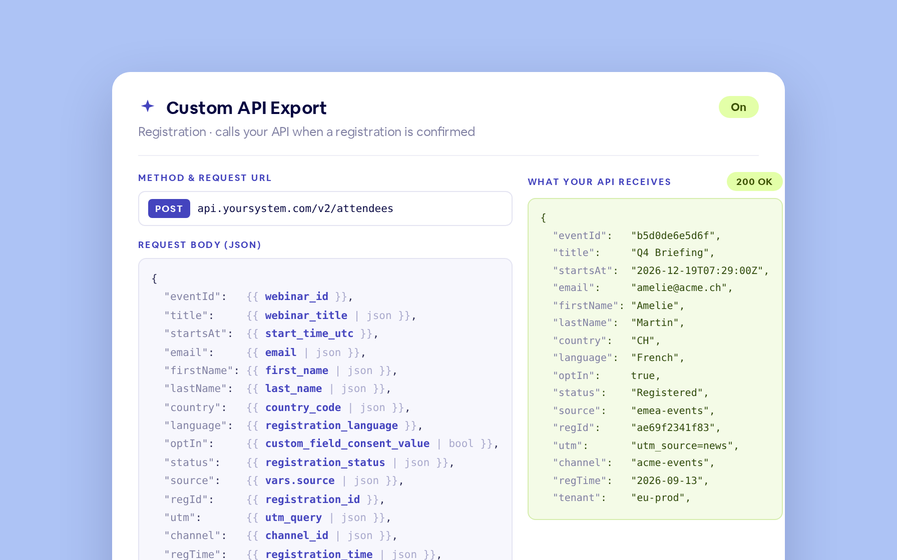
No connector needed — point a session at your endpoint, write the JSON body, and BigMarker calls it as people register, attend and watch.
Threaded chat in waiting room
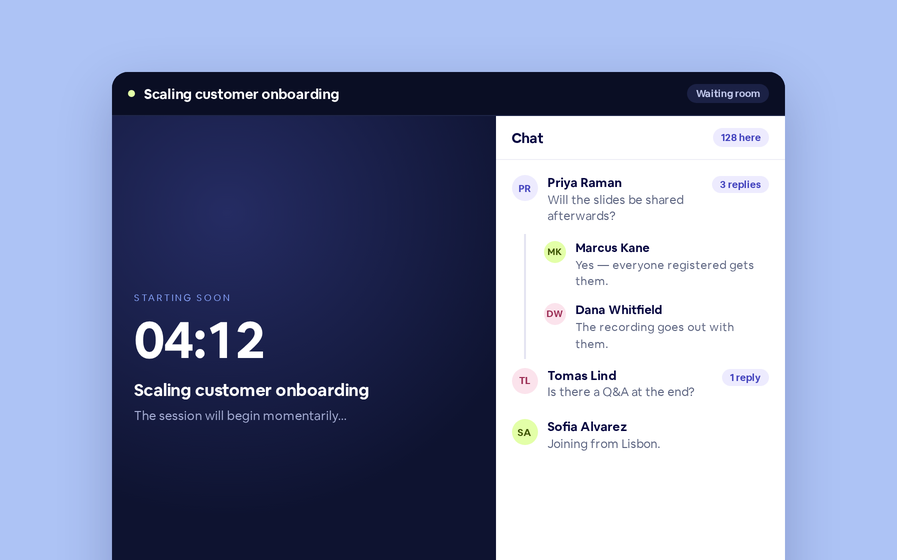
Replies now sit in a thread under the message they answer, so the pre-show conversation stays readable.
 Inline Page Editing
Inline Page Editing
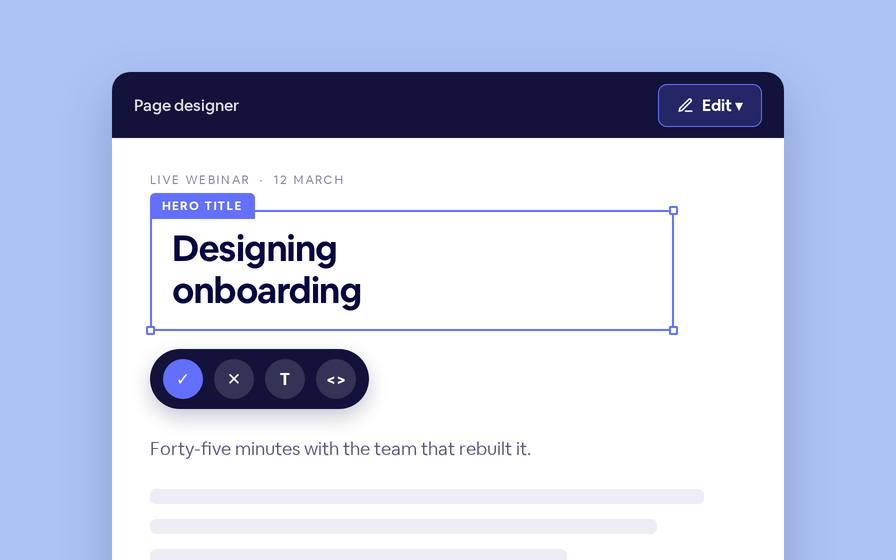
Click any headline, image or block on your landing page and change it right there — no hunting through editor panels.
Quizes in On Demand Video
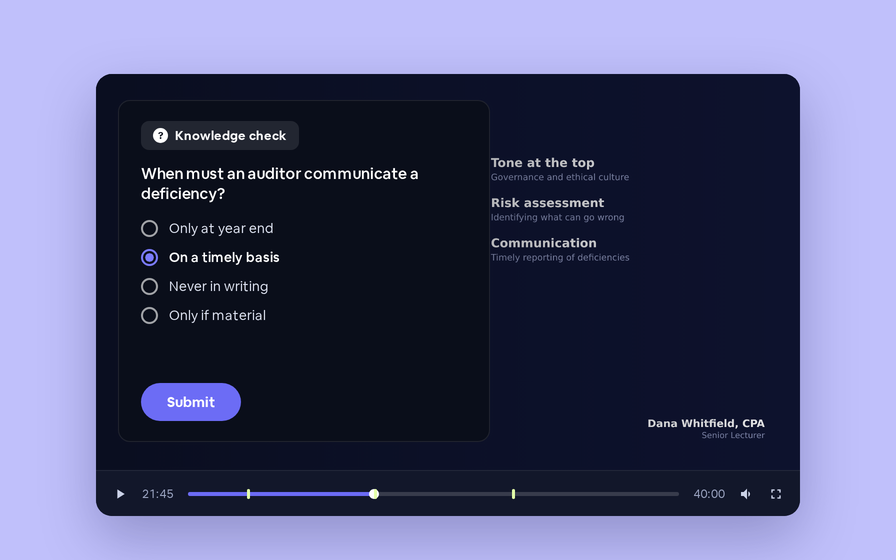
Ask questions inside your recordings and see who actually understood, not just who pressed play.
Preview Custom Page States
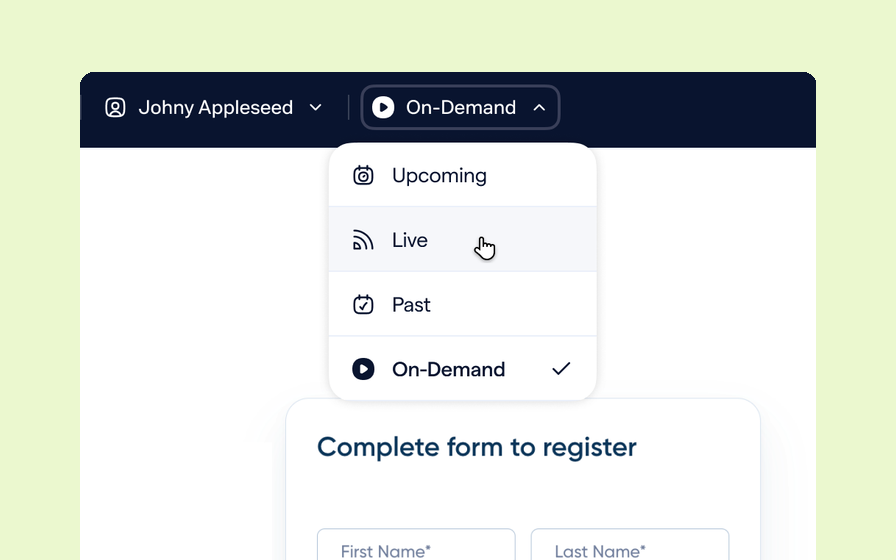
Preview any custom page as a registered viewer, an unregistered visitor or a real registrant, at any point in the event's life.
Follow Up Emails
Follow Up Emails
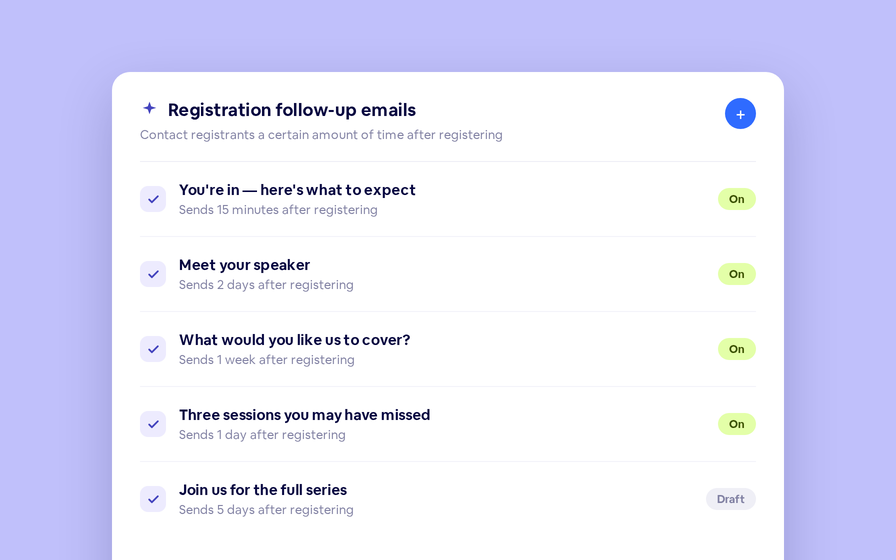
Keep in touch with your registrants immediately after they register.
Introducing BigMarker AI
Leverage generative AI to automate chaptering, generate short-form social-ready video clips, and create derivative content such as blogs, eBooks, and more.
AI  Audio Translations
AI Audio Translations
Presenters speak in their language while attendees listen in theirs, removing barriers and opening content to participants everywhere.
Custom Audience Experiences
Get complete control over your webinar and event interfaces so every session looks, feels, and performs exactly the way you want.
AI Email Personalization
Every attendee gets a message crafted just for them based on their engagement, interests, and lead score.
Studio Scenes
Studio Scenes
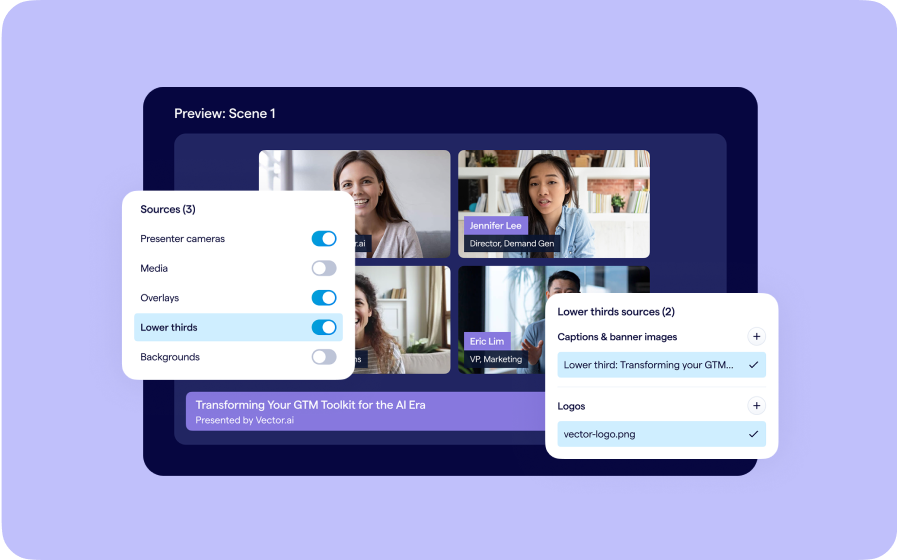
Give your events the look, feel, and professionalism of a live broadcast, without the complexity or cost of a production crew.
AI Content Studio
AI Content Studio
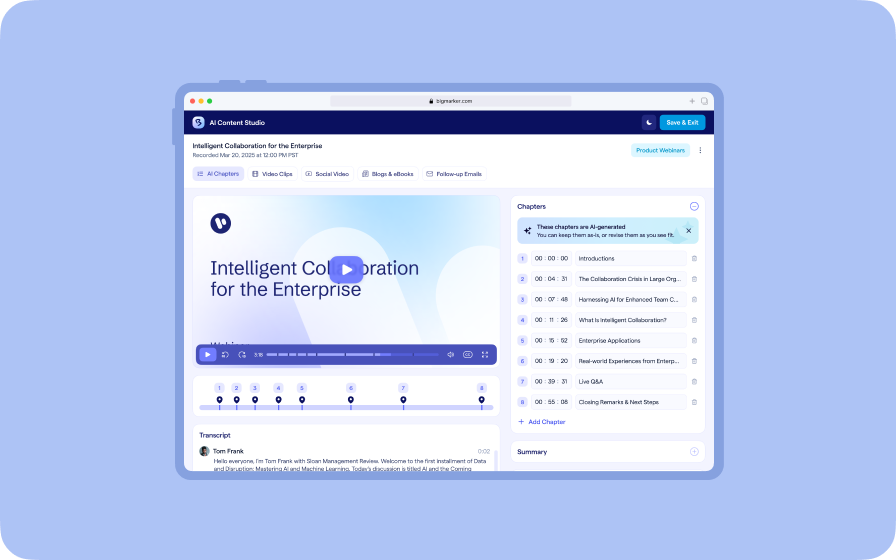
Leverage generative AI to automate chaptering, generate short-form video clips, and create blogs, eBooks, and other derivative content.
AI Lead Scoring
AI Lead Scoring
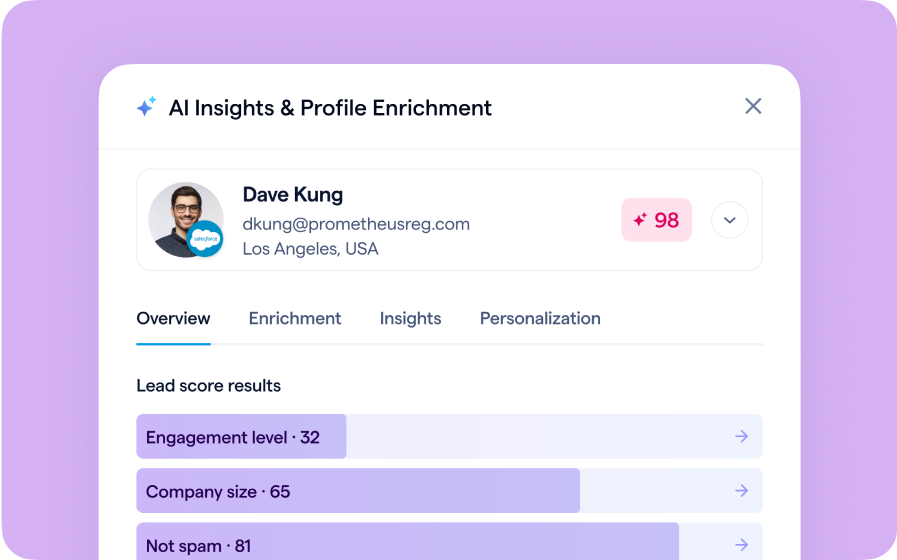
Instantly transform registration and attendee data into customized actionable sales insights.
Join the waitlist
By clicking “Submit”, I acknowledge that BigMarker may contact me related to my participation in this Beta offering.
You’re all set!
You’ve successfully registered for the waitlist!
If you have any questions, please contact your CSM.
Webinar: Recording Studio by Product Update Hub