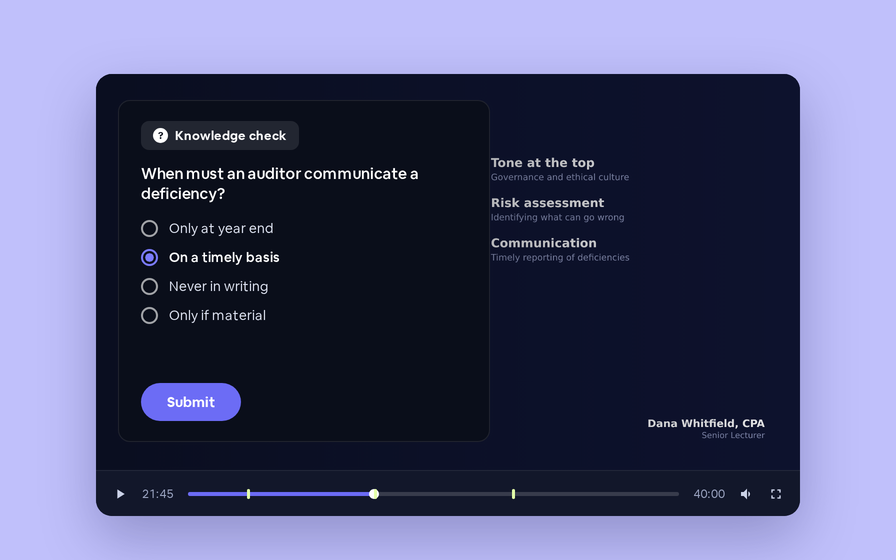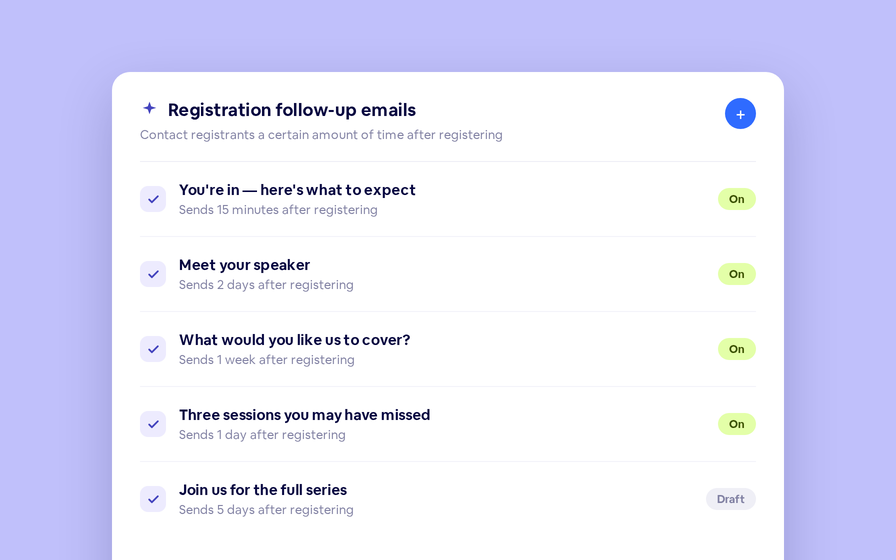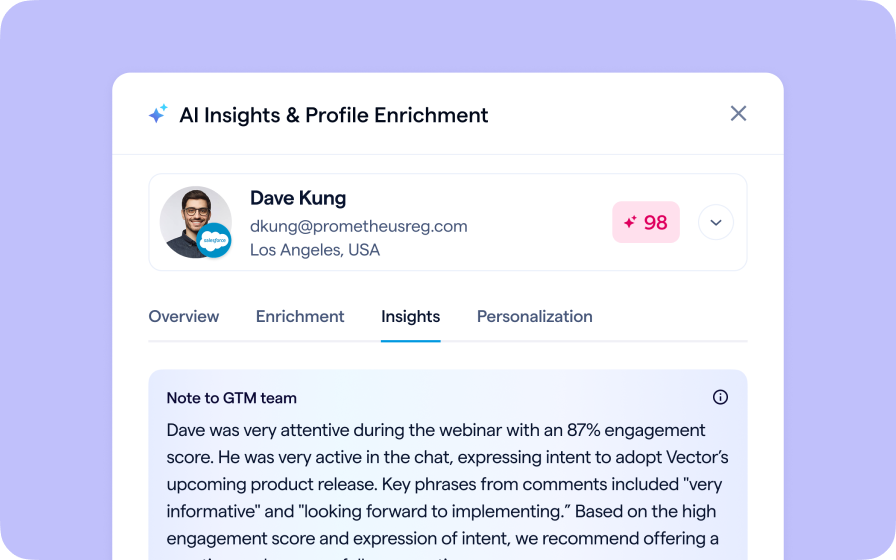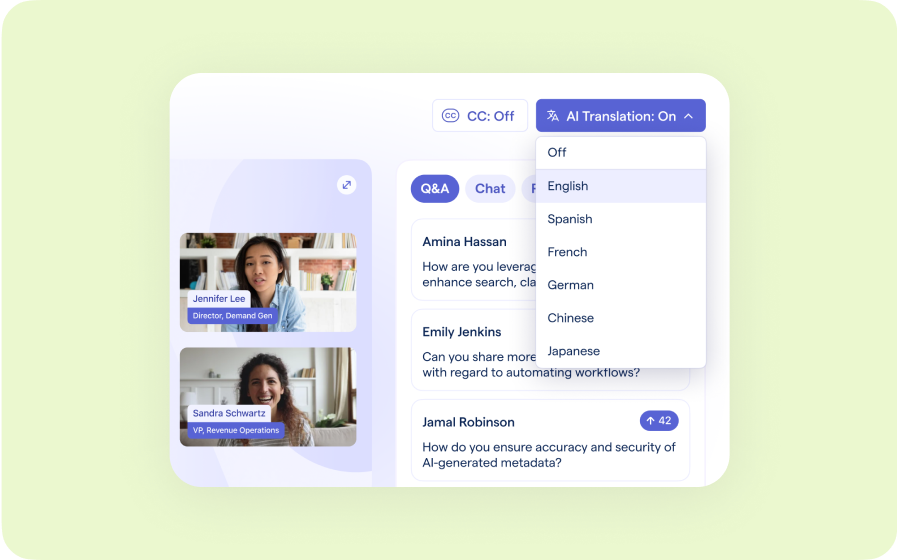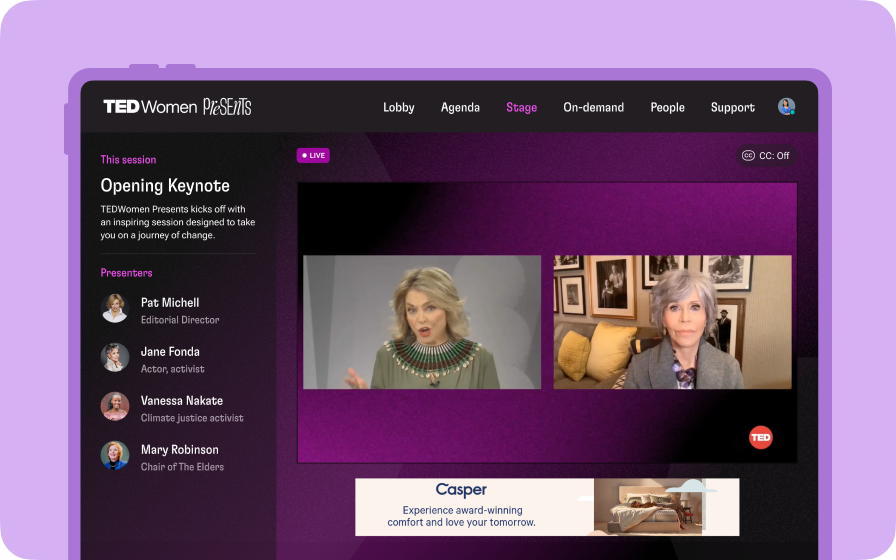
Your audience expects more than slides and talking heads. Studio Scenes give your events the look, feel, and professionalism of a live broadcast, without the complexity or cost of a production crew.
Key Benefits
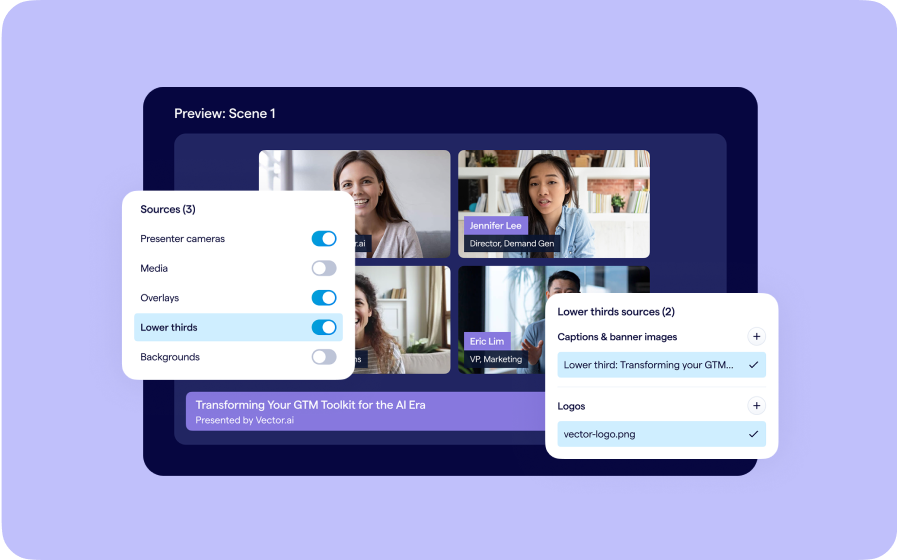
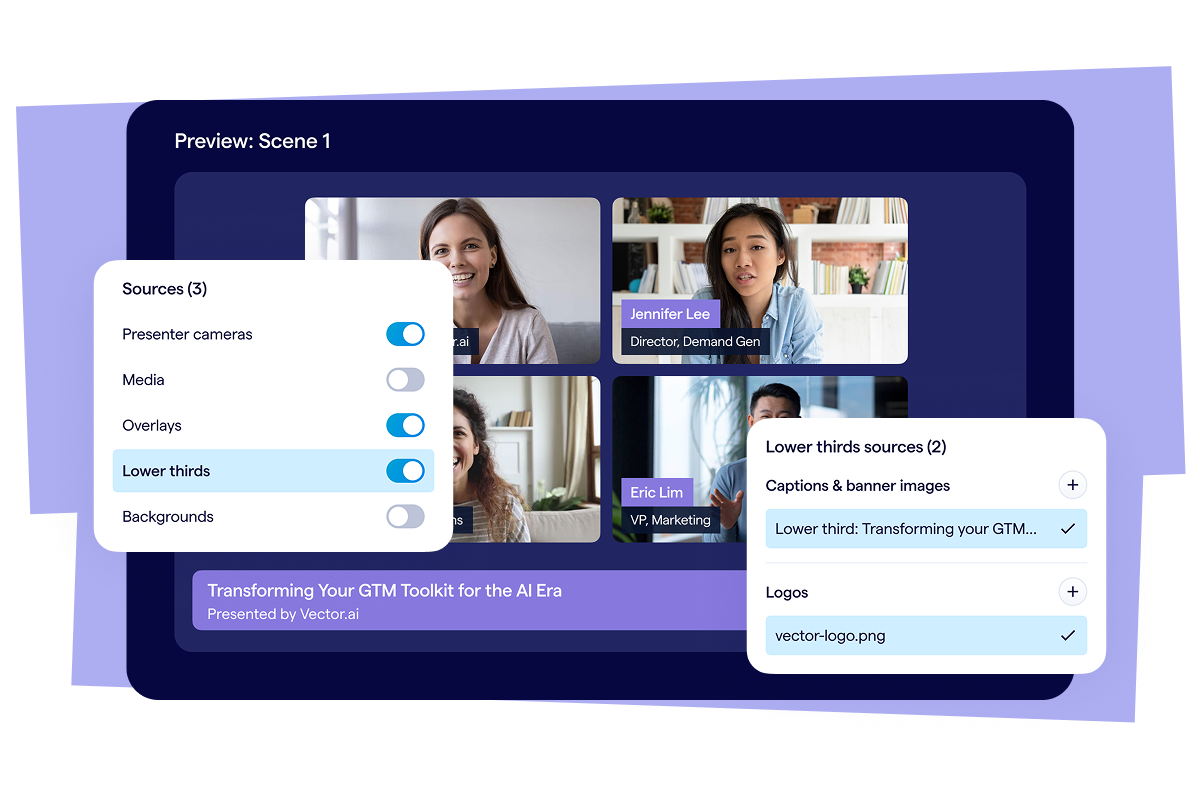
With Studio Scenes, every webinar looks and feels like a professional broadcast. Add logos, lower thirds, overlays, and custom backgrounds to every scene so your events leave a lasting, polished impression on your audience.
Behind the scenes, you stay in full control. Seamlessly switch between speakers, videos, slides, and panels in real time to keep the flow engaging, just like a live TV show. Build scenes in advance or create them on the fly, giving your production team both structure and flexibility so even last-minute changes look intentional and smooth.
- Quick transitions - Seamlessly switch between combinations of videos, presentations and presenters with one click
- Direct the session with confidence - Control which groups of presenters are currently shown to the audience and let the presenters focus on being on camera
- Produce on-platform - Scale professional-quality webinars across teams, regions, or entire organizations, without needing a dedicated broadcast crew
What's new
- Studio Scenes can be created ahead of time, letting you switch between your segments easily when the session is live
- Templates can be created to use across your entire channel
- Manage not only the content, but also the design of your webcast stream with Studio Scenes
Use cases
- Seamless agenda transitions - Hosts can move instantly between segments like introductions, presentations, panels, and Q&A without disrupting the live flow
- Polished speaker handoffs - Switching scenes ensures smooth transitions between presenters, maintaining a professional on-camera experience
- Pre-built session layouts - Common layouts—such as keynote, panel discussion, or demo—can be prepared in advance and activated with a single click
How to Use It
- Create a webinar and pre-load content and presenters to it
- Using the webinar preview room, create new scenes and choose which elements are going to be part of each scene
- During the live webinar, visit the scene builder, choose which scene you want, and click go live
- Create templates from each scene to use elsewhere on your channel
FAQ
What can scenes control?
With scenes you are able to control which presenters' camera and microphones are on, if there is a video or slide presentation shown, and what overlays and other design elements are used.
How should I prepare my presenters for the scene?
To ensure the best possible performance, your presenters should enable and connect their cameras to the BigMarker session room at least once before the start of the live webinar.
Which BigMarker plans support Studio Scenes?
This feature is currently available for Events and Enterprise plan holders.
To learn more visit Use Studio Scenes to Create a more polished, branded event Experience