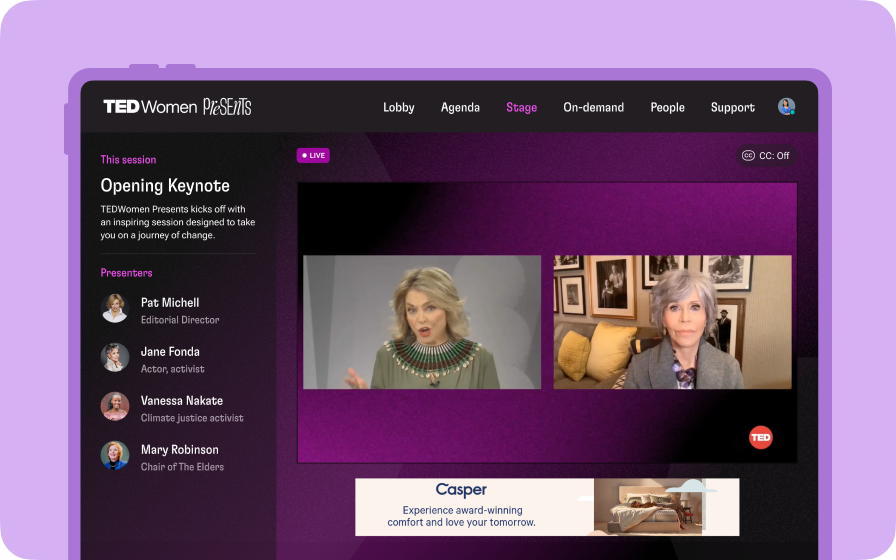
Most landing page edits are small — a headline that reads wrong, a stale date, an image you want swapped. Each one used to mean finding the matching field in the editor panels, changing it there, and looking back at the preview to see what happened. The page designer now works the other way round: switch to Edit, click the thing you want to change on the page, and change it where it sits.
Switch to Edit, then click
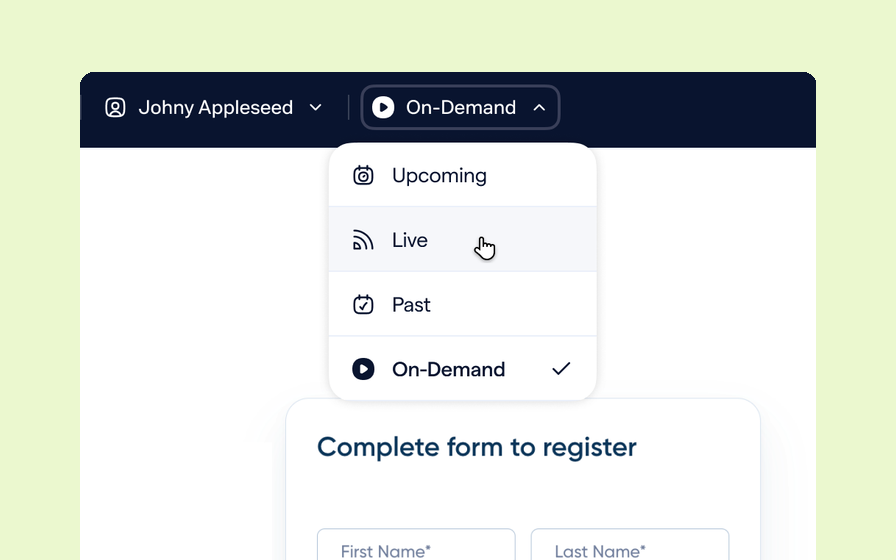
The designer opens in Preview, showing the page exactly as a visitor gets it. Open the Preview menu in the header and choose Edit — or press Shift + E — and the same page becomes editable in place.
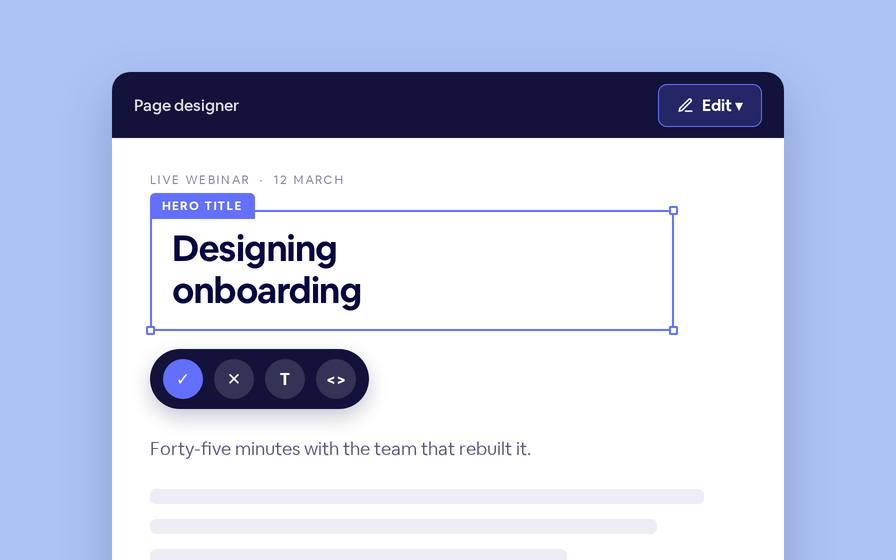
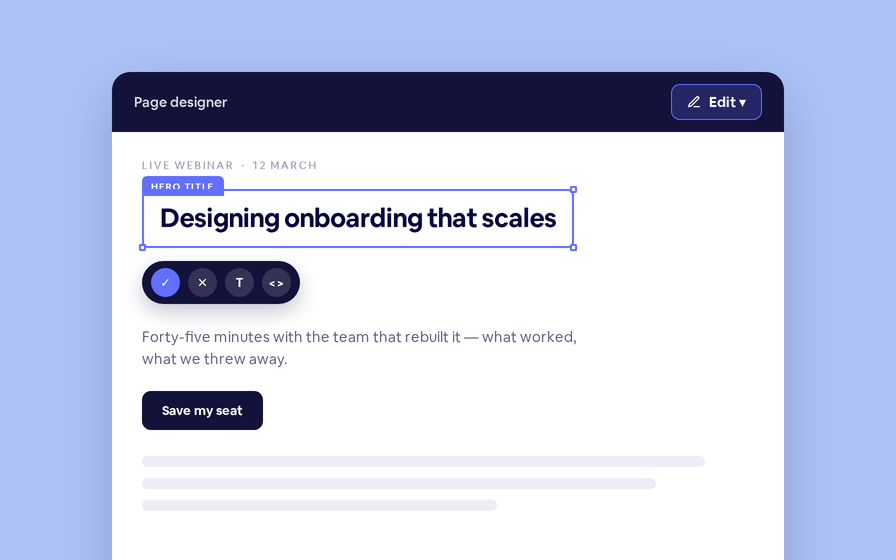
Hovering outlines everything you can change and names it, so you can tell an editor field from fixed template markup before you click. Click one and it opens where it sits, with a small action bar underneath.
The flag names the field you are about to change; the bar confirms, cancels, opens formatting, or drops to raw source.
| Button | Does | Keyboard |
|---|---|---|
| ✓ | Save the change | Enter, or Ctrl + Enter in a multi-line field |
| ✕ | Discard and put the original back | Esc |
| T | Open the formatting toolbar | — |
| <> | Edit the raw stored value | — |
Clicking away from an open edit commits it, so you can move straight from one field to the next.
What edits in place
Text, formatted copy, choices and images are all editable on the page. The remaining field types are data rather than content, so they stay in the editor panels where they have a proper control.
| Field | How it edits |
|---|---|
| Text | Type directly on the page |
| Multi-line text | Type on the page; line breaks are kept exactly |
| Rich text | Edit in place with a floating toolbar — paragraph style, bold, italic, strikethrough, lists, links and alignment |
| Dropdown | Pick from a popover of the allowed choices |
| Image | Click the image to upload a replacement |
| Checkboxes, webinar pickers, colors, code | Editor panels on the left |
An empty field still shows up, as a dashed Click to edit box, so a blank headline is something you can fill in rather than something you have to go looking for.
When it is not a field, the page says so
A landing page is part editor fields and part template markup, and from the front they look identical. Clicking something fixed no longer does nothing — it explains itself:
This element comes from the template’s HTML, not an editor field. Its markup is part of this template’s design — check the Tokens panel to see the dynamic content available.
Content pulled from elsewhere in the product — presenters, resources, agenda topics, the session title — gets a different tip naming where it actually lives, with a link straight there: Edit in Presenters →, Edit in Resources →, Edit in Session Details →. It is the answer to “where do I change this?”, given at the moment you ask it.
Your tokens are never flattened
Editing rendered output is risky when the stored value is dynamic: save what you see and you would bake one webinar’s details into the template permanently.
So a rich text value that contains tokens does not edit in place. It opens in an overlay with a note — This content includes dynamic tokens, so it opens here. Use Source below if you need to edit the tokens themselves. — and the <> source view shows the real stored value, tokens intact, for when the token itself is what you meant to change.
The same care applies to fields the template uses in conditions or filters. Wrapping those for editing would change how the template behaves, so they are deliberately left unclickable and stay in the panels.
Edit mode never reaches your visitors
Everything that makes a field clickable exists only in your designer session. Those renders are kept out of the shared page cache in both directions, so an editing view can never be cached for, or served to, someone visiting your page.
Saves are ordinary field saves: the panels stay in step, and every change is recorded in the field’s history alongside edits made anywhere else. The designer also opens in Preview every time — Edit is a deliberate choice each visit, never a mode you are left in by accident.
Inline editing follows the permission to manage the session, so channel admins and team members get it on any webinar or series landing page. Open the designer on a specific webinar or series to use it — channel-level reusable templates and email templates keep the panel-based editor.