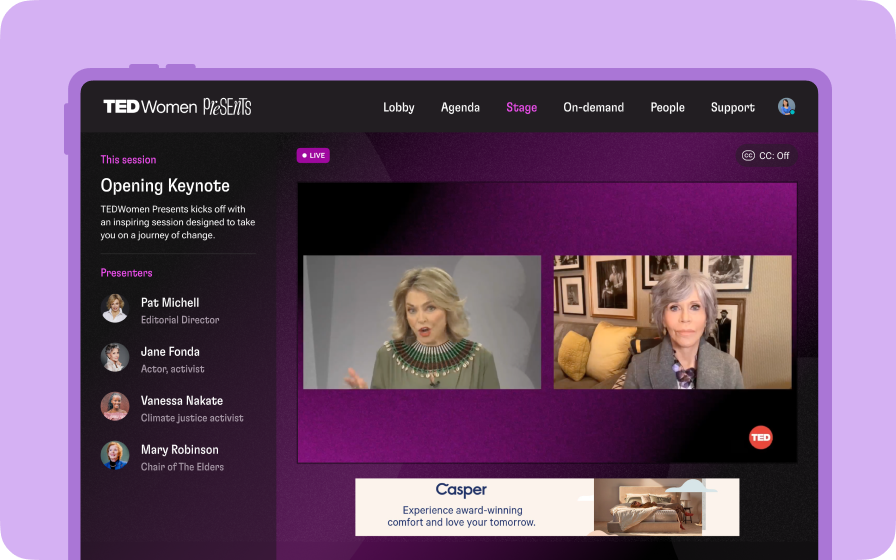
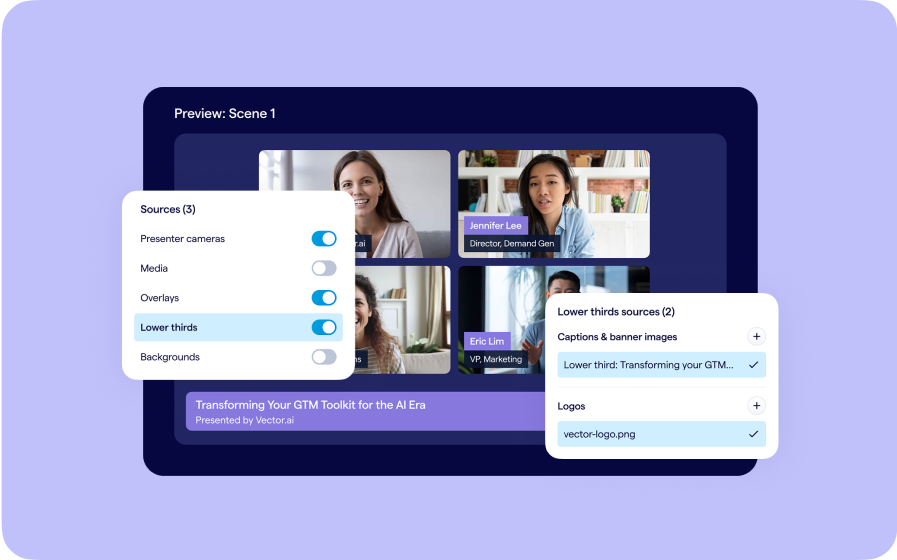
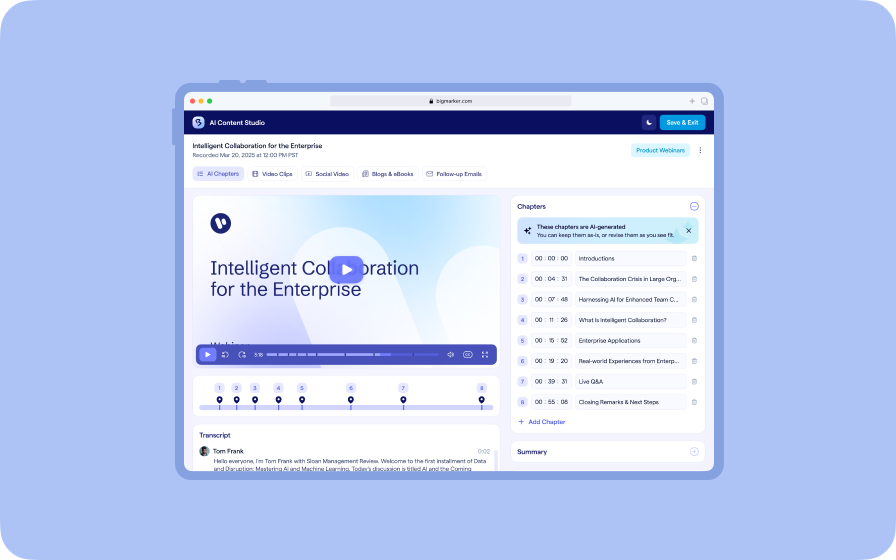
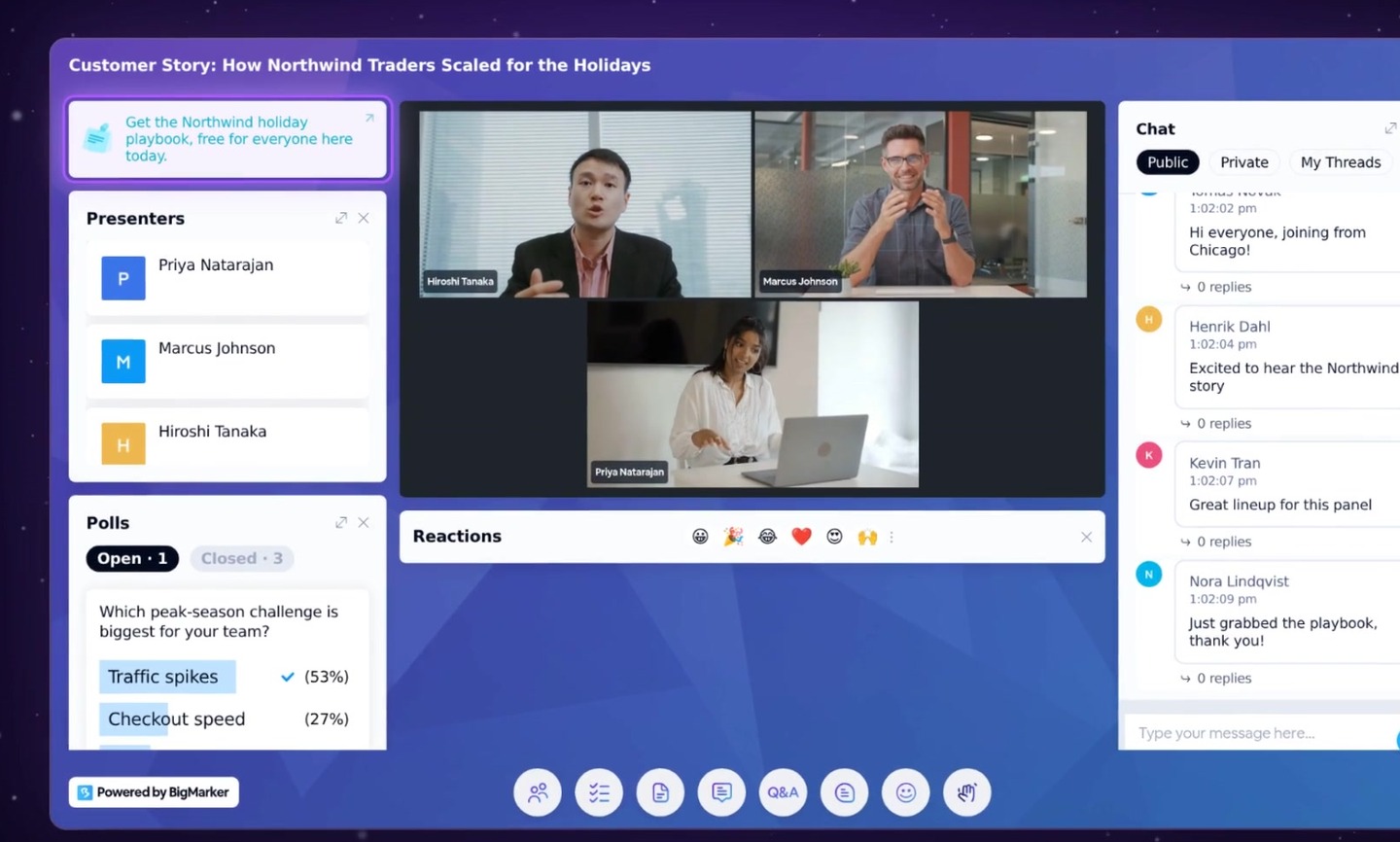
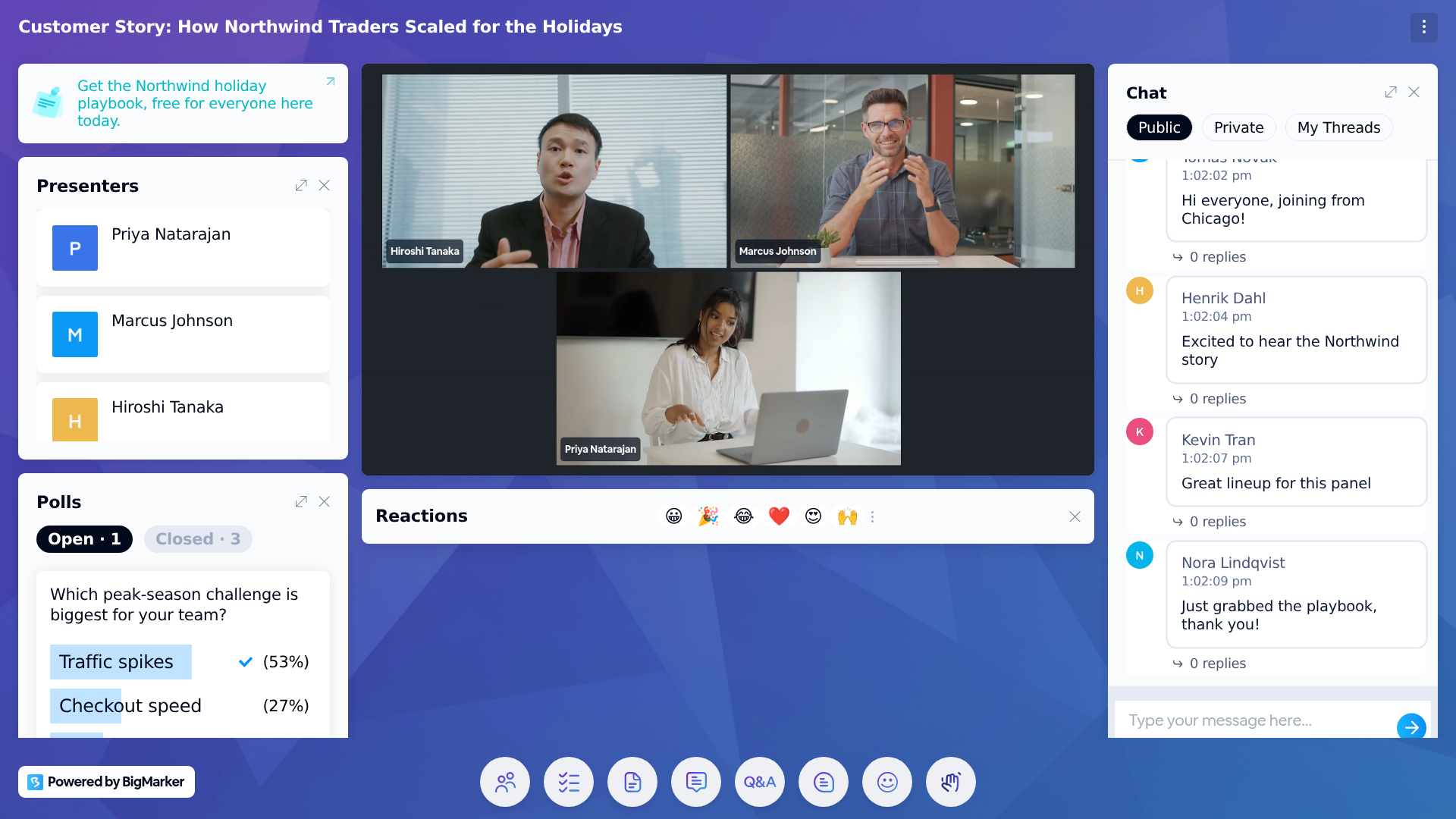
A sticky note keeps one message in front of your audience for the whole session, like a link to a resource or what's coming up next. Now, in the Modular layout, the sticky note is a module of its own: drag it to any spot in either side column, and attendees see it right there.
A module of its own
In the Modular layout, chat, Q&A, polls and resources each sit in a module of their own. Now the sticky note does too. Drag it into place once, and every attendee sees your message in that spot.
Place it in three steps
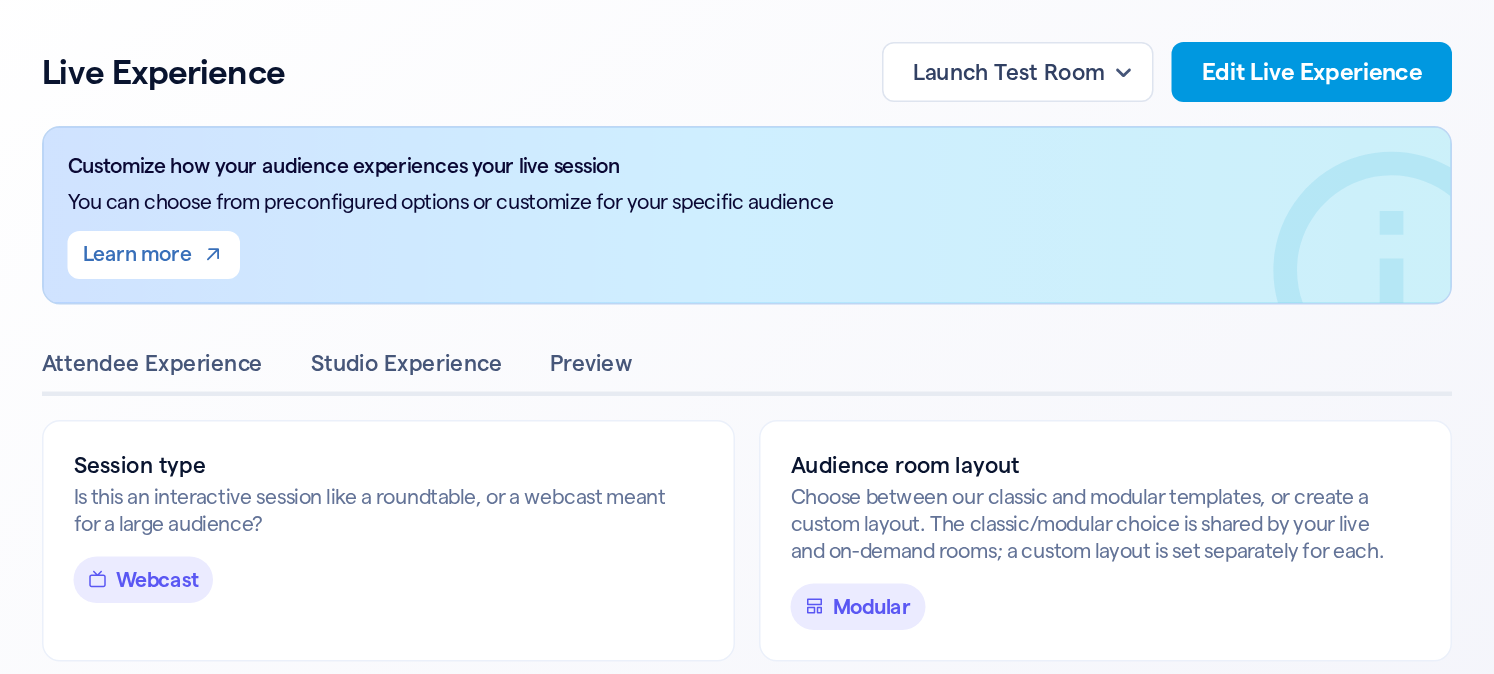
Open your session, then Production → Live Experience.
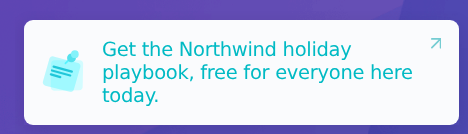
What attendees see
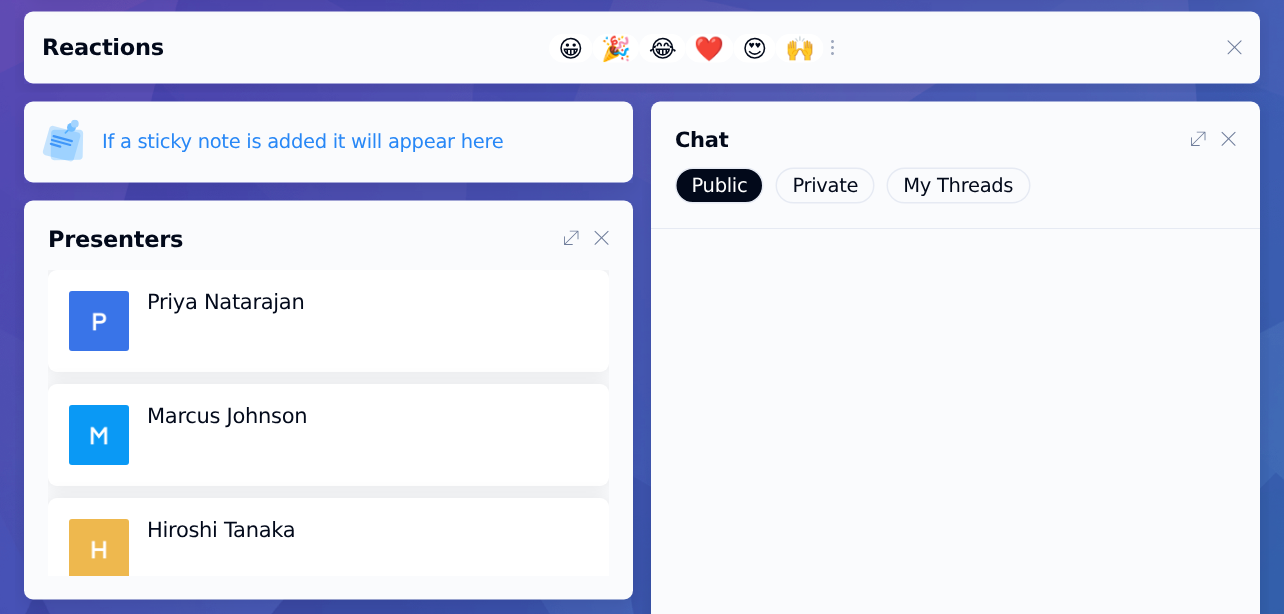
In the live session, the note sits in its module, right where you placed it. The note and the arrow in its corner open your link in a new tab. With no note on the session, attendees don't see the module at all: the placeholder only shows when you preview the attendee view.
Change it during the session
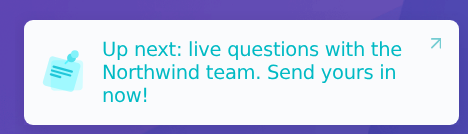
Hosts and presenters can change the note from the studio while the session is live: open the note's menu in the chat panel and choose Edit Sticky. Attendees see the new text in the same spot right away, without reloading the page.
Good to know
| Details | |
|---|---|
| Where you place it | Production → Live Experience → Edit Live Experience, with the Modular layout |
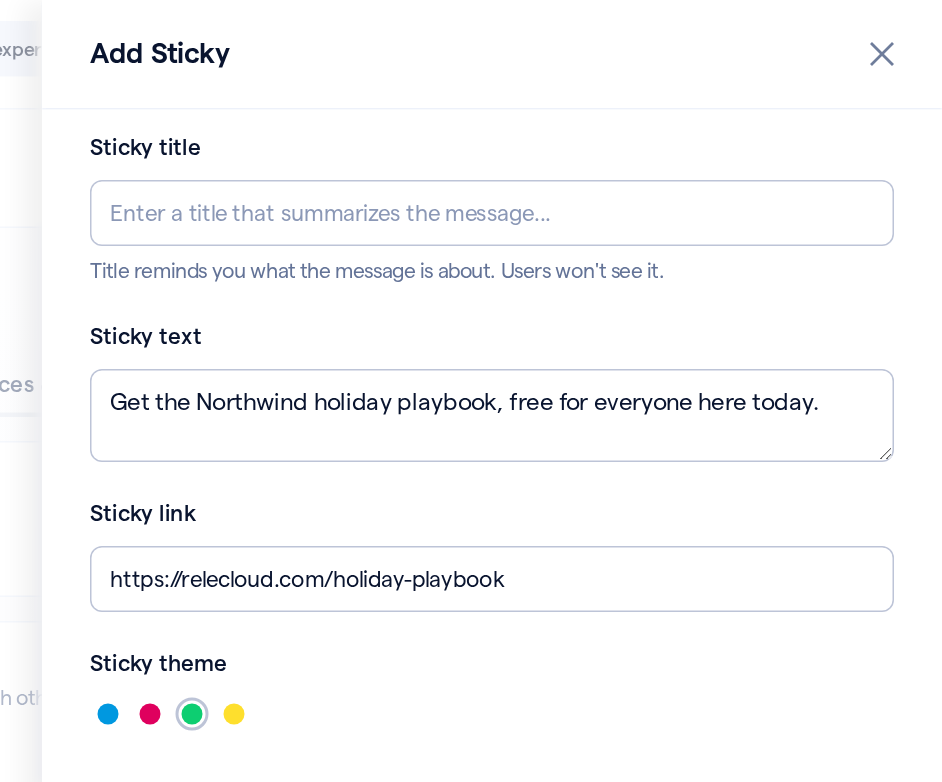
| Where you write it | Engagement → Interactive Tools → Settings → Sticky message |
| Notes per session | One |
| Colors | Blue, red, green or yellow |
| Link | Optional; enter the full address, starting with https://. The note and its arrow open it in a new tab |
| With no note | Attendees don't see the module; the editor's preview shows a placeholder so you can still place it |
| Where it starts | At the top of the right column, above Chat. A module layout you saved earlier gets it at the bottom of the right column. |
| Changes during the session | Made from the studio; attendees see them right away |