BigMarker News & Updates SIP Hardware Connect

Bring your SIP system into the webinar

February 12, 2026
Your room's video system dials straight into a BigMarker webinar and joins it like any presenter's camera. No laptop at the end of the table.
Categories
Share

When speakers present from a conference room, the room's own video system has the best camera and microphones in the building, yet joining a webinar usually means everyone huddles around a laptop. With SIP Hardware Connect, you generate a SIP URL for the webinar, open the webinar room, and the room system dials in like any video call. The room appears in the live room as a presenter camera that everyone sees and hears, and the people in that room see the webinar in return.

The room joins as a presenter

When the room system calls in, the conference room appears in Presenter View, just like a presenter's camera. Once you go live, everyone in the webinar sees and hears it, and it's part of the recording.

It’s a two-way call: the room system shows the webinar in return, so the people in that room can follow along with your other presenters.
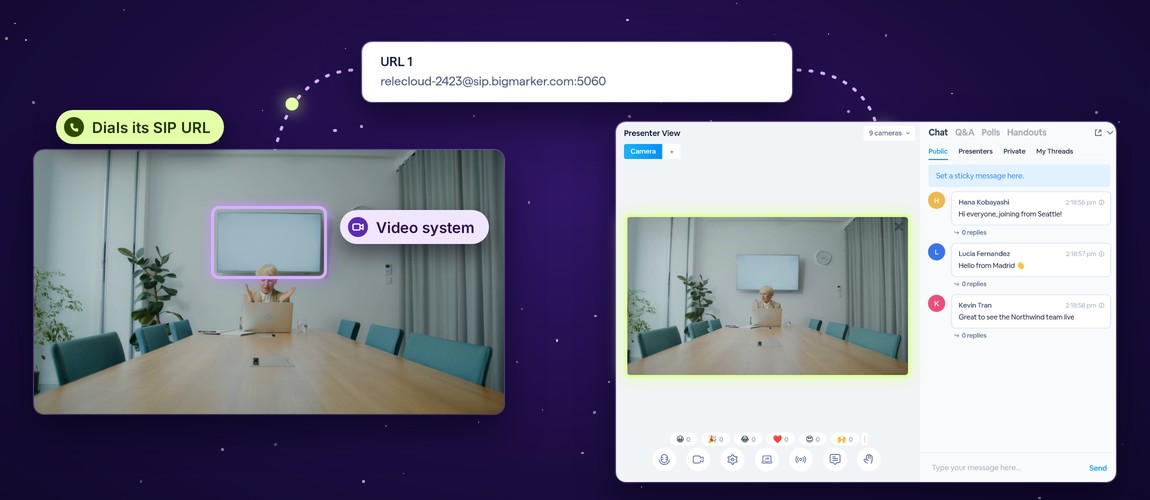
A conference room's video system calls a webinar's SIP URL and appears in the live room's Presenter View as a camera.
Illustration

Set it up in three steps

Open your webinar, then Production → SIP Hardware.

1
Turn on SIP connectionsUnder Enable SIP Connections, click Edit, switch it on, and click Save.
Enable SIP Connections: Enable SIP connections for a different way for presenters to connect to this session. On.
2
Generate a SIP URLUnder SIP URLs, click the plus button. Make one for each presenter that will be connecting, so every room system has its own address.
SIP URLs: Generate SIP URLs for each presenter that will be connecting. URL 1 with its SIP address and an Actions menu.
3
Share it with the roomOpen Actions and click Copy, and send the address to whoever runs the room. Once your webinar room is open, they dial it from their system, just like any video call. Delete removes a URL you no longer need.
The Actions menu on URL 1, with Copy and Delete.

In the live room

The call shows up in the studio a moment after the room system connects.
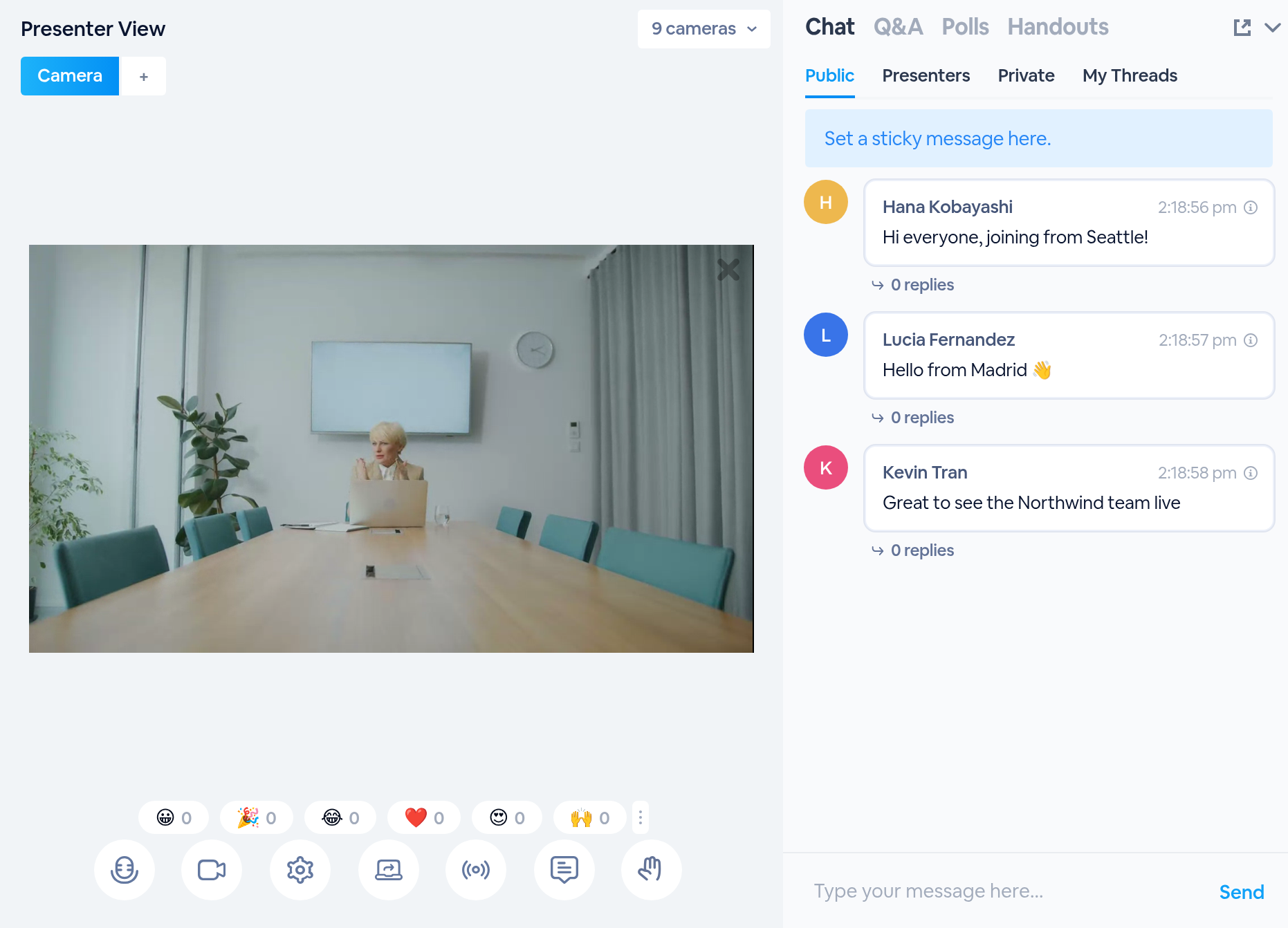
Presenter View in the live room, with the conference room's call on stage as a camera.
WhenWhat happens
You click Enter SessionThe webinar room opens, ready for the room system’s call
The room system dials its SIP URLThe conference room appears in Presenter View, like a presenter camera, and the room sees the webinar
You go liveYour audience sees and hears the room
The webinar is recordedThe room is in the recording, like any camera
The room system hangs upThe call ends; the same URL can call in again

Only the room system can end the call. Closing its video inside the webinar doesn’t hang up.

Open the room first

A room system can only dial in once your webinar room is open. Enter the session, have the room call in while you’re backstage, and check the picture before your audience arrives.
Put the conference room on stage
Find it in your webinar under Production, SIP Hardware.
Related updates
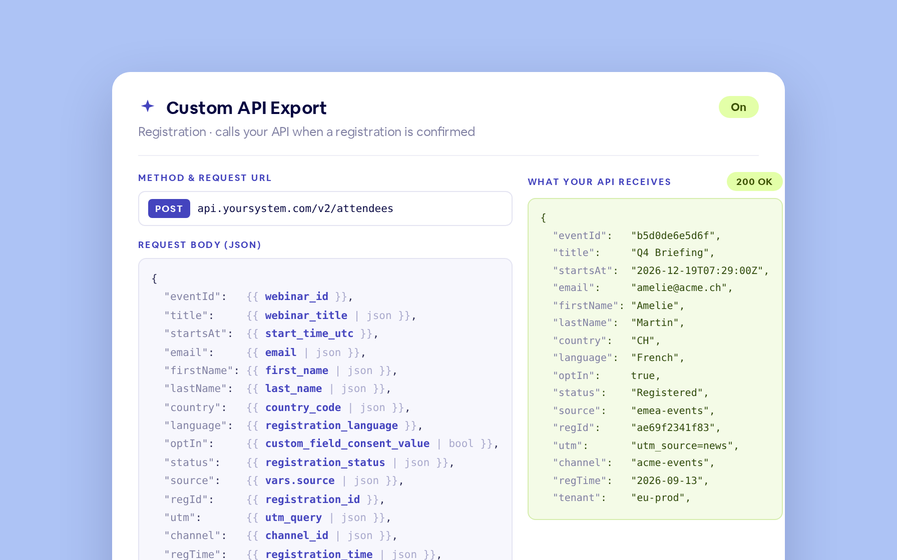
Export to Any System
No connector needed — point a session at your endpoint, write the JSON body, and BigMarker calls it as people register, attend and watch.
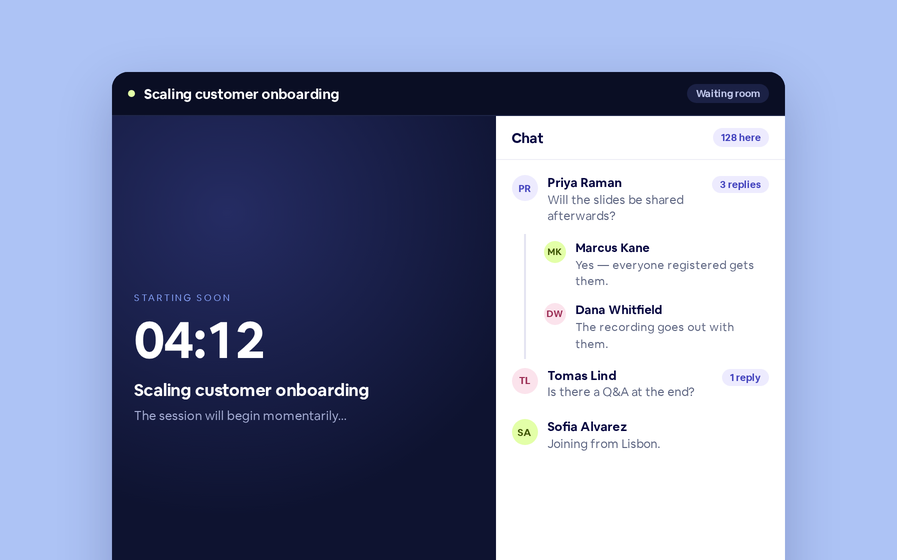
Threaded chat in waiting room
Replies now sit in a thread under the message they answer, so the pre-show conversation stays readable.
 Inline Page Editing
Inline Page Editing
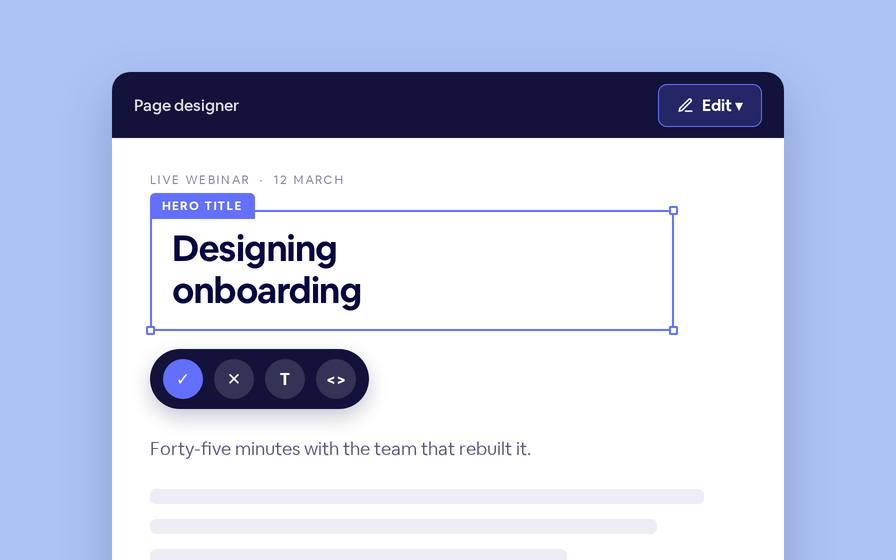
Click any headline, image or block on your landing page and change it right there — no hunting through editor panels.
Quizes in On Demand Video
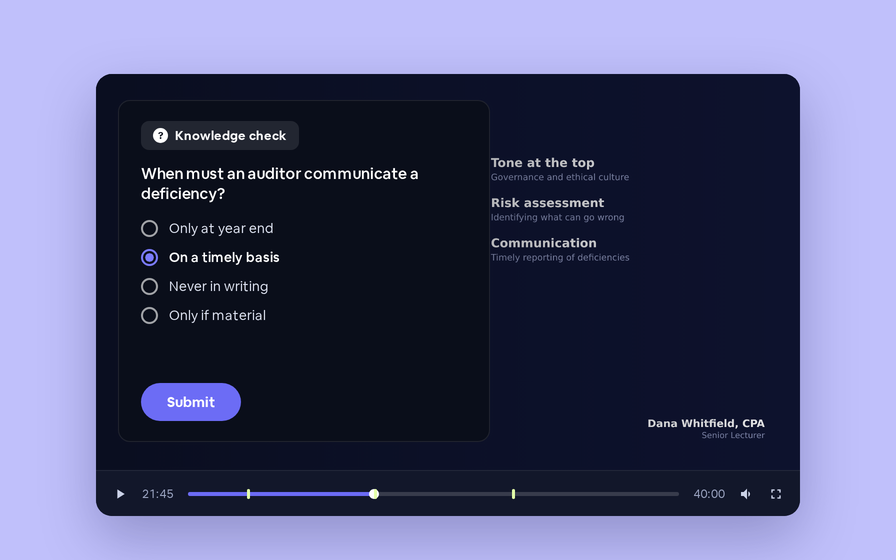
Ask questions inside your recordings and see who actually understood, not just who pressed play.
Preview Custom Page States
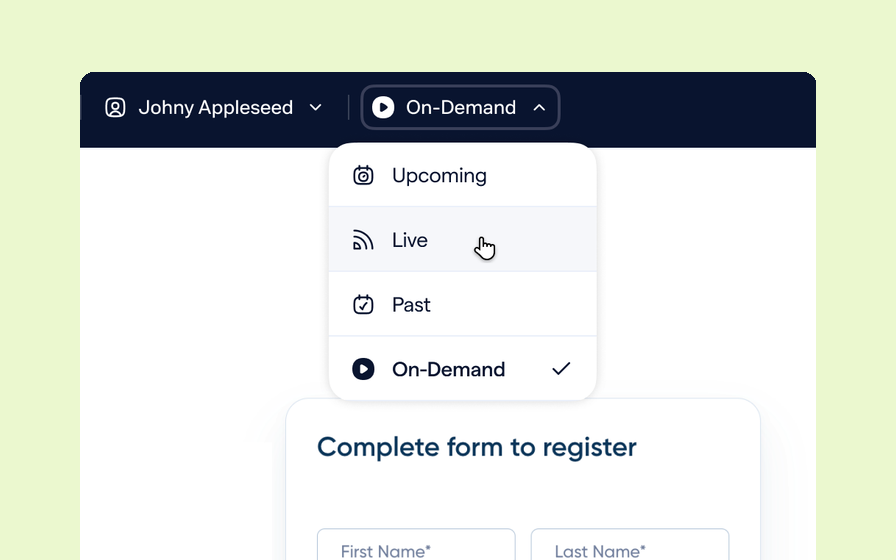
Preview any custom page as a registered viewer, an unregistered visitor or a real registrant, at any point in the event's life.
Follow Up Emails
Follow Up Emails
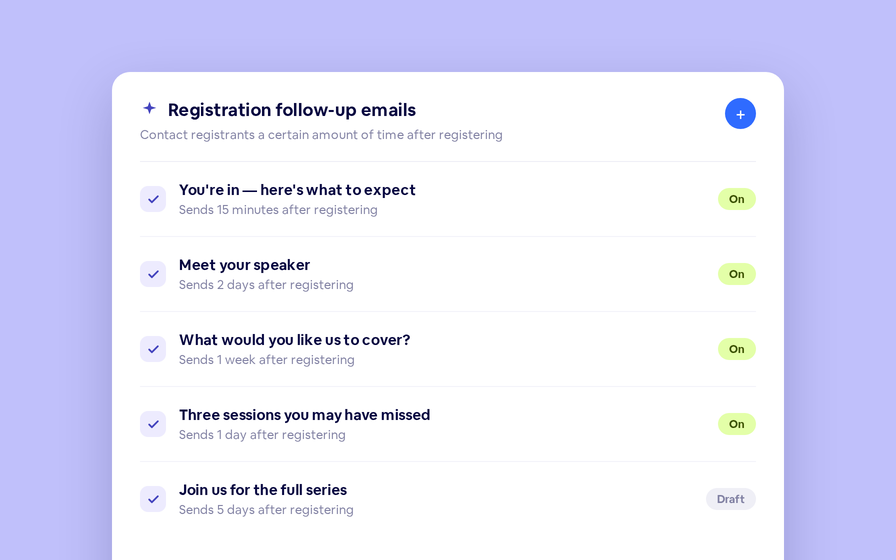
Keep in touch with your registrants immediately after they register.
Introducing BigMarker AI
Leverage generative AI to automate chaptering, generate short-form social-ready video clips, and create derivative content such as blogs, eBooks, and more.
AI  Audio Translations
AI Audio Translations
Presenters speak in their language while attendees listen in theirs, removing barriers and opening content to participants everywhere.
Custom Audience Experiences
Get complete control over your webinar and event interfaces so every session looks, feels, and performs exactly the way you want.
AI Email Personalization
Every attendee gets a message crafted just for them based on their engagement, interests, and lead score.
Studio Scenes
Studio Scenes
Give your events the look, feel, and professionalism of a live broadcast, without the complexity or cost of a production crew.
AI Content Studio
AI Content Studio
Leverage generative AI to automate chaptering, generate short-form video clips, and create blogs, eBooks, and other derivative content.
AI Lead Scoring
AI Lead Scoring
Instantly transform registration and attendee data into customized actionable sales insights.
Join the waitlist
By clicking “Submit”, I acknowledge that BigMarker may contact me related to my participation in this Beta offering.
You’re all set!
You’ve successfully registered for the waitlist!
If you have any questions, please contact your CSM.
Webinar: SIP Hardware Connect by Product Update Hub