BigMarker News & Updates Share a Live Feed of Anyone on Camera to OBS or vMix

Share a Live Feed of Anyone on Camera to OBS or vMix

November 20, 2026
Copy any person's live feed link from the live room, and their camera and mic play in OBS, vMix or other streaming software as a browser source.
Categories
Share

Now you can bring anyone on camera in your webinar into OBS, vMix or other streaming software. Copy a person’s live feed link from their camera menu, add it to your scene as a browser source, and their camera and mic play on their own. When the show’s over, one reset turns every link off.

Anyone on camera, as their own source

Each guest becomes their own source in your production. Their link opens a page with no sign-in and nothing around the picture, just their camera and mic, so it goes into your scene like any other browser source. For the guest, nothing changes: they keep talking in the live room as usual.
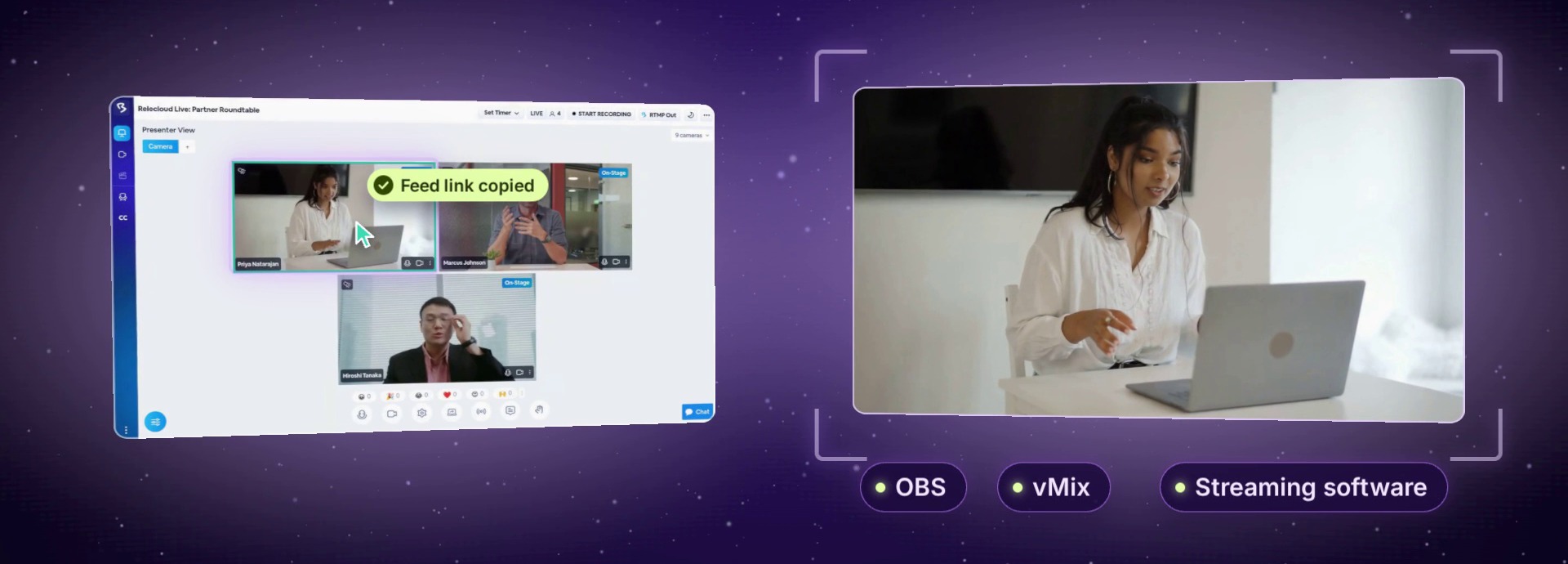
Illustration: the live room with three guests on camera, and one guest's camera as its own framed feed, ready for OBS, vMix or other streaming software.
Illustration

Copy a feed link in three steps

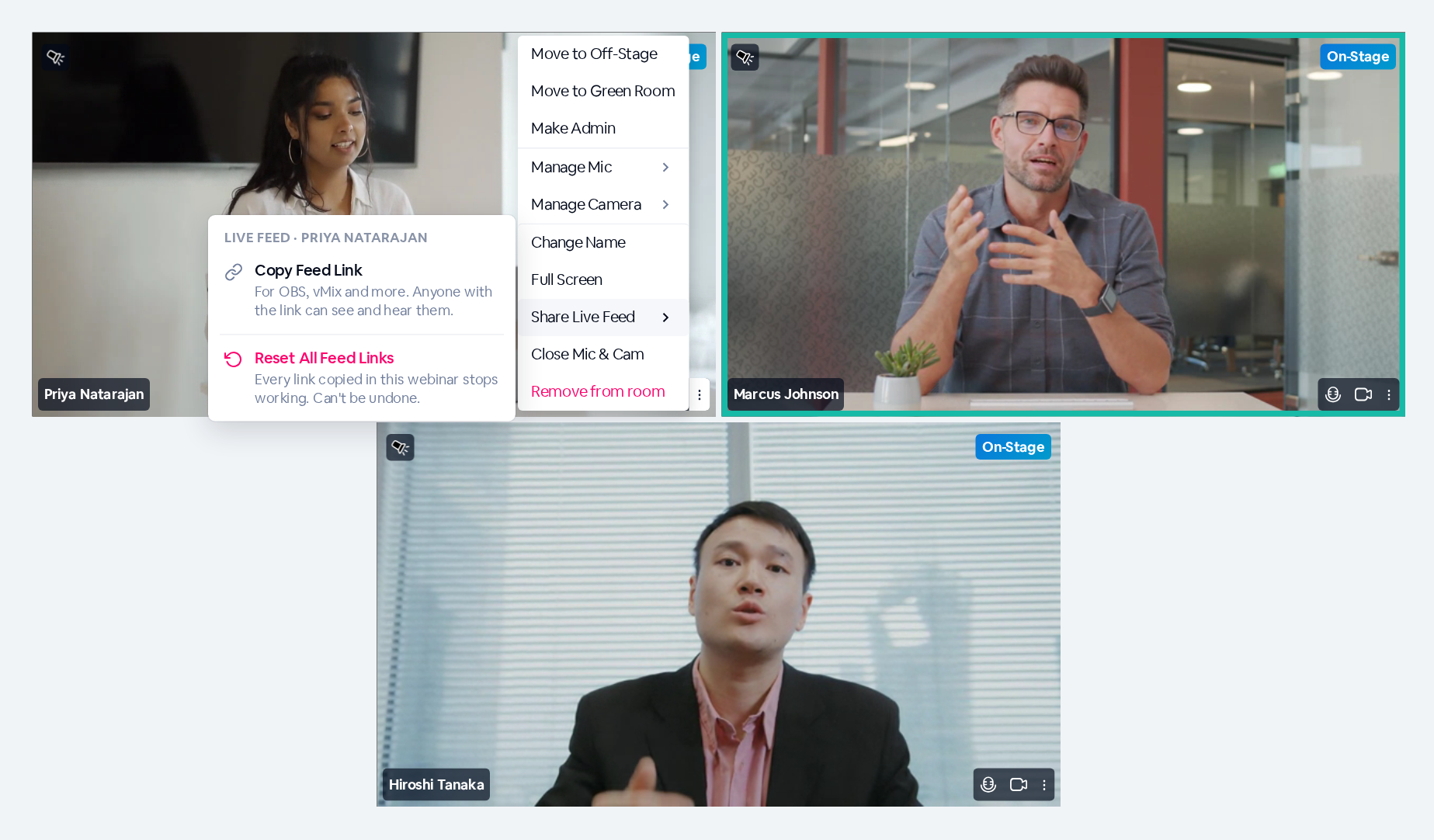
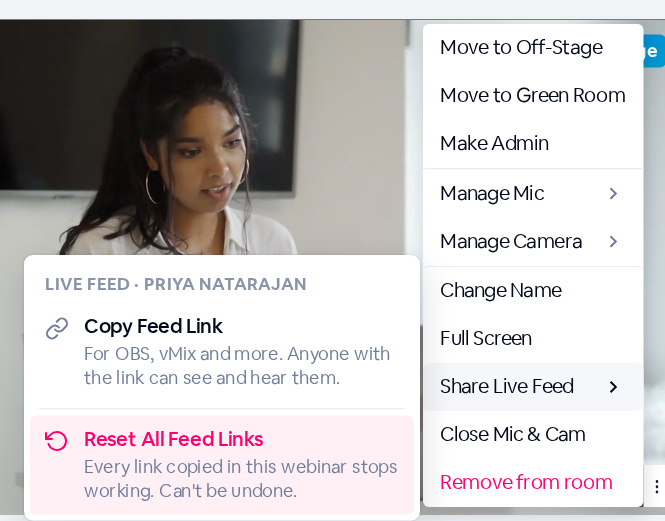
In the live room, go to the camera you want and open Camera menu › Share Live Feed.
1
Open the camera menuClick ⋮ on the person’s camera.
2
Point to Share Live FeedThe header shows whose feed you’re sharing, for example LIVE FEED · PRIYA NATARAJAN.
3
Click Copy Feed LinkThe link is on your clipboard, and the room tells you: Feed link copied. Paste it into your streaming software as a browser source.
The live room with three guests on camera. The menu on Priya Natarajan's camera is open at Share Live Feed, showing Copy Feed Link and Reset All Feed Links.

Add it to your scene

Paste the link into your streaming software as a browser source. The page needs no sign-in and shows nothing but the picture: that person’s camera and mic on a black page, sized to fit the window.
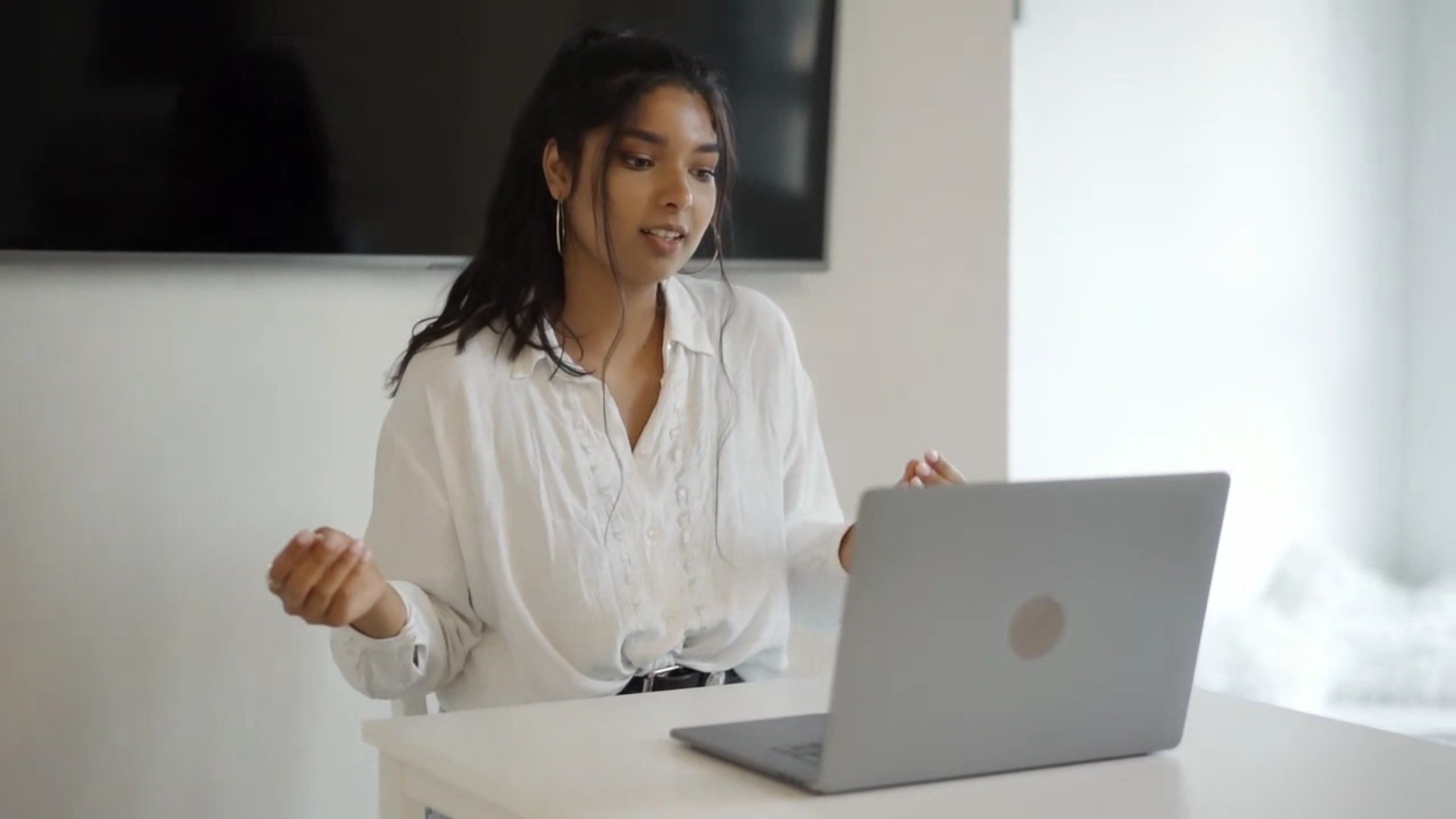
A feed link open in a signed-out browser window: one guest's camera fills the window, with nothing else on the page.
A feed link open in a signed-out browser window

Each link plays one person, so copy one for every guest you want in your scene.

Reset every link when the show’s over

Anyone with a feed link can see and hear that person, and the menu says so under Copy Feed Link. When you’re done, turn every link off at once.
1
Open Share Live Feed on anyone’s cameraThe reset covers every link copied in this webinar, whichever camera you open it from.
2
Click Reset All Feed Links and confirmThe room tells you: Feed links reset. Copy a new link for each source.
The Share Live Feed submenu with Reset All Feed Links highlighted: Every link copied in this webinar stops working. Can't be undone.
3
Every source playing a link goes blackWithin about 15 seconds. Open an old link again and it says This feed link is not valid.
A reset can’t be undone

Every link copied in this webinar stops working for good. To bring a guest back into your scene, copy a new link from their camera.

Good to know

Details
What it playsThe person’s main camera and mic. A second camera or a screen share has no Share Live Feed
Not on camera yetThe page stays black and starts playing within a few seconds of their camera coming on. If they reload or rejoin, it picks up again by itself
Off stageMoving someone off stage hides their camera from attendees, not from their feed: the picture keeps playing. To take them off air, take the source out of your scene
Green roomWhile someone is in the green room, their feed stops. It comes back when they return to the live room
Copying againCopy a person’s link as often as you need. Every link you copy keeps working until you reset
After the webinarWhen the webinar ends, its feeds stop
One webinarLinks belong to the webinar they were copied in, and a reset only turns off that webinar’s links. In a series, each session has its own
SoundThe feed plays with sound. If a regular browser holds the sound back, the page shows Click to unmute
Copying blockedIf your browser won’t copy to the clipboard, the link appears in a box so you can copy it by hand
Bring anyone on camera into your production
Find it in the live room, in a camera's menu under Share Live Feed.
Related updates
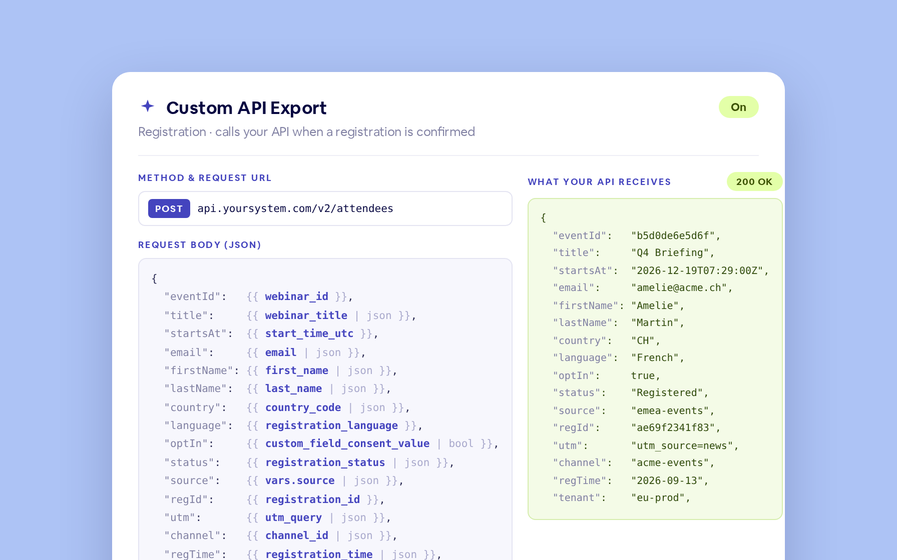
Export to Any System
No connector needed — point a session at your endpoint, write the JSON body, and BigMarker calls it as people register, attend and watch.
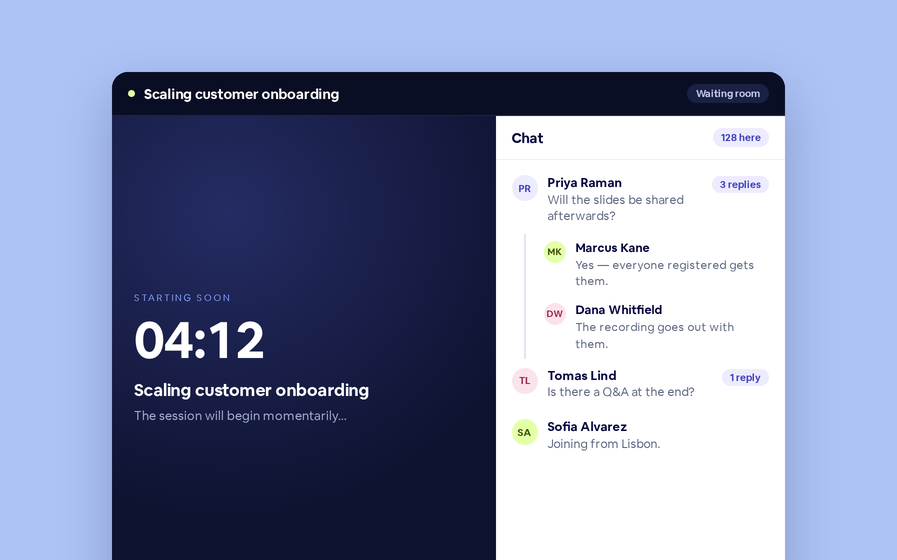
Threaded chat in waiting room
Replies now sit in a thread under the message they answer, so the pre-show conversation stays readable.
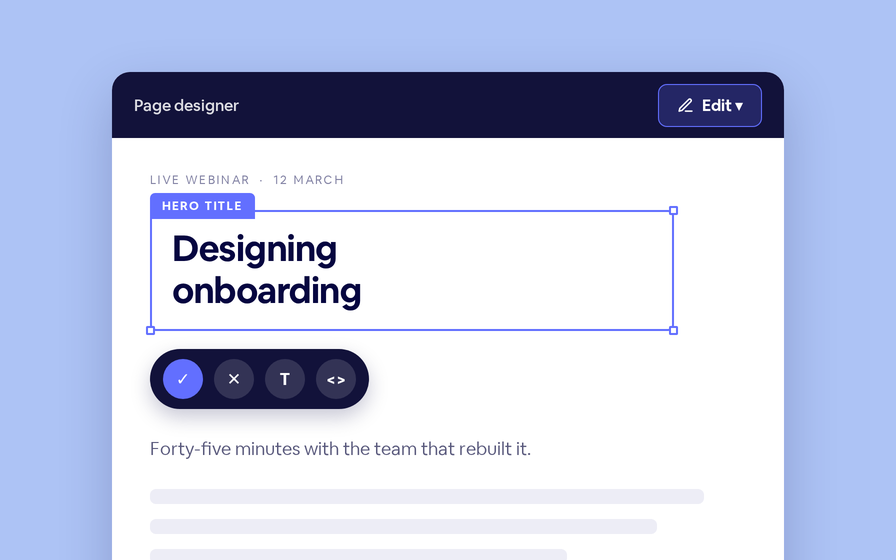
 Inline Page Editing
Inline Page Editing
Click any headline, image or block on your landing page and change it right there — no hunting through editor panels.
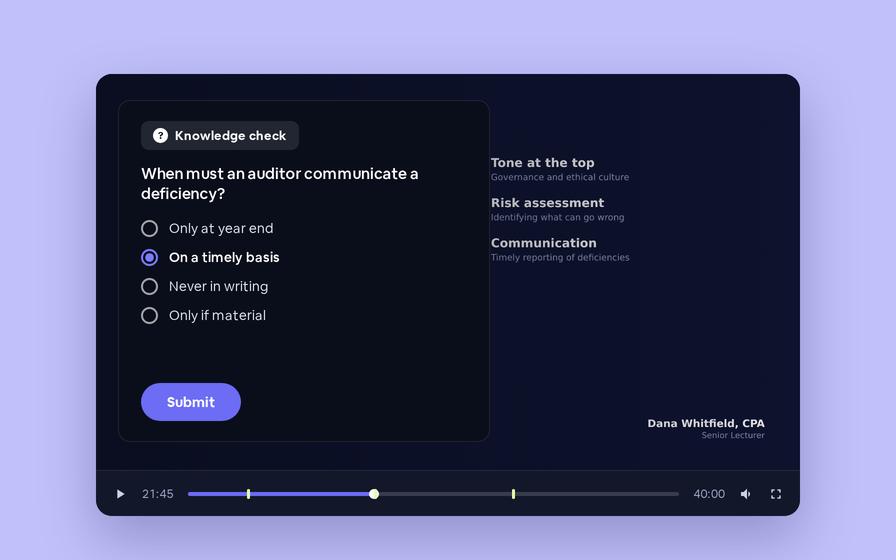
Quizes in On Demand Video
Ask questions inside your recordings and see who actually understood, not just who pressed play.
Preview Custom Page States
Preview any custom page as a registered viewer, an unregistered visitor or a real registrant, at any point in the event's life.
Follow Up Emails
Follow Up Emails
Keep in touch with your registrants immediately after they register.
Introducing BigMarker AI
Leverage generative AI to automate chaptering, generate short-form social-ready video clips, and create derivative content such as blogs, eBooks, and more.
AI  Audio Translations
AI Audio Translations
Presenters speak in their language while attendees listen in theirs, removing barriers and opening content to participants everywhere.
Custom Audience Experiences
Get complete control over your webinar and event interfaces so every session looks, feels, and performs exactly the way you want.
AI Email Personalization
Every attendee gets a message crafted just for them based on their engagement, interests, and lead score.
Studio Scenes
Studio Scenes
Give your events the look, feel, and professionalism of a live broadcast, without the complexity or cost of a production crew.
AI Content Studio
AI Content Studio
Leverage generative AI to automate chaptering, generate short-form video clips, and create blogs, eBooks, and other derivative content.
AI Lead Scoring
AI Lead Scoring
Instantly transform registration and attendee data into customized actionable sales insights.
BigMarker Webinar Series
Our weekly product update webinar series offers a closer look at what’s new in BigMarker, with live demos, practical tips, and Q&A to help you put the latest features to work. Join live or catch the recording on demand.
Join the waitlist
By clicking “Submit”, I acknowledge that BigMarker may contact me related to my participation in this Beta offering.
You’re all set!
You’ve successfully registered for the waitlist!
If you have any questions, please contact your CSM.
Webinar: Share a Live Feed of Anyone on Camera to OBS or vMix by Product Update Hub