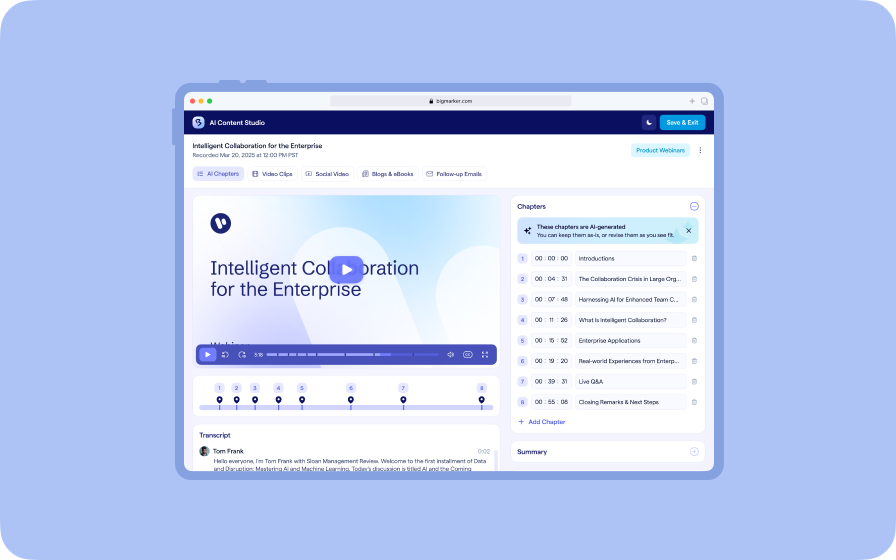
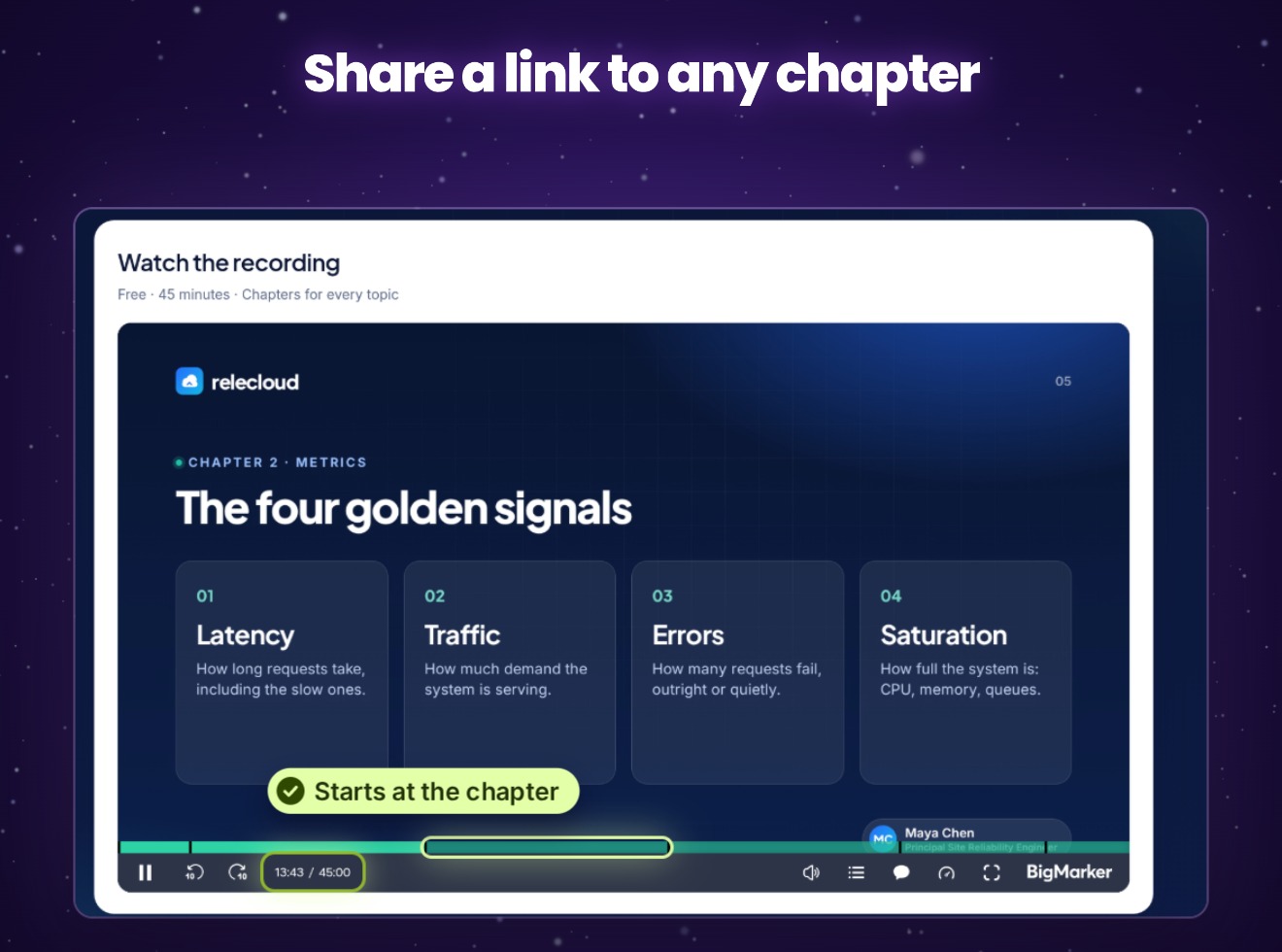
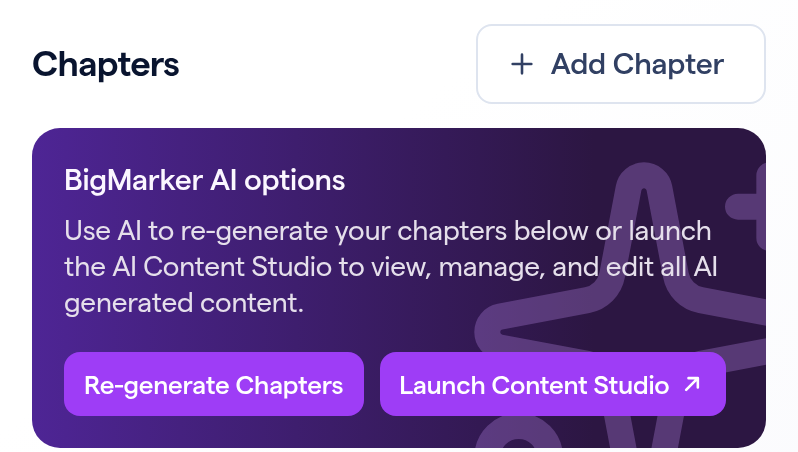
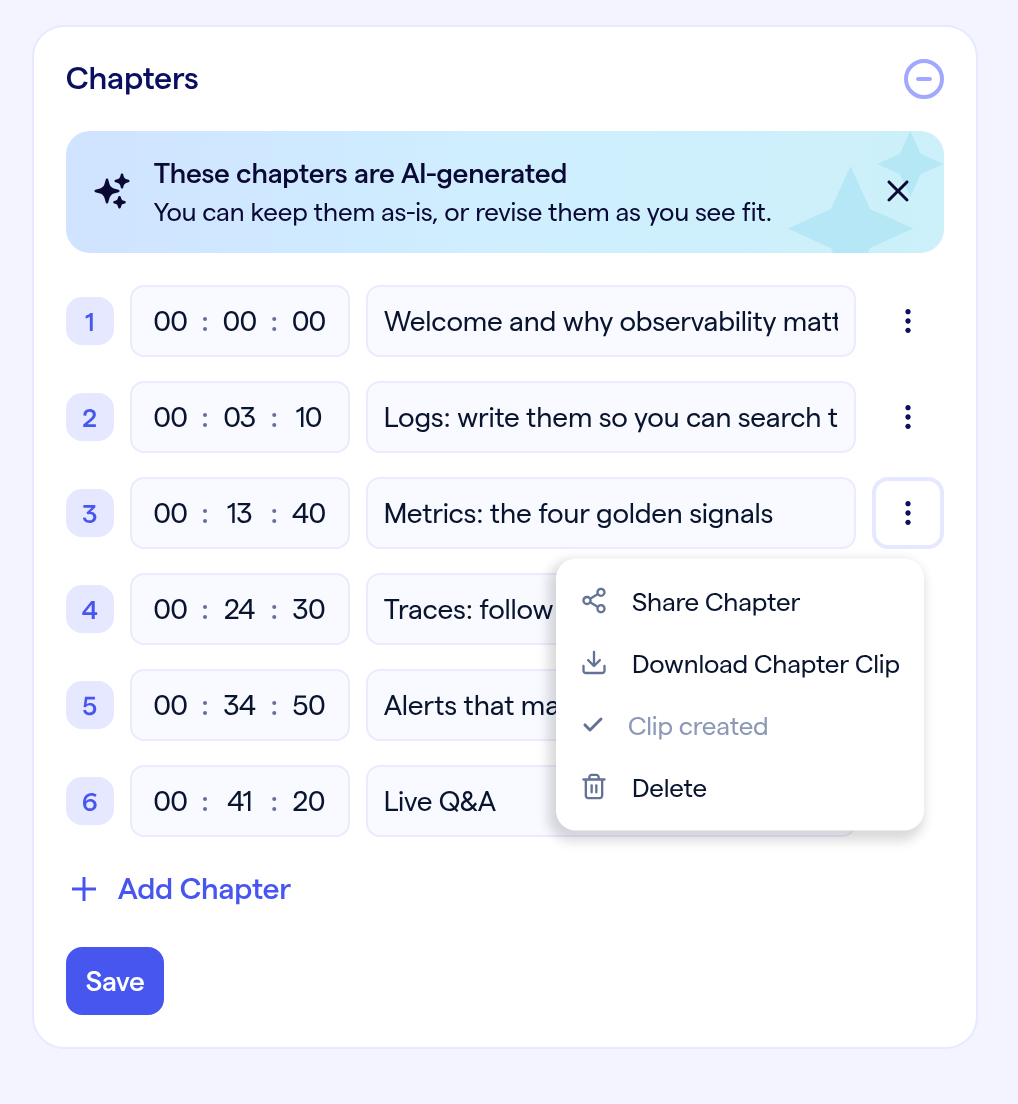
Chapters already help viewers find the part of a recording they came for. Now you can share any chapter: in AI Content Studio, Share Chapter gives you a link that starts the full recording at that chapter, and a link to just its clip once you've saved it to Video Clips.
One chapter, two links
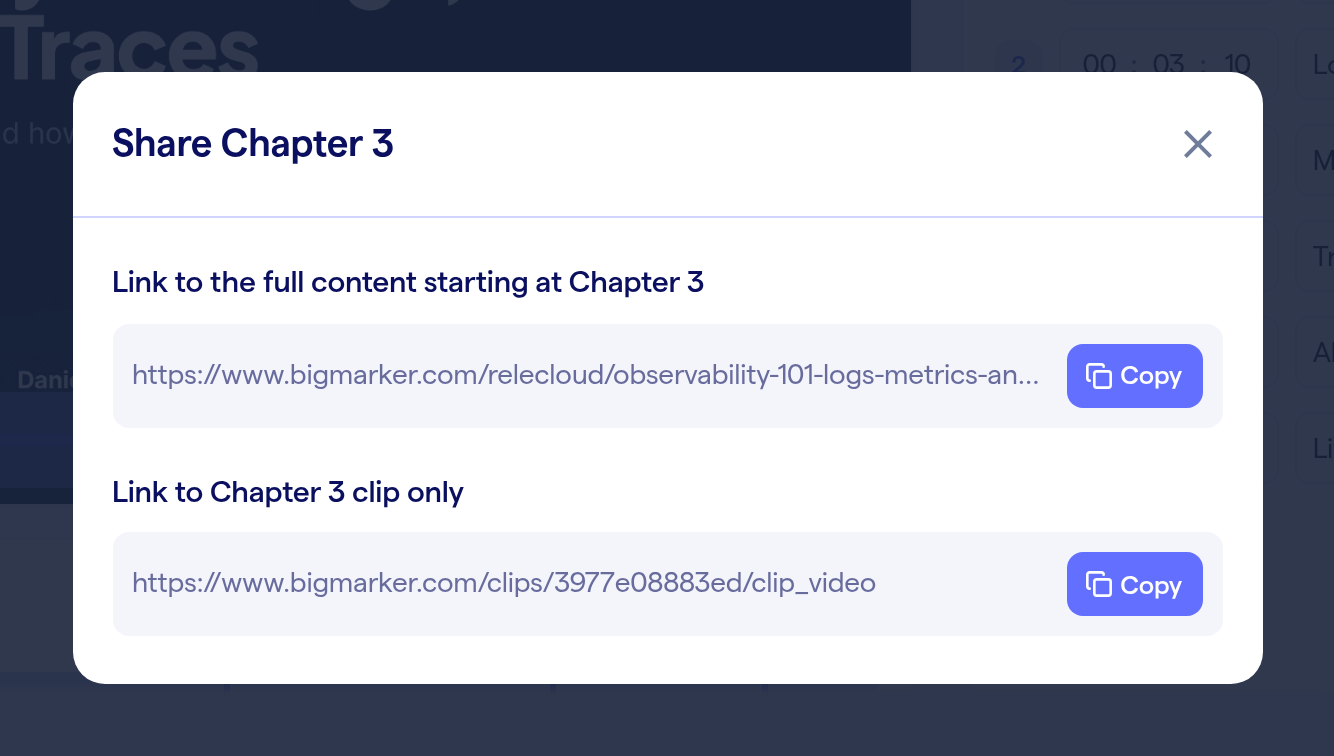
Click Share Chapter and a box opens with two links. Link to the full content starting at Chapter 3 takes registered viewers to your recording at that chapter's start time. Link to Chapter 3 clip only opens a page that plays just that chapter's clip. The number is the chapter's place in your list.
Share a chapter in three steps
What people see
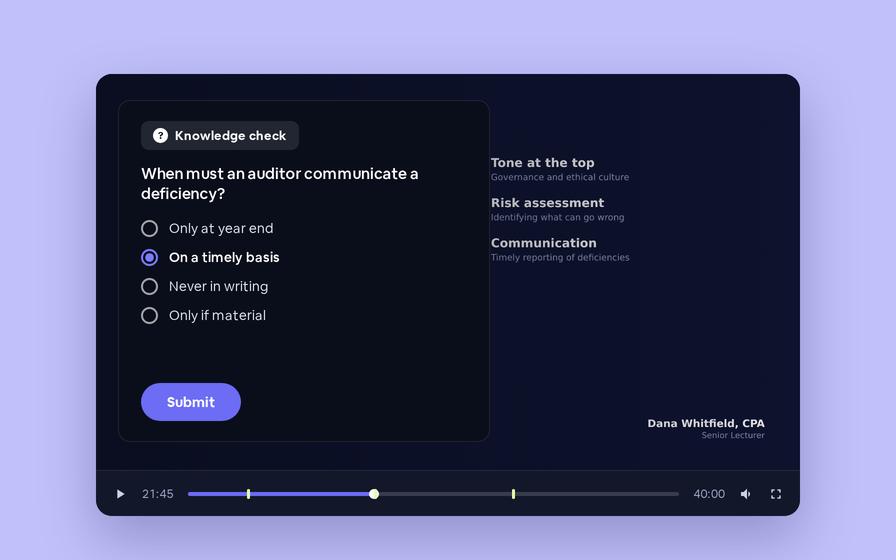
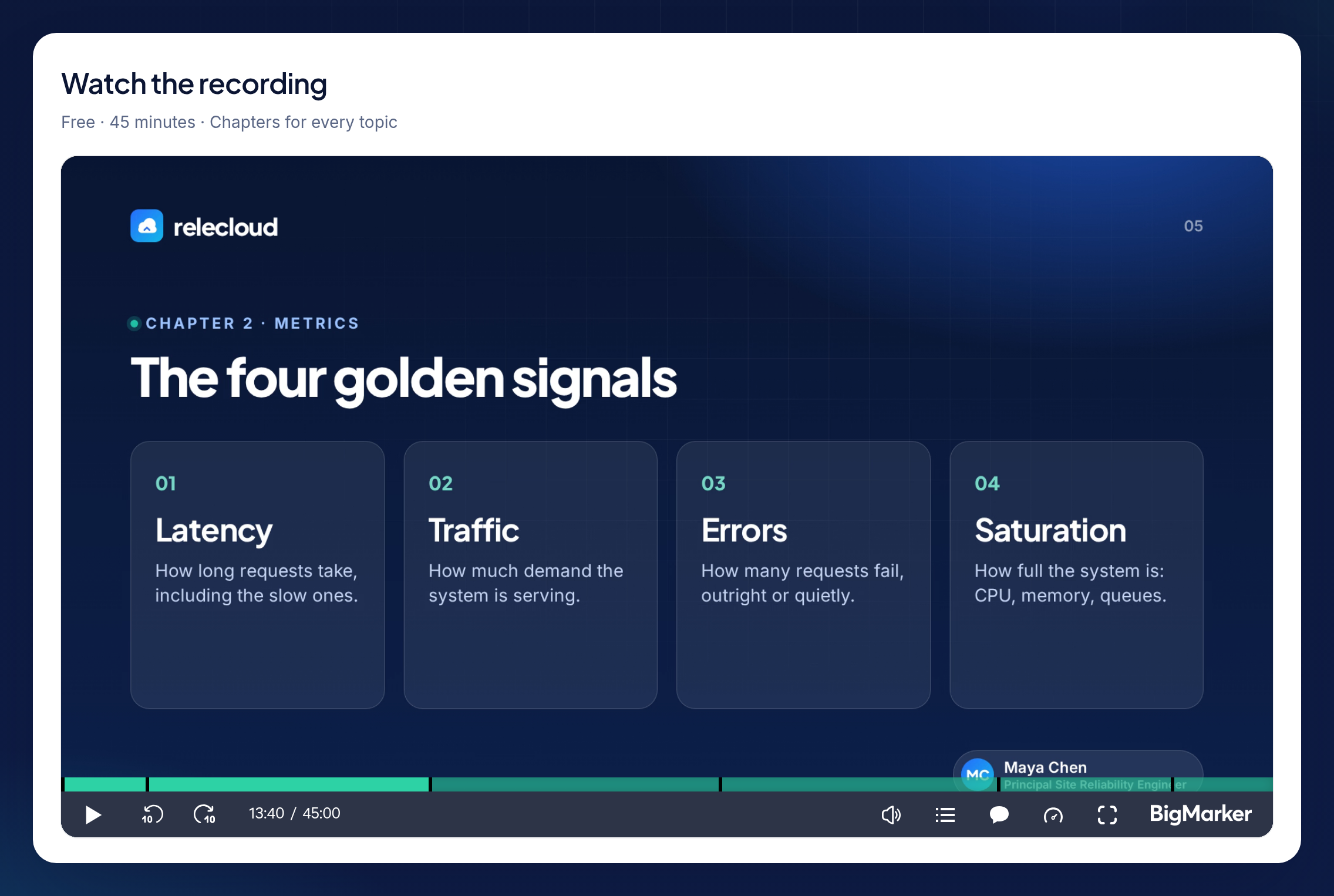
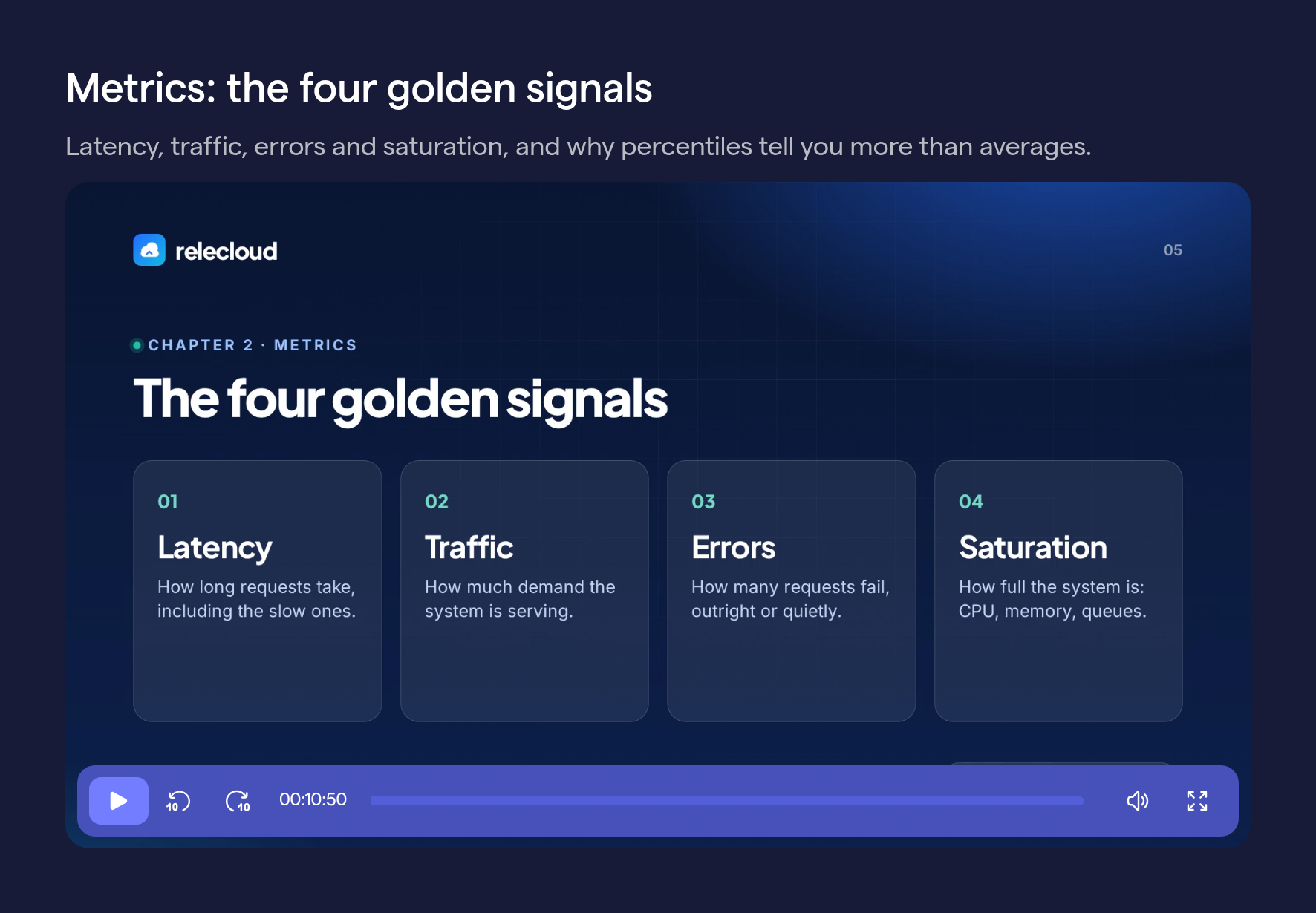
A registered viewer who opens the full-content link finds the player at the chapter's start time, ready to watch from there. The clip link opens the clip on a page of its own, with its title above it.
Good to know
| When | What happens |
|---|---|
| The clip link is grayed out | It reads “Clip isn't ready yet”. Click Save to Video Clips in the chapter's menu (it then shows Clip created). Once the clip is ready, open Share Chapter again and the link is there |
| Download Chapter Clip | It's in the chapter's menu once the clip is ready (reload the page after saving). It opens the clip's video file in a new tab |
| Which clip | The Desktop (16:9) clip, the one on the Video Clips tab |
| Viewers who still need to register | They see your page's registration first, as usual |
| The clip link | Plays for anyone who has the link, with no registration |
| A chapter you just added | Click Save first. The chapter gets its menu once it's saved |
| Links you've already sent | The full-content link keeps the start time it was copied with, even if you edit the chapter later |