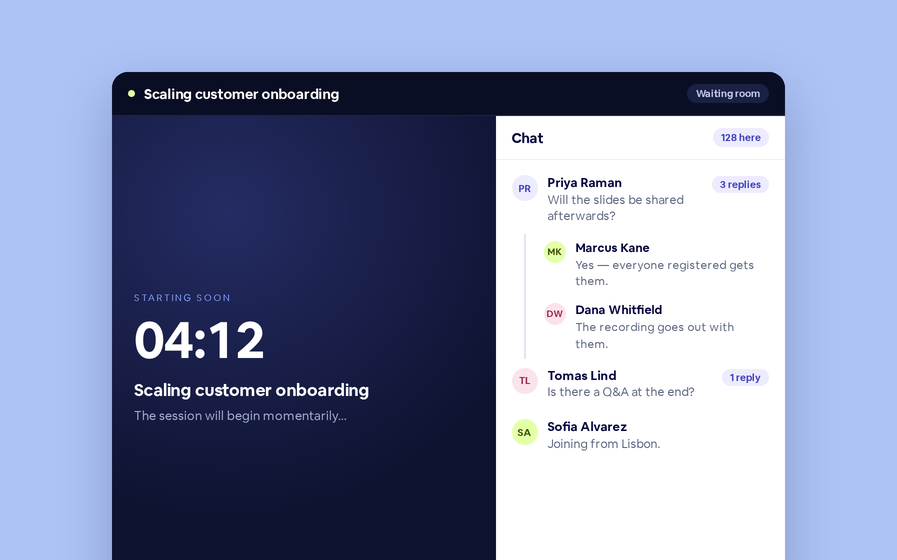
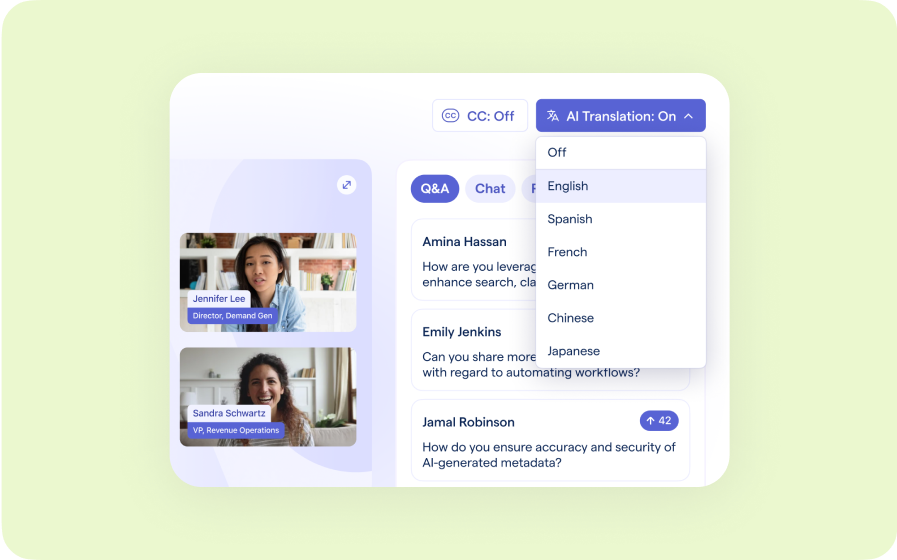
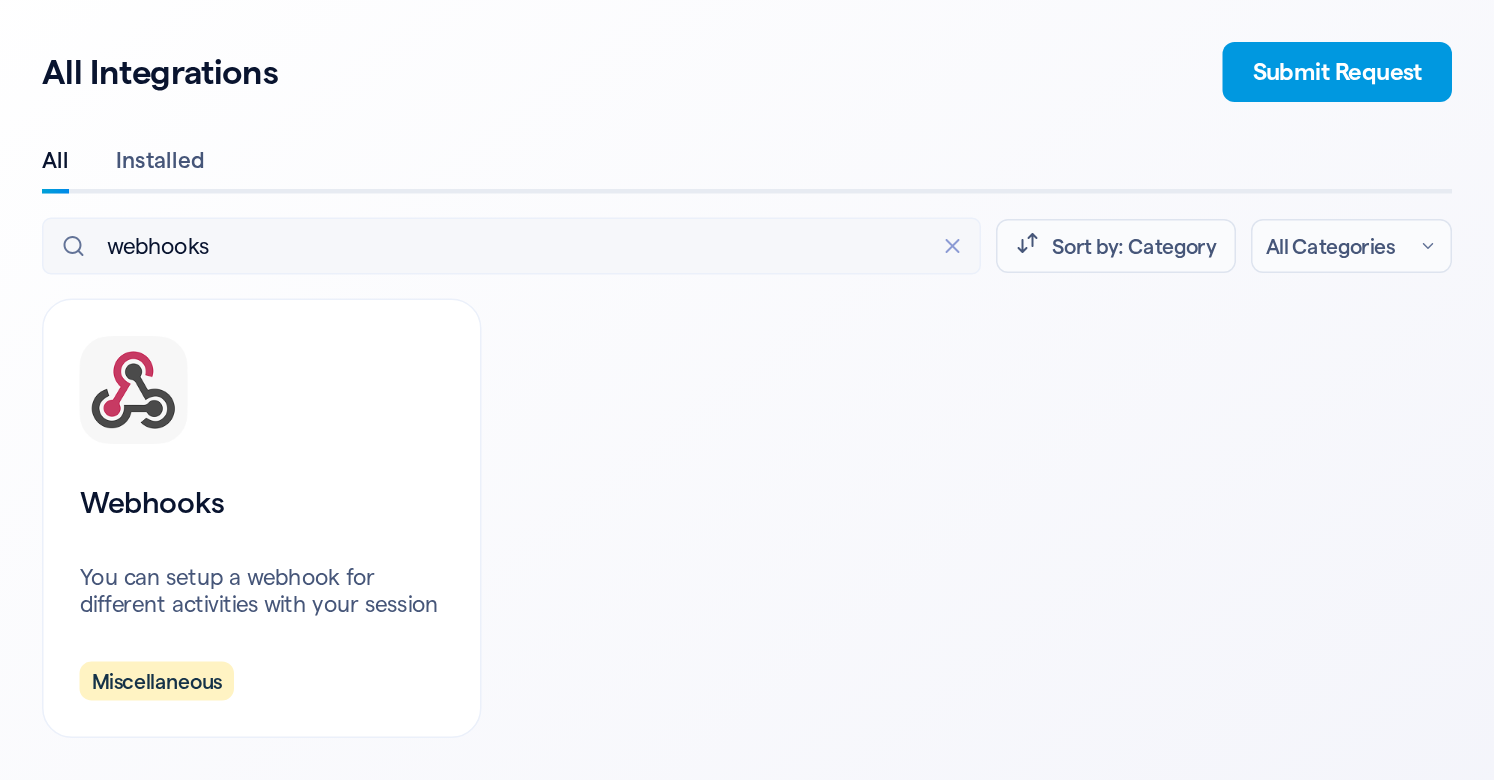
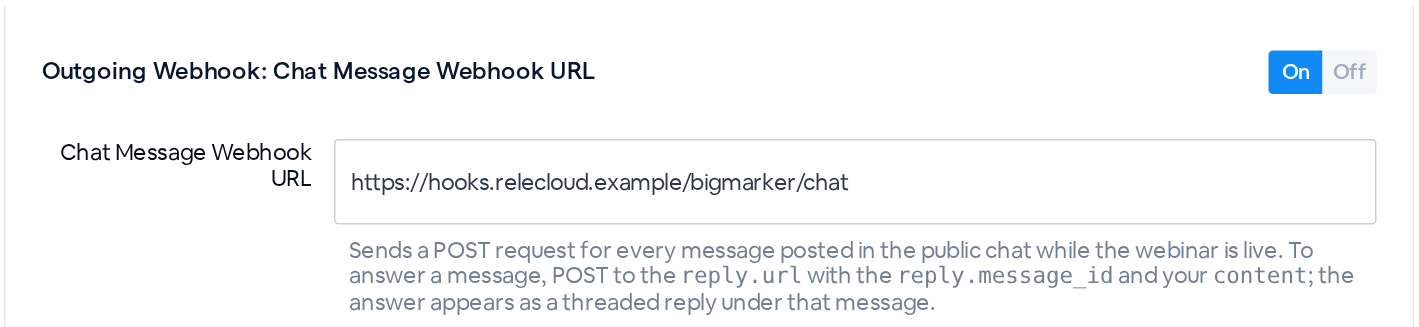
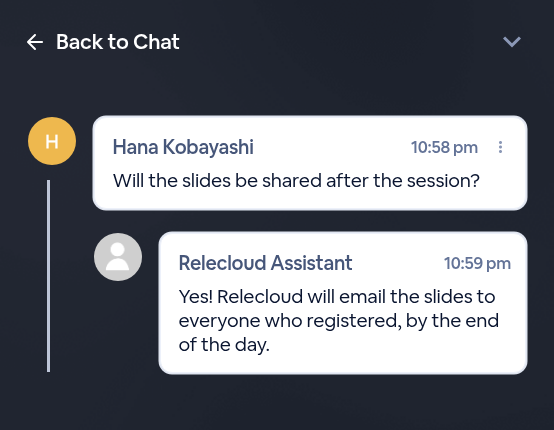
During a live webinar, the Chat Message webhook sends each public chat message to an address you choose, along with a reply address and the message's ID. Your system, such as an FAQ assistant, posts its answer there, and attendees see it in the live chat as a thread reply under the question.
Answer questions in the chat
Attendees ask a lot in the public chat of a live webinar. With the Chat Message webhook, each of those messages also goes to a system you run, such as an FAQ assistant or a help desk. Every message arrives with a reply address and its own message ID, so your system can post its answer back, and it shows up in the live chat as a thread reply under the question.
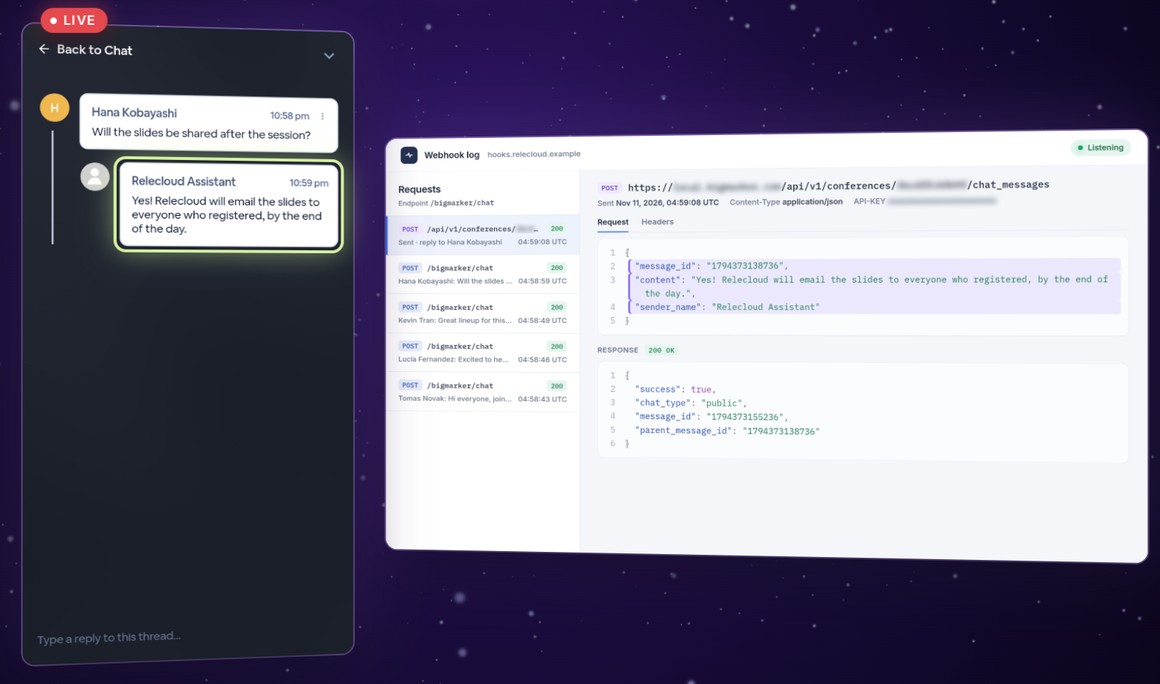
Set it up in two steps
Open your webinar's admin, ideally before the session starts.
What your system receives
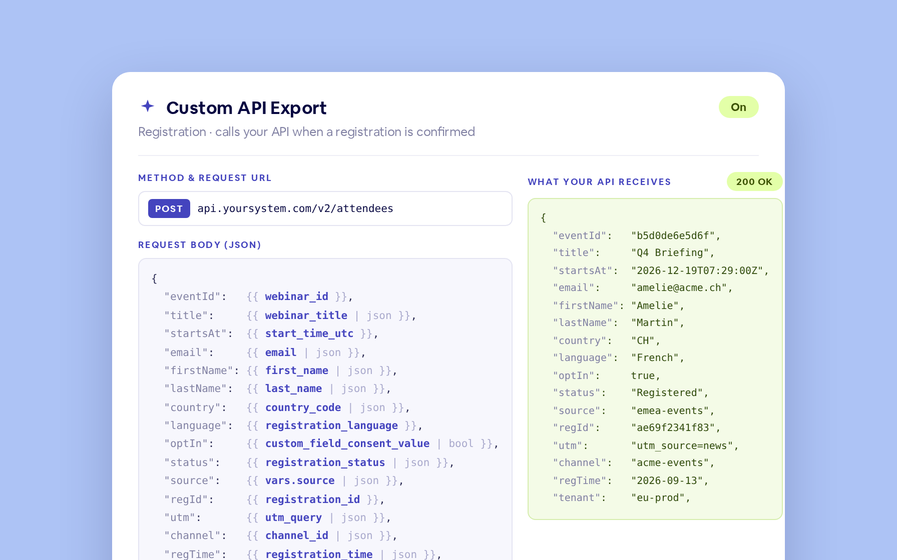
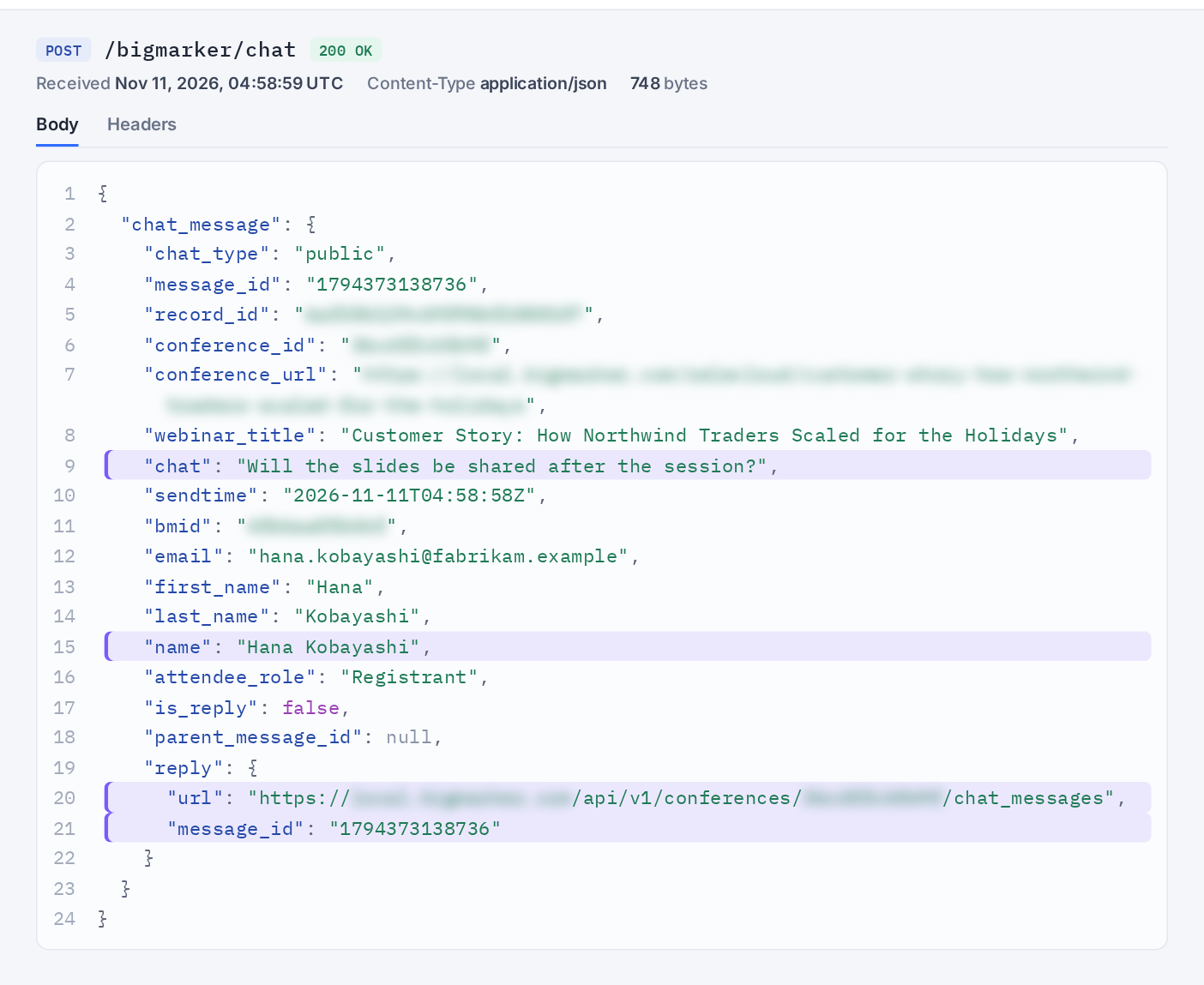
For each message posted in the public chat while the webinar is live, your address gets a JSON POST with a chat_message object. Here is the one sent for an attendee's question in the walkthrough:
| Key | What it holds |
|---|---|
| chat | The message, as plain text |
| name, attendee_role | Who sent it, and their role, such as Registrant, Guest, Presenter or Organizer |
| The sender's email, when the room has one | |
| first_name, last_name, bmid | The sender's details, when they're registered for the webinar, presenting, or a channel admin. Otherwise these are empty |
| webinar_title, conference_id, conference_url | The webinar the message was posted in |
| sendtime | When it was posted, in UTC |
| message_id | The message's ID in the chat |
| is_reply, parent_message_id | Whether it was posted inside a thread, and if so, the ID of the message that started the thread |
| reply.url, reply.message_id | Where to post an answer, and the message to answer under |
Post the answer
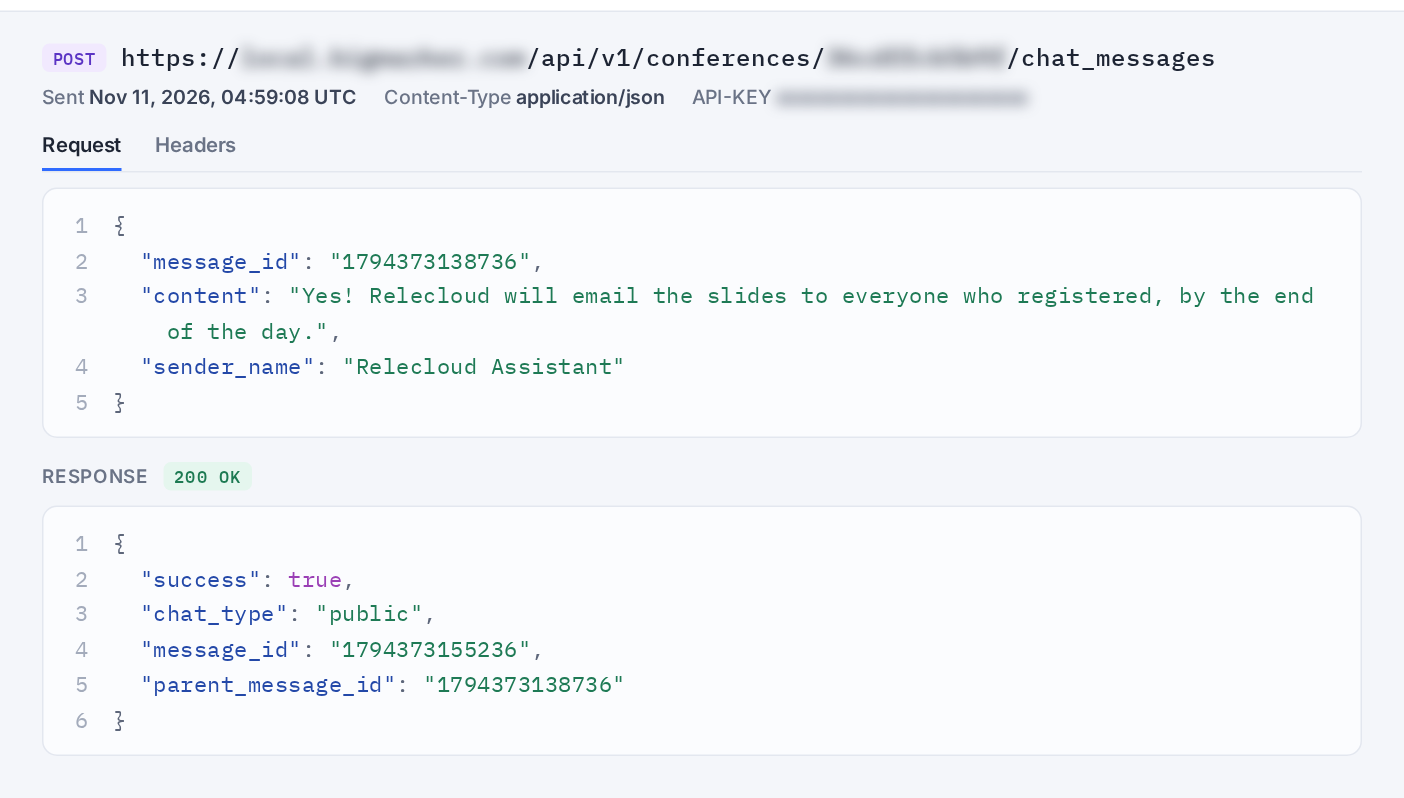
To answer, your system sends a POST to reply.url with an API-KEY header holding the BigMarker API key of someone who can manage the webinar.
| Field | What to send |
|---|---|
| message_id | The reply.message_id you received. Leave it out to post a new message in the public chat instead of a thread reply |
| content | The answer: plain text, up to 2,000 characters (any HTML is removed) |
| sender_name | Optional. The name the answer appears under, up to 100 characters. Without it, the answer appears as Assistant |
| sender_avatar | Optional. An https:// image address for the picture beside the answer |
| idempotency_key | Optional. Send the same key when you retry within 24 hours, and the answer isn't posted twice: the repeat returns 200 with duplicate set to true |
A successful answer returns 200 with success, the answer's own message_id, and the parent_message_id it was posted under. The answer appears in the live chat right away, under the question:
Good to know
| Details | |
|---|---|
| Which messages | Messages posted in the public chat while the webinar is live, including replies inside threads. Answers your system posts through the API aren't sent back to it |
| Turn it on early | Set it up before the session starts, so it covers the chat from the first message |
| Recurring webinars | Sessions of a recurring webinar use the recurring webinar's setting |
| Follow-up questions | A reply in a thread arrives with is_reply set to true. Its reply.message_id points at the thread's first message, so your answer lands in the same thread |
| Live webinars | Answers go into a webinar's live room. If the webinar has no live room, the API returns 422 webinar_not_live |
| If an answer fails | 401: the API key is missing or invalid, or its owner can't manage this webinar. 404 message_not_found: the message_id isn't a top-level public chat message in this webinar. 422 content_invalid: the answer is empty or too long. 502 delivery_failed: retry with the same idempotency_key. 409 request_in_progress: a request with that key is still being delivered, so retry shortly |
| Check it's BigMarker | Turn on Enable the authentication header for outgoing API requests on the same page to add a header of your own to each request |