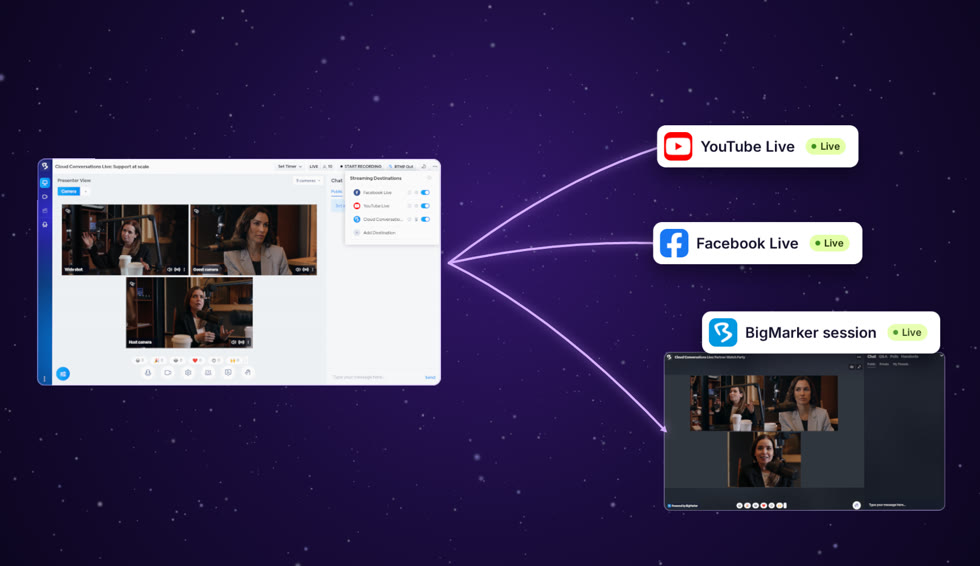
Plenty of your audience follows you on YouTube or Facebook. RTMP Out streams your live webinar to those platforms at the same time, and even into another BigMarker session, so each audience watches where it already is.
One live show, many places
RTMP Out sends what your webinar room is showing to each destination you switch on: the cameras, the slides and the layout your audience sees.
Set the destinations up ahead of time in your webinar’s admin, then turn each one on from the studio when you go live.
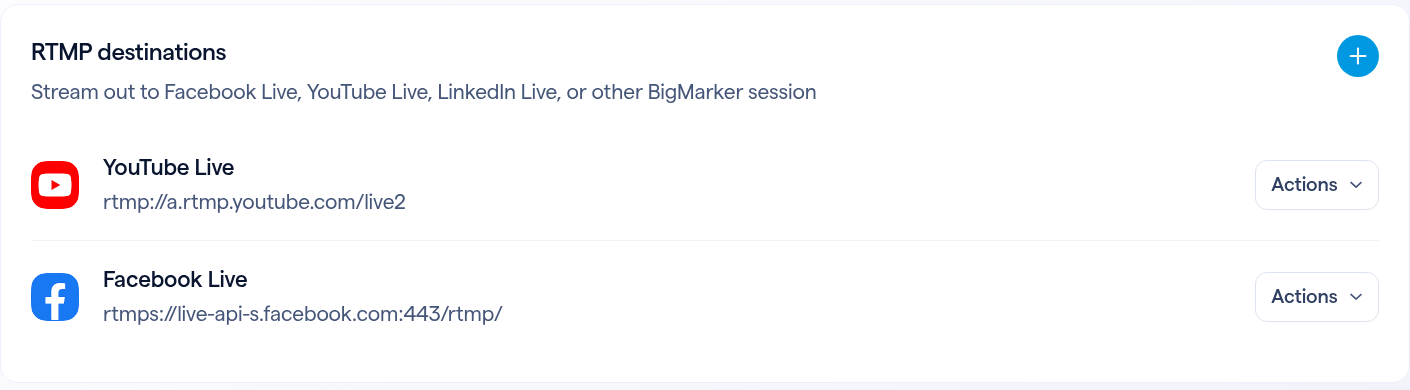
Add your destinations before the show
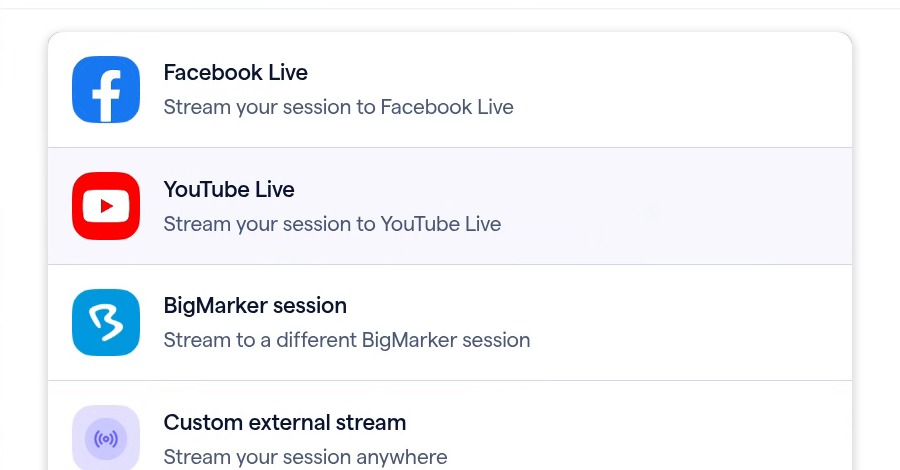
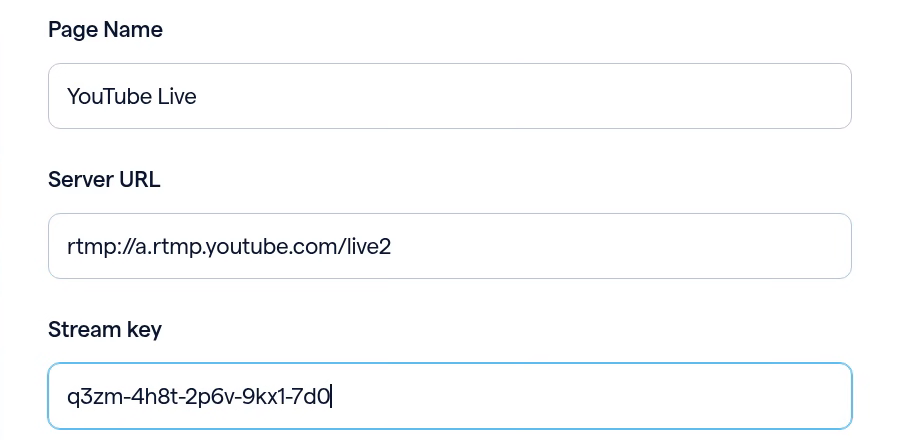
Open your webinar’s admin, then Production → Streaming & RTMP → Outgoing Streams.
Go live from the studio
In the studio, click RTMP Out. Your destinations are listed under Streaming Destinations, each with its own switch. Turn one on and your webinar starts streaming there; turn it off and the others keep going.
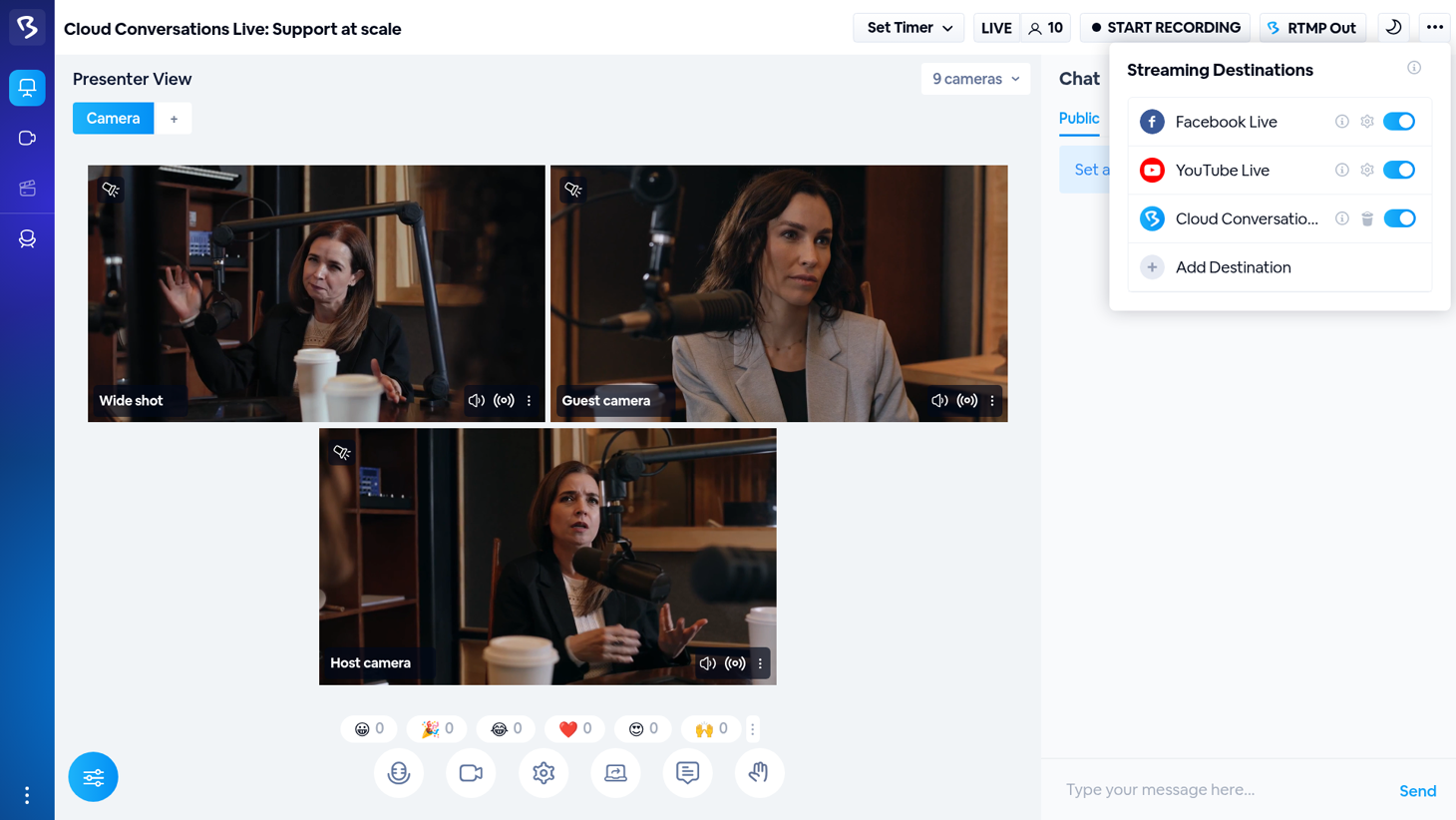
| Control | Where it is | What it does |
|---|---|---|
| RTMP Out | The studio header | Opens Streaming Destinations. |
| The switch | Each destination’s row | Starts or stops streaming to that destination. |
| Add Destination | The bottom of the list | Adds a destination from the room, without going back to admin. |
Stream into another BigMarker session
Click Add Destination, then Stream to Bigmarker. Pick the session and its stream key, click Connect Webinar, and turn it on. That session plays your show live for its own audience, with its own chat.
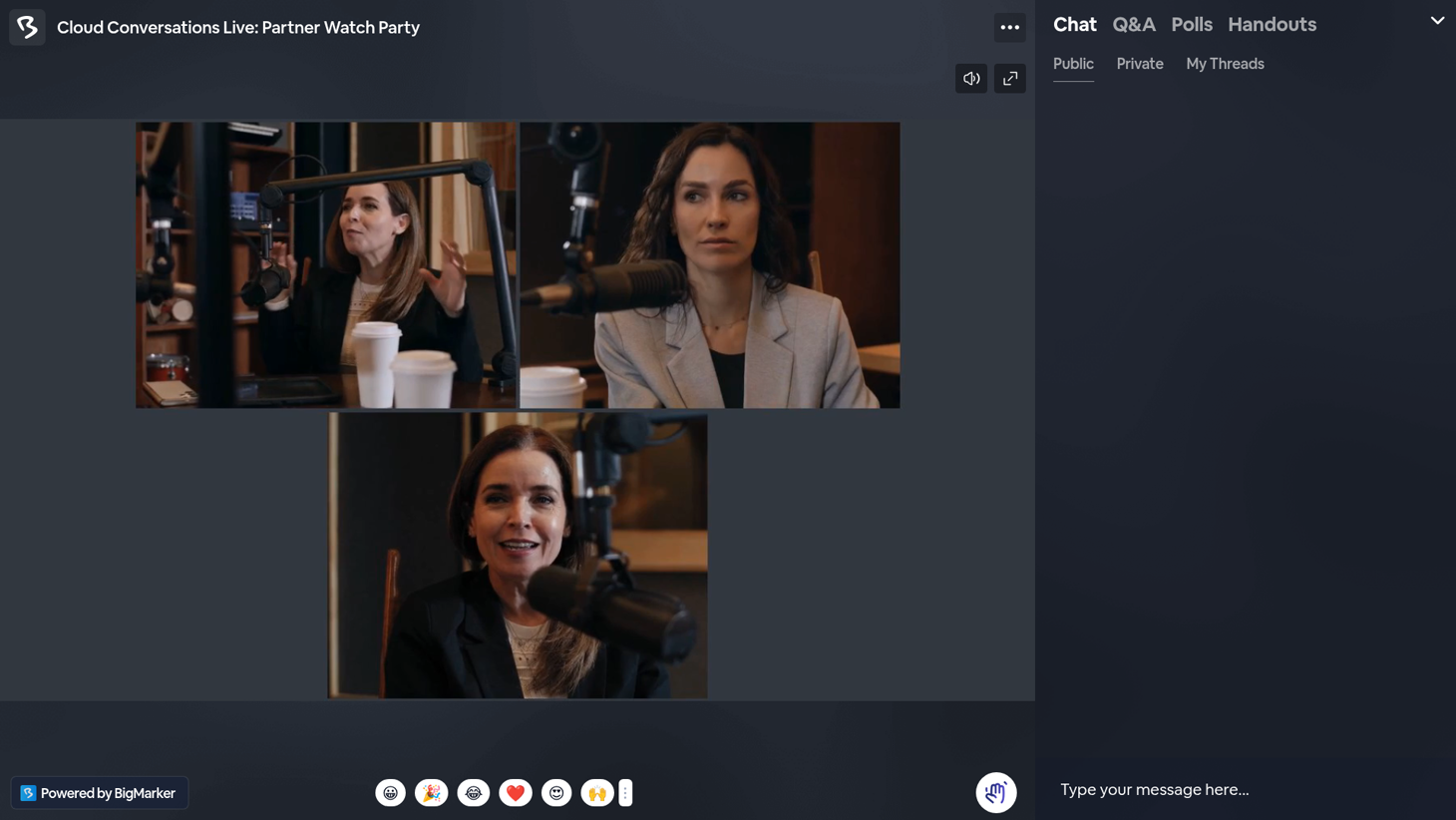
Stream to Bigmarker lists sessions that are live now, so open the session you’re streaming into first. Set that session to Native RTMP to show your feed full-frame.