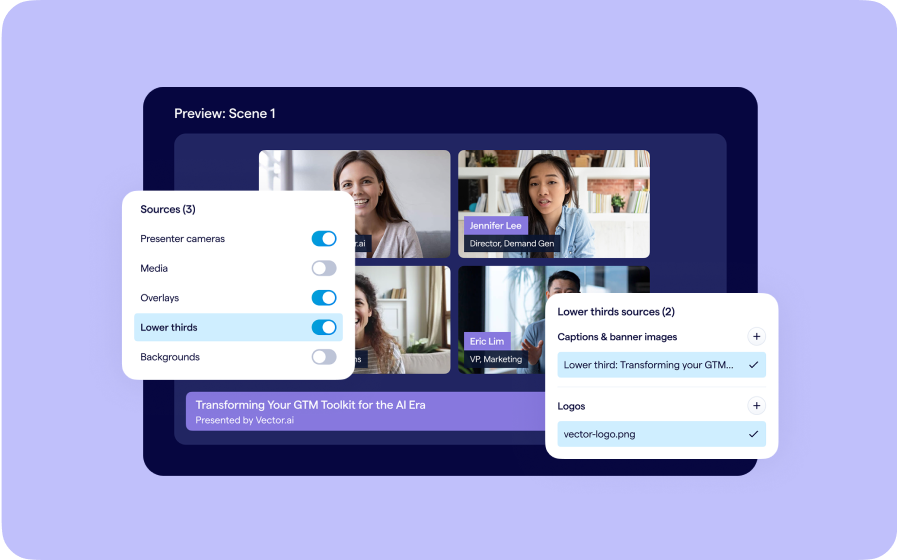
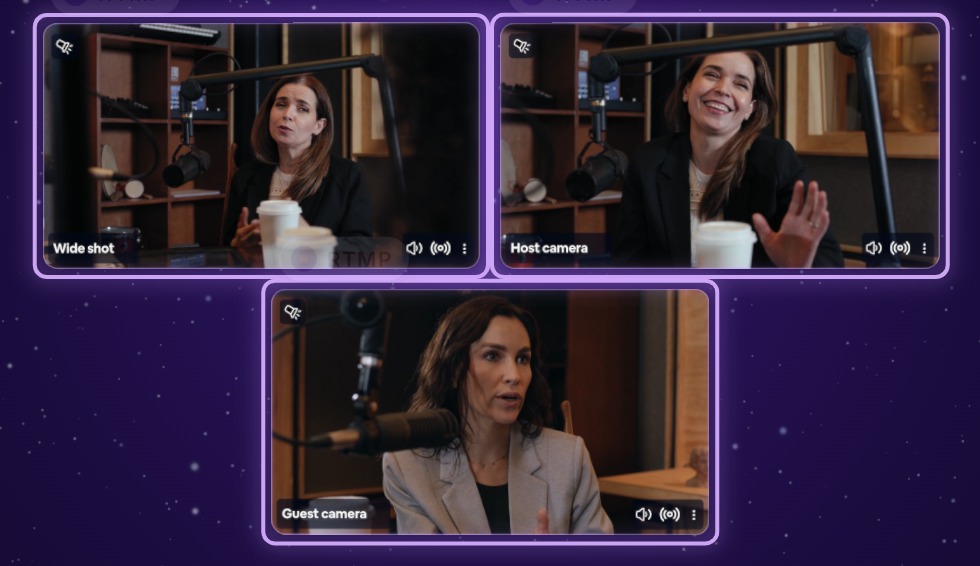
A produced show often has more than one camera. With Multi-stream, each camera’s encoder streams into your webinar on its own key, and every feed arrives in the room as a camera you can pin or spotlight for your audience.
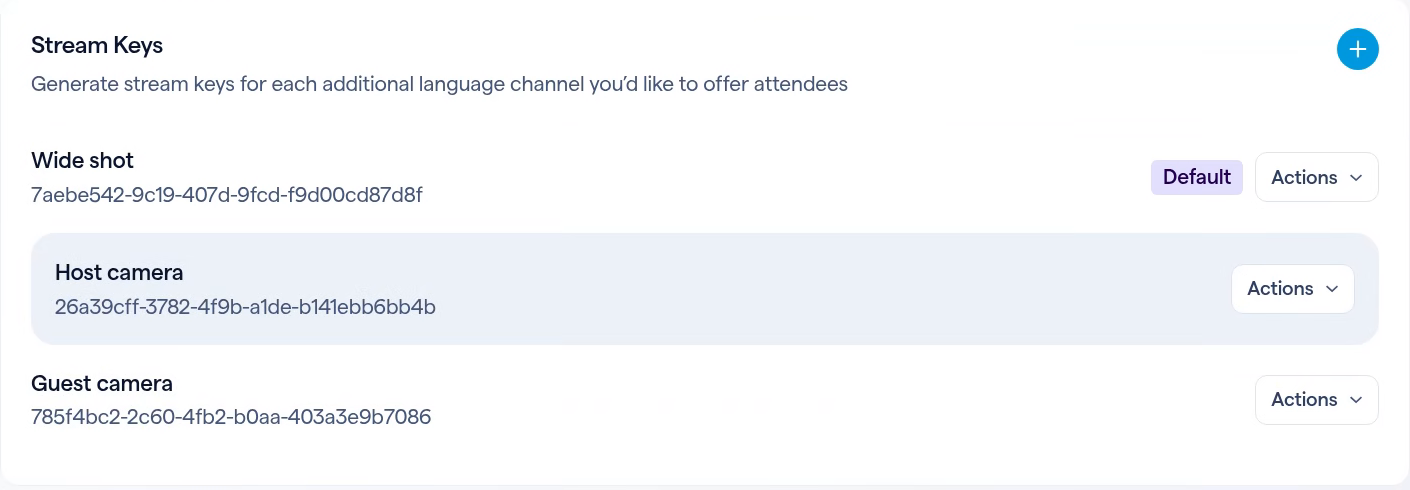
Every camera, its own feed
Give each encoder in your studio its own stream key, and point them all at your webinar’s stream URL. OBS, vMix and hardware encoders all work.
In the room, every feed shows up as a camera tile named after its key, ready for you to put on stage.
Set it up in three steps
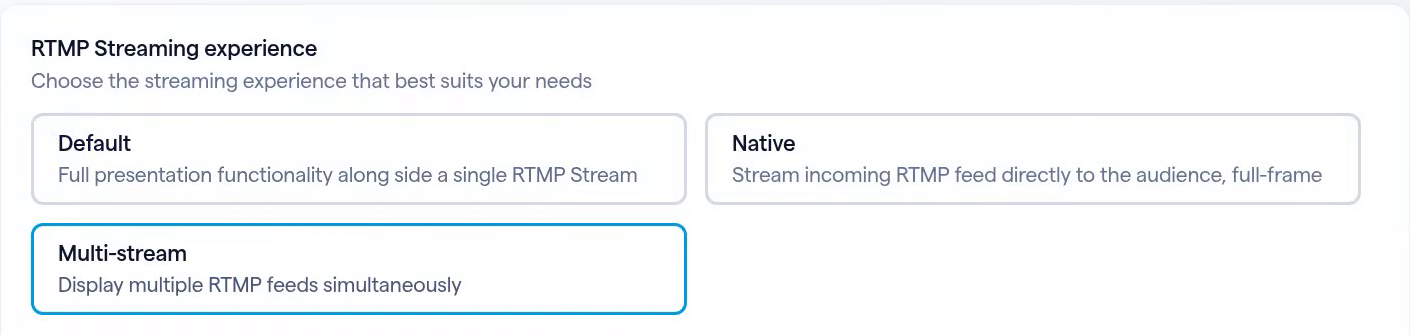
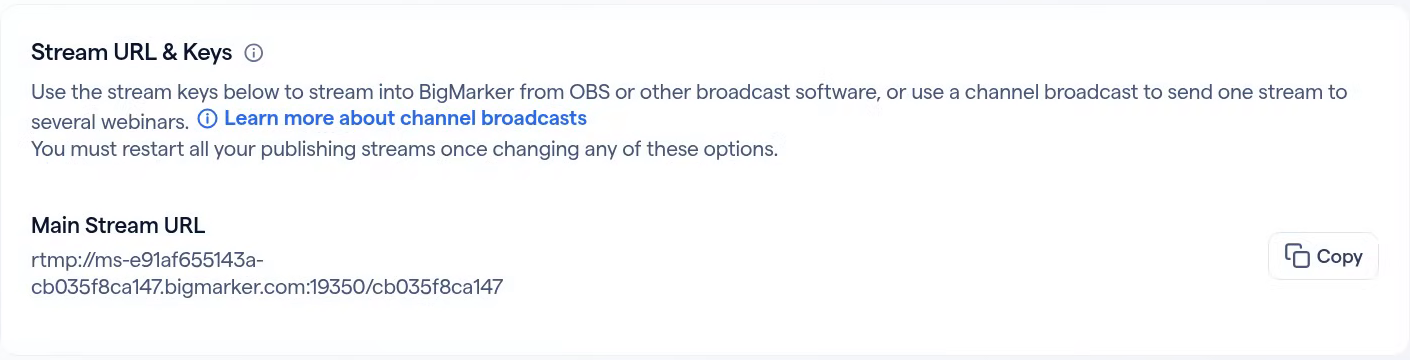
Open your webinar’s admin, then Production → Streaming & RTMP.
Direct the cameras from the room
Start the encoders and open your webinar room. Each feed arrives within a few seconds as its own camera.
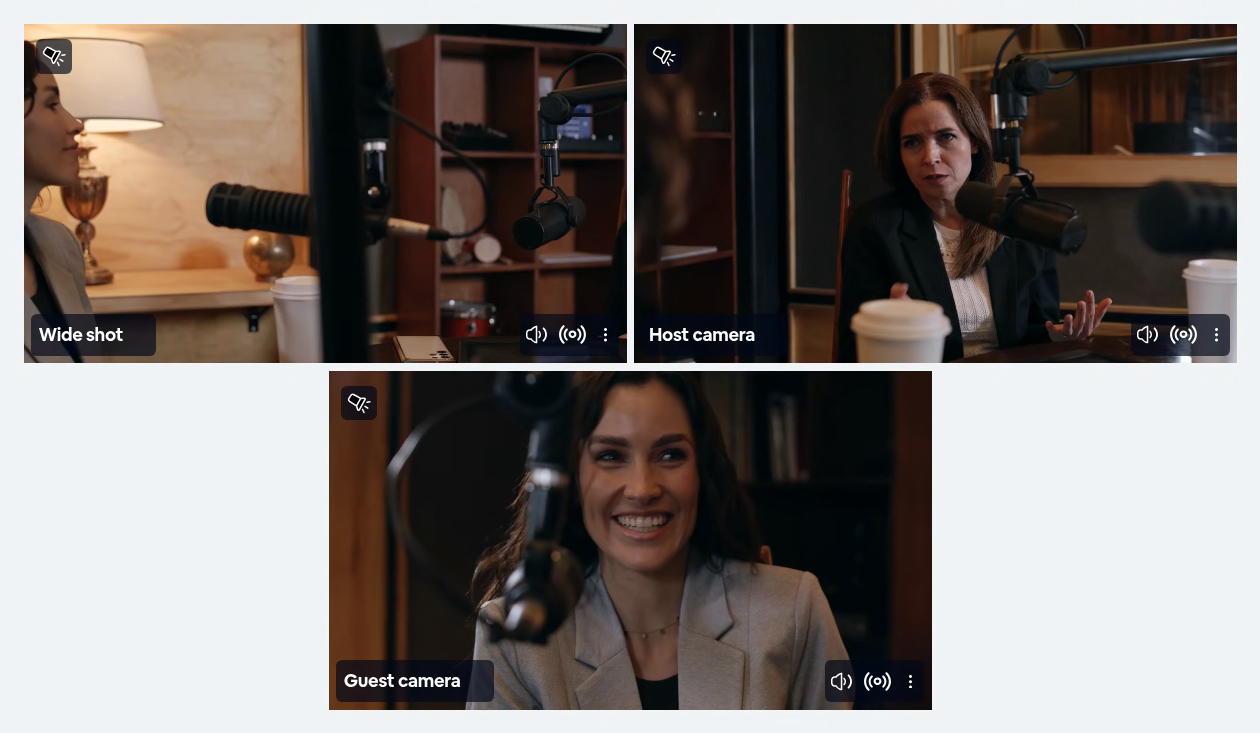
| Control | Where it is | What it does |
|---|---|---|
| Pin for everyone | The camera’s ⋮ menu | That camera leads the stage for everyone watching. |
| Turn On Spotlight | The icon at the top left of the camera | That camera takes the stage. The others wait beneath it until you turn Spotlight off. |
| Volume | The speaker icon on the camera | Mutes that feed for you only, so you can listen to one camera at a time. |
What your audience sees
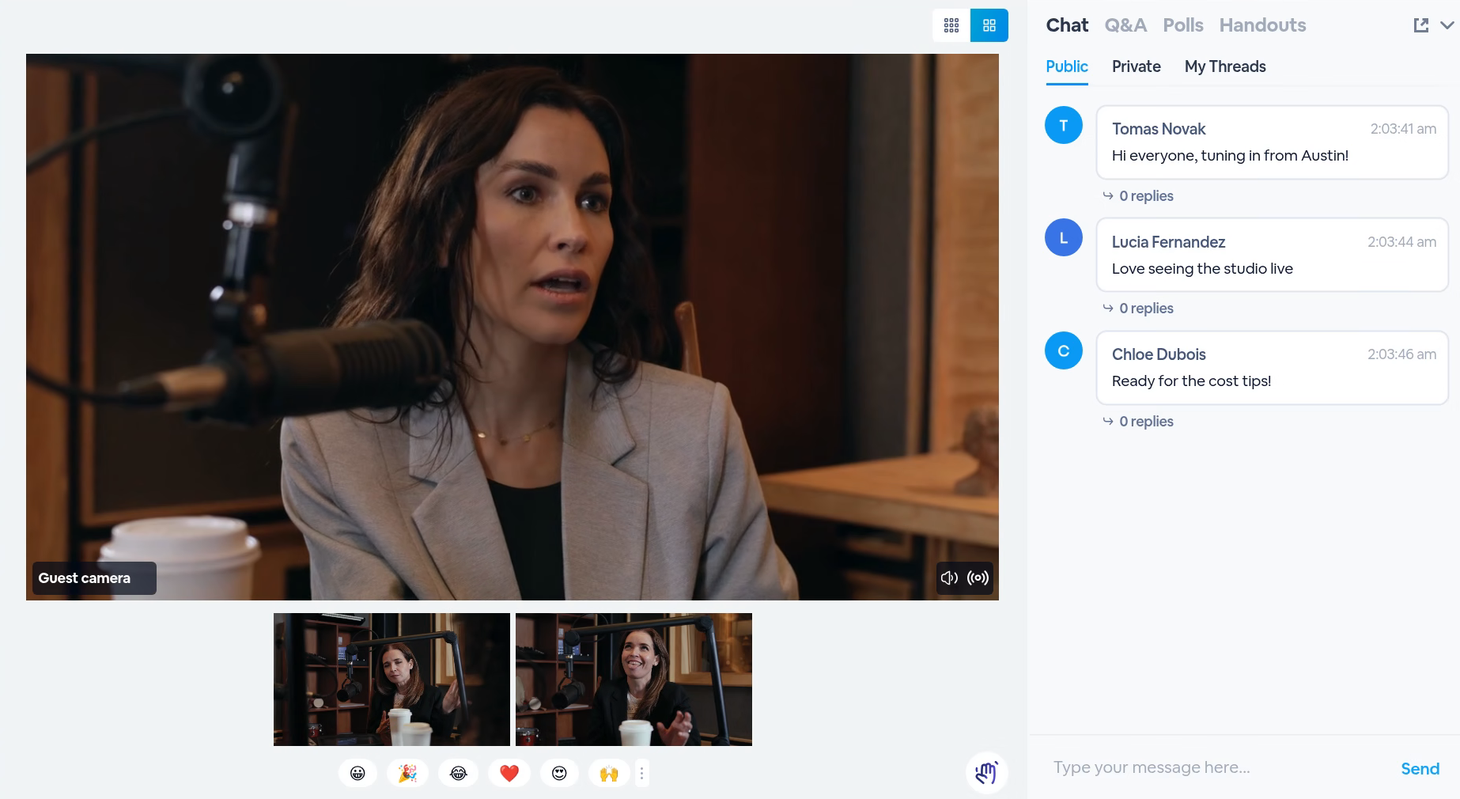
Attendees get the stage you set, as it changes. Here the guest’s camera is in the spotlight.
Stream URL & Keys shows the Multi-stream URL once you refresh the page, so refresh before you copy it. Restart any encoder that was already streaming.