BigMarker News & Updates Recommend Sessions from Registration Answers

Recommend Sessions from Registration Answers

November 18, 2026
Pair a registration field with a session tag, and registrants see the sessions that match their answers.
Categories
Share

Recommended sessions can now follow what people tell you when they register. Pair a question on your registration form with one of your session tags, and registrants see the sessions tagged with their answer: people who pick Security see your Security sessions, and people who pick Development see your Development sessions.

Recommendations from their own answers

Your registration form already asks people about themselves, like their role or their industry. Recommended sessions can now use those answers. Pair a registration field with one of your session tags, and a registrant's page lists the sessions whose tag matches what they chose. Someone who picks Security sees your Security sessions, and someone who picks Development sees your Development sessions.
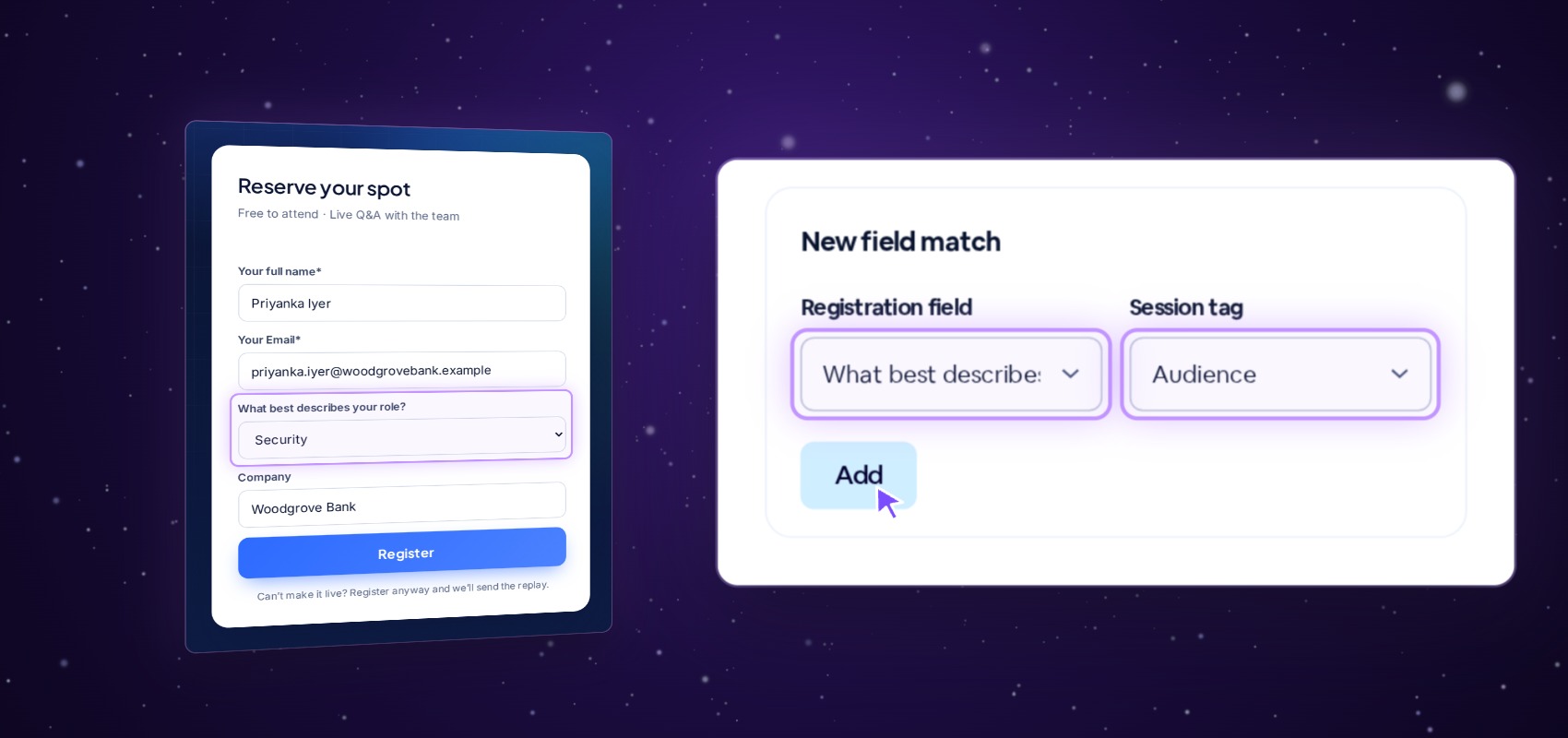
A registration form with What best describes your role? answered Security, beside a New field match pairing that field with the session tag Audience.
Illustration

Set it up in three steps

Open your confirmation page in the page designer. In the menu at the bottom of the left bar, choose Recommended sessions.

Before you start

Recommendations appear where your page's design has a recommended sessions section, like the confirmation page here. Matches come from your session tags: create the tag under Webinar Tags in your channel settings, then give each session its value with Edit Session Tags on the session's dashboard, using the same words as the answers on your form, like Security or Development.
1
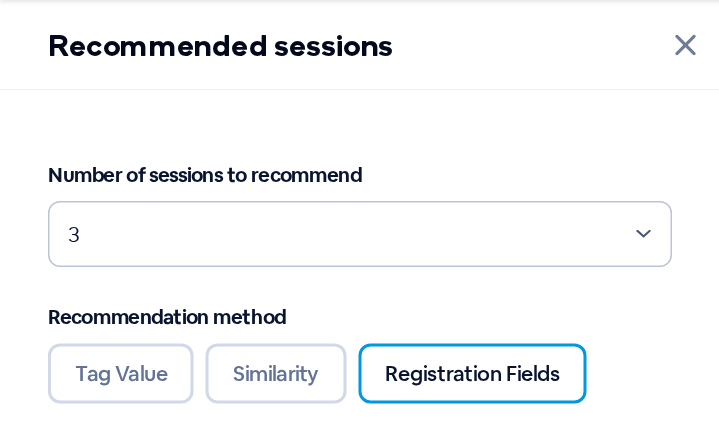
Choose how many, and howPick the Number of sessions to recommend, up to 10. Then set Recommendation method to Registration Fields.
The Recommended sessions panel: Number of sessions to recommend 3, and Recommendation method set to Registration Fields.
2
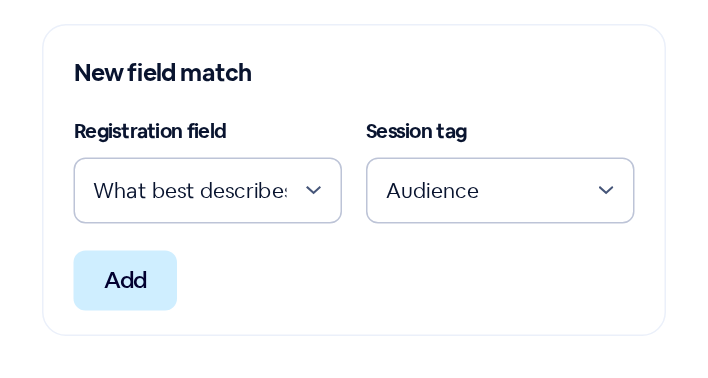
Pair a field with a session tagUnder New field match, pick a Registration field from your form and the Session tag it should match, then click Add. Add as many pairs as you need. A registrant sees sessions that match any of them.
New field match with What best describes your role? as the Registration field, Audience as the Session tag, and the Add button.
3
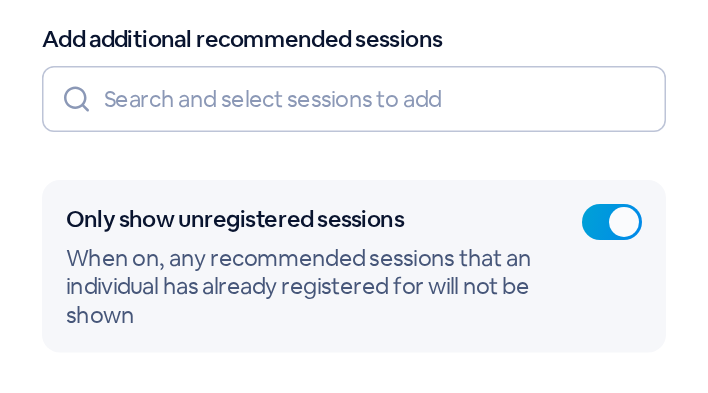
Pick sessions by hand, then saveSessions you pick under Add additional recommended sessions come first, whatever a person answered. Leave Only show unregistered sessions on so that sessions a person has already signed up for, picked or matched, stay off their list. Click Save.
Add additional recommended sessions with its search box, and Only show unregistered sessions switched on.

See it as a registrant

To check the page before you share it, click Admin at the top of the designer, open Registrants and pick a name. The preview shows the page as that person sees it. Here Priyanka answered Security, so her page recommends Security sessions. Vikram answered Development and gets Development sessions.

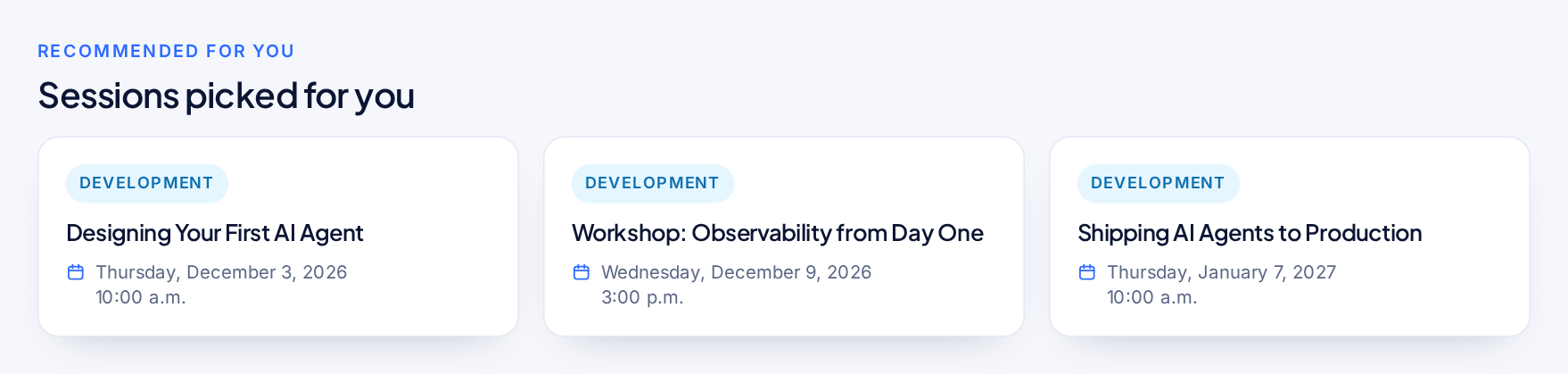
Priyanka's confirmation page, Sessions picked for you: three sessions tagged Security.
Priyanka, role: Security
Vikram's confirmation page, Sessions picked for you: three sessions tagged Development.
Vikram, role: Development

Who sees which sessions

WhenThe registrant sees
Their answer matches a session's tagThat session, up to the number you chose
You've added several pairsSessions that match any of the pairs
They chose more than one answerSessions that match any of their answers
They left the field blank, or aren't signed inOnly the sessions you added by hand
They've already registered for a sessionNot that one, while Only show unregistered sessions is on

Capital letters and extra spaces don't matter, so an answer of “security” matches a session tagged “Security”. Matches come from the public sessions on your channel, not private or unlisted ones. Sessions you added by hand always come first.
Sessions picked from their answers
Page designer › Recommended sessions › Registration Fields
Related updates
Export to Any System
No connector needed — point a session at your endpoint, write the JSON body, and BigMarker calls it as people register, attend and watch.
Threaded chat in waiting room
Replies now sit in a thread under the message they answer, so the pre-show conversation stays readable.
 Inline Page Editing
Inline Page Editing
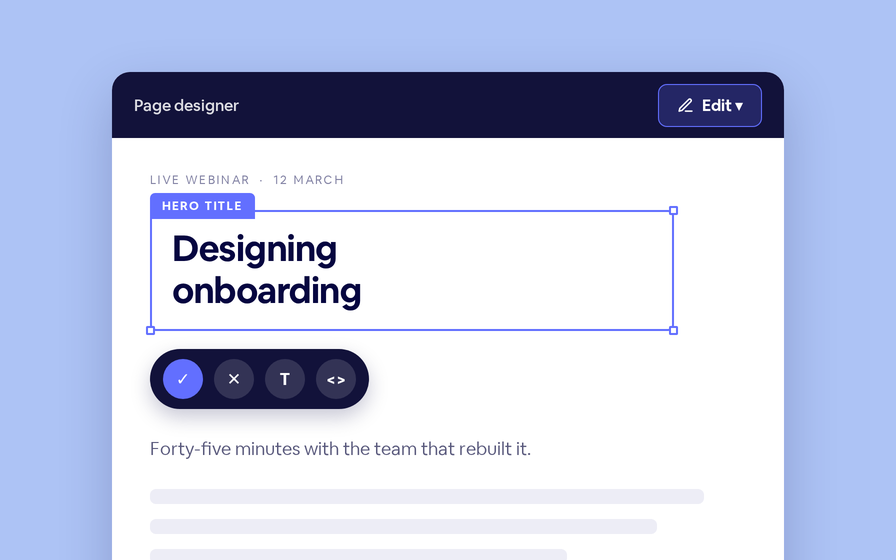
Click any headline, image or block on your landing page and change it right there — no hunting through editor panels.
Quizes in On Demand Video
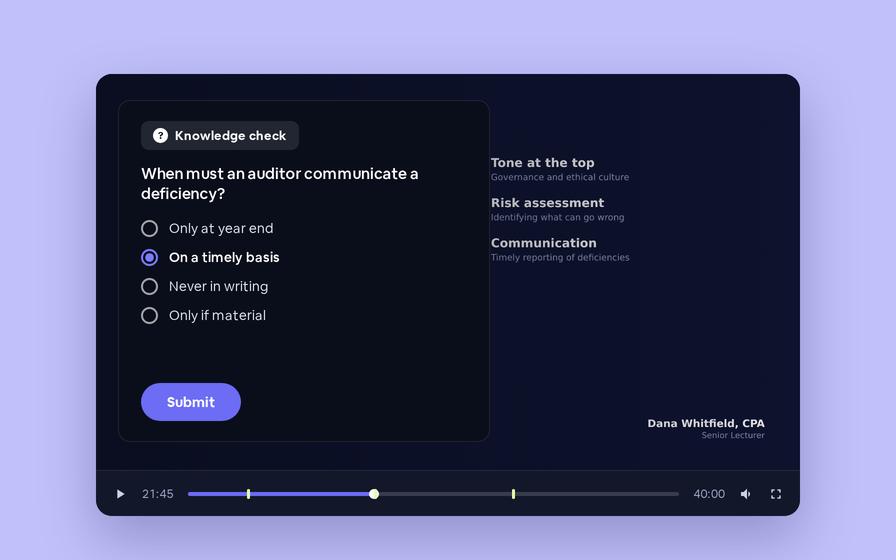
Ask questions inside your recordings and see who actually understood, not just who pressed play.
Preview Custom Page States
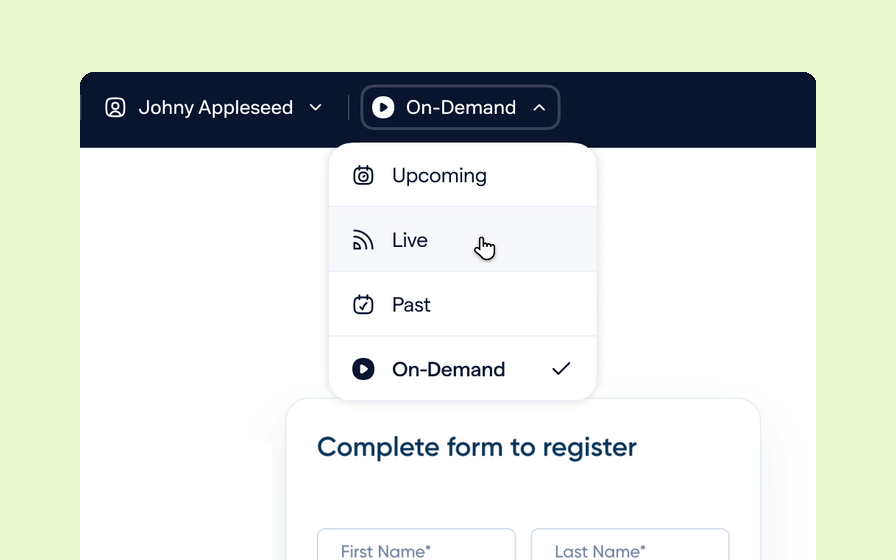
Preview any custom page as a registered viewer, an unregistered visitor or a real registrant, at any point in the event's life.
Follow Up Emails
Follow Up Emails
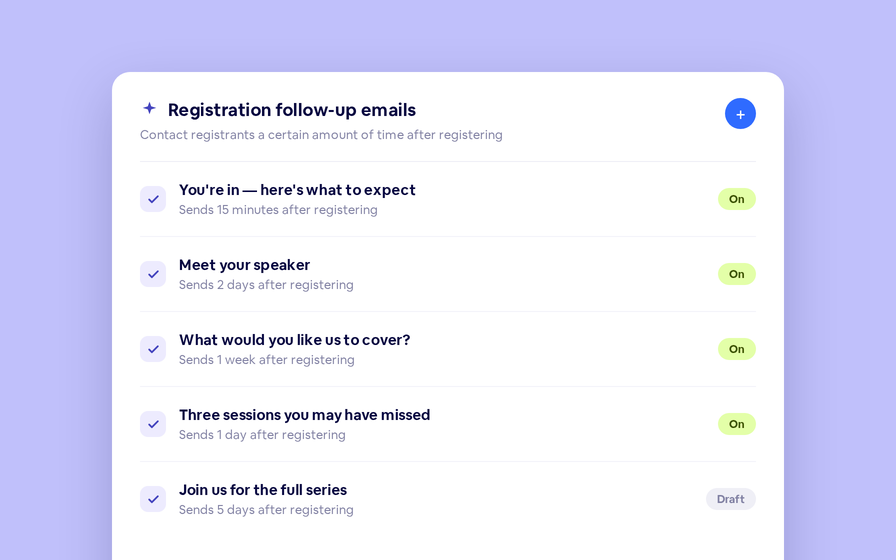
Keep in touch with your registrants immediately after they register.
Introducing BigMarker AI
Leverage generative AI to automate chaptering, generate short-form social-ready video clips, and create derivative content such as blogs, eBooks, and more.
AI  Audio Translations
AI Audio Translations
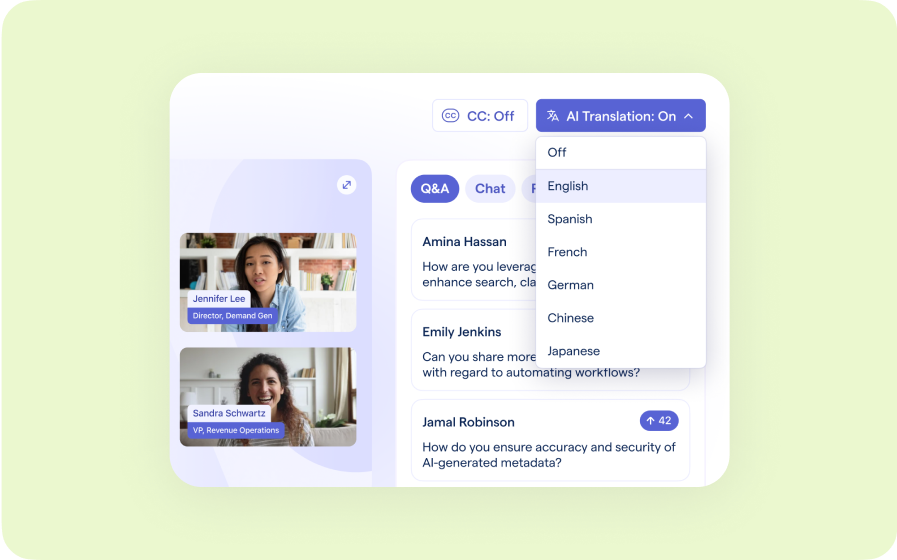
Presenters speak in their language while attendees listen in theirs, removing barriers and opening content to participants everywhere.
Custom Audience Experiences
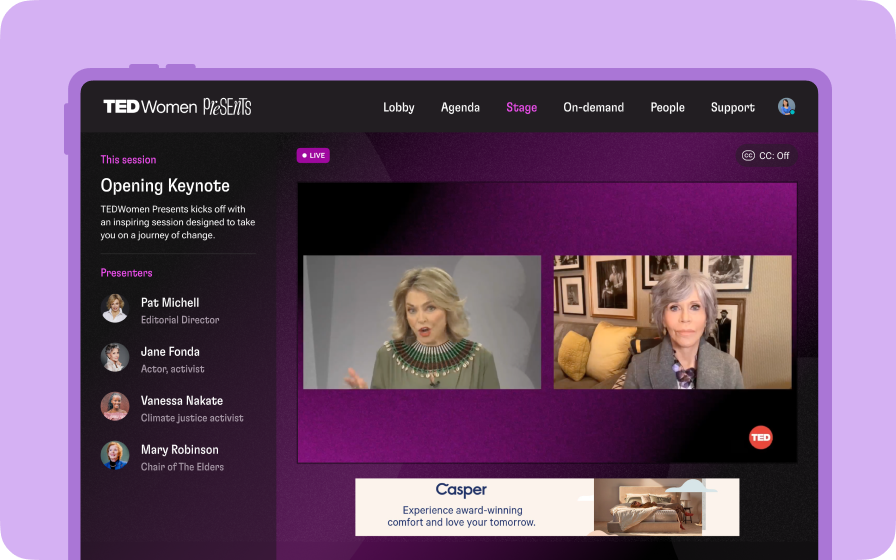
Get complete control over your webinar and event interfaces so every session looks, feels, and performs exactly the way you want.
AI Email Personalization
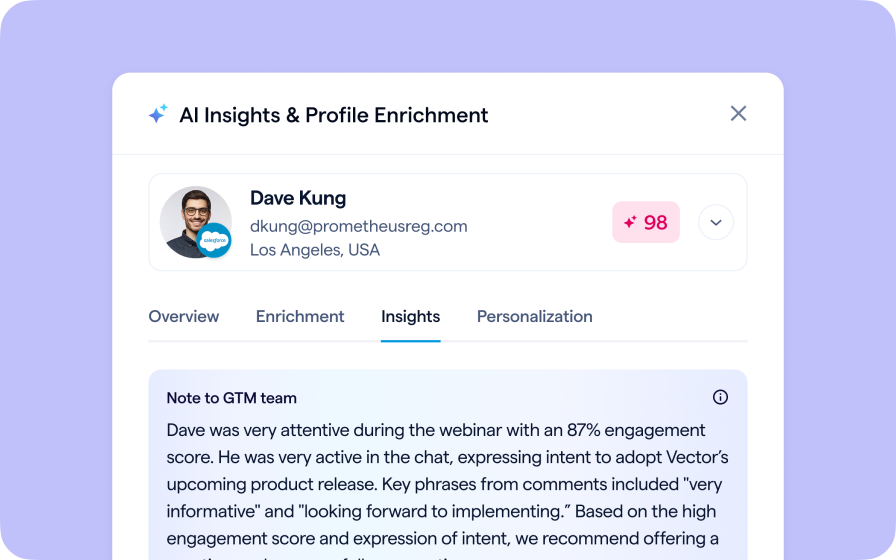
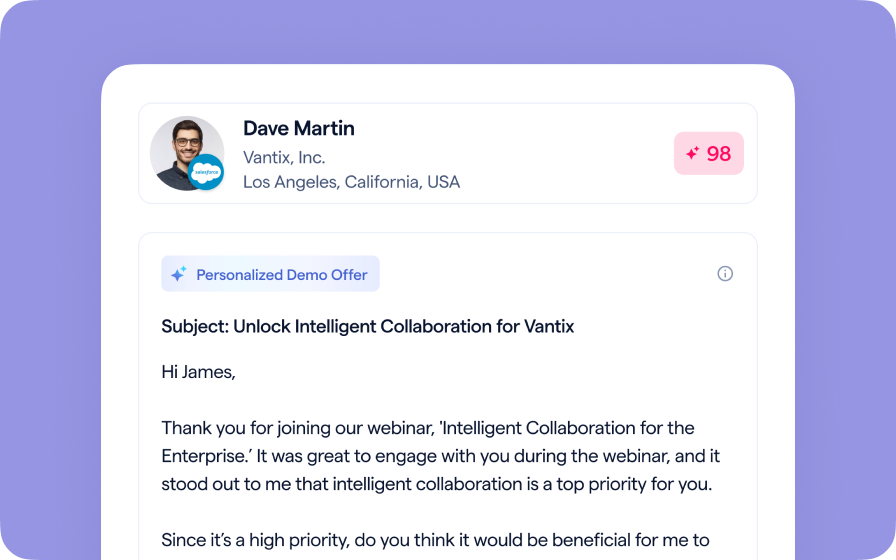
Every attendee gets a message crafted just for them based on their engagement, interests, and lead score.
Studio Scenes
Studio Scenes
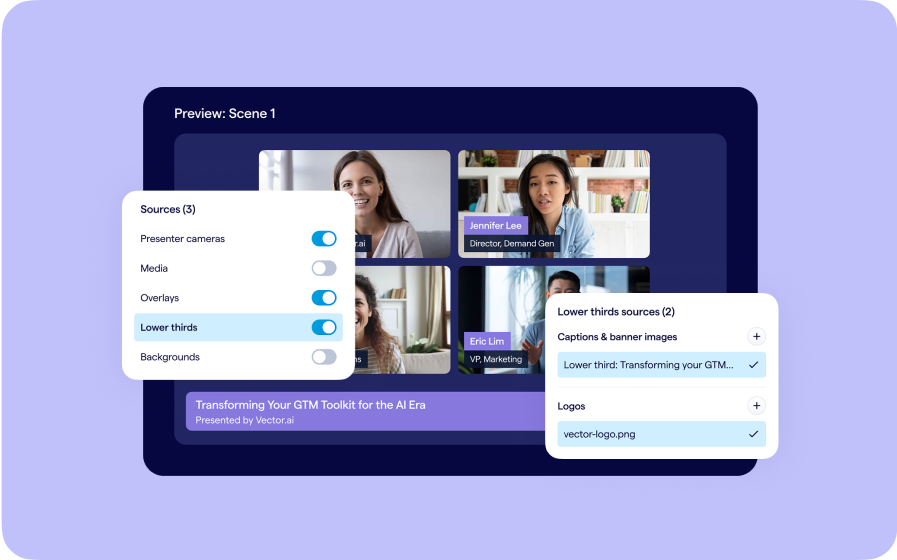
Give your events the look, feel, and professionalism of a live broadcast, without the complexity or cost of a production crew.
AI Content Studio
AI Content Studio
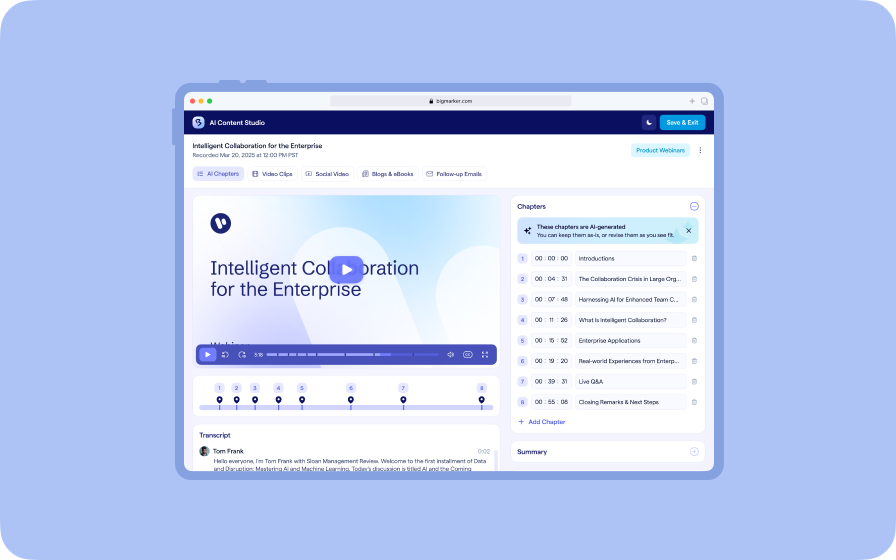
Leverage generative AI to automate chaptering, generate short-form video clips, and create blogs, eBooks, and other derivative content.
AI Lead Scoring
AI Lead Scoring
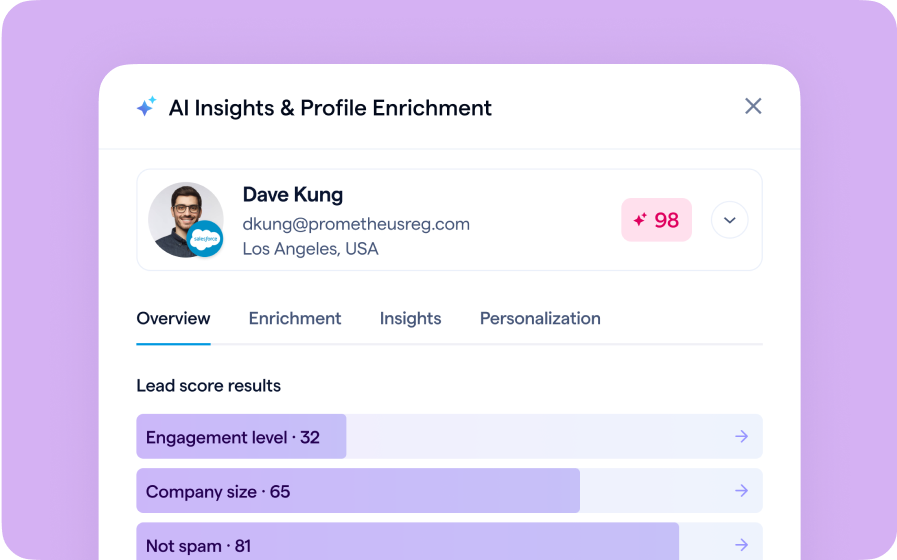
Instantly transform registration and attendee data into customized actionable sales insights.
BigMarker Webinar Series
Our weekly product update webinar series offers a closer look at what’s new in BigMarker, with live demos, practical tips, and Q&A to help you put the latest features to work. Join live or catch the recording on demand.
Join the waitlist
By clicking “Submit”, I acknowledge that BigMarker may contact me related to my participation in this Beta offering.
You’re all set!
You’ve successfully registered for the waitlist!
If you have any questions, please contact your CSM.
Webinar: Recommend Sessions from Registration Answers by Product Update Hub