Raise hand is now its own button in the live room, on the same bar as the emoji reactions. It has its own setting, Hand raising, so attendees can raise a hand even when chat and Q&A are off. Hosts see the raised hands in the Host Control Panel and lower them with a click.
A button of its own
A raised hand is the simplest way for an attendee to say they'd like to jump in.
Now Raise hand has its own button in the live room, on the same bar as the emoji reactions. It doesn't depend on chat or Q&A, so it works even when both are turned off.
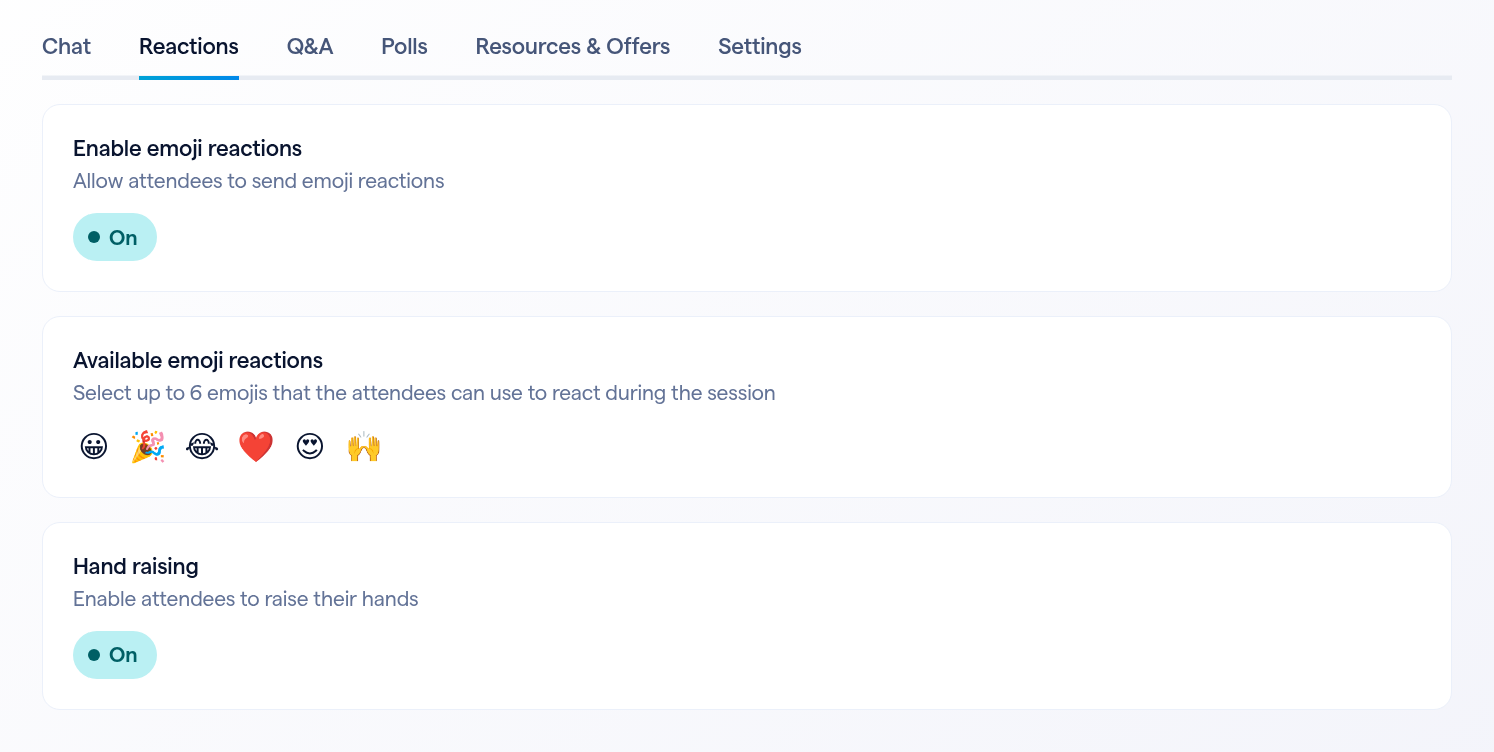
Check that hand raising is on
Open your session's Engagement → Interactive Tools page.
What attendees see
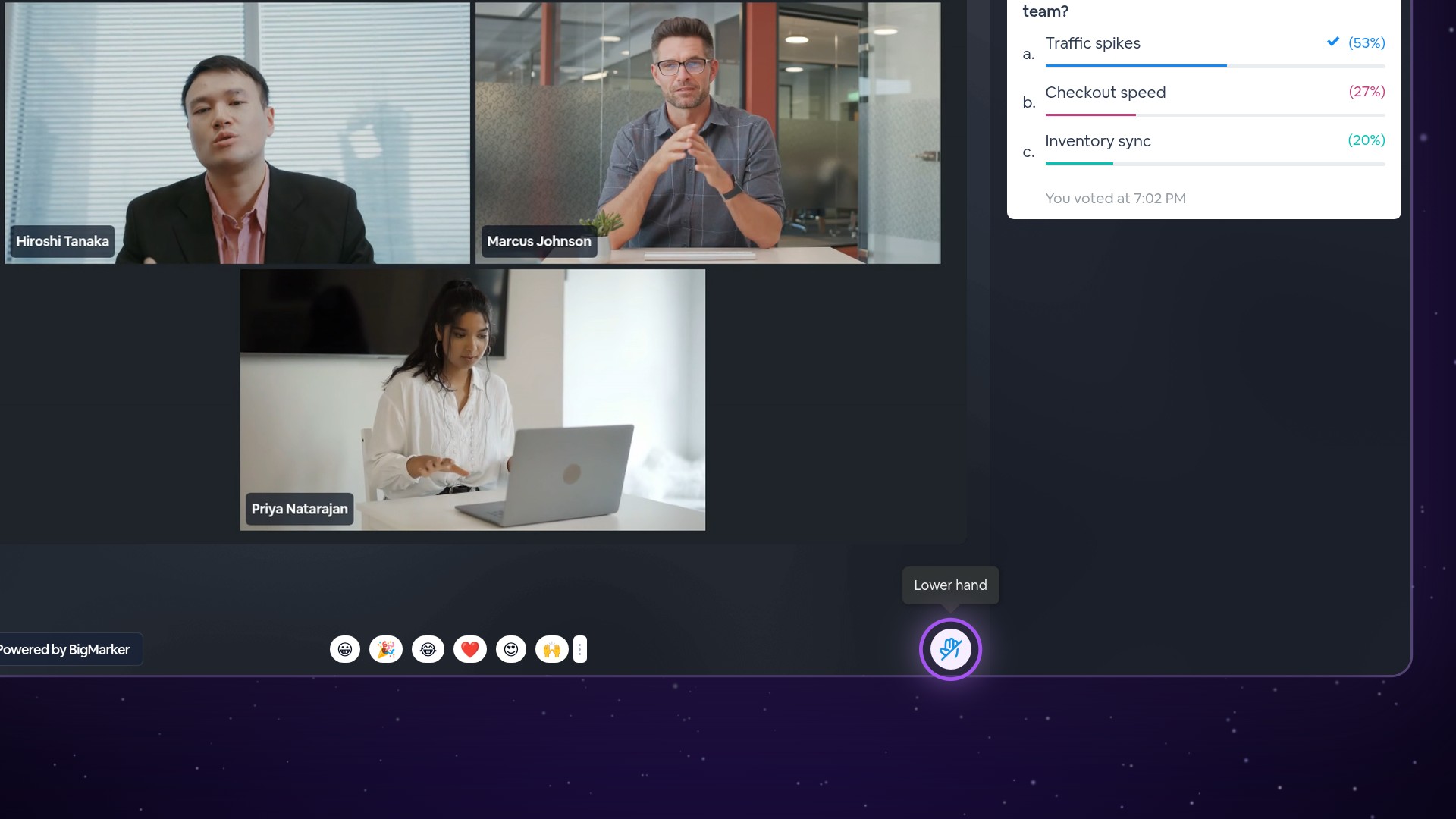
In the live room, the hand button sits on the same bar as the emoji reactions, at its right end. Pointing at it shows Raise hand. One click raises the attendee's hand, and the button turns into Lower hand. Clicking it again lowers the hand.


What hosts see
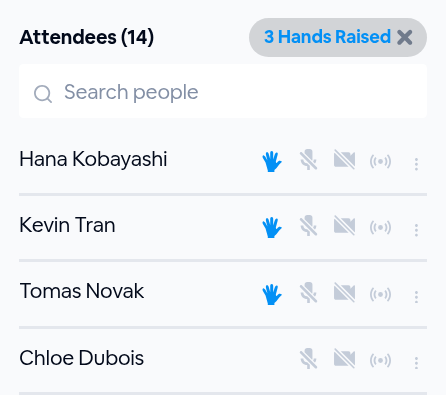
In the Host Control Panel, the Attendees list counts the raised hands, for example 3 Hands Raised. Everyone with a hand up moves to the top of the list, with a hand beside their name.
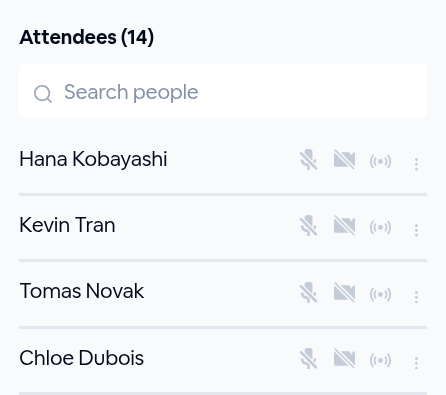
Click the hand beside a name to lower that attendee's hand, or click the X on the count to lower every hand at once.
Good to know
| Details | |
|---|---|
| Where it lives | Engagement → Interactive Tools → Reactions → Hand raising |
| Default | On |
| When to change it | Before the session starts |
| Chat and Q&A | Not needed: hands go up with both turned off |
| Attendee button | On the bar with the emoji reactions: Raise hand, then Lower hand |
| In the Host Control Panel | The count of raised hands, and a hand beside each name |
| Lowering hands | The attendee clicks Lower hand; a host clicks the hand beside a name, or the X on the count for everyone |