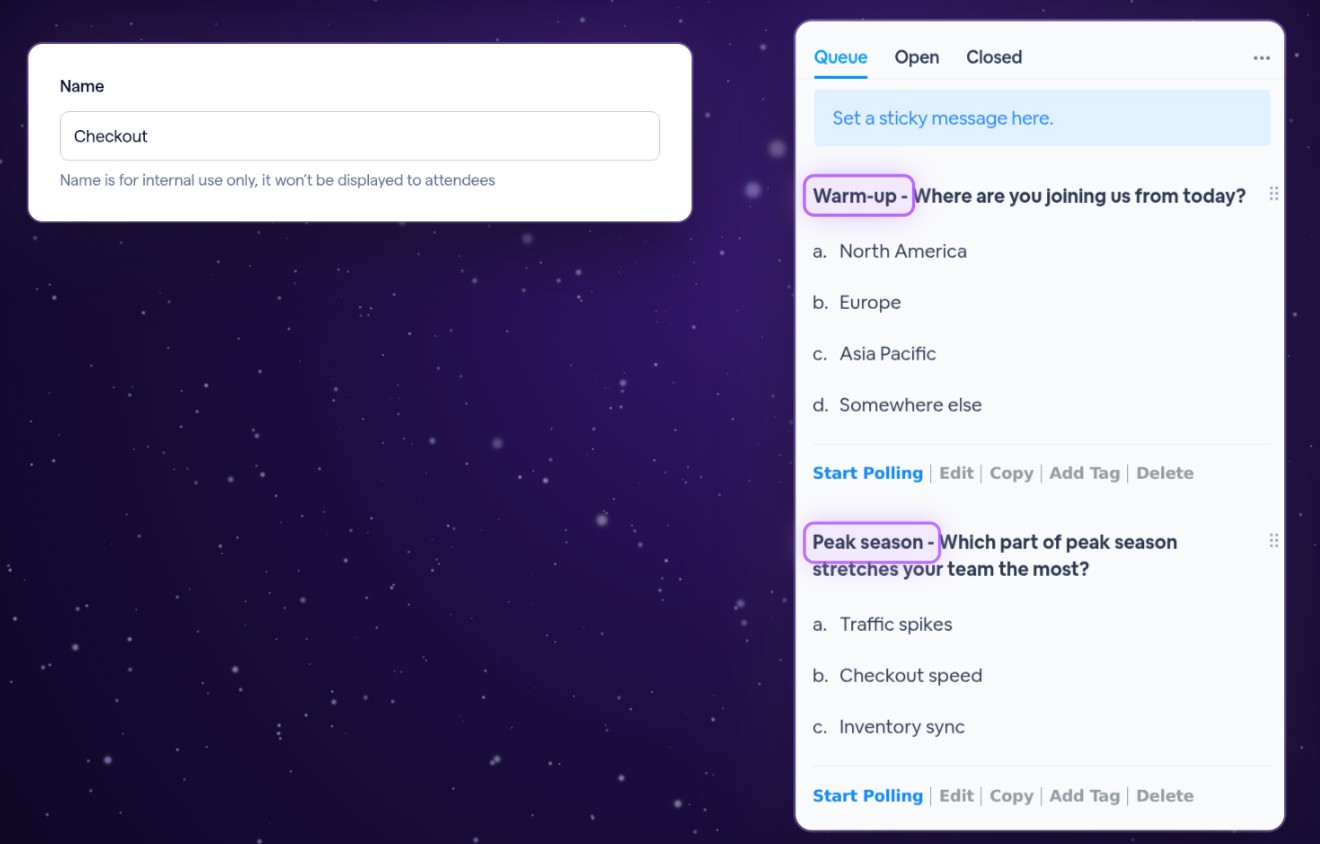
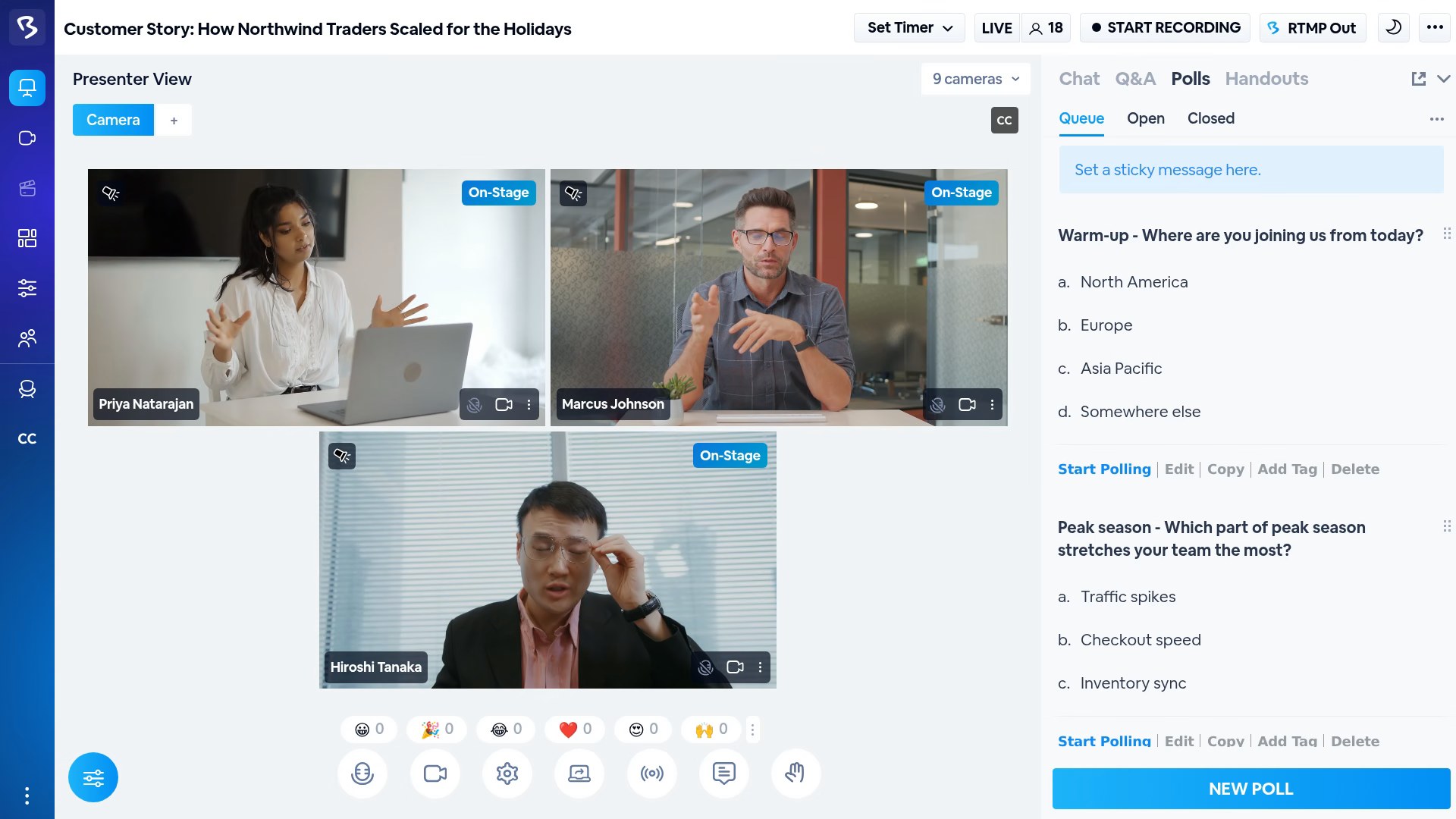
The short Name you give a poll, like Warm-up or Peak season, now leads its question in the live room's Polls panel. Hosts and presenters find the poll they need at a glance, and your audience still sees just the question.
A name your team recognizes
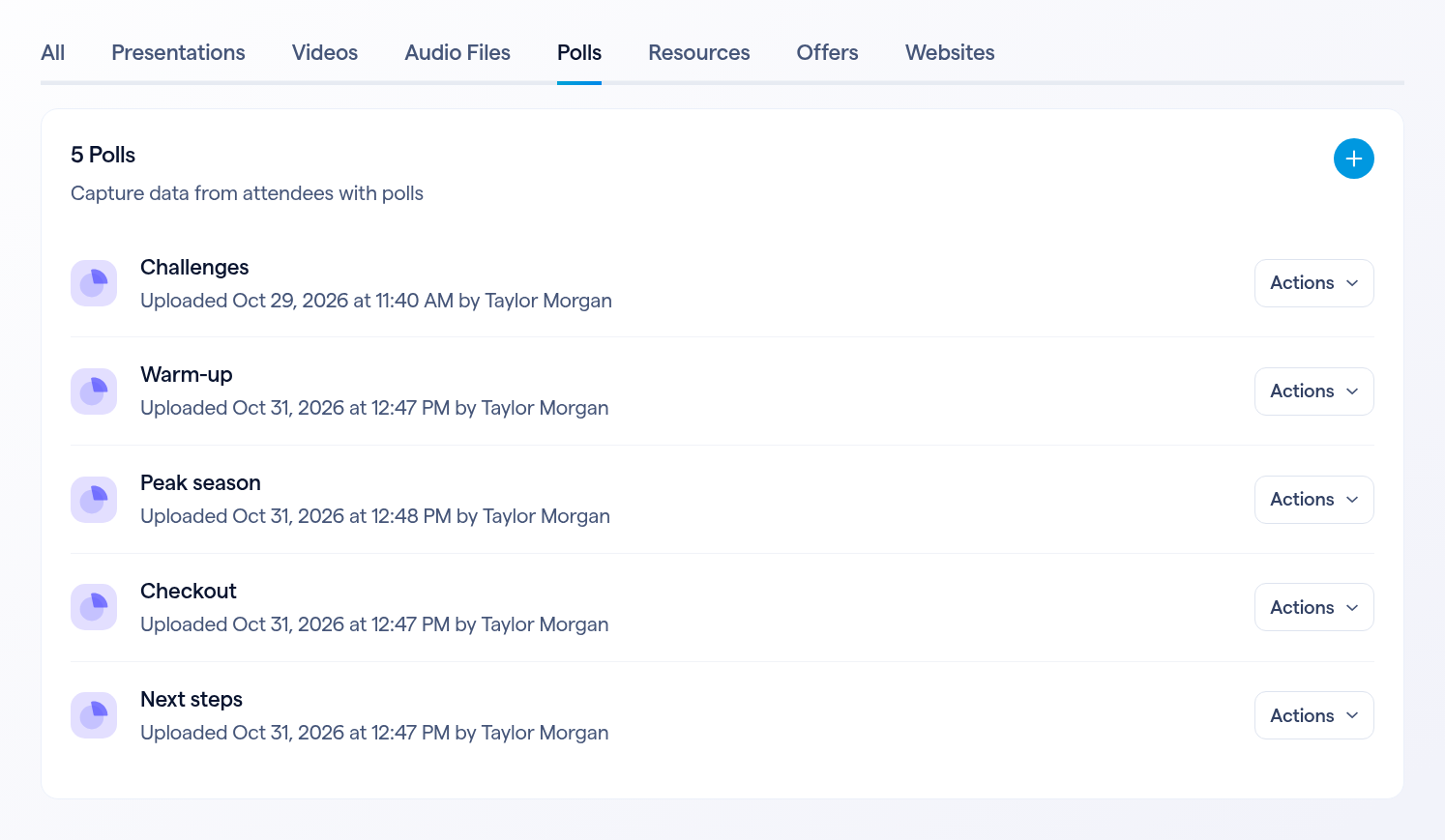
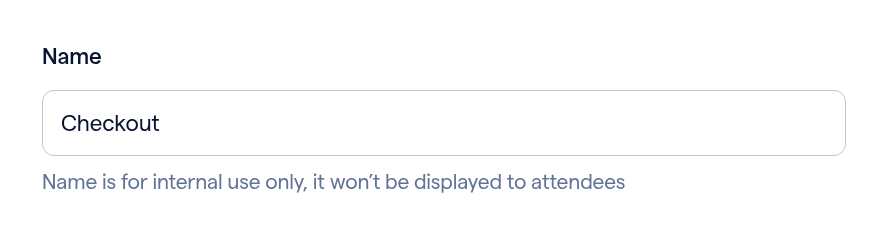
A session with plenty of polls is a lively one. Besides its question, a poll can have a Name: a short label such as Warm-up, Peak season or Checkout.
That Name now leads the question in the live room's Polls panel, so whoever is running the polls can spot the next one without reading every question.
Name a poll ahead of time
Open your session's Content → Pre-loaded Content page and go to the Polls tab.
In the live room
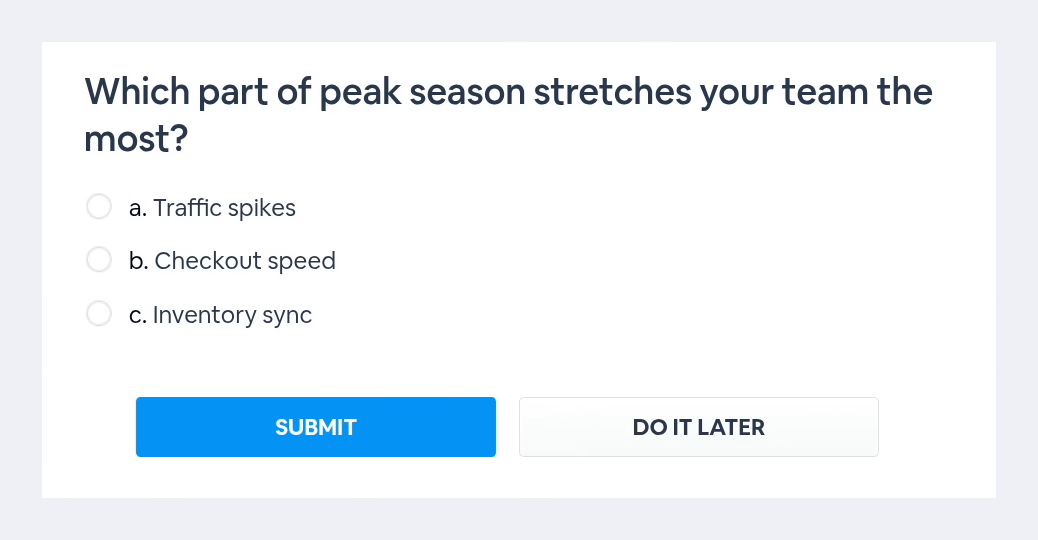
Open Polls in the studio. In the Queue, Open and Closed tabs, each named poll reads as its Name, a dash, then the question: Peak season - Which part of peak season stretches your team the most? When you click Start Polling, the poll moves to Open with its Name still in front.
Name a poll in the room
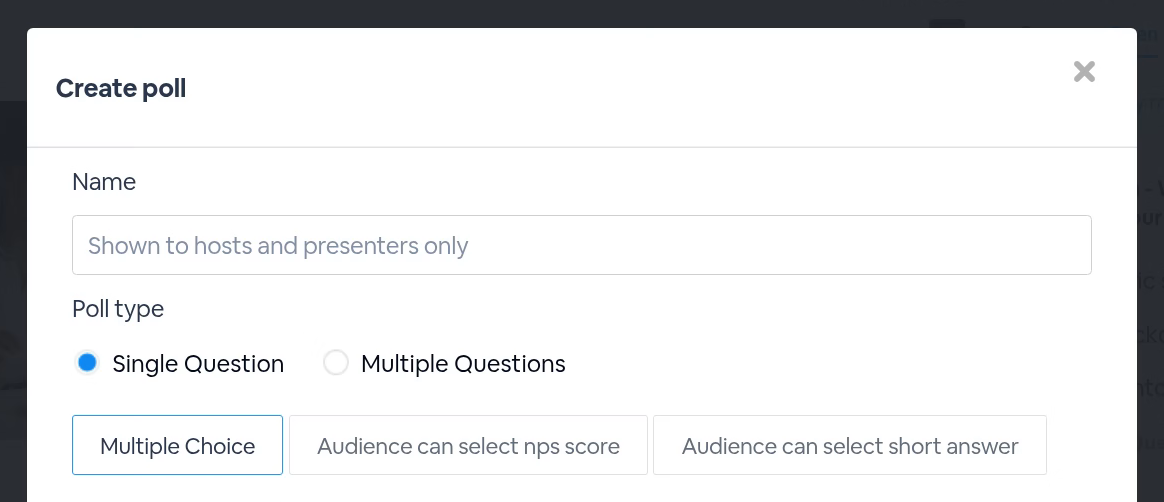
Polls you create during the session can have a Name too. Click New Poll: the Name field comes first, marked Shown to hosts and presenters only. Add your question and choices, then Add to Queue, and the new poll joins the Queue with its Name.
What your audience sees
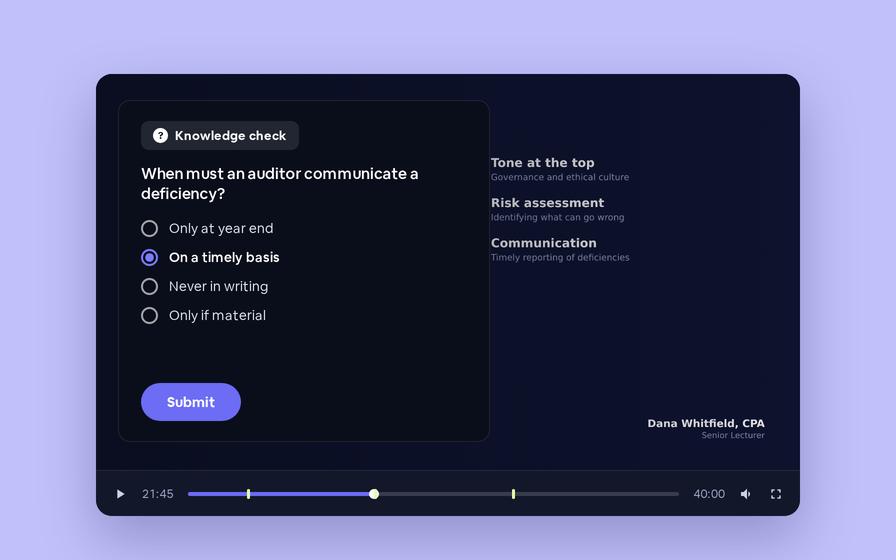
Nothing changes for attendees. When a poll starts, it opens with its question and choices, and their Polls tab lists the question alone.
Good to know
| Details | |
|---|---|
| Polls without a Name | They show their question, exactly as before |
| Where it shows | The live room's Polls panel and your Pre-loaded Content list |
| Where it doesn't | The poll pop-up and the attendees' Polls tab |