BigMarker News & Updates Landing Page Connector: Call Your Own APIs from Custom Pages

Landing Page Connector: Call Your Own APIs from Custom Pages

November 17, 2026
Custom landing pages can now call your own APIs through BigMarker. Your API key stays on BigMarker, and the page gets only the fields you choose.
Categories
Share

Now your custom landing pages can call your own APIs, and BigMarker makes each call for them. With the Landing Page Connector, your API key is kept on BigMarker, never in the page, and visitors only get the fields you choose. Set it up per webinar, under Integrations.

Live data from your own systems, on your page

Seats left at each location, a member lookup, a list your team keeps current: a custom landing page can now ask your own API for it. The page calls BigMarker, BigMarker calls your API with the headers you saved, and the page gets back only the fields you listed. You never put a key in the page.
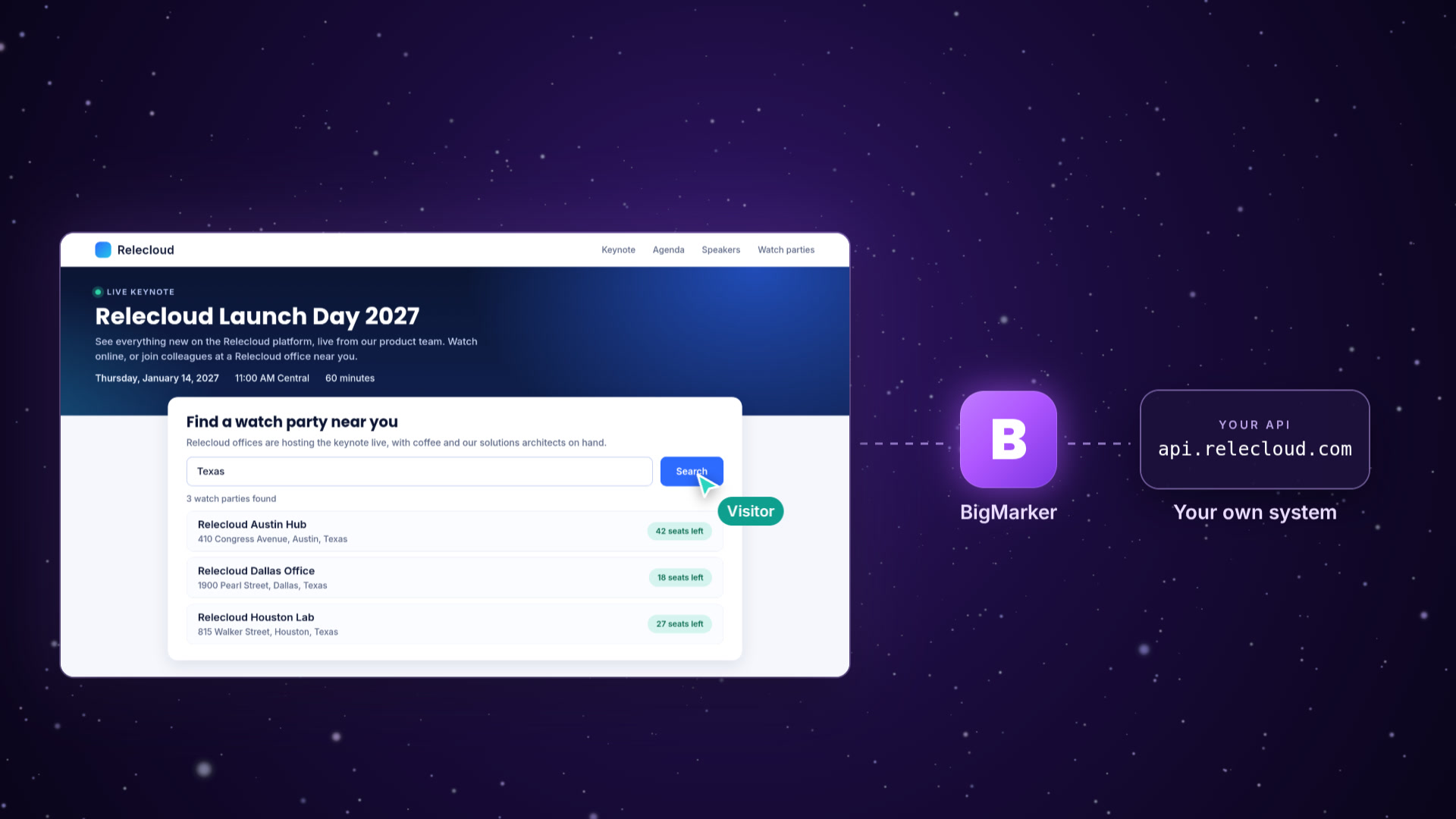
Illustration: a landing page search goes through BigMarker to a company's own API, and three results come back to the page.
Illustration

Set it up in four steps

Open your webinar, then Integrations › Landing Page Connector.
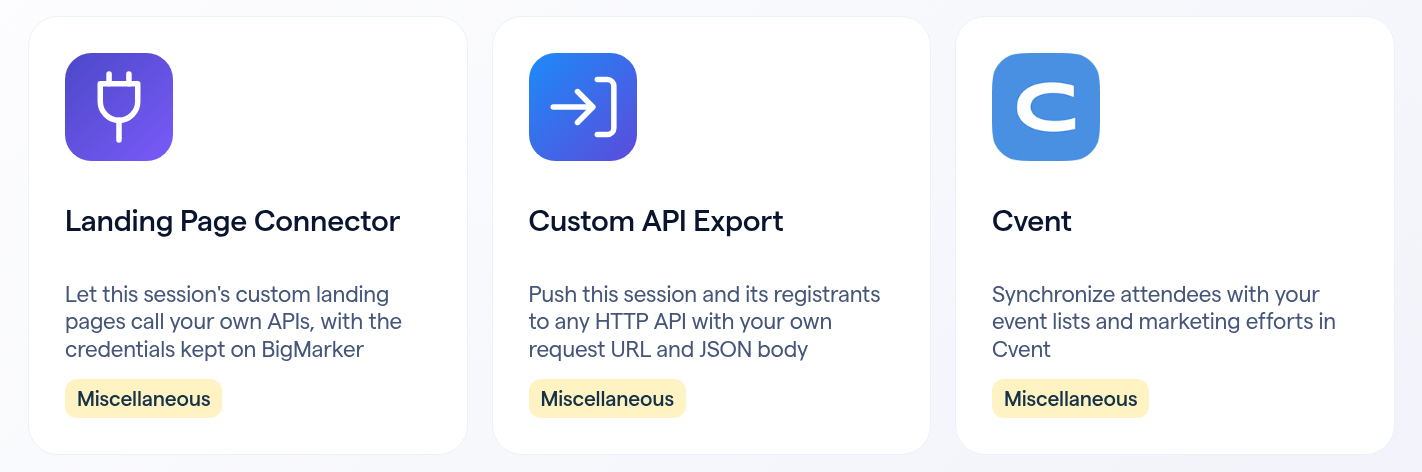
The Landing Page Connector card in All Integrations, next to Custom API Export and Cvent.
1
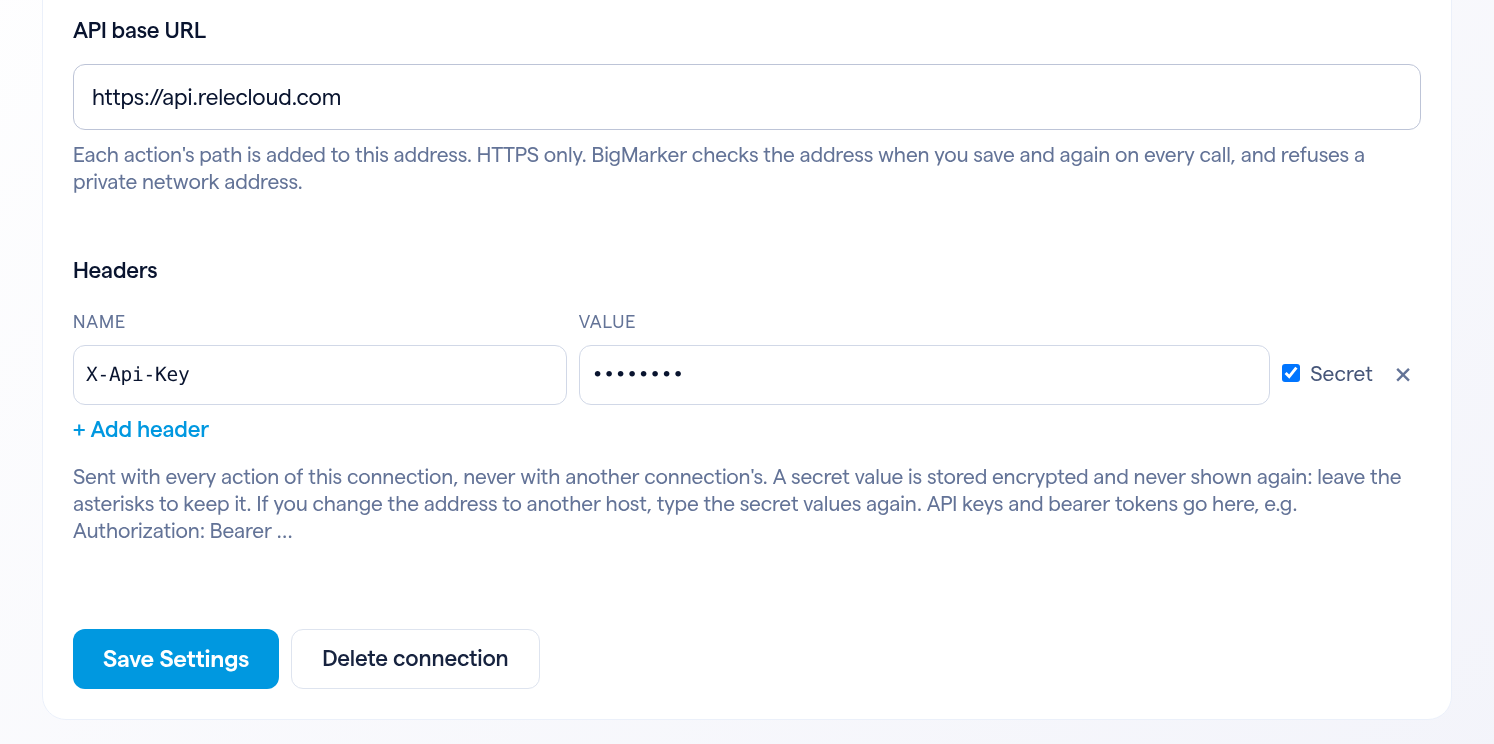
Add a connectionClick + Add connection. Give it a Connection name and enter the API base URL. Click + Add header for your API key: Secret is ticked on a new header, so its value is stored encrypted and never shown again. Click Save Settings.
A saved connection: API base URL https://api.relecloud.com and an X-Api-Key header whose value is masked, with Secret ticked.
2
Add an actionAn action is one call your page is allowed to make. Click + Add action, open the new card and turn on Action on. Enter a Name, the Key your page will call it by, the Method and the Path. Under Inputs from the page, click + Add input for each value the page sends, and use it in the path as {{ inputs.name }}. Anything else the page sends is dropped.
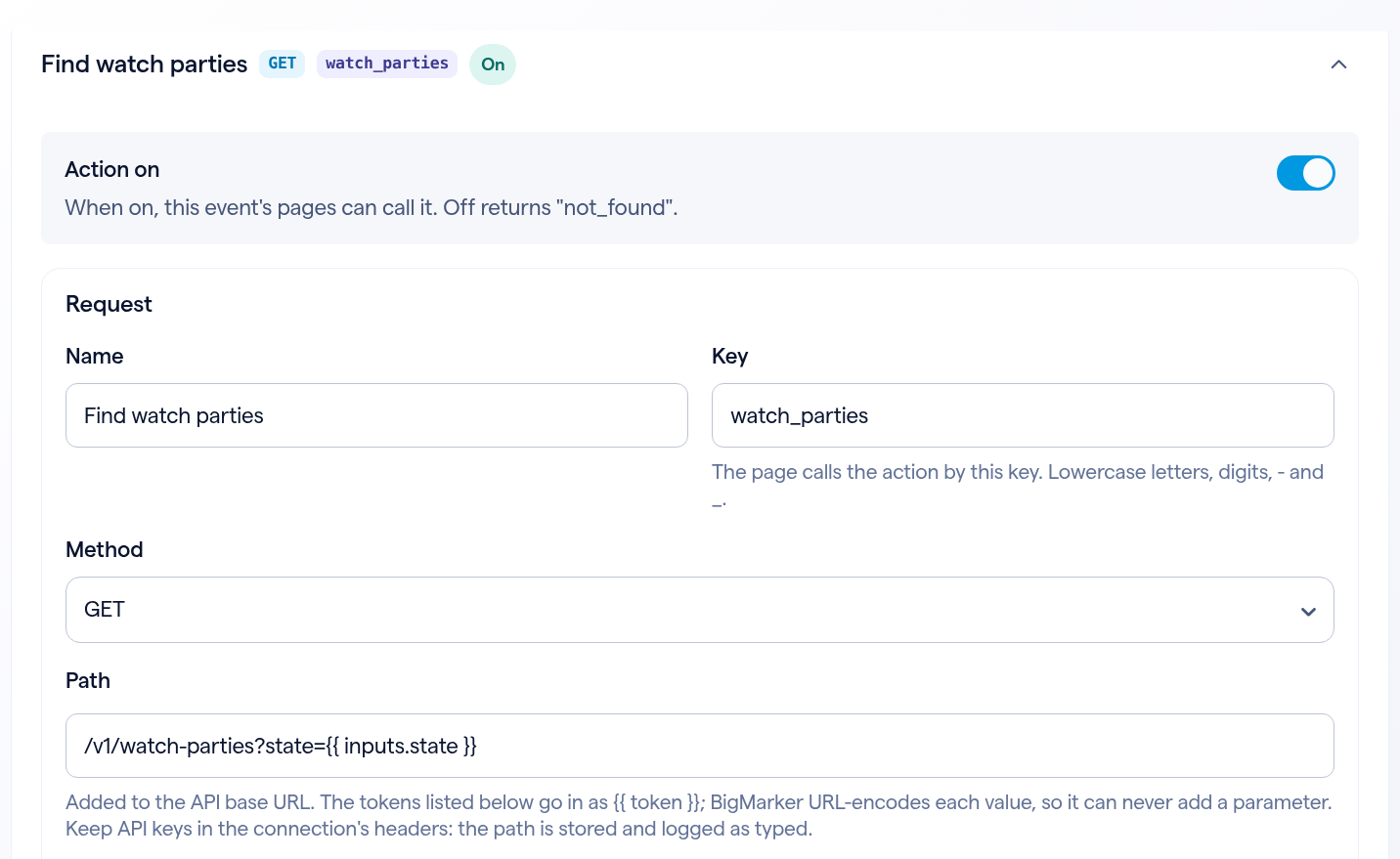
An action named Find watch parties: key watch_parties, method GET, and a path that ends with the inputs.state token.
3
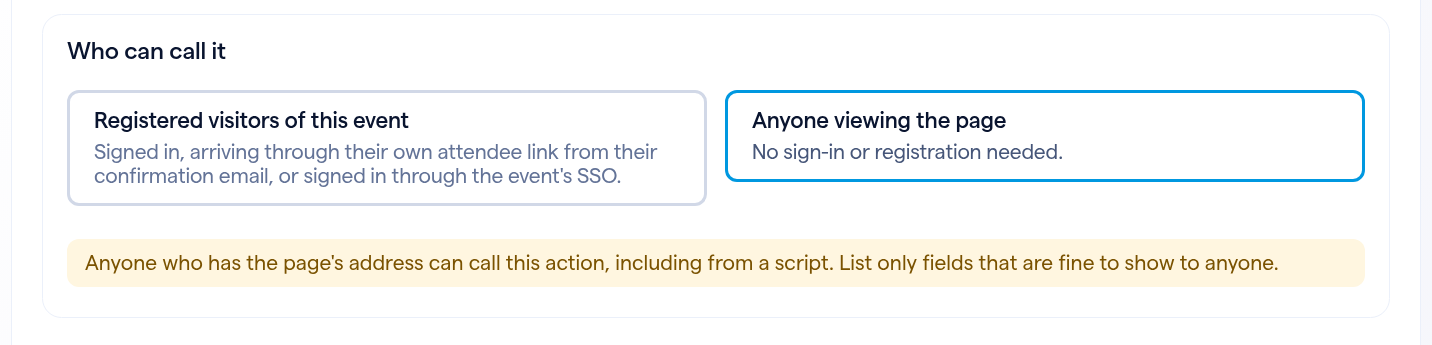
Choose who can call itUnder Who can call it, pick Registered visitors of this event or Anyone viewing the page. New actions start on registered visitors. Click Save Settings.
Who can call it: Registered visitors of this event, or Anyone viewing the page, with a note to list only fields that are fine to show to anyone.
4
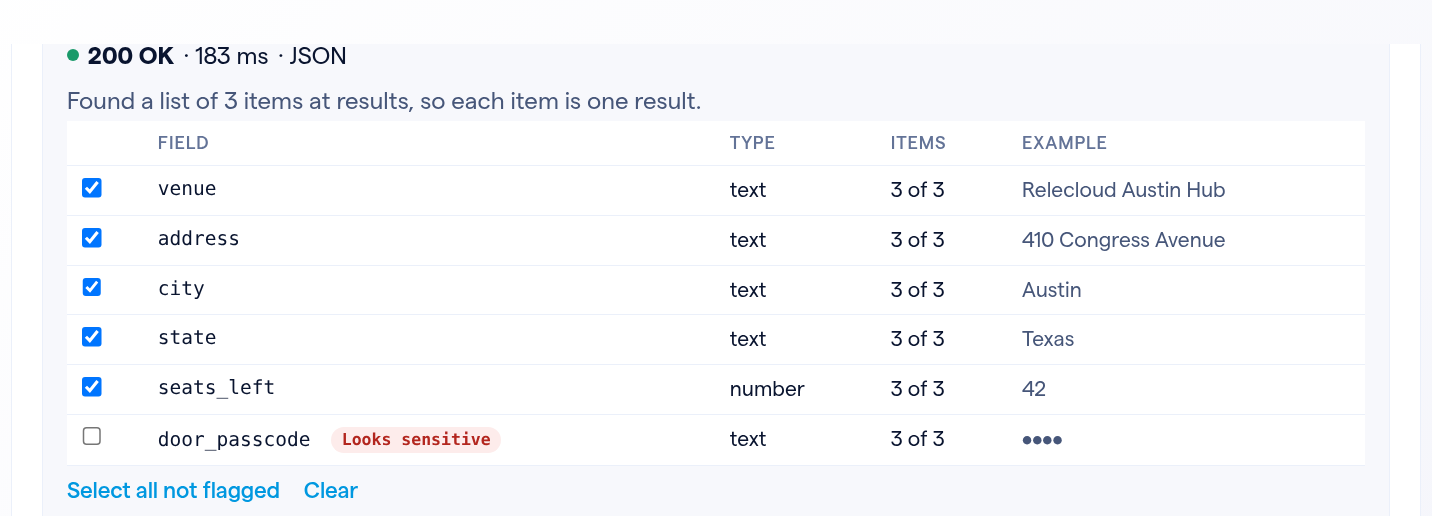
Test it and choose the fieldsClick Test action, enter a sample value and click Run test. BigMarker makes the real call and lists the fields in the response. A field that Looks sensitive is flagged and left unticked. Click Use these 5 fields (the button counts the ticked fields) to fill in Fields returned to the page, then Save Settings.
A test result: 200 OK, a list of 3 items, five fields ticked and door_passcode flagged Looks sensitive and left unticked.
Before you choose Anyone viewing the page

Anyone who has the page's address can then call the action, including from a script, so list only fields that are fine to show to anyone. For an action that sends data to your API, the card shows a stronger warning.

Call it from your page

Each action card has a How your page calls it panel with two things to copy. Add the token to the page's HTML once, then call the action by its key. Every action is called the same way; the page never picks the address, the method or the headers.
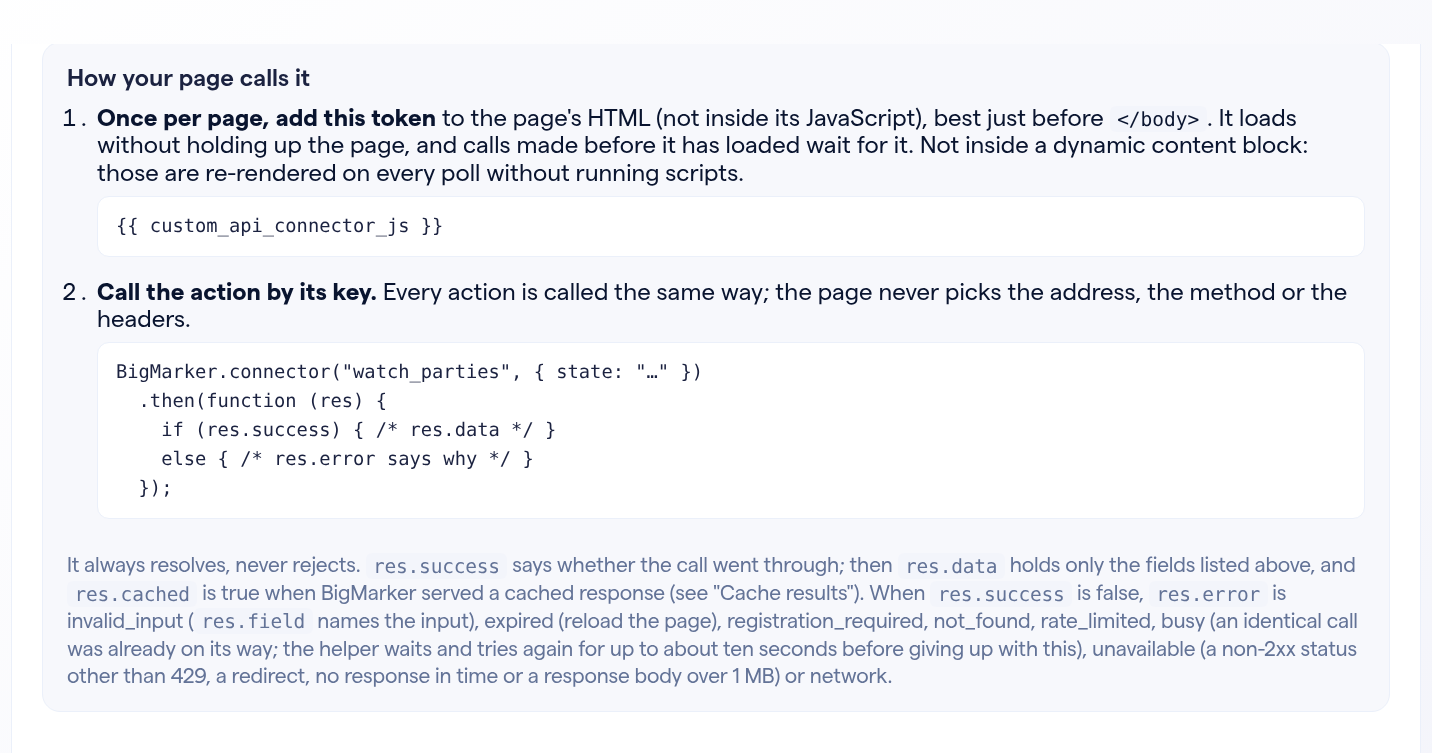
How your page calls it: the custom_api_connector_js token for the page's HTML, and a BigMarker.connector call with the action's key and input.

In the video, a visitor types a state and clicks Search, and the three locations come from the company's own API.
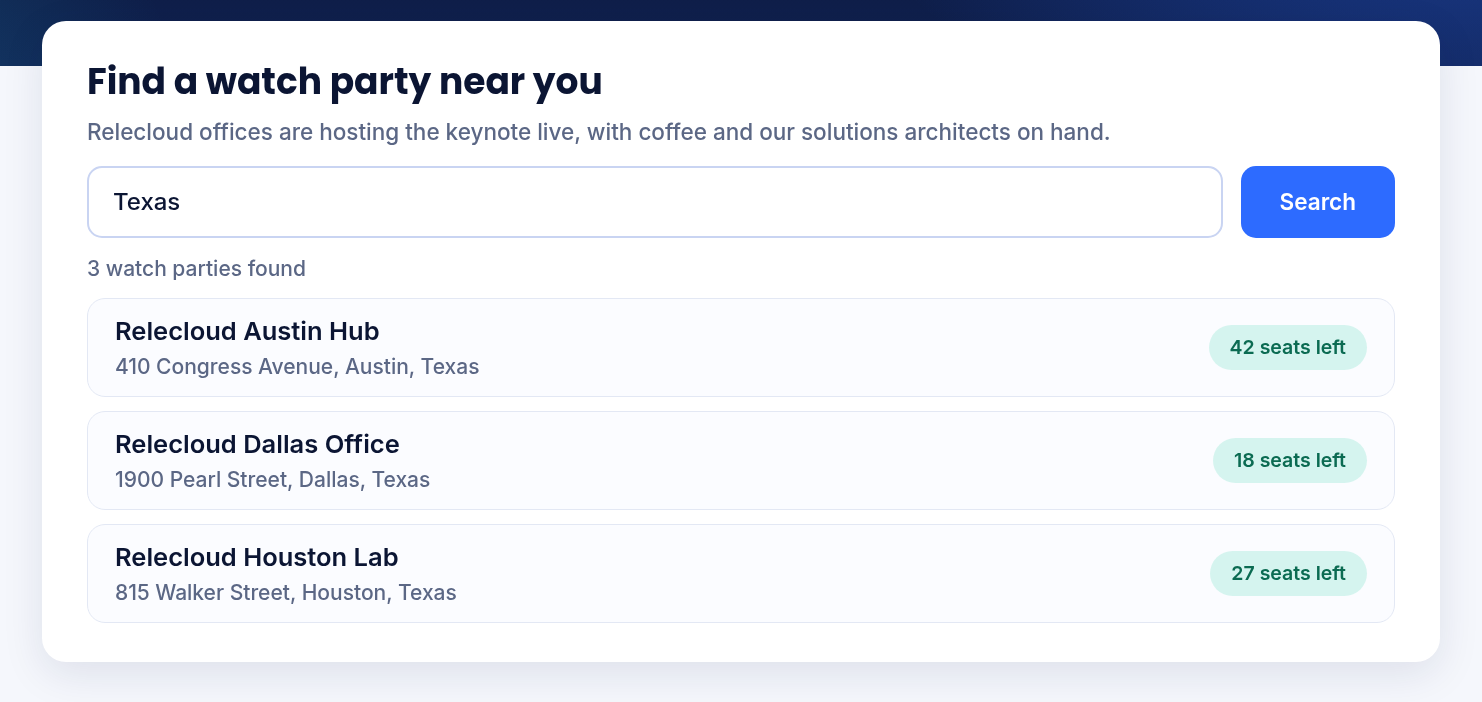
A custom landing page: a search for Texas shows three watch parties with their addresses and seats left.
A sample custom landing page

What the page gets back

The call always resolves. res.success says whether it went through, and res.data holds only the fields you listed. When it didn't, res.error says why.

res.errorWhat happened
invalid_inputA required input is missing, or an input isn't valid. res.field names the input, and your API isn't called
registration_requiredThe action is for registered visitors, and this visitor isn't one
not_foundNo action has that key, or the action is off
rate_limitedToo many calls in a minute, or your API answered 429
unavailableYour API couldn't be reached, answered with another non-2xx status or a redirect, took longer than 5 seconds, or sent more than 1 MB
expiredThe page has been open too long: reload it
busyAn identical call was already on its way and didn't finish in about ten seconds
networkThe browser couldn't reach BigMarker

Good to know

Details
Your APIAn HTTPS address on the public internet. BigMarker checks it when you save and again on every call. Responses are read as JSON
Several APIsAdd a connection for each API. Each one gets its own tab, headers and actions
MethodsGET, POST, PUT, PATCH or DELETE. For every method except GET, a Request body (JSON) field appears. A test of one of those really sends it to your API
Registered visitorsThe path and body can also use registrant.email, registrant.first_name, registrant.last_name and registrant.registration_id
Cache resultsFor a GET, or a POST that only reads: visitors making the same call with the same inputs get the response BigMarker already has, for as long as you set (120 seconds to start, up to 3600). Not for actions that use a registrant token
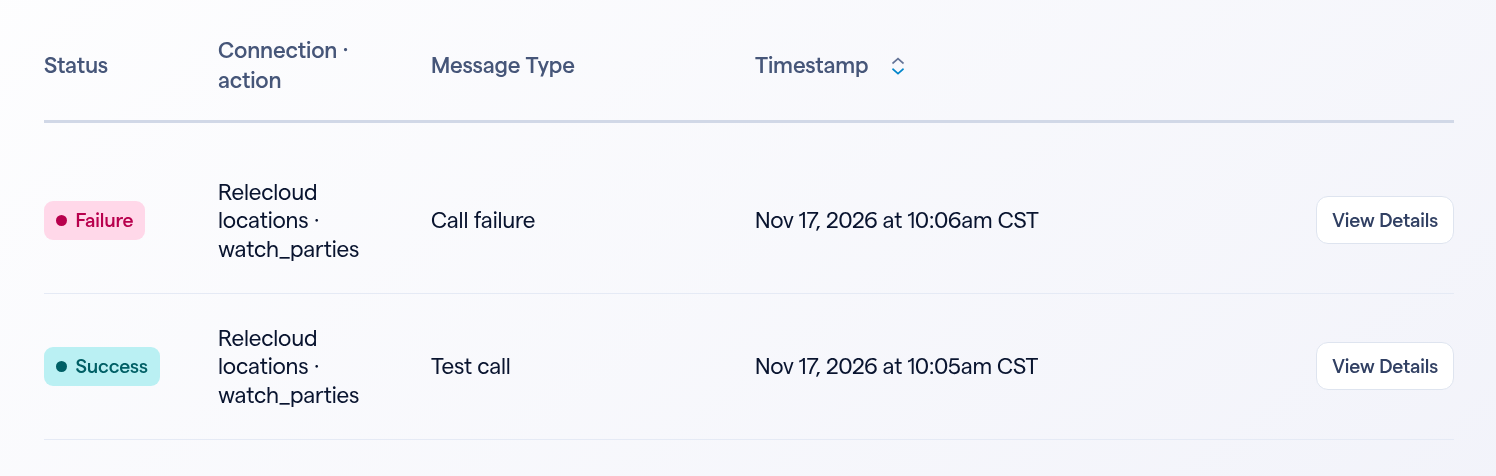
Call LogThe Call Log tab lists your test calls and the page calls that failed at your API, with the connection and action
CopiesCopying the webinar copies its connections and actions. A copy into another channel leaves the secret values behind and starts with its actions off
The Call Log: a failed page call and a successful test call, each with its connection and action and the time.
The Call Log
Bring your own data to your landing pages
Find it in your webinar under Integrations, Landing Page Connector.
Related updates
Export to Any System
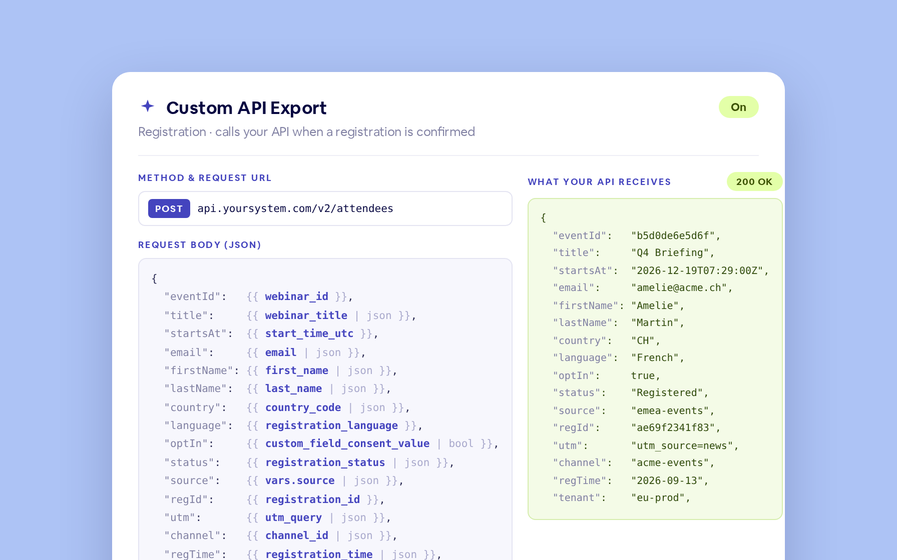
No connector needed — point a session at your endpoint, write the JSON body, and BigMarker calls it as people register, attend and watch.
Threaded chat in waiting room
Replies now sit in a thread under the message they answer, so the pre-show conversation stays readable.
 Inline Page Editing
Inline Page Editing
Click any headline, image or block on your landing page and change it right there — no hunting through editor panels.
Quizes in On Demand Video
Ask questions inside your recordings and see who actually understood, not just who pressed play.
Preview Custom Page States
Preview any custom page as a registered viewer, an unregistered visitor or a real registrant, at any point in the event's life.
Follow Up Emails
Follow Up Emails
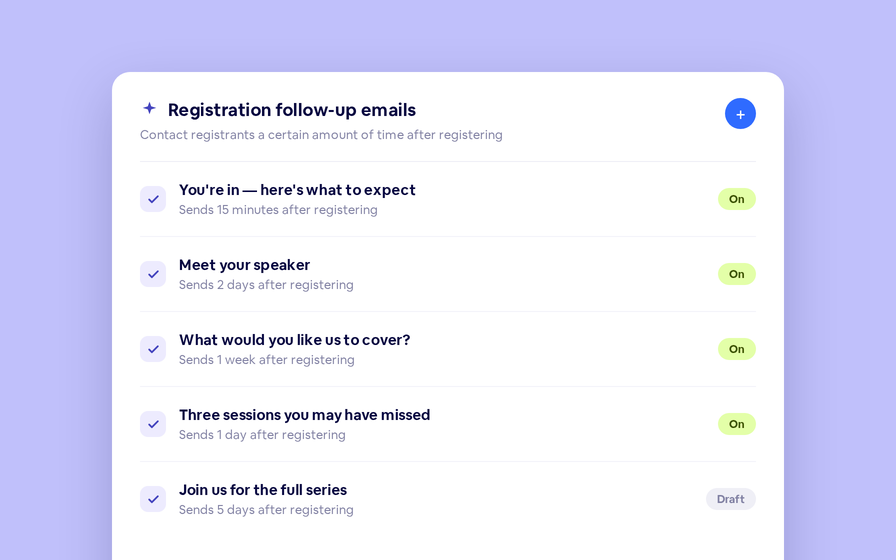
Keep in touch with your registrants immediately after they register.
Introducing BigMarker AI
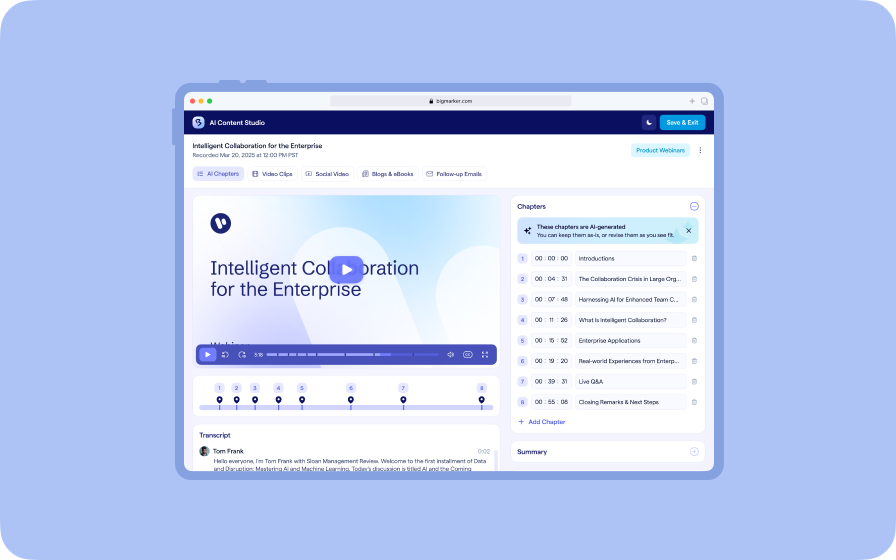
Leverage generative AI to automate chaptering, generate short-form social-ready video clips, and create derivative content such as blogs, eBooks, and more.
AI  Audio Translations
AI Audio Translations
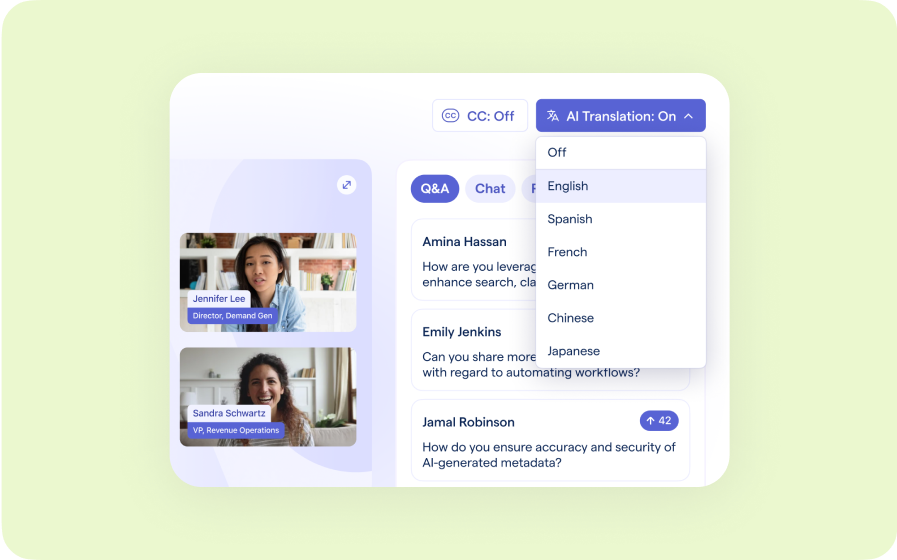
Presenters speak in their language while attendees listen in theirs, removing barriers and opening content to participants everywhere.
Custom Audience Experiences
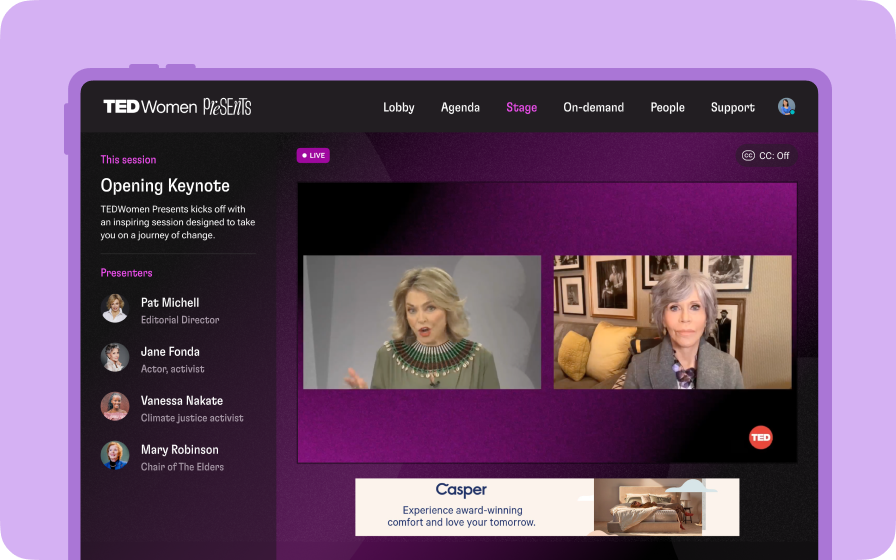
Get complete control over your webinar and event interfaces so every session looks, feels, and performs exactly the way you want.
AI Email Personalization
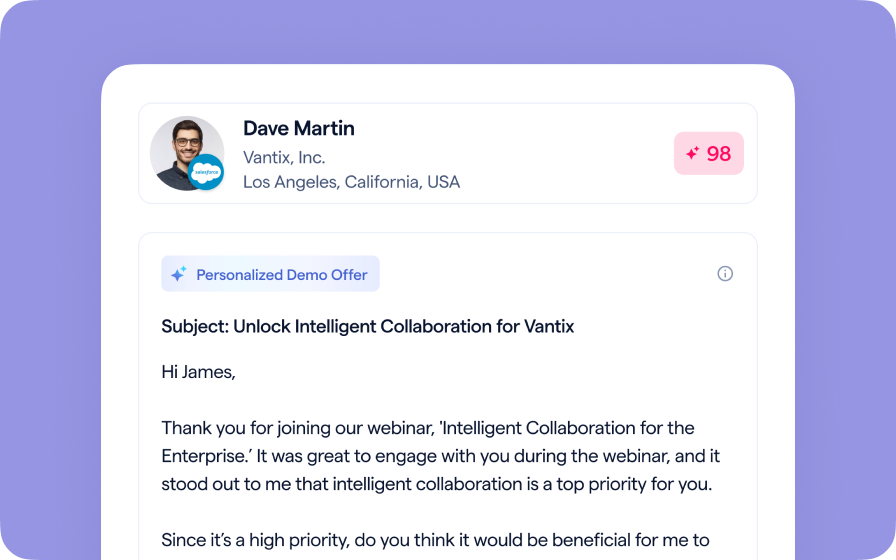
Every attendee gets a message crafted just for them based on their engagement, interests, and lead score.
Studio Scenes
Studio Scenes
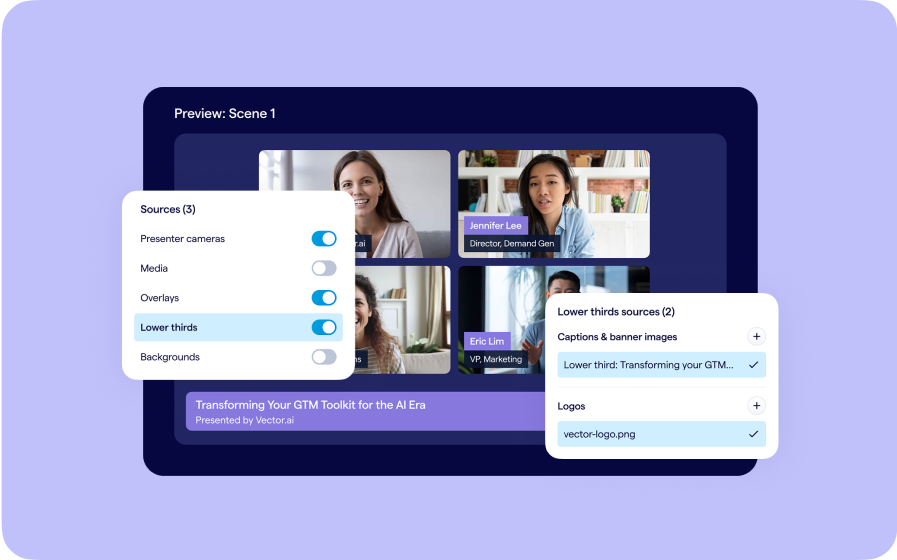
Give your events the look, feel, and professionalism of a live broadcast, without the complexity or cost of a production crew.
AI Content Studio
AI Content Studio
Leverage generative AI to automate chaptering, generate short-form video clips, and create blogs, eBooks, and other derivative content.
AI Lead Scoring
AI Lead Scoring
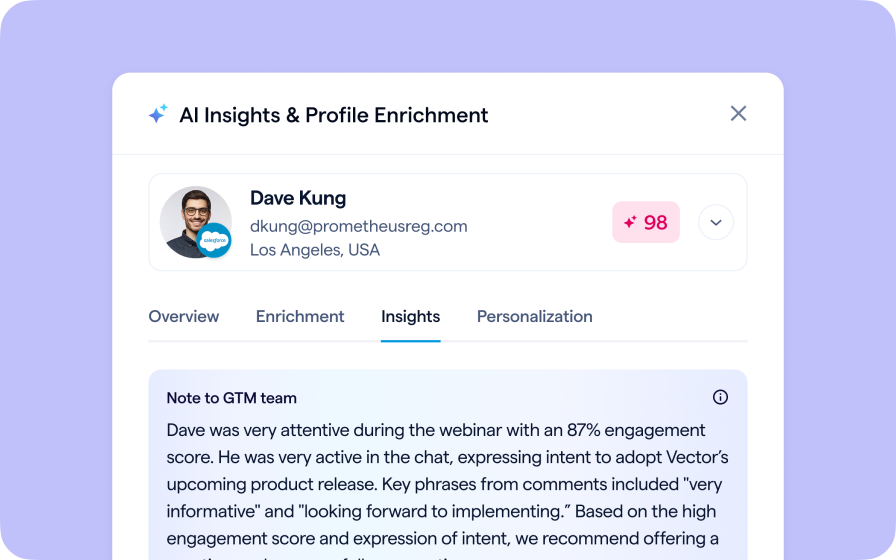
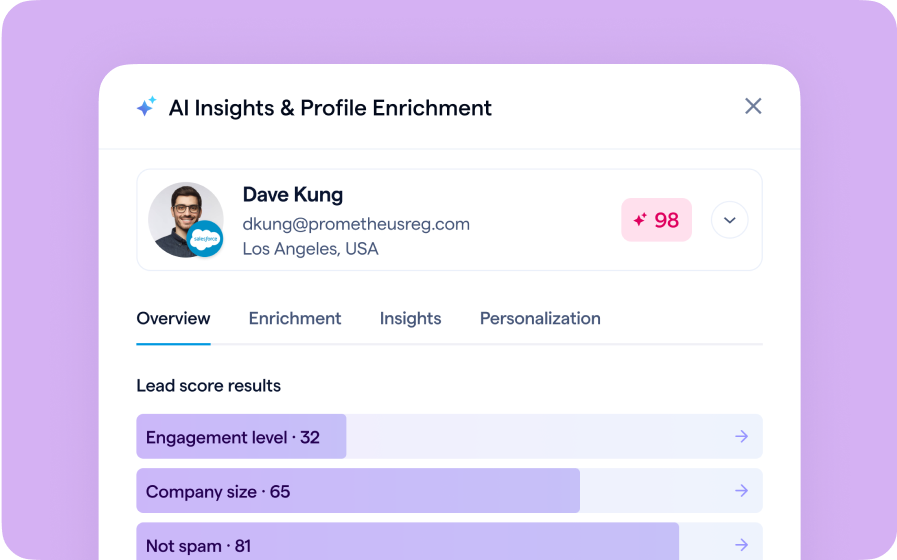
Instantly transform registration and attendee data into customized actionable sales insights.
BigMarker Webinar Series
Our weekly product update webinar series offers a closer look at what’s new in BigMarker, with live demos, practical tips, and Q&A to help you put the latest features to work. Join live or catch the recording on demand.
Join the waitlist
By clicking “Submit”, I acknowledge that BigMarker may contact me related to my participation in this Beta offering.
You’re all set!
You’ve successfully registered for the waitlist!
If you have any questions, please contact your CSM.
Webinar: Landing Page Connector: Call Your Own APIs from Custom Pages by Product Update Hub