BigMarker News & Updates Emoji Reactions on Chat Messages

React to chat messages with an emoji

November 11, 2026
Attendees and presenters react to a chat message with an emoji, and the counts update live for everyone in the chat.
Categories
Share

In a busy live chat, a typed reply isn't always the right answer. Now attendees and presenters can react to a chat message with an emoji instead. A + under each message opens the picker, the counts update live for everyone, and hovering over an emoji shows who reacted.

Say it with an emoji

Attendees and presenters can now react to chat messages with an emoji. It's a quick way to say thanks, I agree, or great point while the session goes on.

Each emoji shows under the message with a count, and the counts update live for everyone in the chat. Others join in by clicking the same emoji, so the chat stays easy to follow.
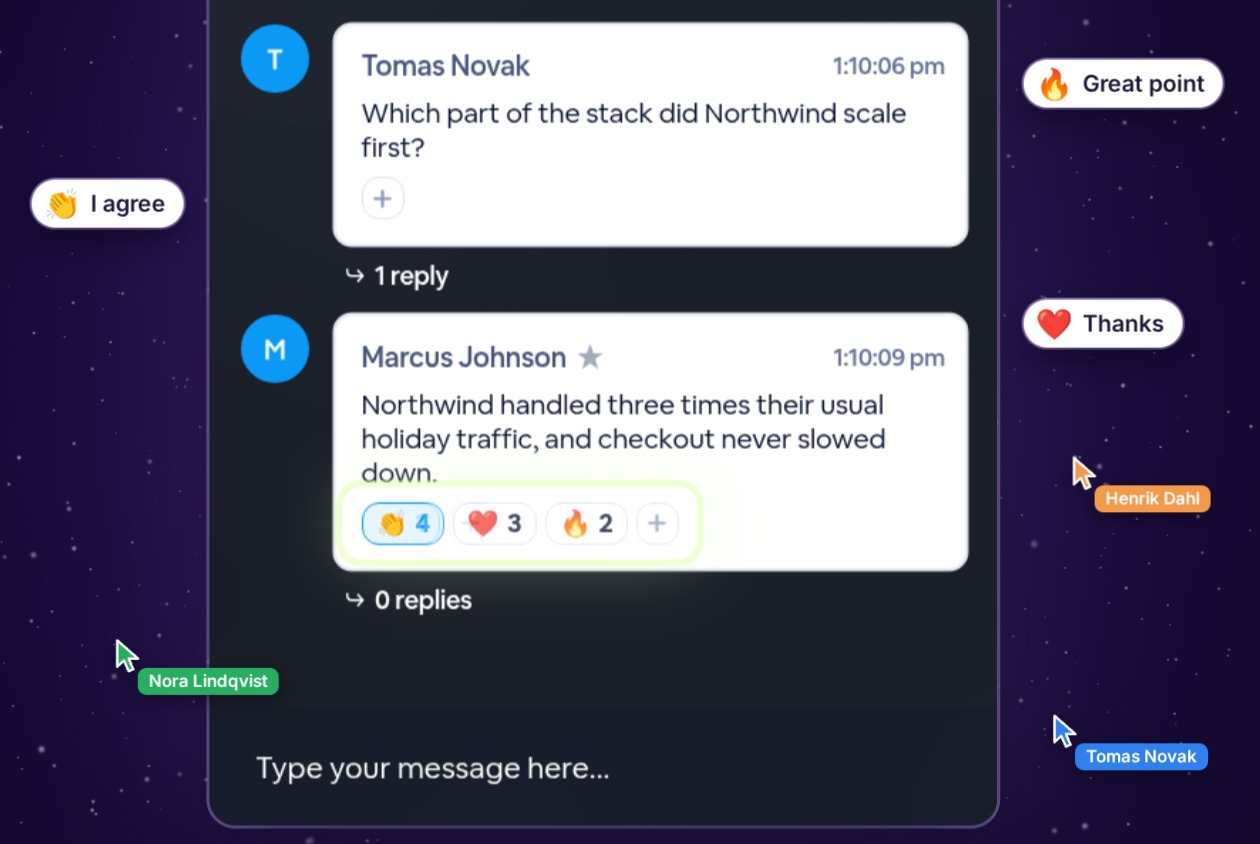
A presenter's chat message with three emoji reactions under it, clapping hands 4, heart 3 and fire 2, while named cursors add reactions labeled Thanks, I agree and Great point.
Illustration

React in two clicks

In the live room, every message in the chat has a + button under it.
1
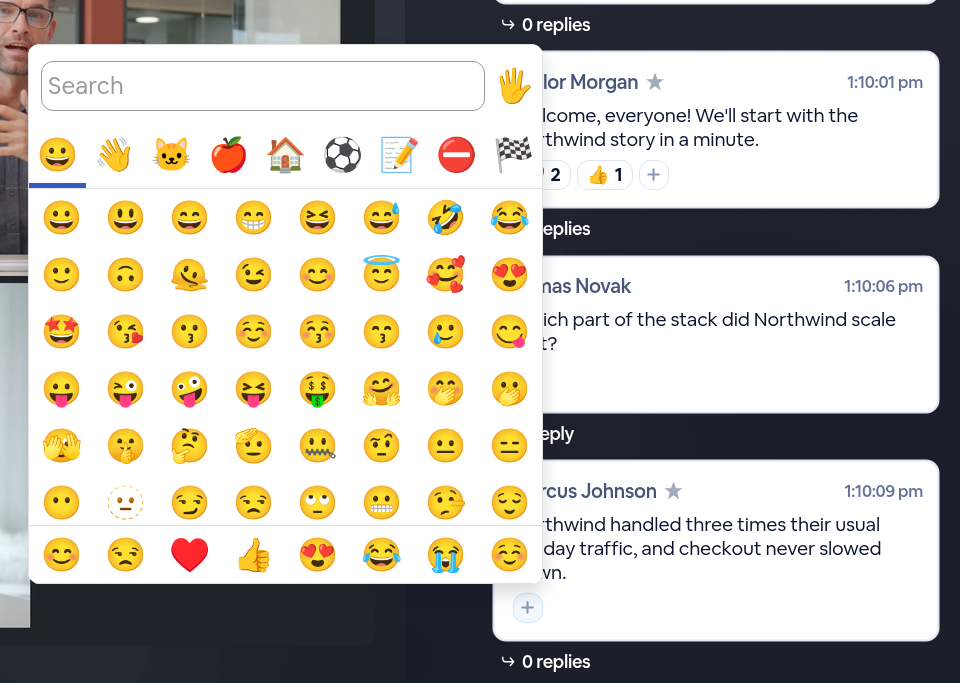
Click + under the messageHovering over it shows Add reaction. Click it, and the emoji picker opens.
The emoji picker open beside a presenter's chat message, with a search box, category tabs and a grid of emojis.
2
Pick an emojiSearch or scroll, and click one. It shows under the message with a count, highlighted as yours.
Marcus Johnson's chat message with a clapping hands reaction and the count 1, highlighted in blue as your own, next to the + button.

Everyone sees it live

New reactions show up right away for everyone in the chat, and the counts go up as others react. To add an emoji someone else picked, click it. To take yours back, click it again.

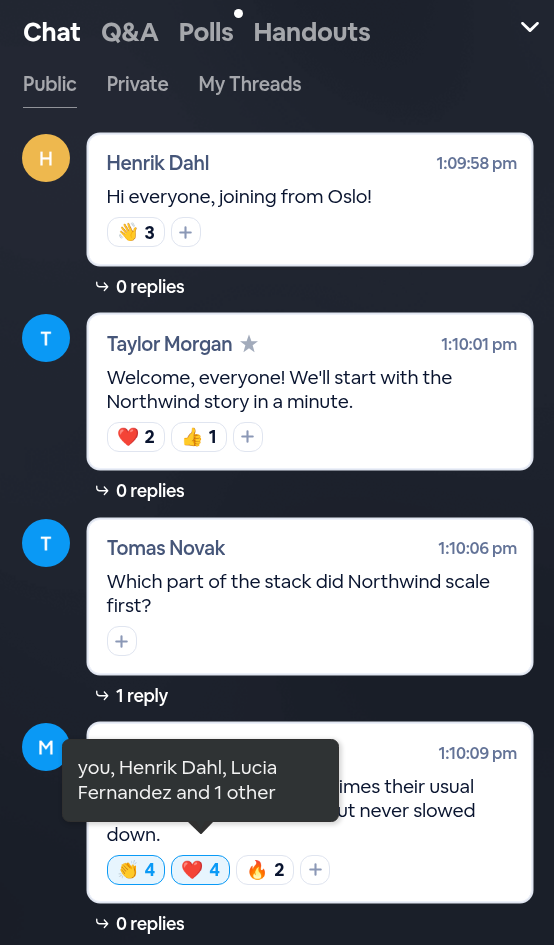
Hover over an emoji to see who reacted. The tooltip names up to three people, starting with you, and counts the rest.
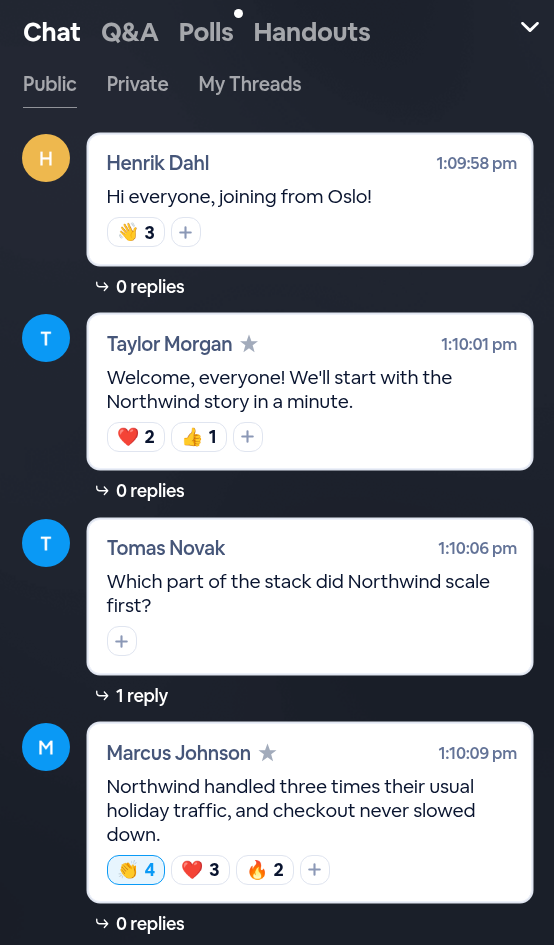
The public chat with reactions under three messages: waving hand 3 under a hello, heart 2 and thumbs up 1 under the host's welcome, and clapping hands 4 (yours), heart 3 and fire 2 under a presenter's message.
Counts update as people react
A tooltip over the heart reaction under a presenter's message reads: you, Henrik Dahl, Lucia Fernandez and 1 other.
Hover to see who reacted

Works across the chat

Reactions work in each of these chats.

WhereWho can react
Public chatAttendees and presenters
Chat roomsEveryone in the room
Private chatsThe two people in the conversation
Presenter chatHosts and presenters
Thread repliesEveryone who can open the thread

To react to a thread reply, open the thread from the replies link under a message, then click + under the reply.
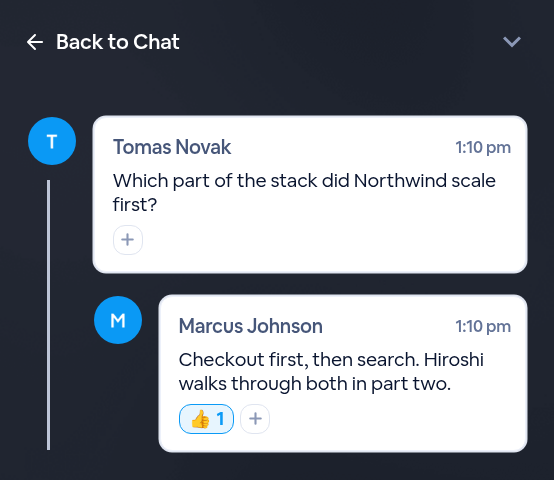
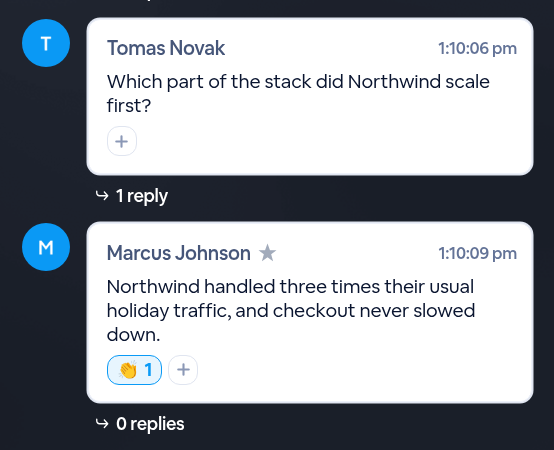
An open thread: Tomas Novak's question, and Marcus Johnson's reply under it with a thumbs up reaction and the count 1, highlighted as your own.
A reaction on a thread reply

Turn it on or off

Chat reactions are on by default. To change that, open your session's Engagement → Interactive Tools page. On the Chat tab, click Edit on Enable additional chat features, click Chat Reactions, then click Save.
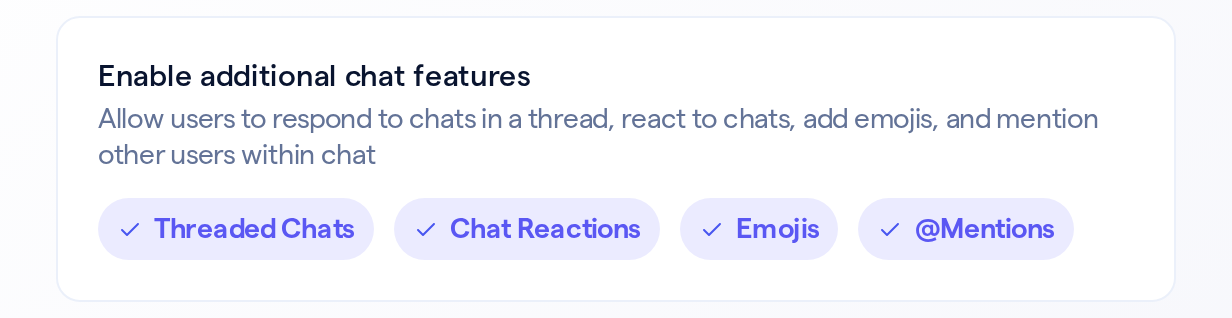
The Enable additional chat features card: Allow users to respond to chats in a thread, react to chats, add emojis, and mention other users within chat. Threaded Chats, Chat Reactions, Emojis and @Mentions are all ticked.

This setting can only be changed before the session starts.

Good to know

Details
Where it livesEngagement → Interactive Tools → Chat → Enable additional chat features → Chat Reactions
DefaultOn
Emojis per messageUp to 20 different emojis. After that the + button hides, and people can still add to the emojis already there.
Large audience modeReactions are off
When attendees can't post in the public chatThey can't react there either; chat rooms and thread replies still work
Hide attendee messages from each otherWhen it's on, attendees see only the hosts' names in the tooltip
After a reloadReactions stay, because they're saved with each message
Engagement ReportIn Analytics → Engagement, click Download Engagement Report. Its Chat sheet has a Reactions column with each emoji, its count and who reacted.
React to chat messages without typing a reply
Find it in Engagement › Interactive Tools › Chat › Enable additional chat features › Chat Reactions.
Related updates
Export to Any System
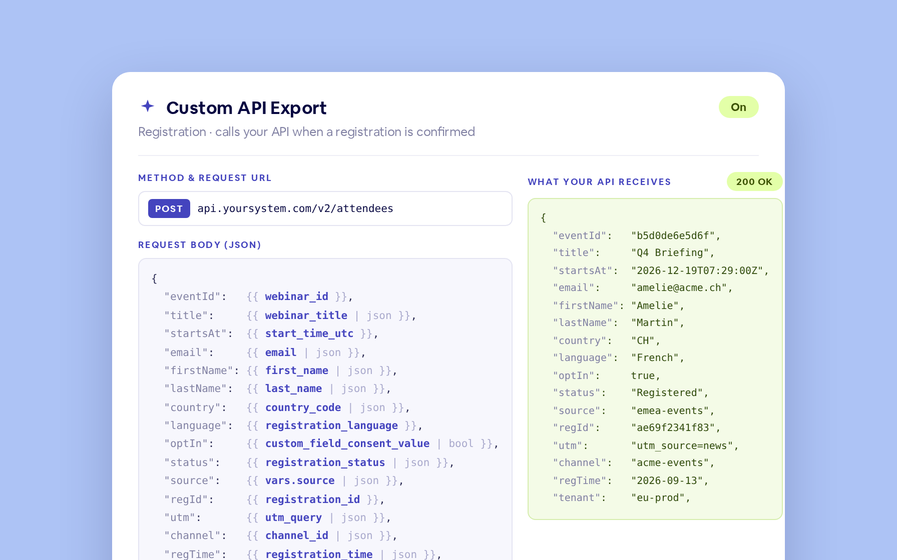
No connector needed — point a session at your endpoint, write the JSON body, and BigMarker calls it as people register, attend and watch.
Threaded chat in waiting room
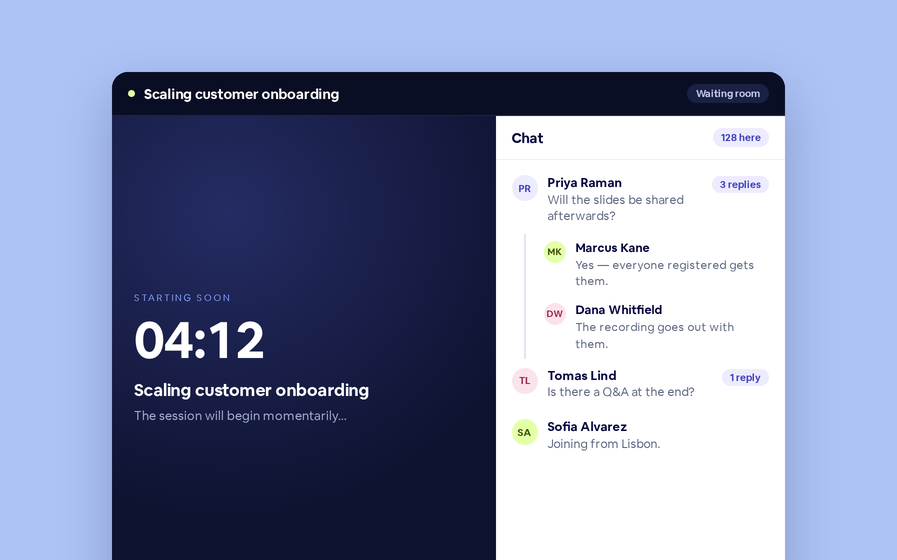
Replies now sit in a thread under the message they answer, so the pre-show conversation stays readable.
 Inline Page Editing
Inline Page Editing
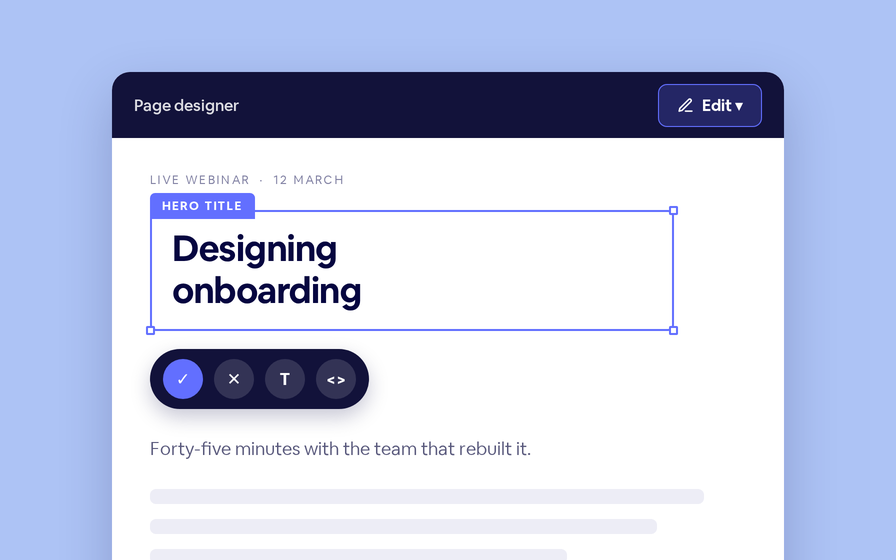
Click any headline, image or block on your landing page and change it right there — no hunting through editor panels.
Quizes in On Demand Video
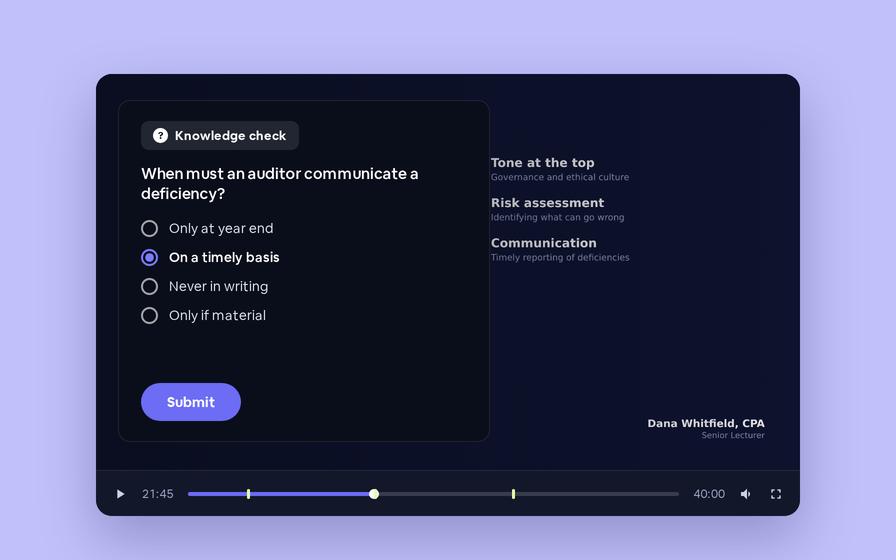
Ask questions inside your recordings and see who actually understood, not just who pressed play.
Preview Custom Page States
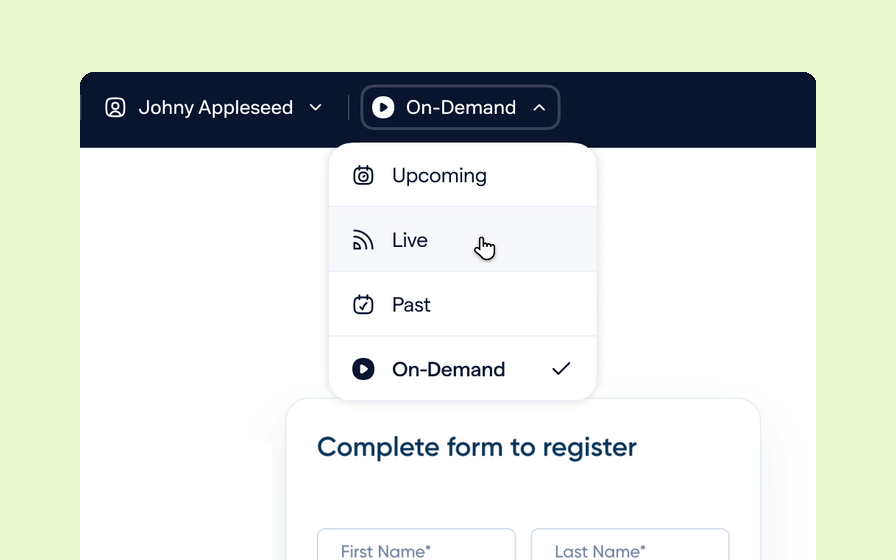
Preview any custom page as a registered viewer, an unregistered visitor or a real registrant, at any point in the event's life.
Follow Up Emails
Follow Up Emails
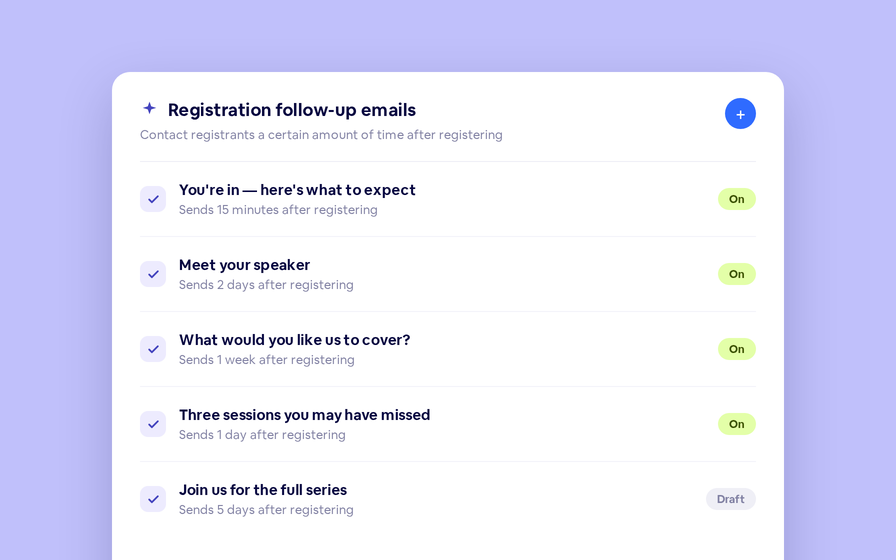
Keep in touch with your registrants immediately after they register.
Introducing BigMarker AI
Leverage generative AI to automate chaptering, generate short-form social-ready video clips, and create derivative content such as blogs, eBooks, and more.
AI  Audio Translations
AI Audio Translations
Presenters speak in their language while attendees listen in theirs, removing barriers and opening content to participants everywhere.
Custom Audience Experiences
Get complete control over your webinar and event interfaces so every session looks, feels, and performs exactly the way you want.
AI Email Personalization
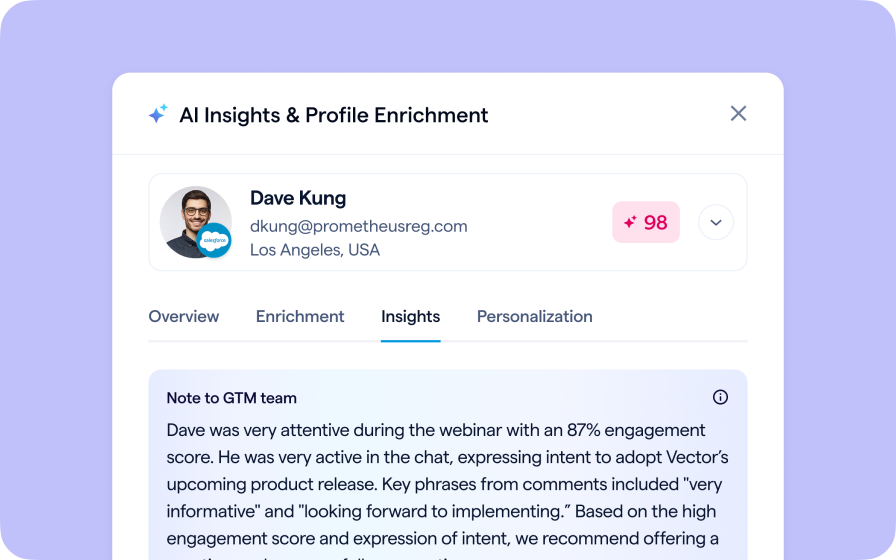
Every attendee gets a message crafted just for them based on their engagement, interests, and lead score.
Studio Scenes
Studio Scenes
Give your events the look, feel, and professionalism of a live broadcast, without the complexity or cost of a production crew.
AI Content Studio
AI Content Studio
Leverage generative AI to automate chaptering, generate short-form video clips, and create blogs, eBooks, and other derivative content.
AI Lead Scoring
AI Lead Scoring
Instantly transform registration and attendee data into customized actionable sales insights.
BigMarker Webinar Series
Our weekly product update webinar series offers a closer look at what’s new in BigMarker, with live demos, practical tips, and Q&A to help you put the latest features to work. Join live or catch the recording on demand.
Join the waitlist
By clicking “Submit”, I acknowledge that BigMarker may contact me related to my participation in this Beta offering.
You’re all set!
You’ve successfully registered for the waitlist!
If you have any questions, please contact your CSM.
Webinar: Emoji Reactions on Chat Messages by Product Update Hub