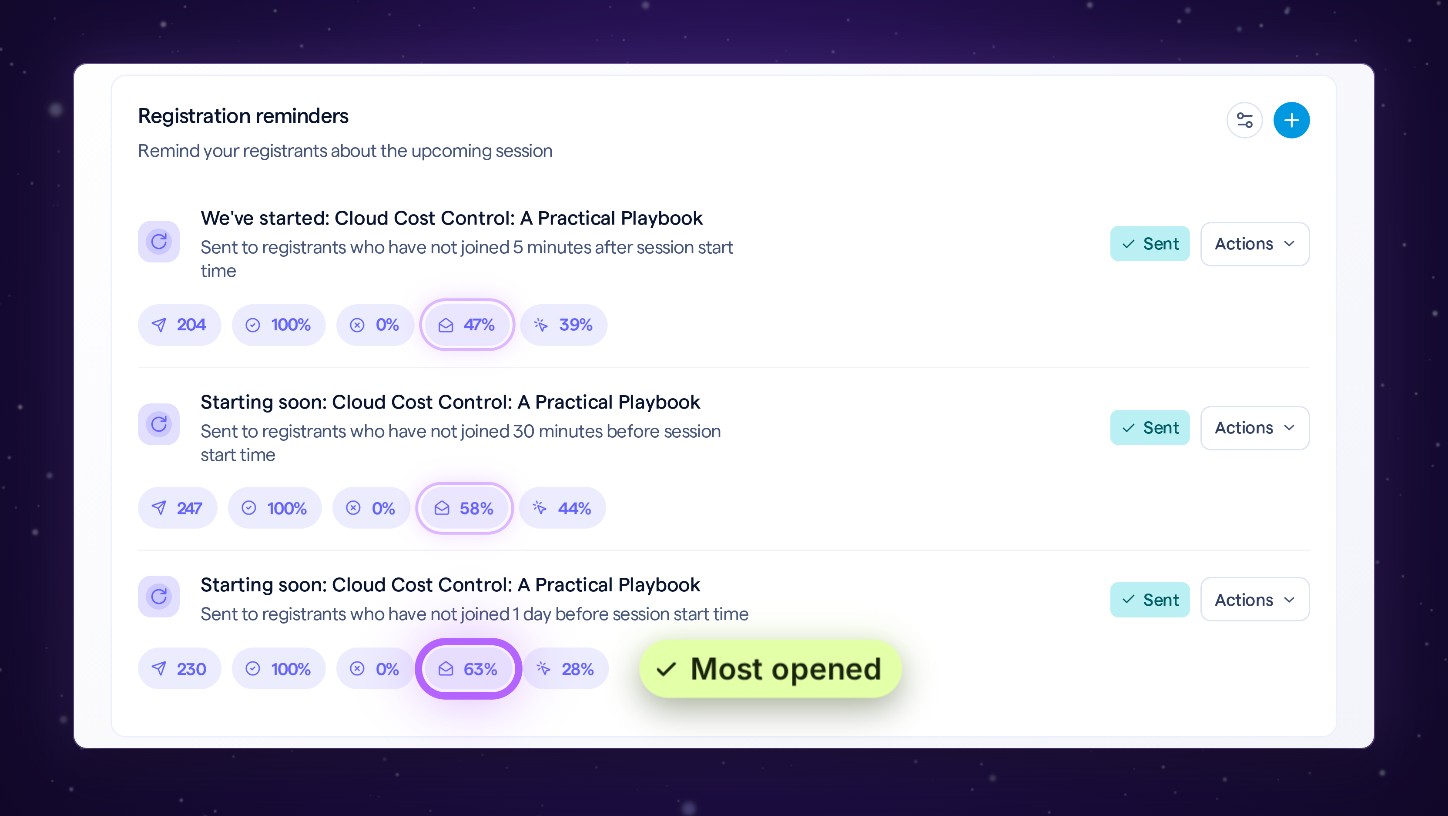
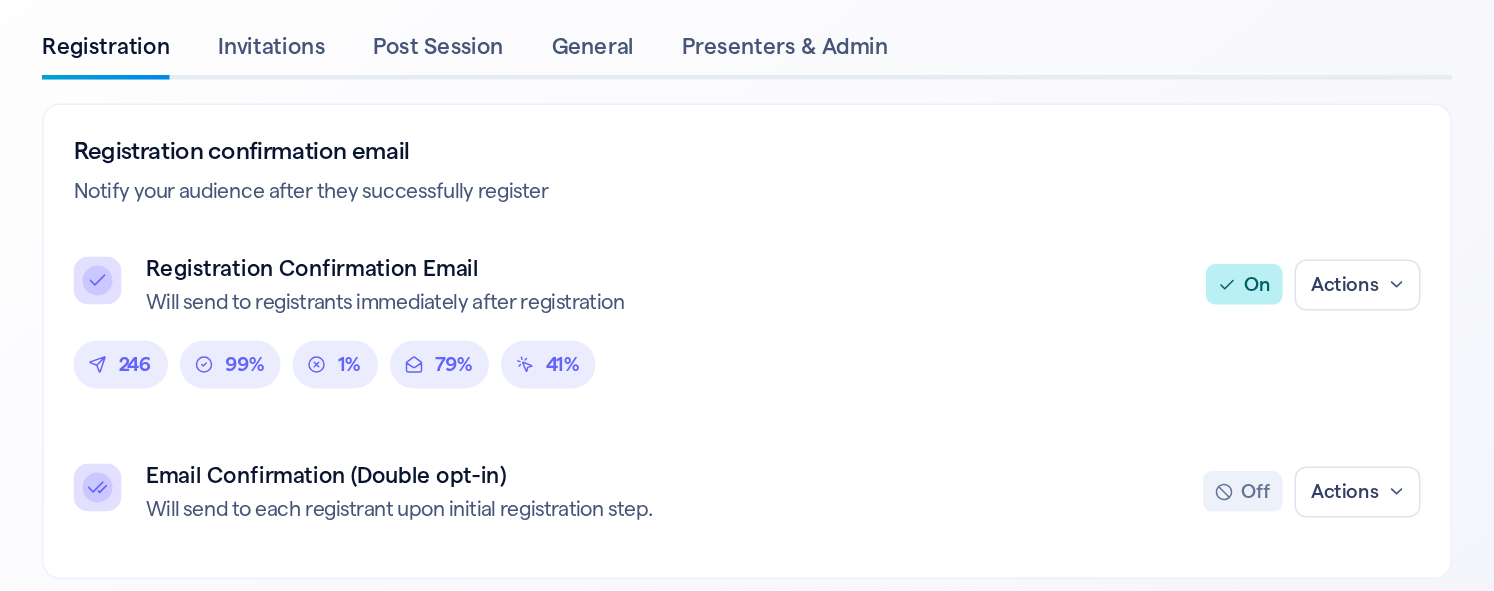
Now the Emails list in your session admin shows how each email is doing. Every email that's gone out carries five numbers under its row, so you can compare your reminders, invitations and follow-ups at a glance.
How each email is doing, right in the list
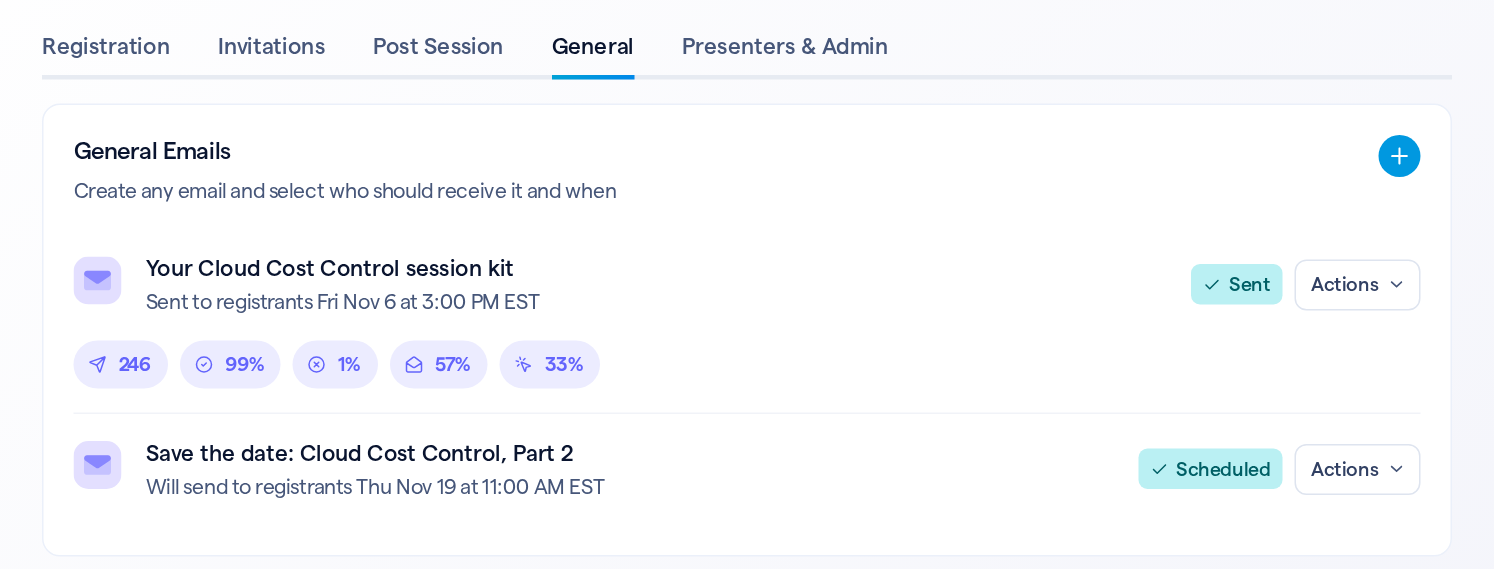
Open Emails in your session admin, and every email that has gone out shows a row of numbers under its name: how many were delivered, and its delivery, bounce, open and click rates. Reminders, invitations, follow-ups and general emails each have their own, so you can see which ones people open and click.
Illustration
See how your emails are doing
Start in your session admin, under Emails.
1
Open EmailsClick Emails in the left menu. The list opens on the Registration tab, and the numbers fill in under each email that has gone out.
2
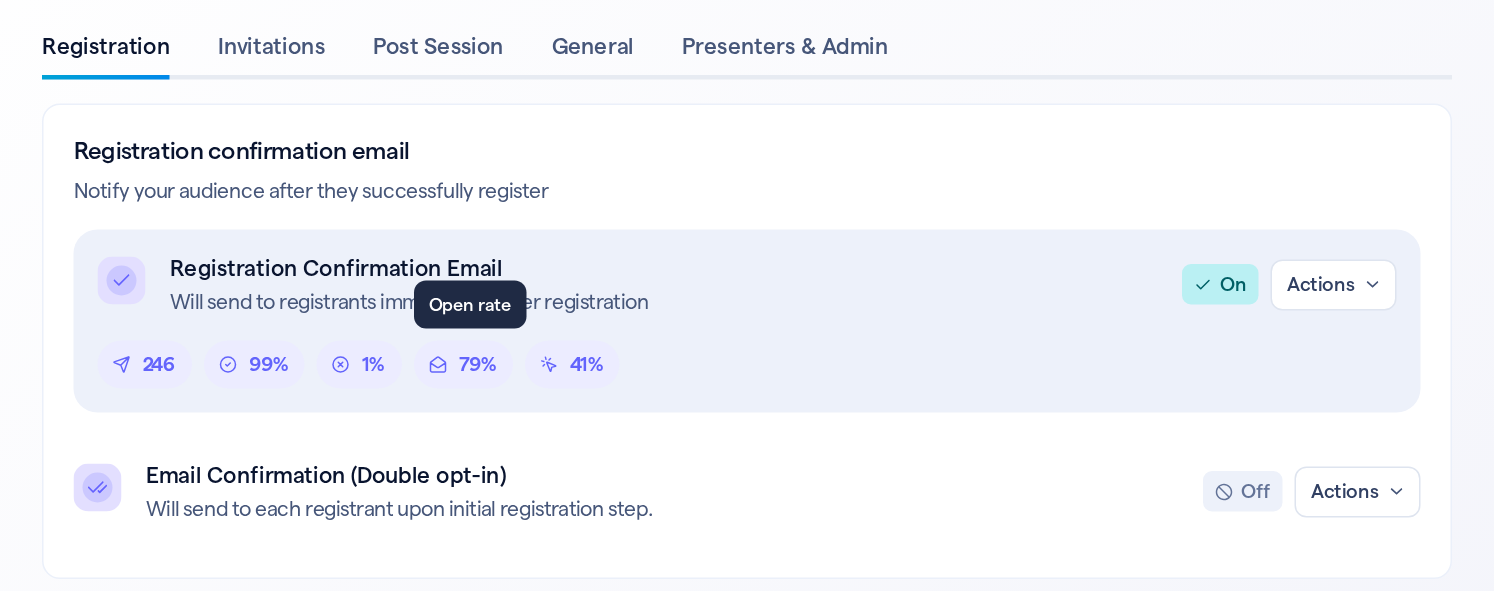
Hover a number to see what it isEach number shows its label when you point at it: Sent, Delivery rate, Bounce rate, Open rate and Click rate.
3
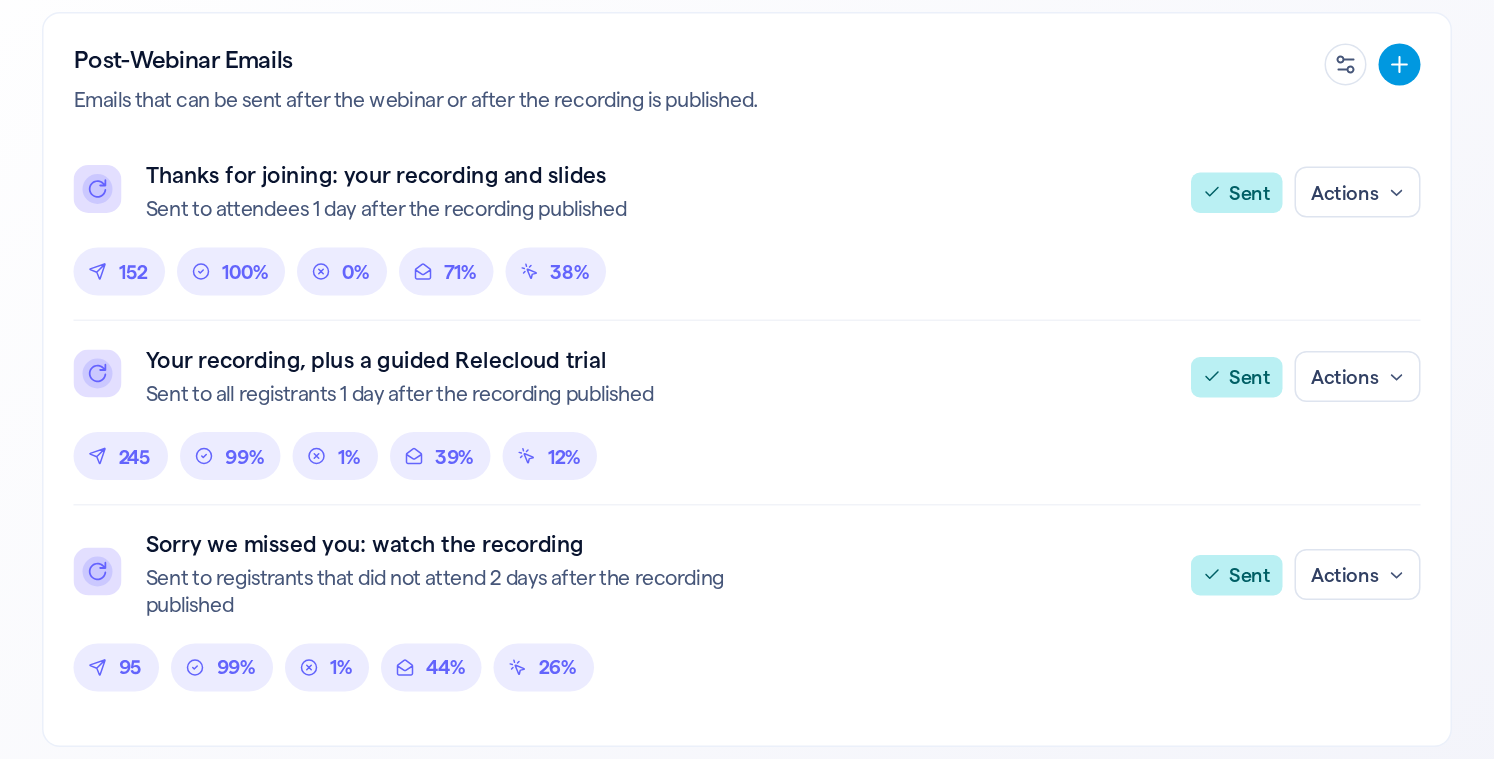
Compare emails on every tabSwitch between Registration, Invitations, Post Session, General and Presenters & Admin. On Post Session, for example, you can see which follow-up got the most clicks.
What each number means
Number
What it counts
Sent
How many of the emails were delivered
Delivery rate
Delivered emails, as a share of everyone the email went to
Bounce rate
Bounced emails, as a share of everyone the email went to
Open rate
Opens, as a share of delivered emails
Click rate
Clicks, as a share of delivered emails
Rates are rounded to whole percentages.
Which emails show numbers
The numbers follow the tag next to each email.
Tag
Numbers
Sent
Yes
On
Yes, once it has gone to someone. These are the emails that send on their own, like the registration confirmation
Scheduled
Not until it has sent
Sending
Once it has finished going out
Draft, Unsaved Edits
None
Off, Canceled
None, even for an email that went out before
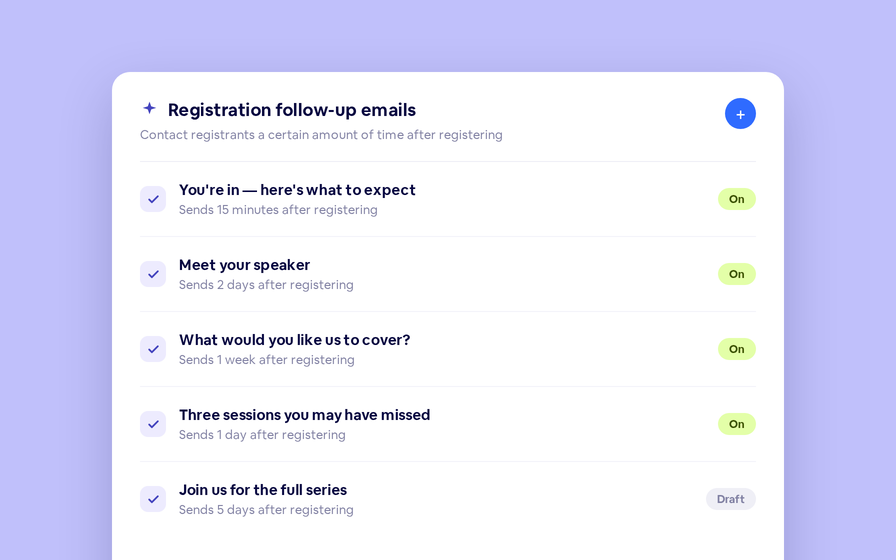
A sent email with its numbers, above a scheduled one that hasn't gone out yet
Good to know
Details
Who sees them
Team members who can view reports
Updates
The numbers load just after the list and can take a few minutes to catch up with the latest opens and clicks
Invitations
A sent invitation also shows how many recipients it had under its name. That counts everyone it went to, while Sent counts the emails delivered