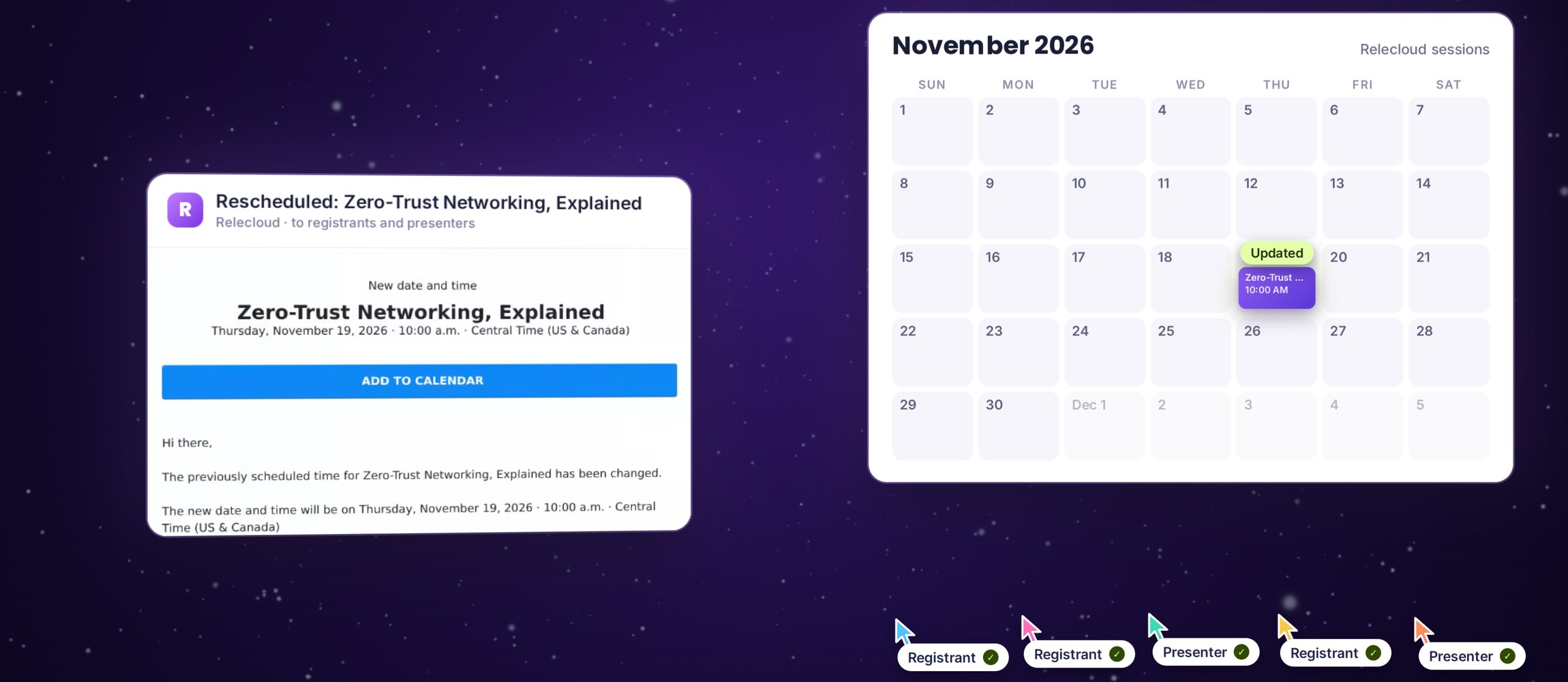
Plans change. Now, when you move a session to a new date or time, the new Date Change Email tells everyone who's coming: every registrant and presenter gets the new details, with an Add to Calendar button and an updated calendar invite.
One email, everyone who's coming
With the Date Change Email on, saving a new start date or time for a session sends one email to all of its presenters and confirmed registrants.
It leads with the new date and time, carries an Add to Calendar button, and attaches an updated calendar invite, so the event moves on their calendars too.
Turn it on in one step
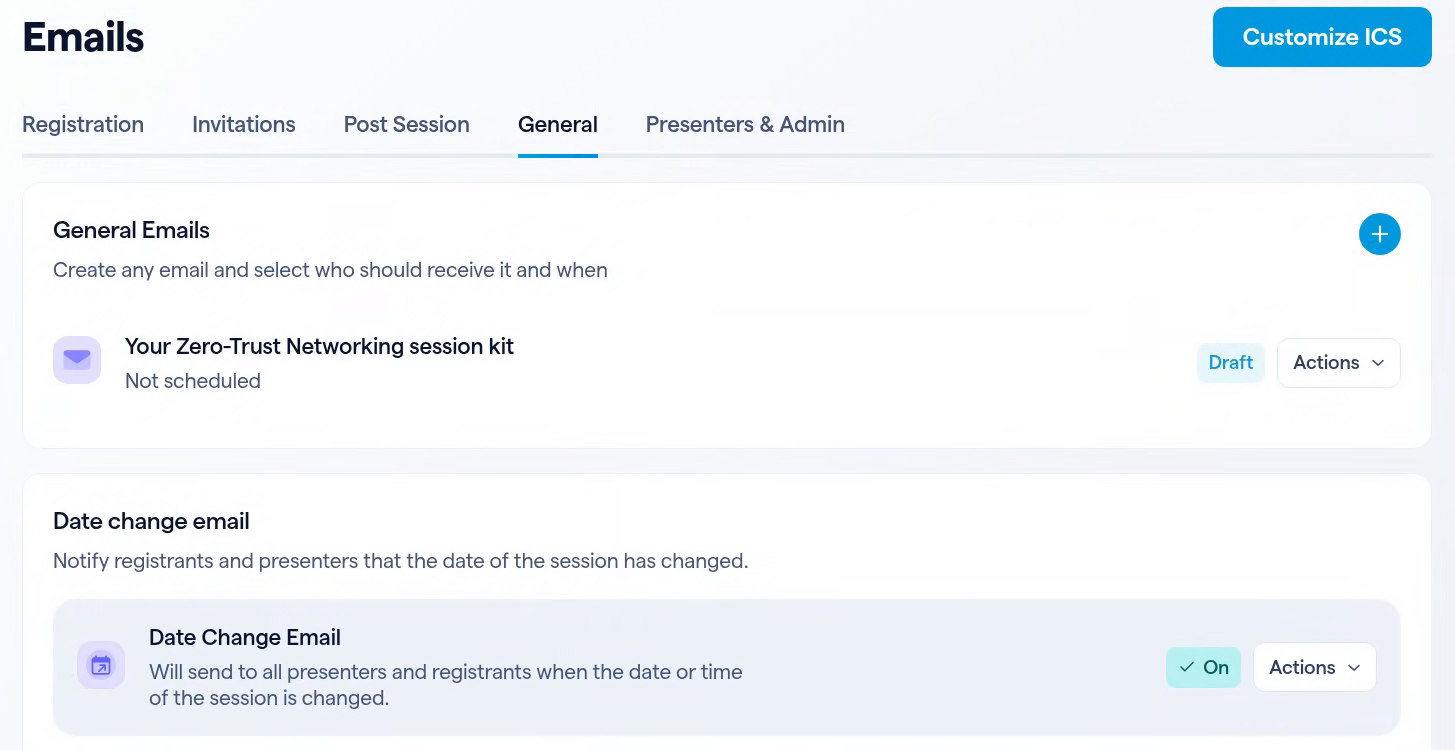
Open your session, then Emails → General. The Date change email card sits at the bottom, and it starts off.
Change the date as you always do
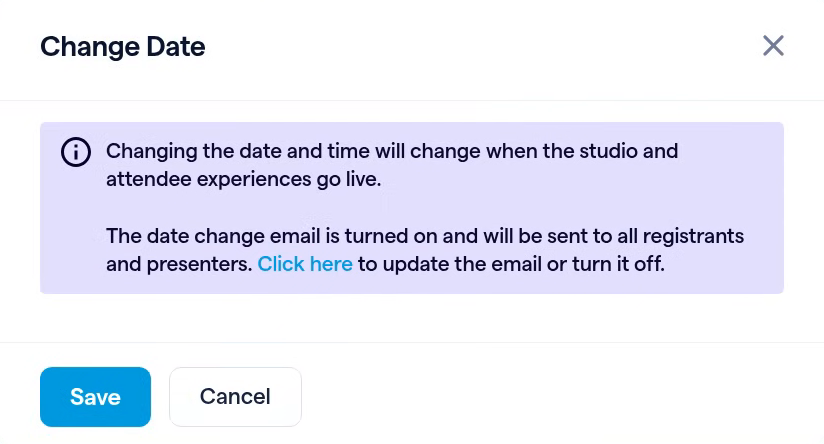
In Basic Setup → Session Details, click Edit next to Start date and time, pick the new date or time and click Save.

What they receive
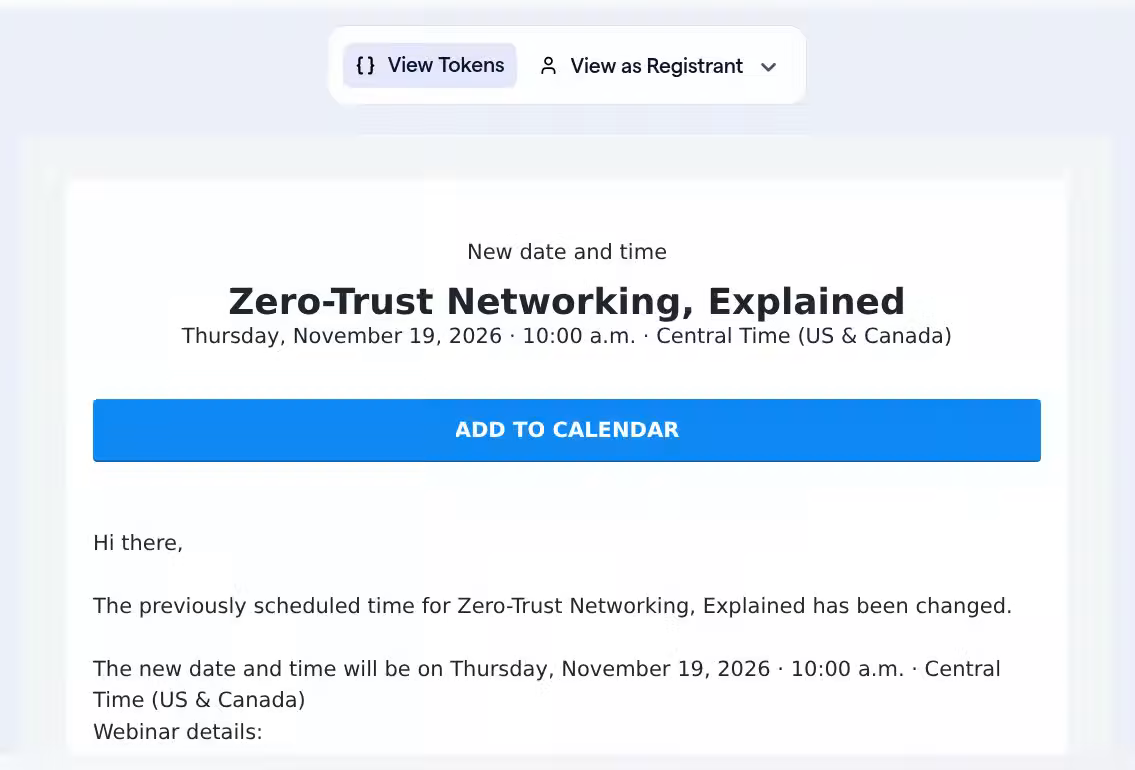
The email is ready to send as it is, and you can edit it like any other BigMarker email.
| Part | Default |
|---|---|
| Subject | Rescheduled: and the session title |
| Heading | New date and time, with the session title and its new date |
| Button | ADD TO CALENDAR |
| Attachment | An updated calendar invite (.ics) that moves the event to the new date |
Who it reaches
| Details | |
|---|---|
| Recipients | All presenters and all confirmed registrants |
| Left out | Addresses that unsubscribed or bounced |
| Sent when | You save a new start date or time |
| Default | Off, until you turn it on for the session |
The Date Change Email is for sessions with a set date, including sessions inside a series. It isn't available for on-demand or recurring webinars.