BigMarker News & Updates Multiple Events in One ICS File

One ICS file, every session as its own event

October 22, 2026
One ICS file now holds an event for each session, so calendars block the hours each session is live, not the whole series.
Categories
Share

A series can run for weeks or months, but a calendar only needs the hours each session is live. Now one ICS file can hold multiple events: one for each session the registrant signed up for, with its own date, time and link.

One ICS file, multiple events

With Make each session its own calendar event turned on, the ICS file attached to your series' confirmation email holds multiple events: one for each upcoming session the registrant is registered for, soonest first.

Each event carries its own session's title, date, time and link, plus the reminder you set, so every session shows up on the day it happens and the weeks between sessions stay free.
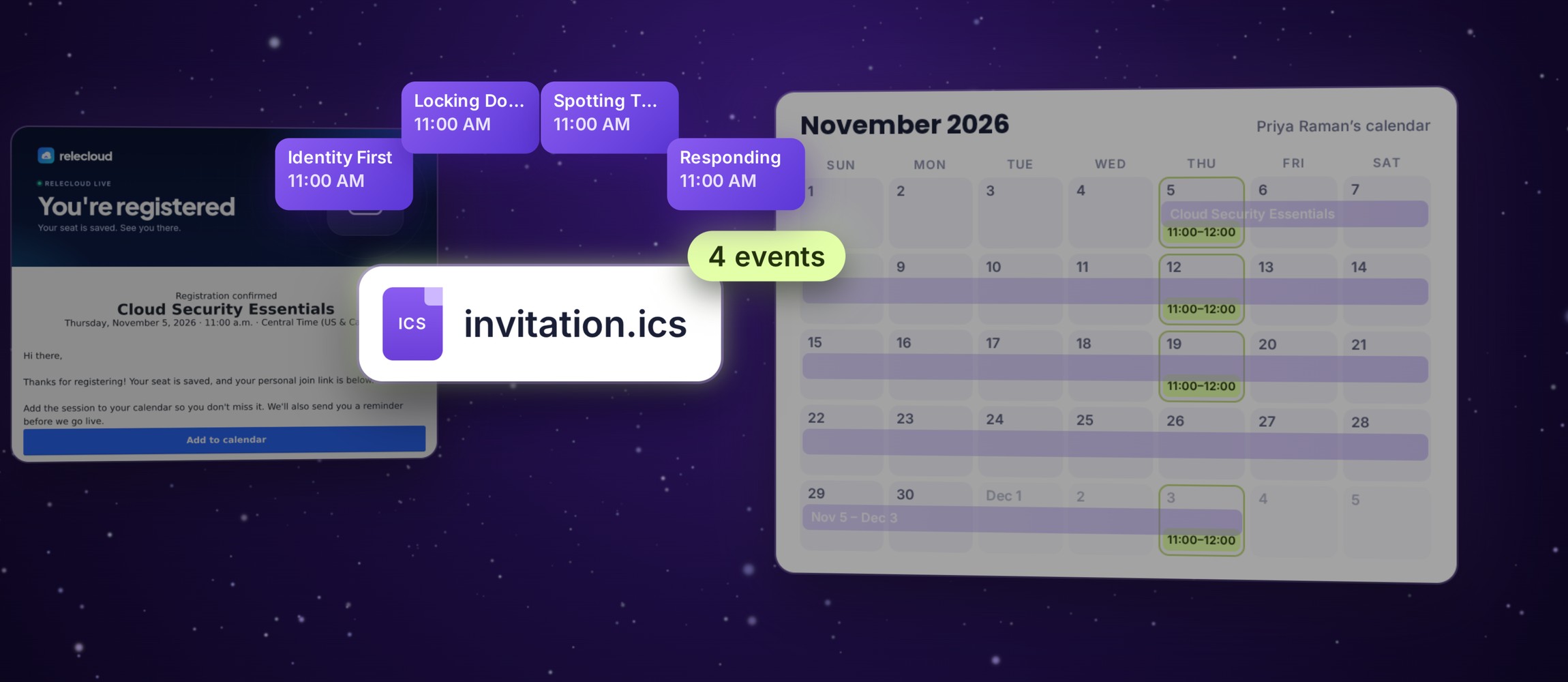
One invitation.ics file holding four events, beside a November calendar where the series' Nov 5 to Dec 3 event gives way to each Thursday's 11:00 to 12:00 session.
Illustration
Switch offSwitch on
Events in the ICS fileOne, for the seriesOne for each session
Time it holds on the calendarFrom the series' start to its endEach session's own hours
Title and linkThe series'Each session's own

Turn it on in three steps

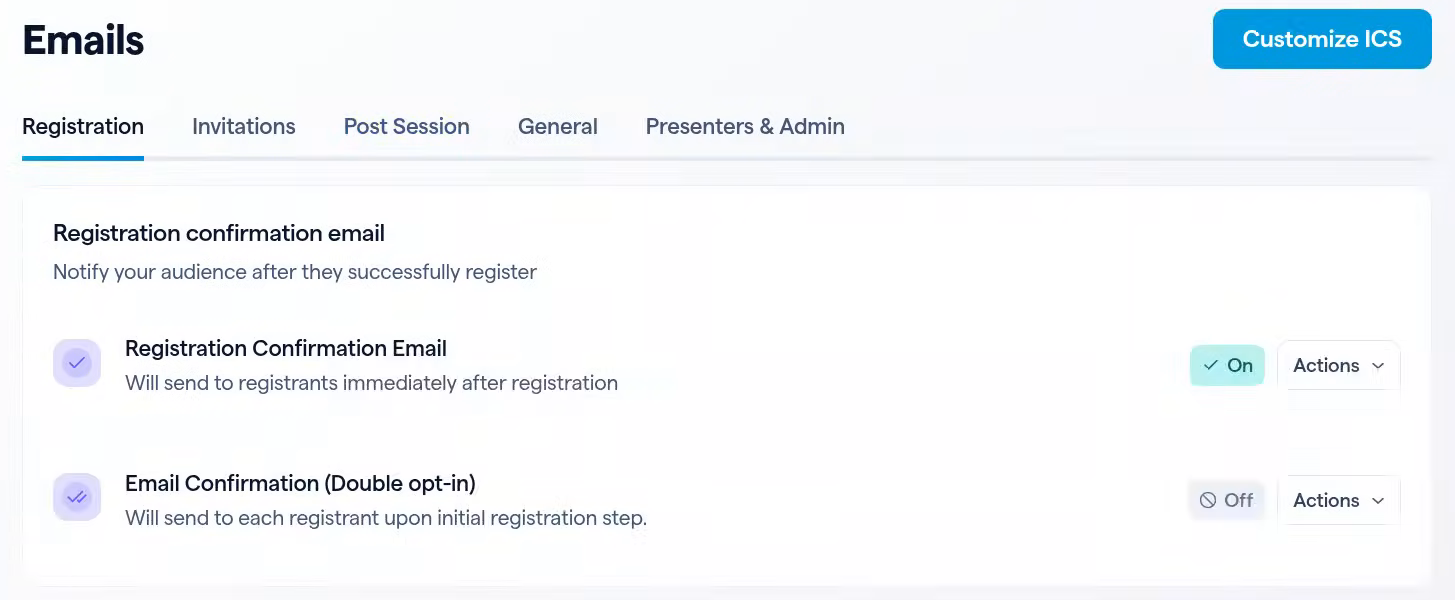
Open your series, then Emails → Registration.
1
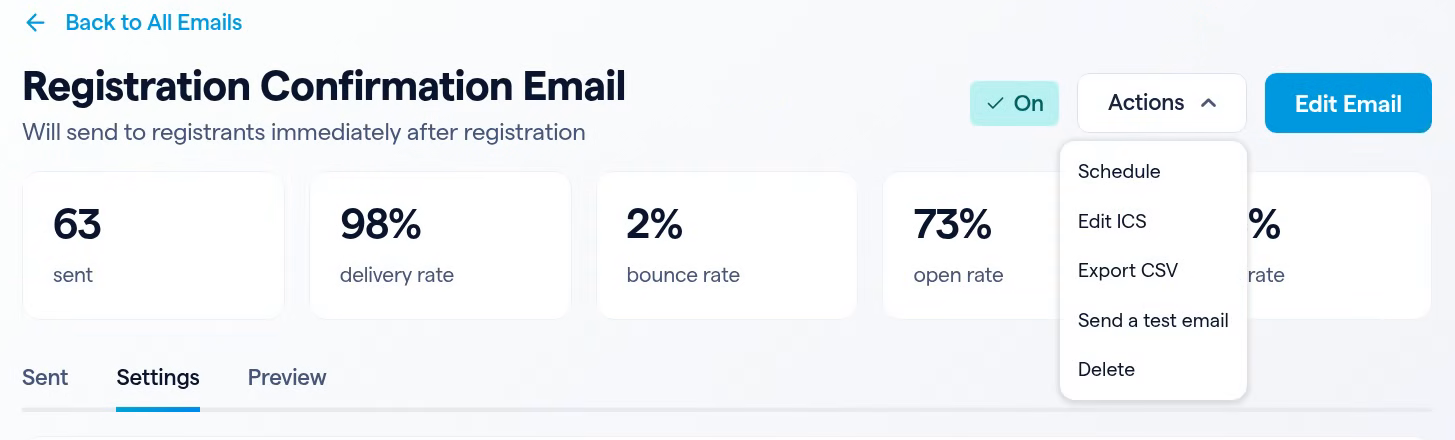
Open the confirmation emailNext to Registration Confirmation Email, click Actions and choose View details.
The Emails page, Registration tab: Registration Confirmation Email is On, with its Actions menu.
2
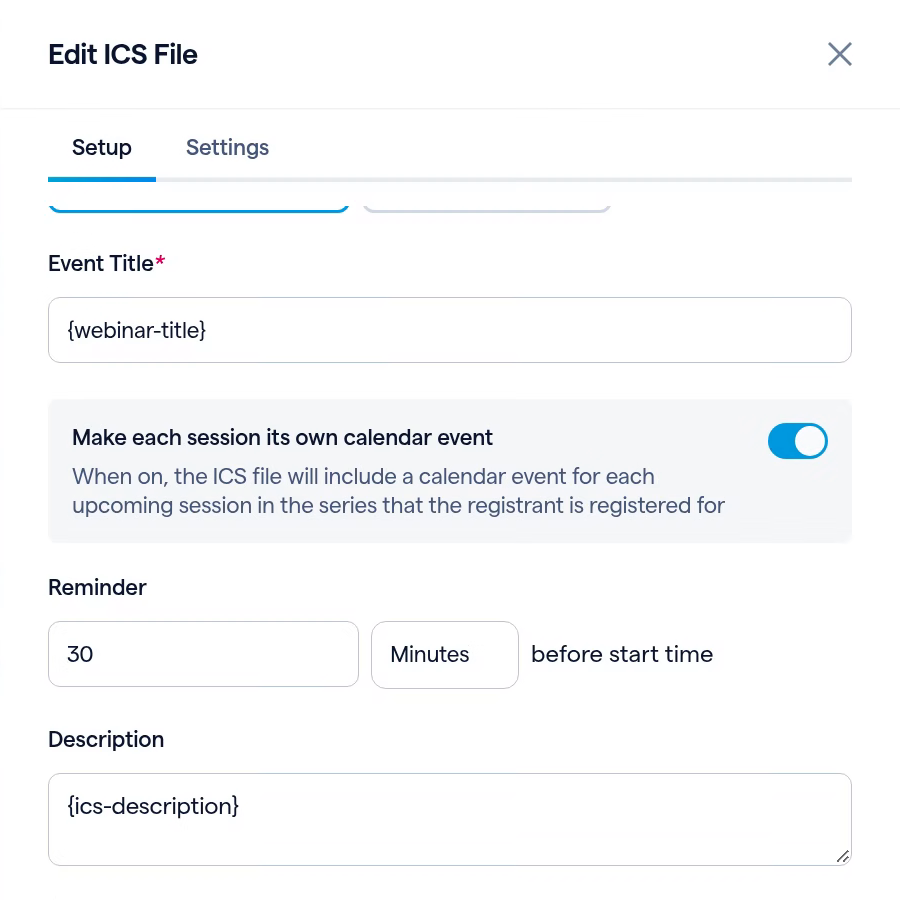
Choose Edit ICSOpen Actions at the top of the email's page and choose Edit ICS. The Edit ICS File panel opens on Setup.
Registration Confirmation Email with its Actions menu open: Schedule, Edit ICS, Export CSV, Send a test email, Delete.
3
Switch it on and saveKeep Generated by BigMarker as the ICS file source, turn on Make each session its own calendar event and click Save. All Day, Start Time and End Time step aside, because each event takes its date and time from its own session. Reminder and Description now apply to every session's event.
Edit ICS File, Setup: Make each session its own calendar event is on, followed by Reminder (30 minutes) and Description.

What each registrant gets

BigMarker builds the one file for each registrant from the sessions they're registered for.

The registrantTheir calendar file
Registered for the seriesOne file with an event for every upcoming session (sessions copy the series' registrations by default)
Chose their sessions in an itinerary seriesOne file with an event for each session they chose
Has no upcoming sessions leftOne event for the series

Past and canceled sessions are left out, and a file holds up to 50 events.

Settings that wait while it's on

On the Settings tab, two settings hold still while each session is its own event, and come back to your choices when you turn it off.

SettingWhile it's on
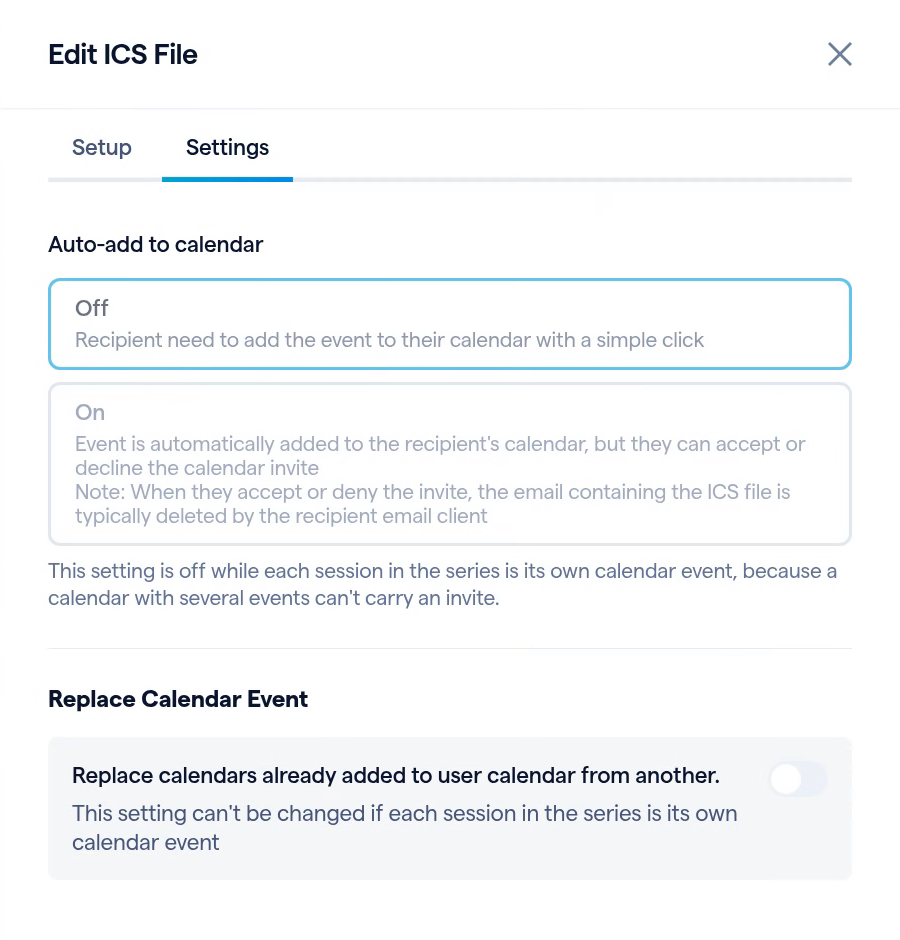
Auto-add to calendarHeld at Off: the calendar arrives as a file registrants open, because a calendar with several events can't carry an invite
Replace Calendar EventLocked: each session's event uses that session's own identifier
Edit ICS File, Settings: Auto-add to calendar held at Off with its note, and Replace Calendar Event locked.
Made for the confirmation email

The option lives on a series' Registration Confirmation Email. Calendar files on the series' other emails keep one event, and a file you upload with Upload Custom ICS is sent as you made it.
One ICS file, every session
Find it in your series under Emails, Registration Confirmation Email, Edit ICS.
Related updates
Export to Any System
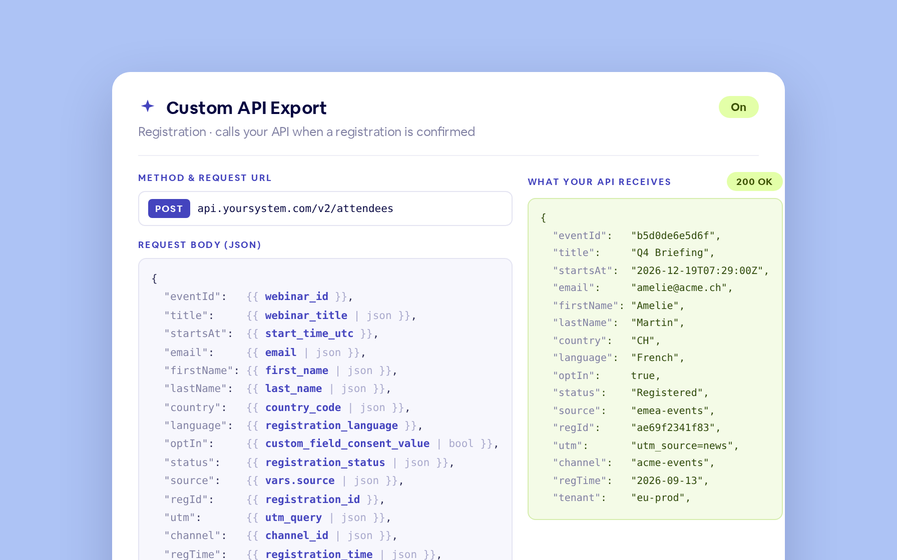
No connector needed — point a session at your endpoint, write the JSON body, and BigMarker calls it as people register, attend and watch.
Threaded chat in waiting room
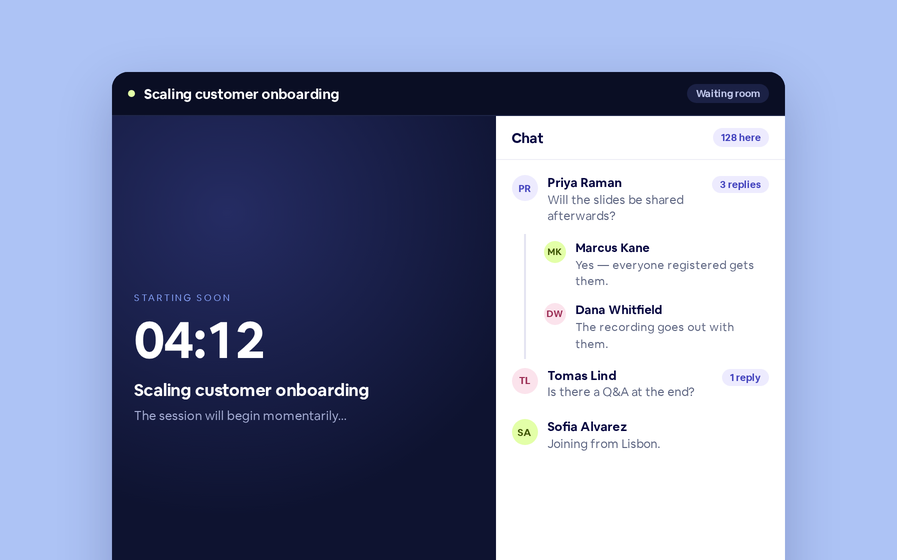
Replies now sit in a thread under the message they answer, so the pre-show conversation stays readable.
 Inline Page Editing
Inline Page Editing
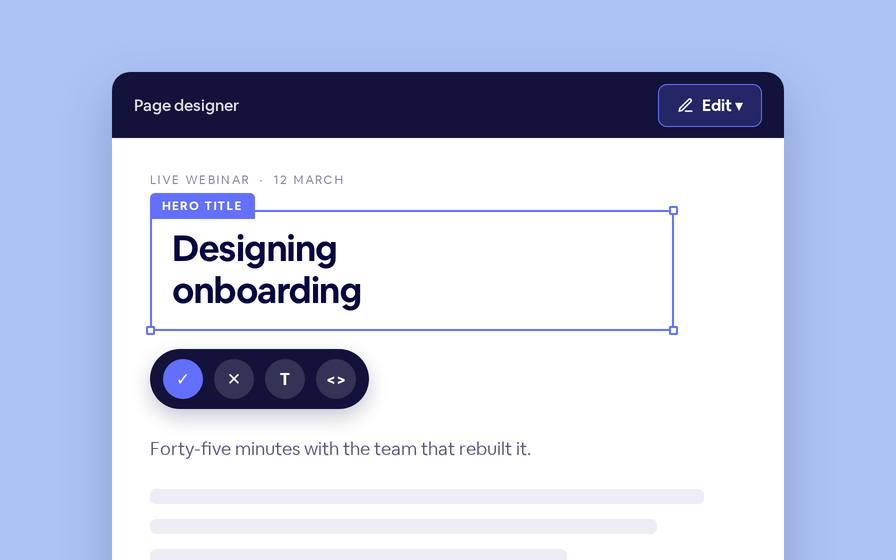
Click any headline, image or block on your landing page and change it right there — no hunting through editor panels.
Quizes in On Demand Video
Ask questions inside your recordings and see who actually understood, not just who pressed play.
Preview Custom Page States
Preview any custom page as a registered viewer, an unregistered visitor or a real registrant, at any point in the event's life.
Follow Up Emails
Follow Up Emails
Keep in touch with your registrants immediately after they register.
Introducing BigMarker AI
Leverage generative AI to automate chaptering, generate short-form social-ready video clips, and create derivative content such as blogs, eBooks, and more.
AI  Audio Translations
AI Audio Translations
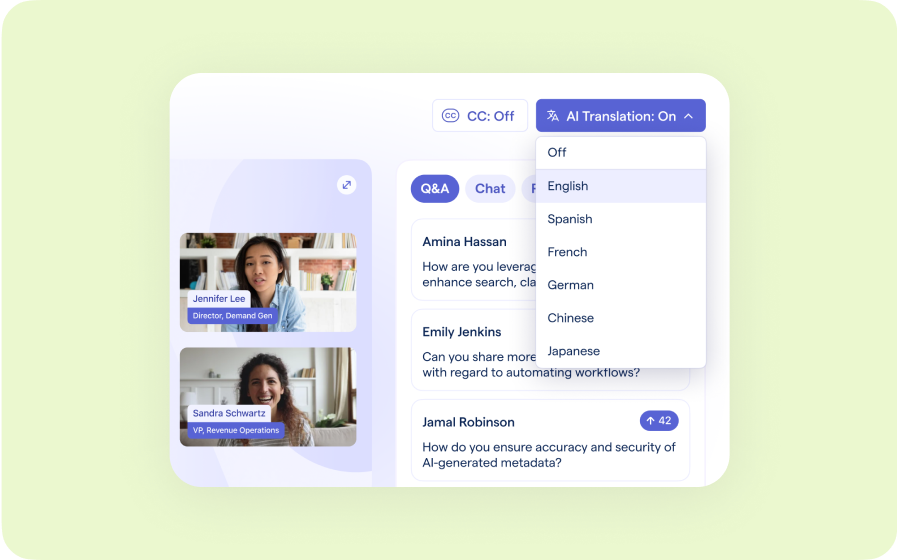
Presenters speak in their language while attendees listen in theirs, removing barriers and opening content to participants everywhere.
Custom Audience Experiences
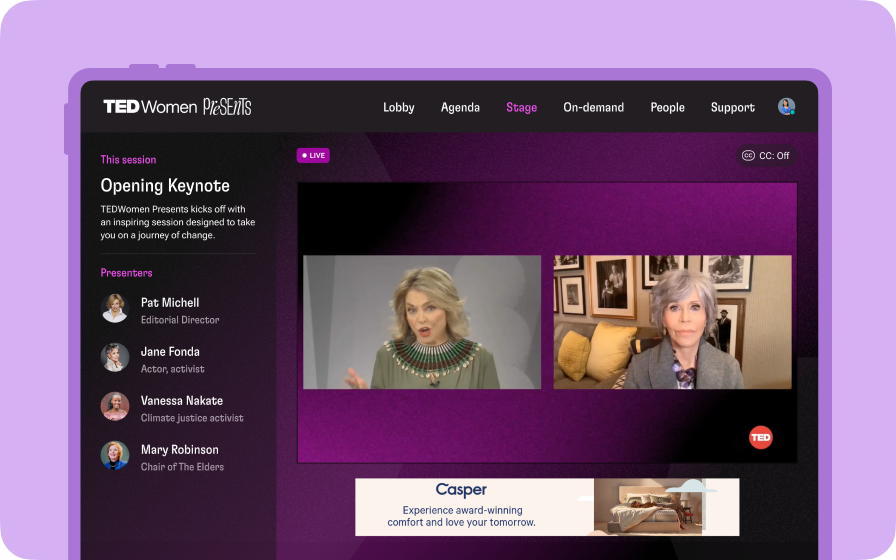
Get complete control over your webinar and event interfaces so every session looks, feels, and performs exactly the way you want.
AI Email Personalization
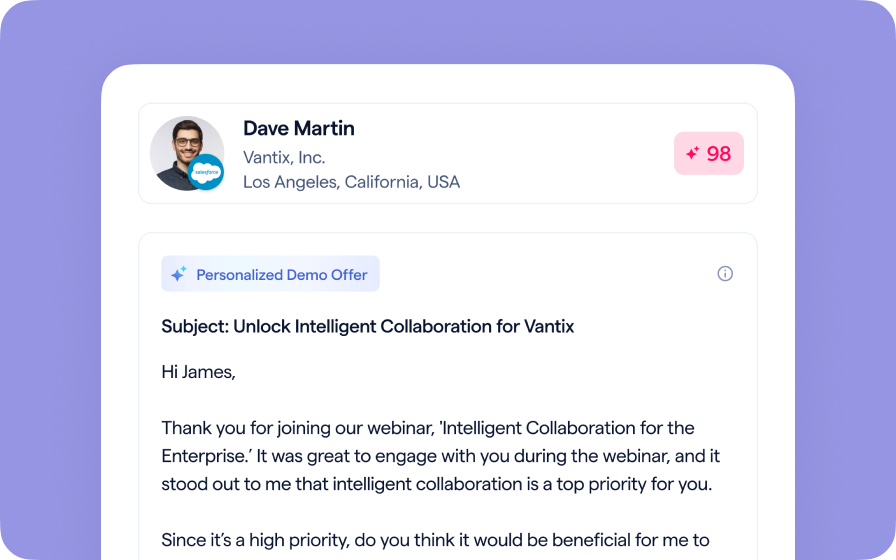
Every attendee gets a message crafted just for them based on their engagement, interests, and lead score.
Studio Scenes
Studio Scenes
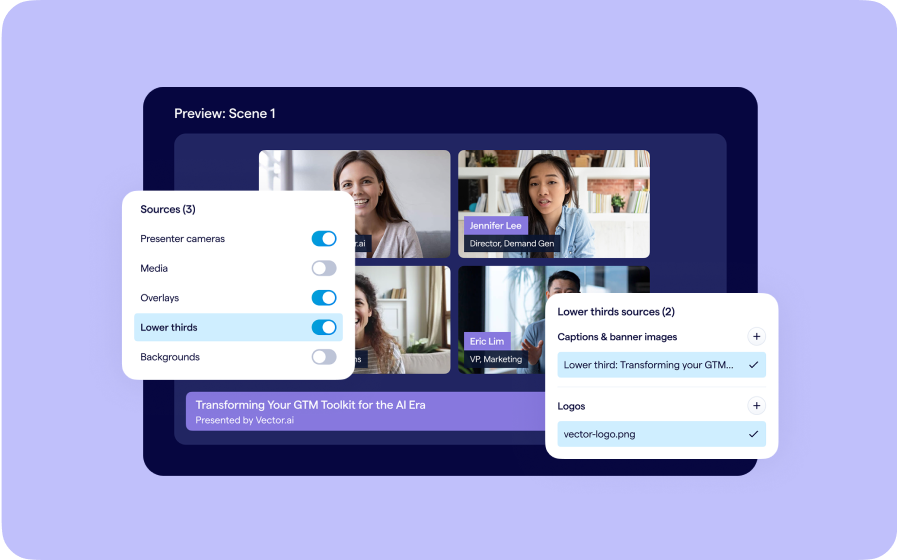
Give your events the look, feel, and professionalism of a live broadcast, without the complexity or cost of a production crew.
AI Content Studio
AI Content Studio
Leverage generative AI to automate chaptering, generate short-form video clips, and create blogs, eBooks, and other derivative content.
AI Lead Scoring
AI Lead Scoring
Instantly transform registration and attendee data into customized actionable sales insights.
Join the waitlist
By clicking “Submit”, I acknowledge that BigMarker may contact me related to my participation in this Beta offering.
You’re all set!
You’ve successfully registered for the waitlist!
If you have any questions, please contact your CSM.
Webinar: Calendar Events for Every Series Session by Product Update Hub