BigMarker News & Updates AI Lead Scoring Walkthrough

Know which registrants to call first

May 13, 2025
BigMarker AI scores every registrant from 1 to 100 on factors you choose, fills in details like seniority and company size, and flags spam.
Categories
Share

After a great webinar, your sales team wants to start with the strongest leads. AI Lead Scoring scores every registrant from 1 to 100 on the factors you choose, shows why, and fills in details like seniority, employee count and annual revenue.

Every registrant, scored and explained

BigMarker AI reads what each person told you when they registered and what they did in your session: how long they stayed, the questions they asked, the polls they answered. It weighs that against your scoring factors and gives each one a score from 1 to 100.

Every score comes with its reasons, so your team knows why someone is at the top before they reach out.
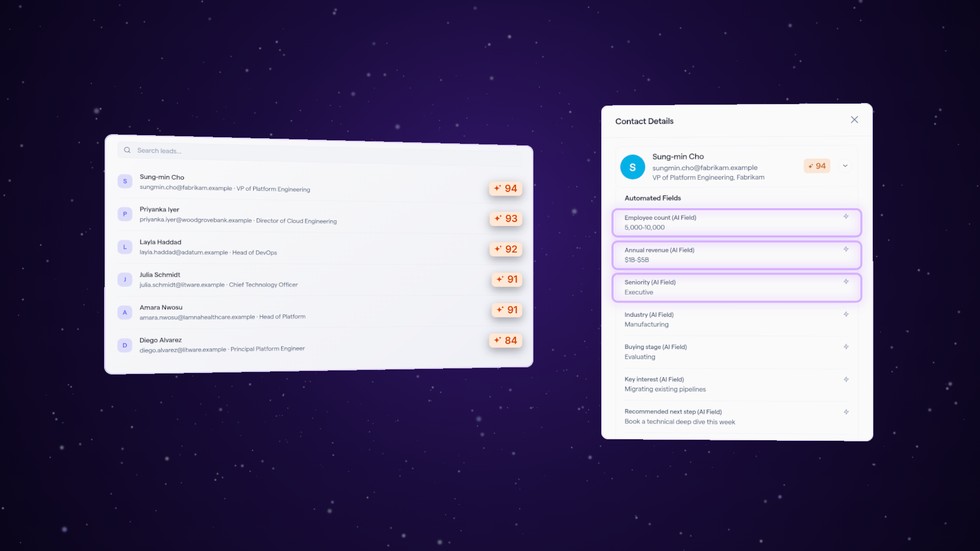
A scored registrant list, highest first, beside one lead's Contact Details with Employee count, Annual revenue and Seniority filled in by AI.
Illustration

Set it up once

Open your webinar’s admin, then Audience → AI Insights.
1
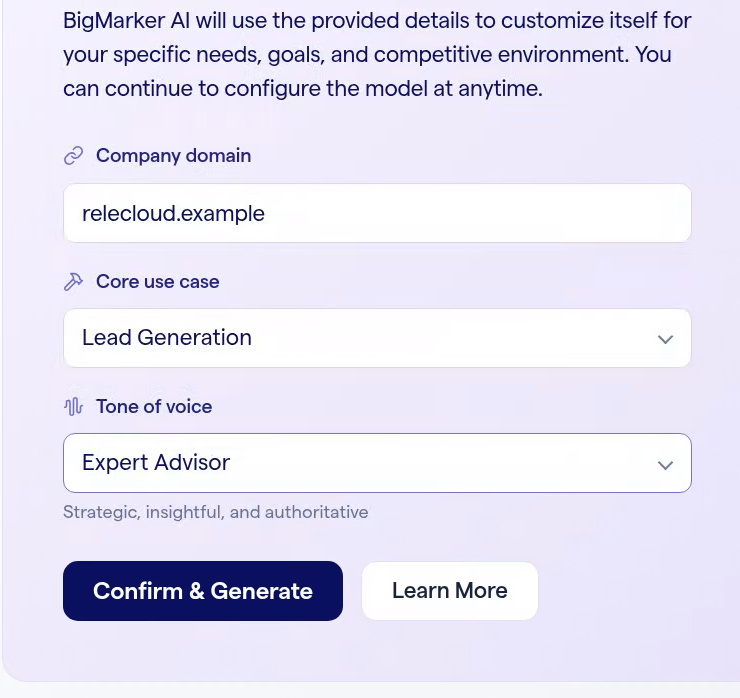
Tell BigMarker AI about your businessEnter your Company domain, choose your Core use case, such as Lead Generation, and the Tone of voice for anything it writes.
Confirm your domain and preferences: Company domain relecloud.example, Core use case Lead Generation, Tone of voice Expert Advisor, and the Confirm & Generate button.
2
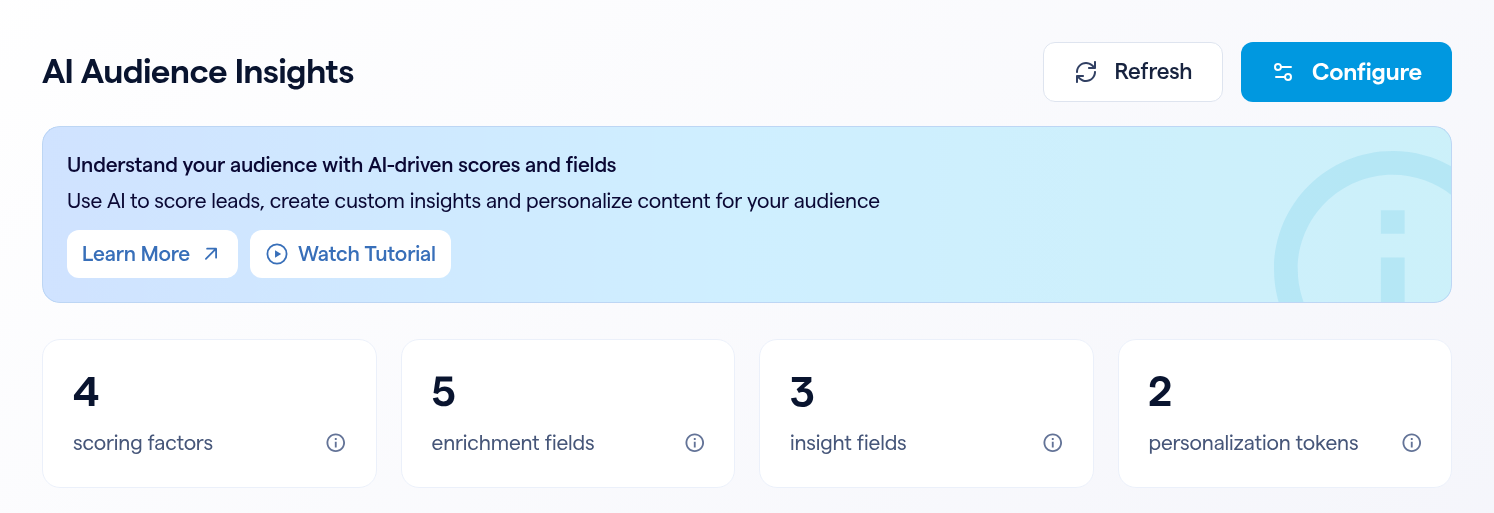
Click Confirm & GenerateBigMarker AI builds the model for you: a description, weighted scoring factors, and fields for enrichment, insights and personalization.
AI Audience Insights with 4 scoring factors, 4 enrichment fields, 3 insight fields and 2 personalization tokens.
3
Scores arrive on their ownEvery registrant is scored a few moments later. New registrants are scored as they sign up, and everyone is scored again after the session, using what they did in it.

Make it yours in a few clicks

Click Configure on AI Insights to open Configure AI Model. Everything BigMarker AI set up is yours to change.
1
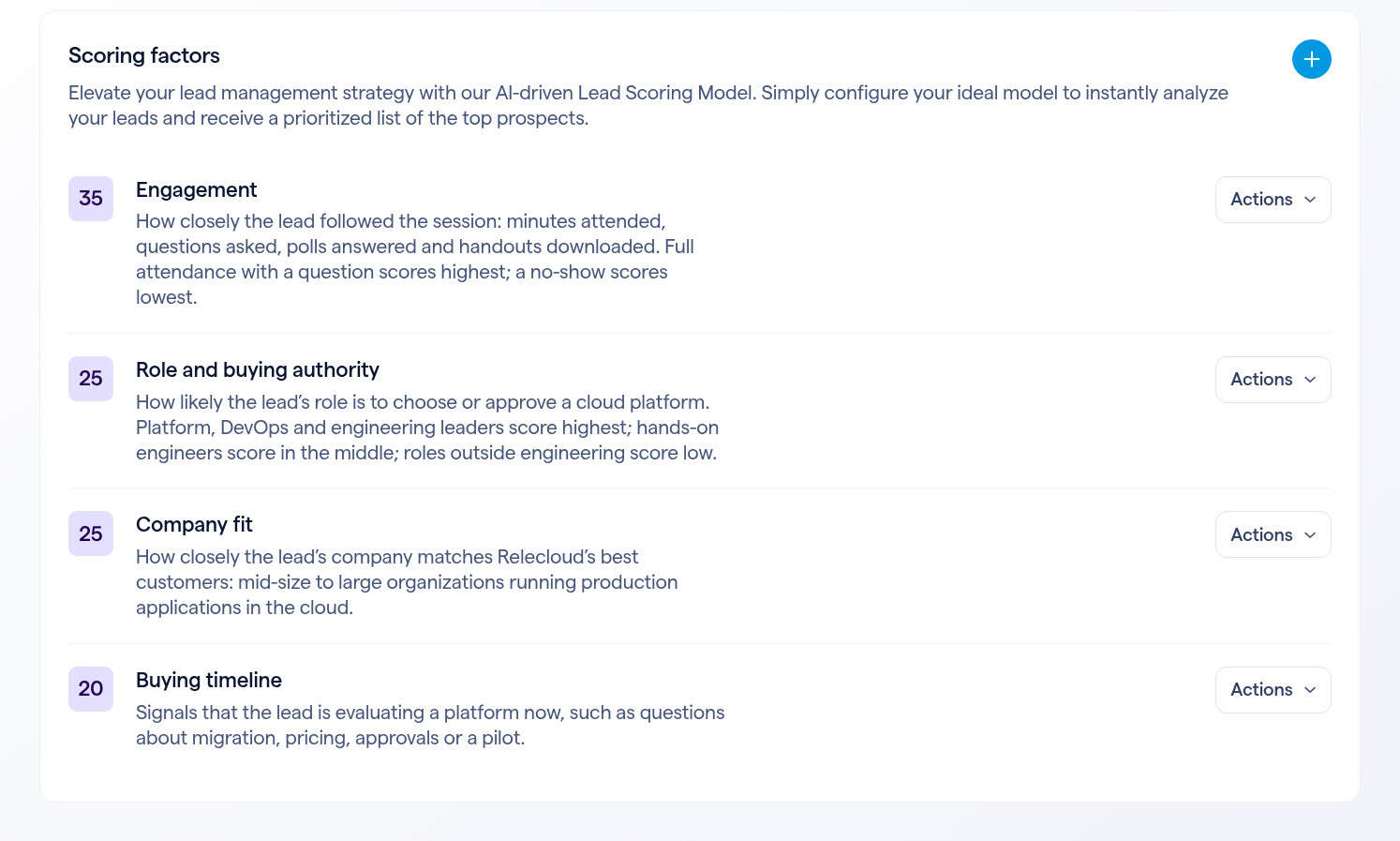
Weigh what matters mostOn Scoring Factors, each factor has a weight and a plain description of what it rewards.
Scoring factors: Role and buying authority 25, Company fit 25 and Buying timeline 20, each with a plain description.
2
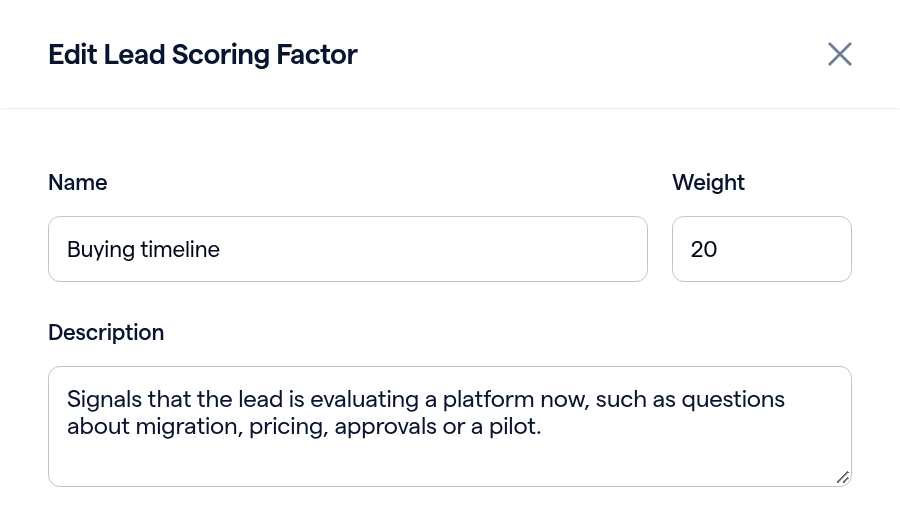
Change a weightOpen the factor’s Actions, click Edit, raise its Weight and click Save.
Edit Lead Scoring Factor for Buying timeline, with the weight set to 20.
3
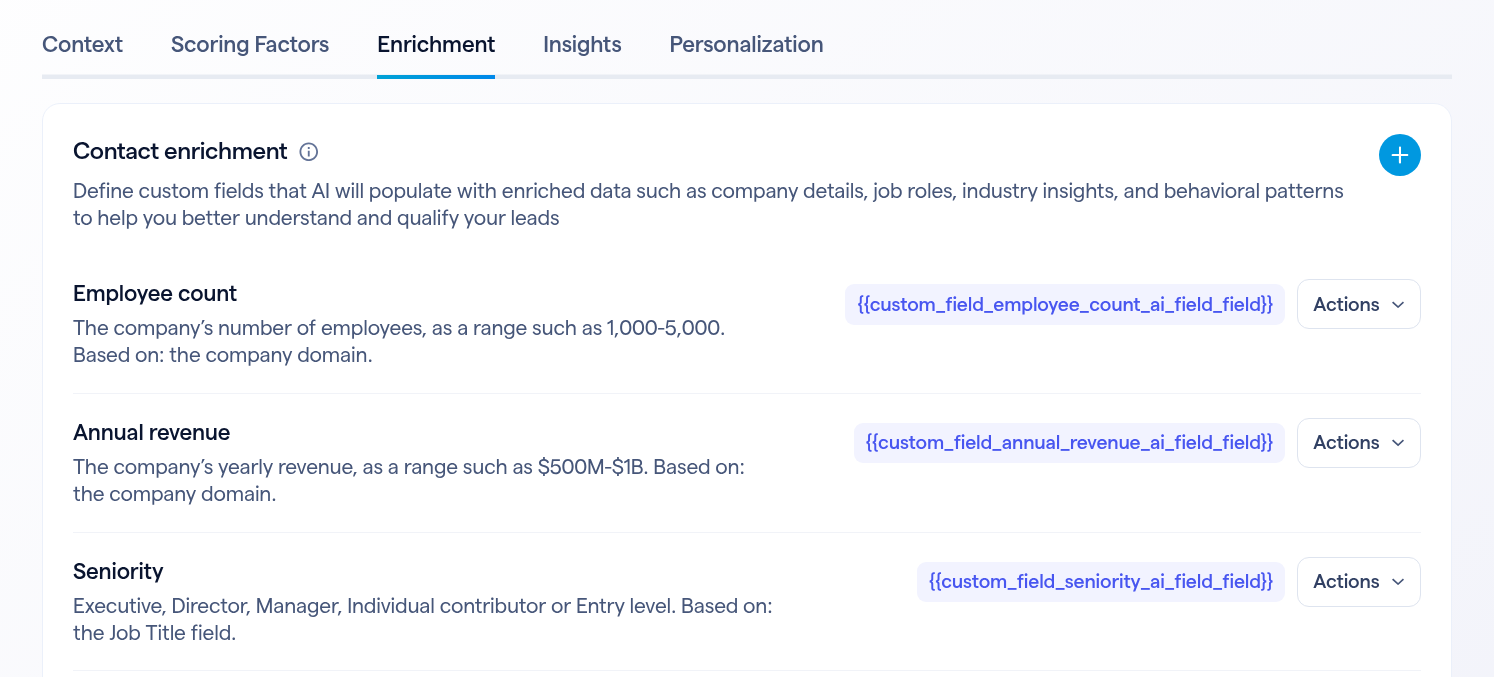
Choose what BigMarker AI fills inOn Enrichment, each field says what to find and what it’s based on. From the company domain alone, BigMarker AI finds employee count and annual revenue; from the job title, seniority.
The Enrichment tab: Employee count and Annual revenue, each based on the company domain, with their tokens.
4
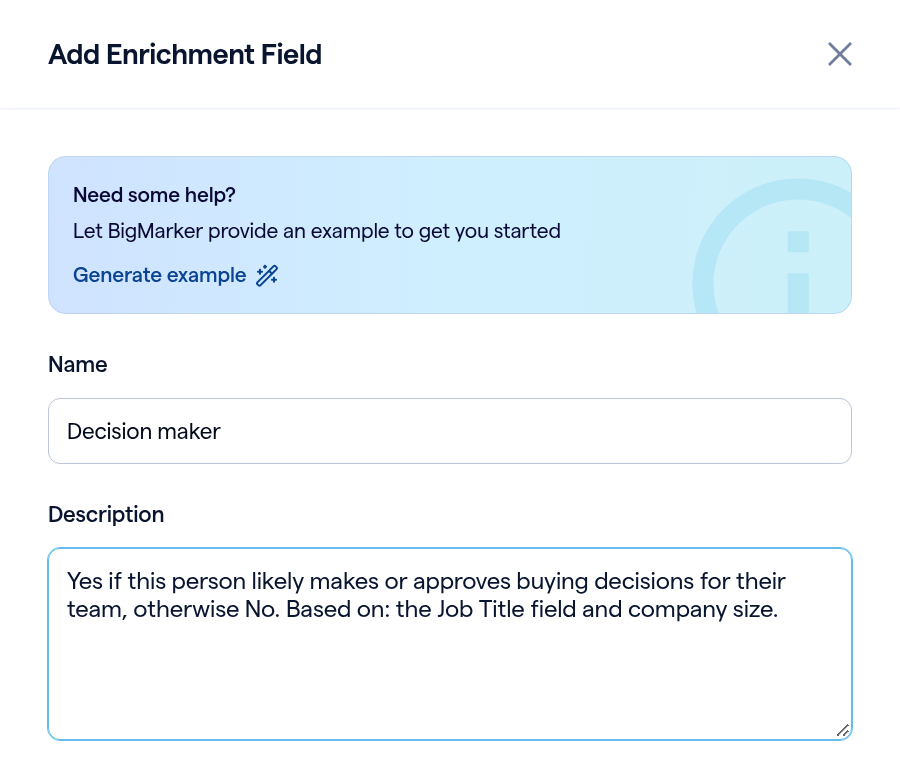
Add your own fieldClick +, give it a name, such as Decision maker, describe what you want in plain words, and click Save.
Add Enrichment Field: Name Decision maker, with a description asking for Yes or No based on the job title and company size.
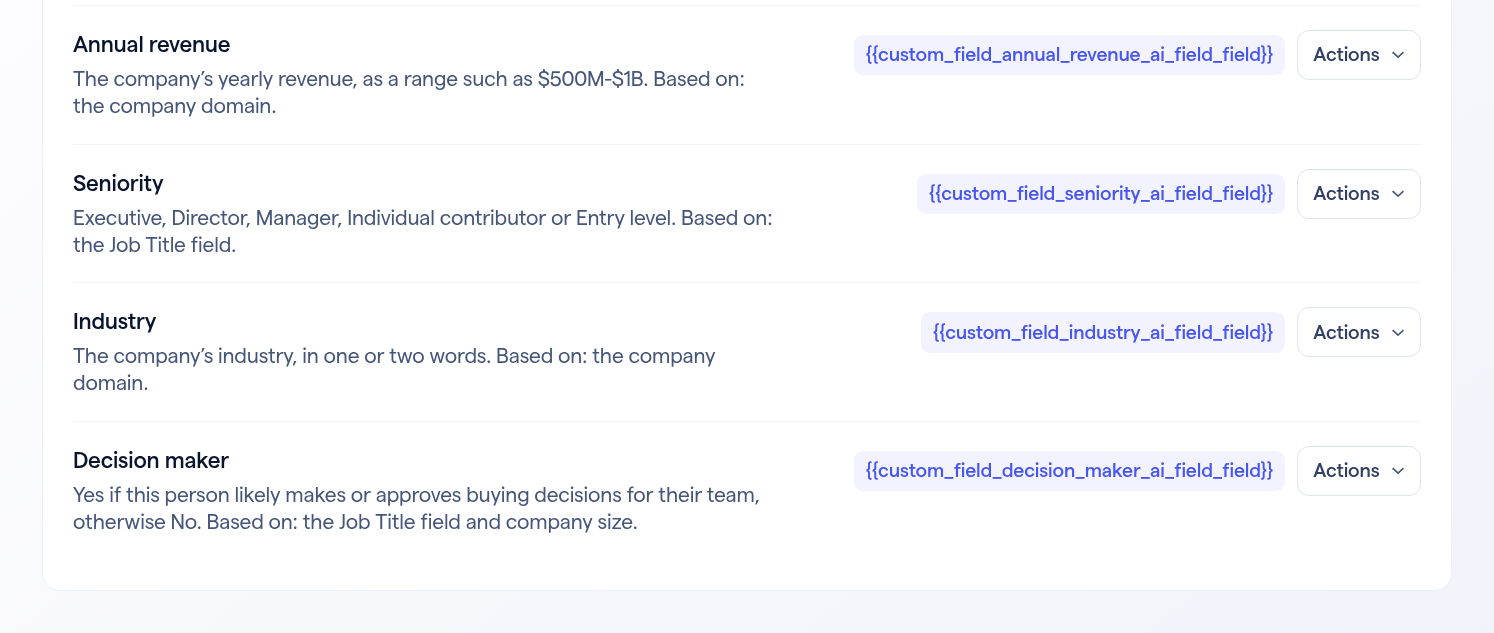
The enrichment list with Annual revenue, Seniority, Industry and the new Decision maker field.
5
Click RefreshA banner appears after any change. Click Refresh, and every lead is scored again with your changes.
FieldBased onFor Sung-min Cho
Employee countThe company domain5,000-10,000
Annual revenueThe company domain$1B-$5B
SeniorityThe job titleExecutive
Decision makerThe job title and company sizeYes
IndustryThe company domainManufacturing

See who to call first

AI Insights lists your registrants with the highest scores at the top.
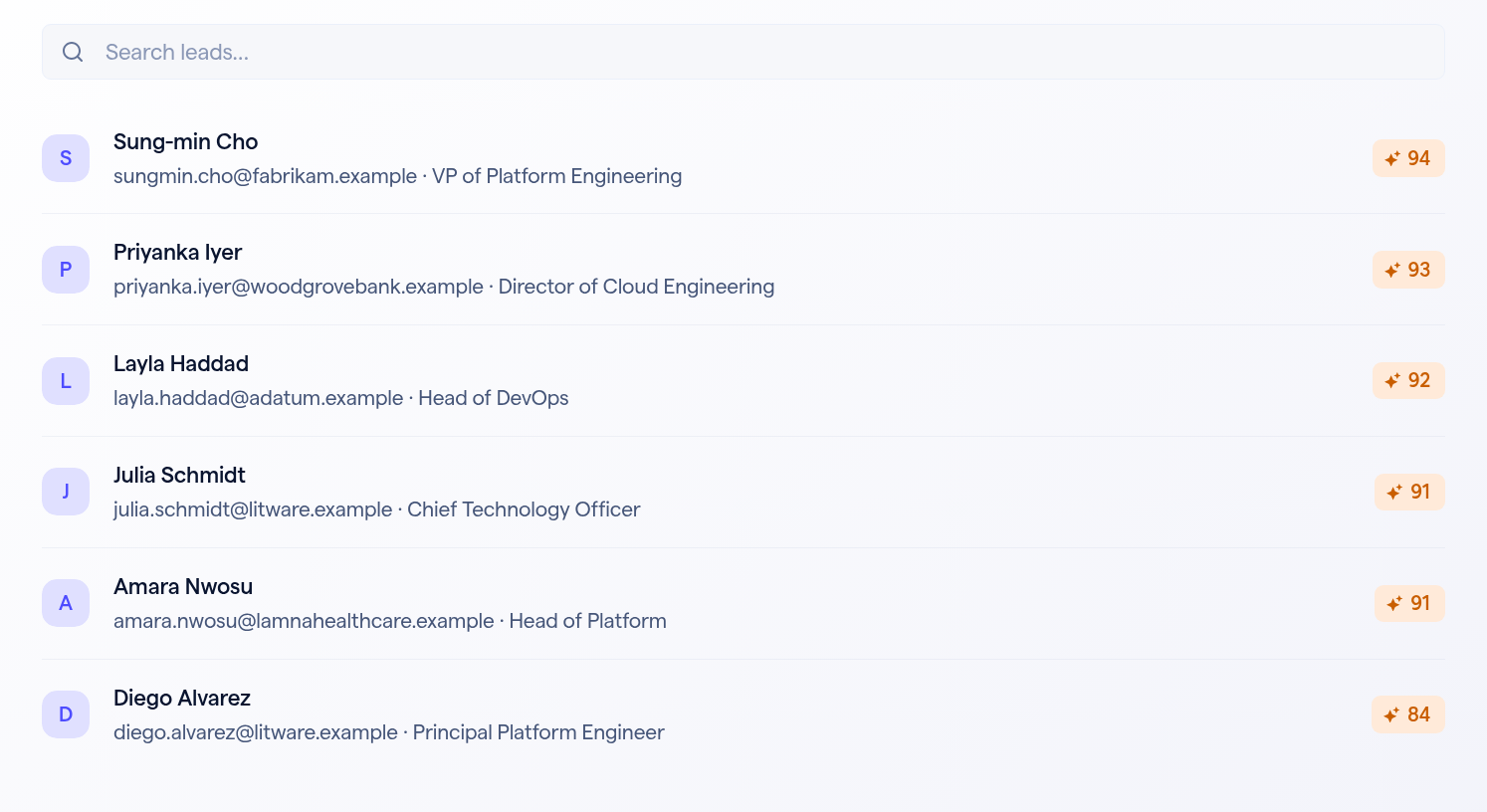
AI Insights listing Sung-min Cho 94, Priyanka Iyer 93, Layla Haddad 92, Julia Schmidt 91, Amara Nwosu 91, Diego Alvarez 84 and Rafael Ortiz 80.
The scored list

Open a lead for its Contact Details. Lead score results shows how they did on each factor; click a factor for its Score explanation.
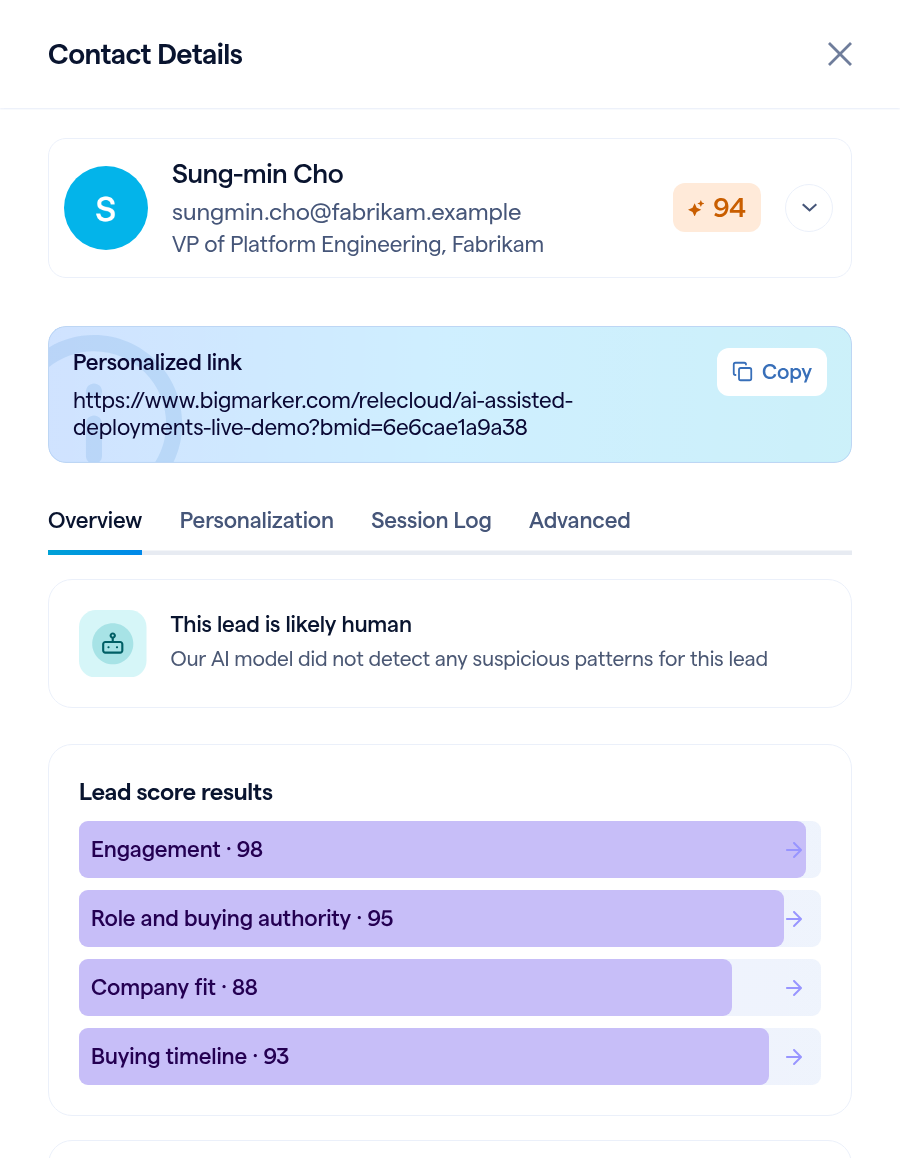
Contact Details for Sung-min Cho, scored 94: This lead is likely human, and Lead score results for Engagement 98, Role and buying authority 95, Company fit 88 and Buying timeline 93.
Lead score results
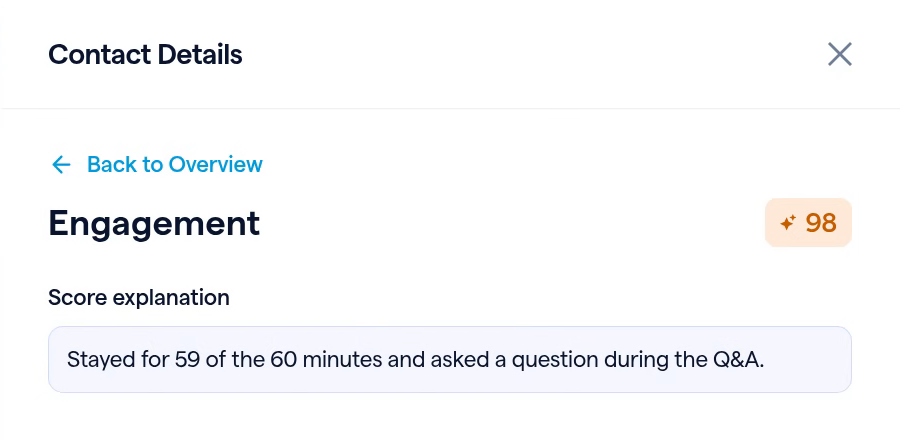
The Engagement factor at 98, with its Score explanation: stayed for 59 of the 60 minutes and asked a question during the Q&A.
Score explanation

Your top leads also appear on the session’s Dashboard, under Hottest leads.
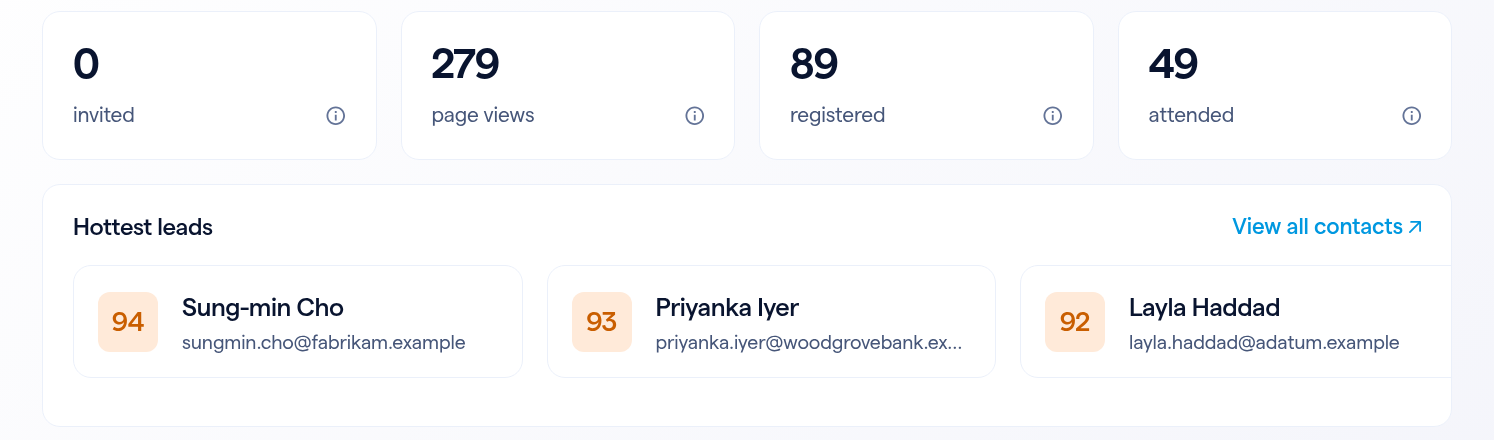
The session Dashboard's Hottest leads: Sung-min Cho 94, Priyanka Iyer 93 and Layla Haddad 92.
Hottest leads on the session Dashboard

Every lead, filled in

Each lead’s Automated Fields hold what BigMarker AI found, including the fields you added, and the Personalization tab holds content written for them.
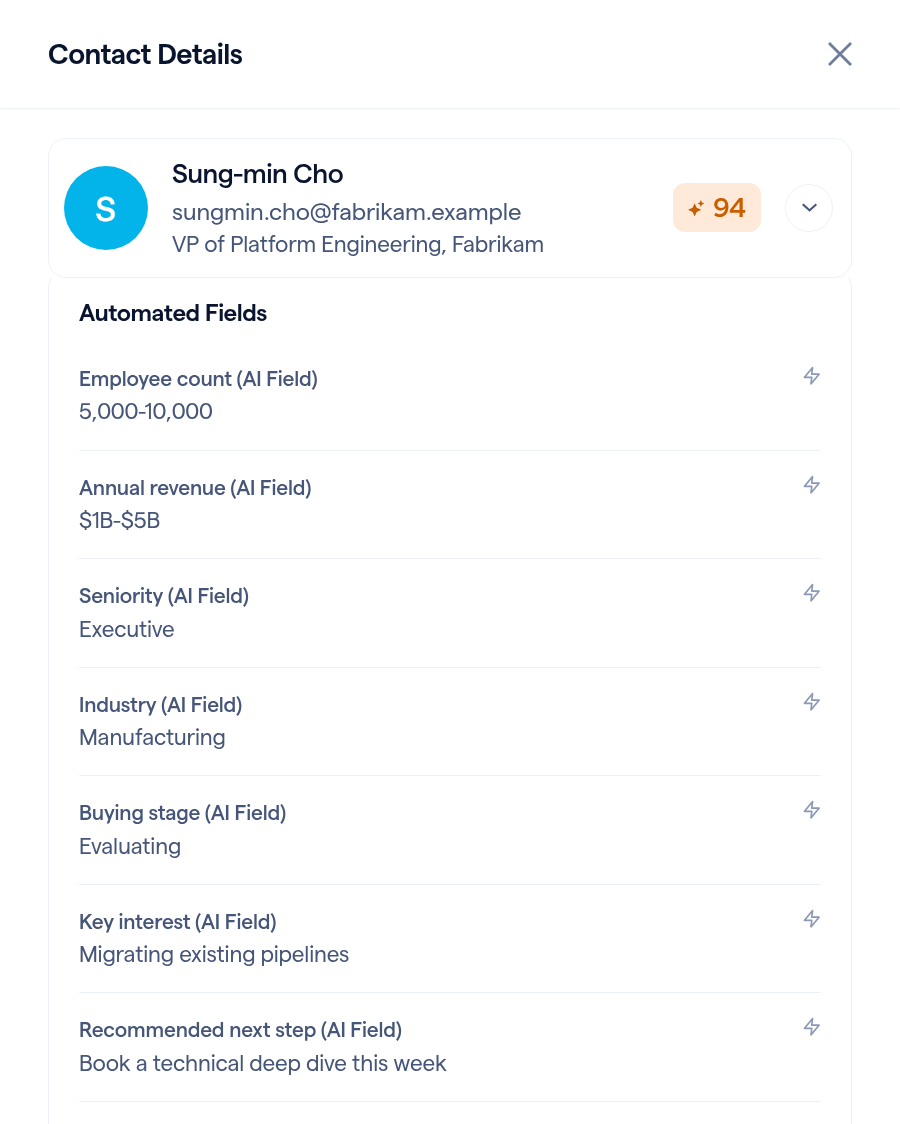
Automated Fields for Sung-min Cho: Employee count 5,000-10,000, Annual revenue $1B-$5B, Seniority Executive, Industry Manufacturing, Buying stage Evaluating, Key interest Migrating existing pipelines.
Automated Fields
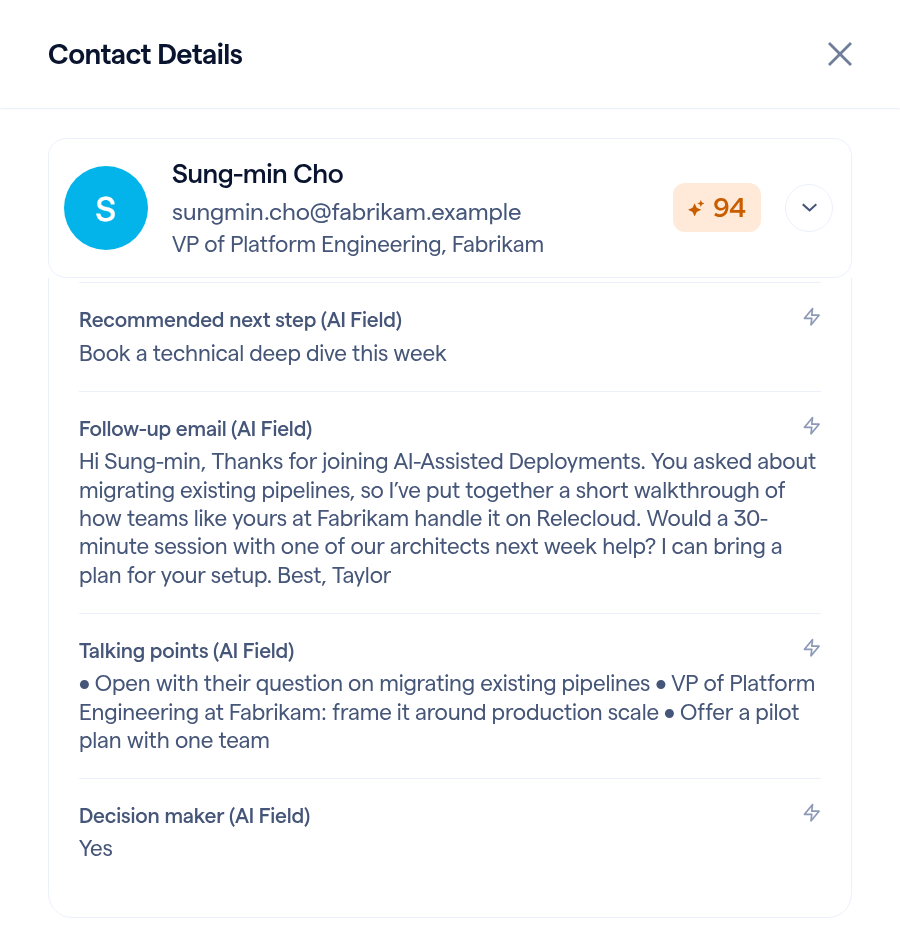
Further down the same lead: the follow-up email, talking points and the new Decision maker field, Yes.
Your Decision maker field
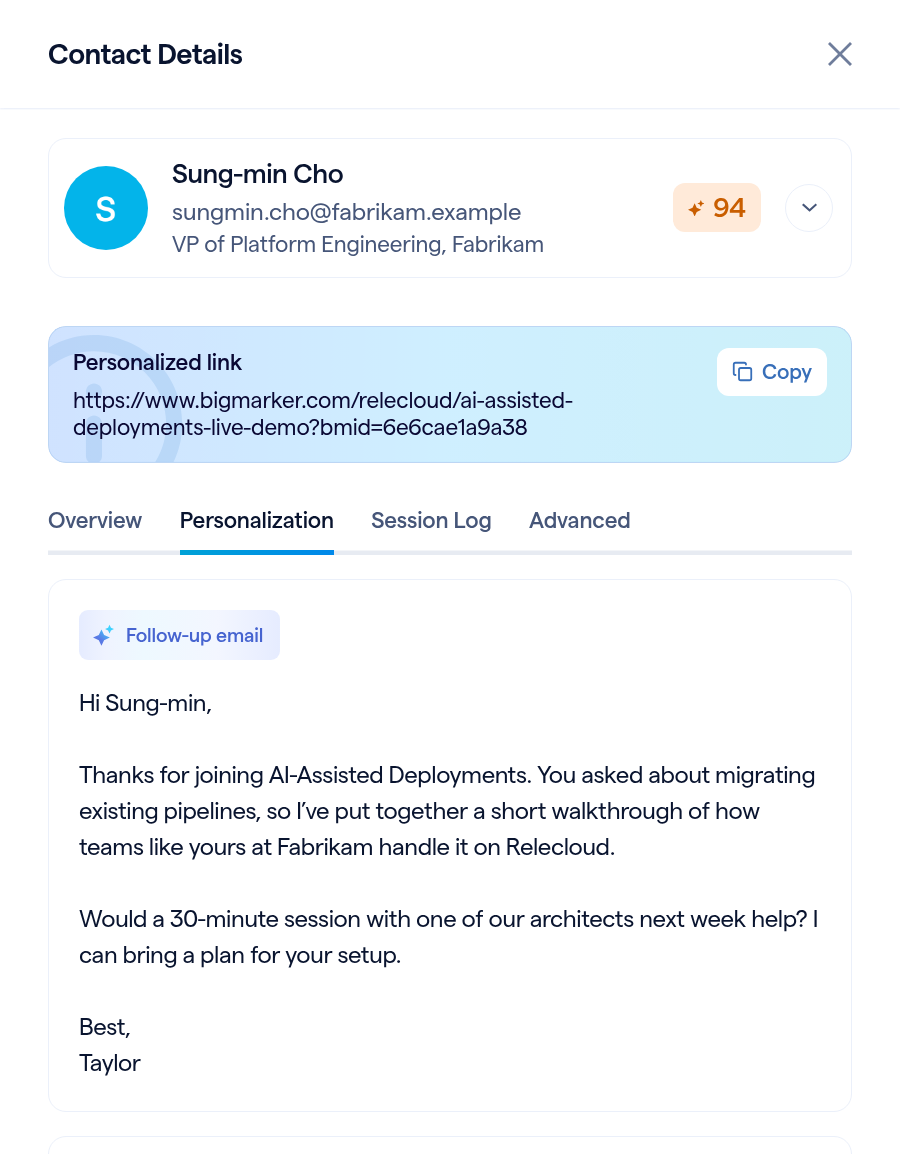
The Personalization tab with a follow-up email to Sung-min about moving existing pipelines over.

On the Personalization tab, BigMarker AI writes content for each lead in your tone of voice. Here, a Follow-up email that picks up on the question Sung-min asked during the session.

Talking points for a first call sit beside it, so whoever reaches out starts with something specific to say.

Field typeWhat BigMarker AI fills inIn the demo
EnrichmentFacts about the lead and their companyEmployee count, Annual revenue, Seniority, Industry, Decision maker
InsightsWhat the lead cares about, and how ready they areBuying stage, Key interest, Recommended next step
PersonalizationContent written for the lead, in your tone of voiceFollow-up email, Talking points

Spot spam at a glance

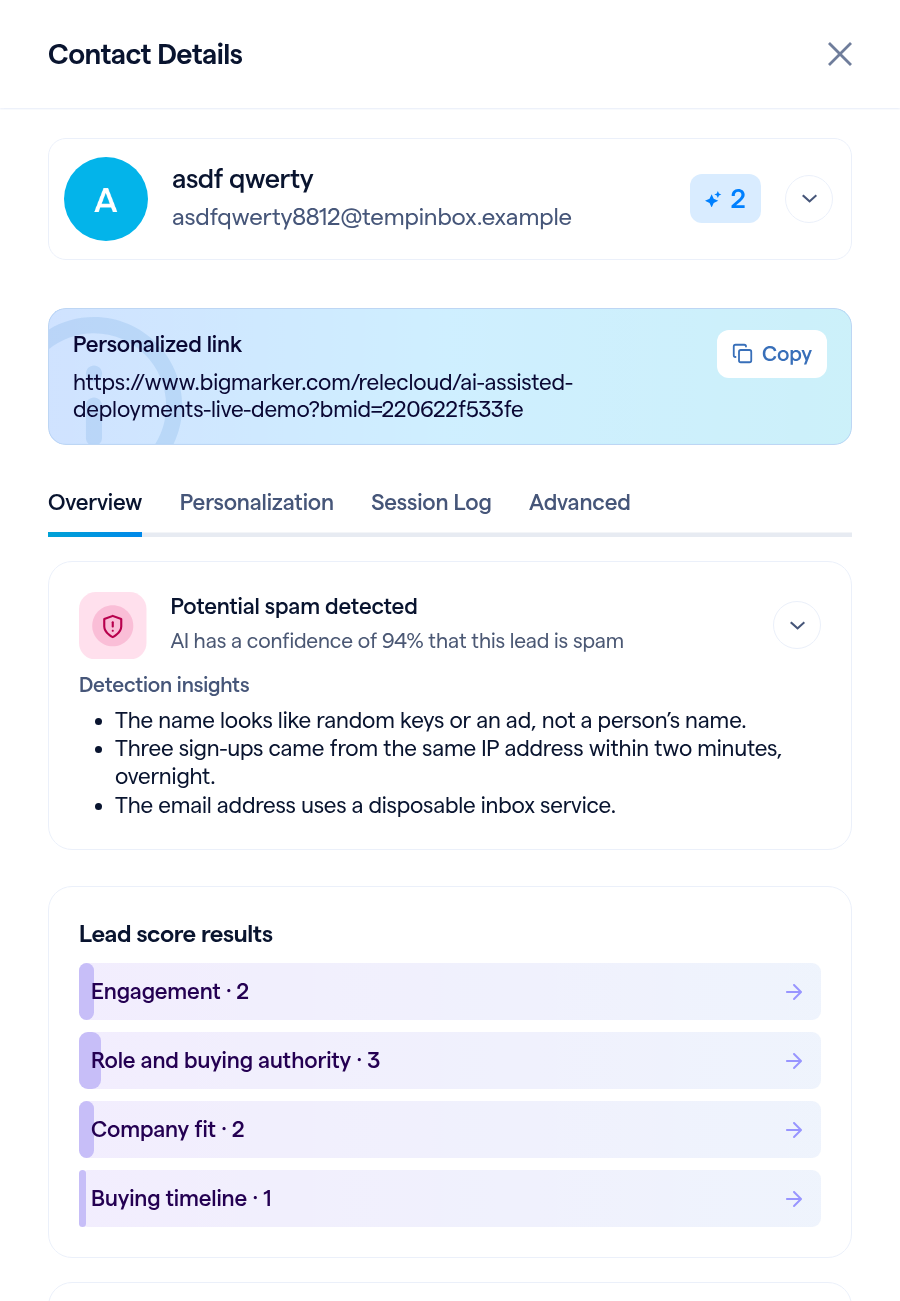
A sign-up named asdf qwerty, scored 2, with Potential spam detected at 94% confidence and three detection insights.

When a sign-up looks like spam, its Contact Details show Potential spam detected, how confident BigMarker AI is, and the Detection insights behind it, such as a name made of random keys, several sign-ups from one IP address, or a disposable inbox.

Everyone else shows This lead is likely human.

Use the fields anywhere

Every AI field has its own token, so your emails and pages can greet a lead with the talking points written for them. Your company domain, use case and tone are saved for your channel, so the next webinar you open in AI Insights starts from the same setup.
Find your strongest leads after every webinar
Find it in your webinar under Audience, AI Insights.
Related updates
Export to Any System
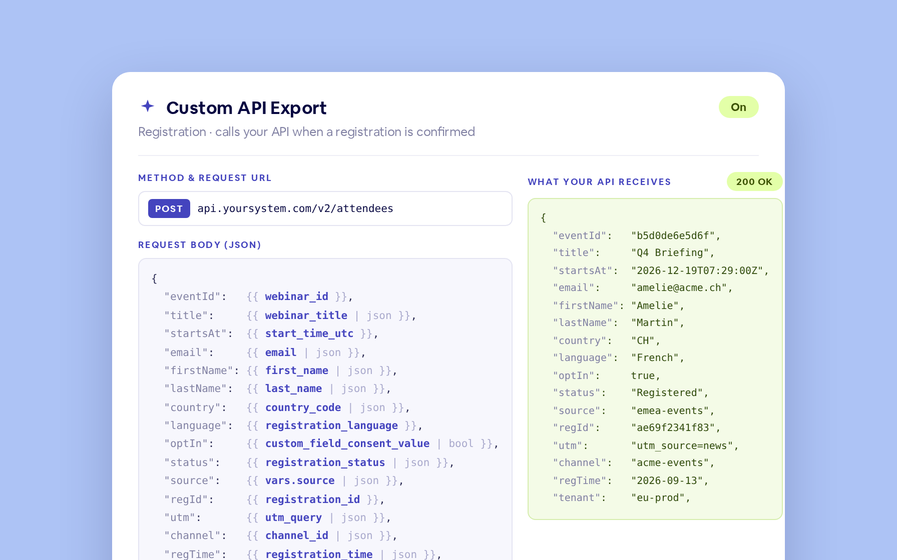
No connector needed — point a session at your endpoint, write the JSON body, and BigMarker calls it as people register, attend and watch.
Threaded chat in waiting room
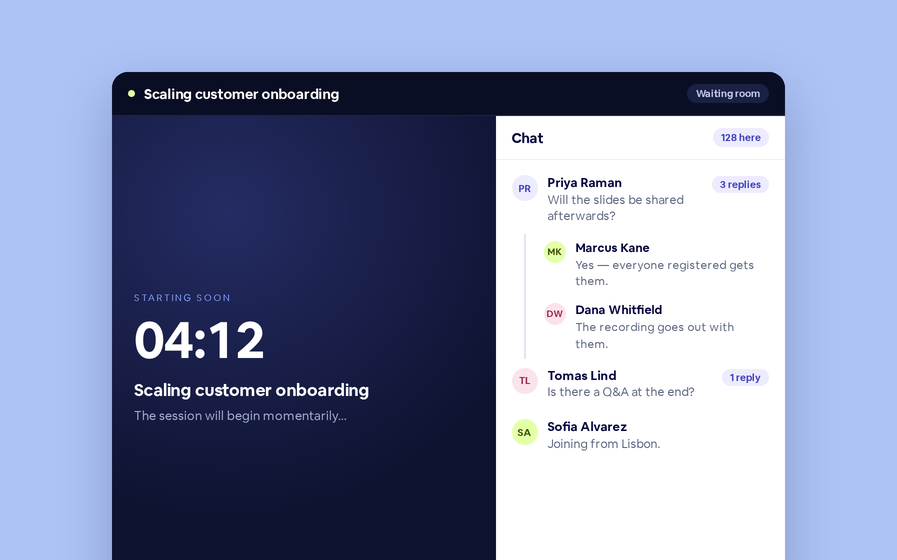
Replies now sit in a thread under the message they answer, so the pre-show conversation stays readable.
 Inline Page Editing
Inline Page Editing
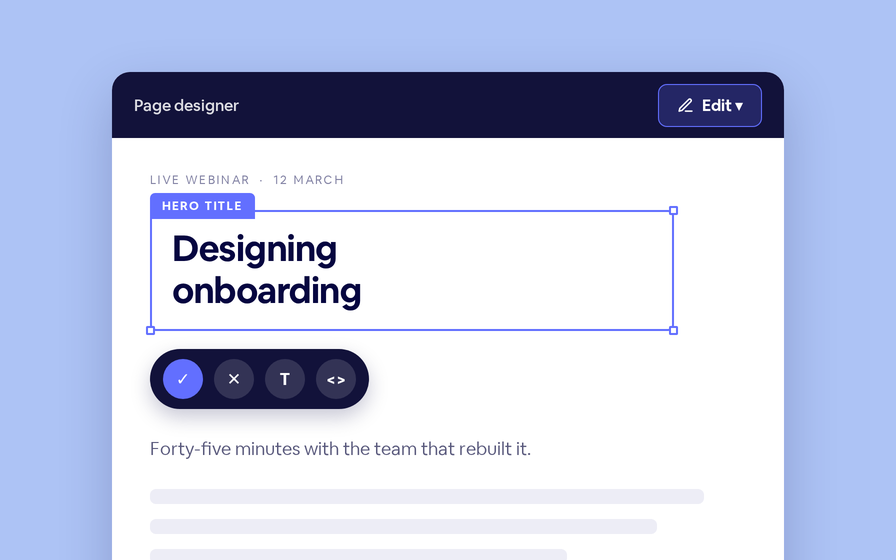
Click any headline, image or block on your landing page and change it right there — no hunting through editor panels.
Quizes in On Demand Video
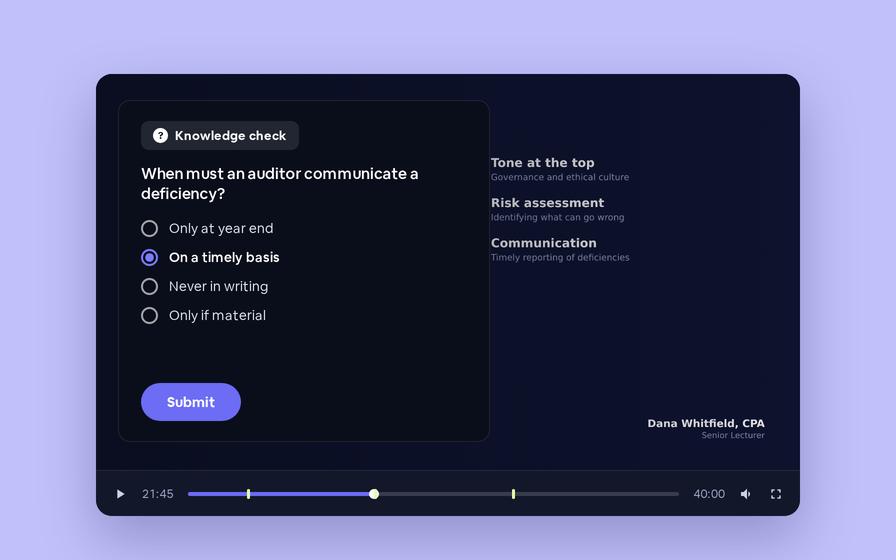
Ask questions inside your recordings and see who actually understood, not just who pressed play.
Preview Custom Page States
Preview any custom page as a registered viewer, an unregistered visitor or a real registrant, at any point in the event's life.
Follow Up Emails
Follow Up Emails
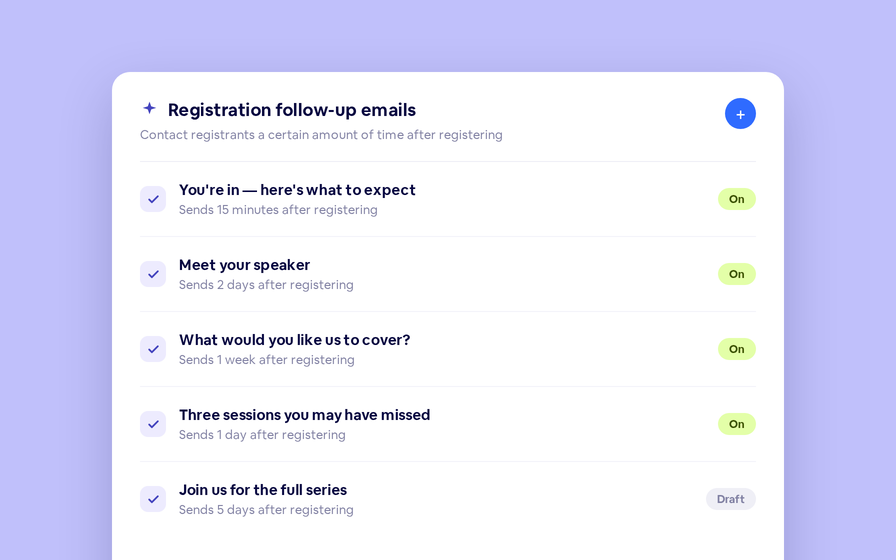
Keep in touch with your registrants immediately after they register.
Introducing BigMarker AI
Leverage generative AI to automate chaptering, generate short-form social-ready video clips, and create derivative content such as blogs, eBooks, and more.
AI  Audio Translations
AI Audio Translations
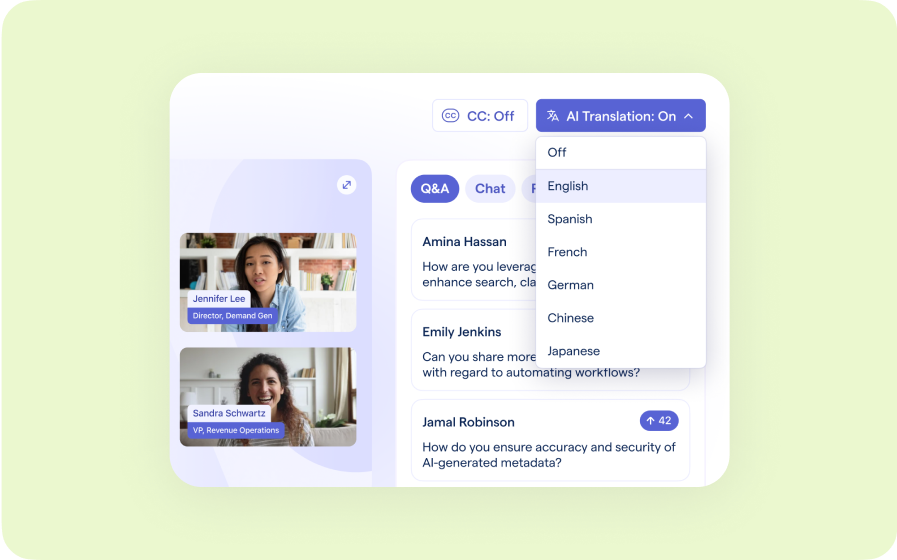
Presenters speak in their language while attendees listen in theirs, removing barriers and opening content to participants everywhere.
Custom Audience Experiences
Get complete control over your webinar and event interfaces so every session looks, feels, and performs exactly the way you want.
AI Email Personalization
Every attendee gets a message crafted just for them based on their engagement, interests, and lead score.
Studio Scenes
Studio Scenes
Give your events the look, feel, and professionalism of a live broadcast, without the complexity or cost of a production crew.
AI Content Studio
AI Content Studio
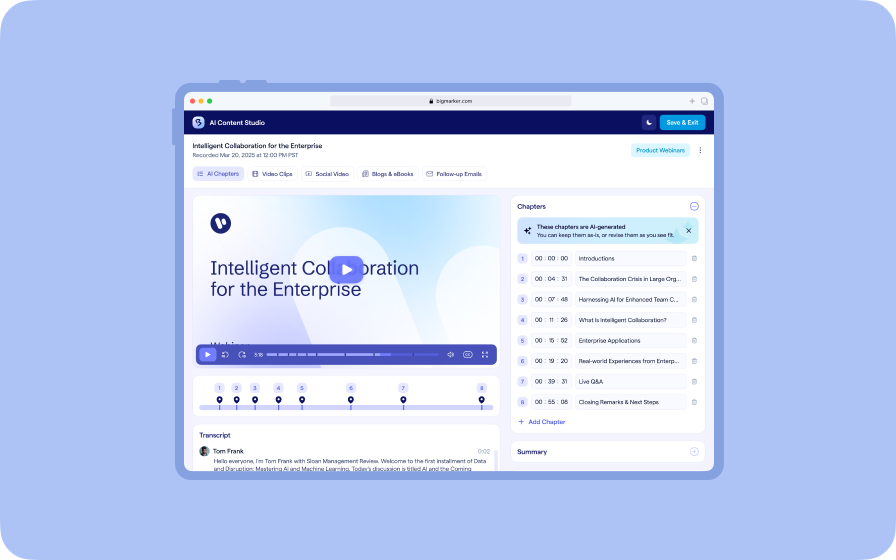
Leverage generative AI to automate chaptering, generate short-form video clips, and create blogs, eBooks, and other derivative content.
AI Lead Scoring
AI Lead Scoring
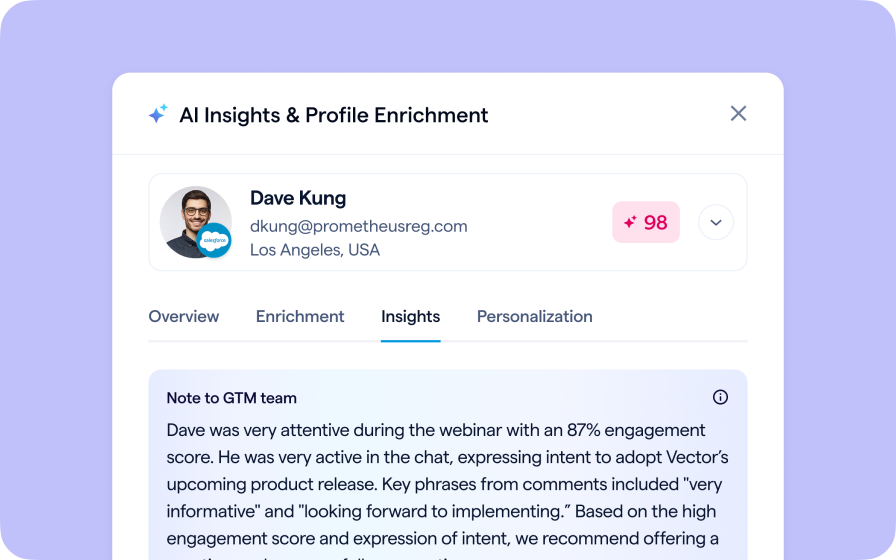
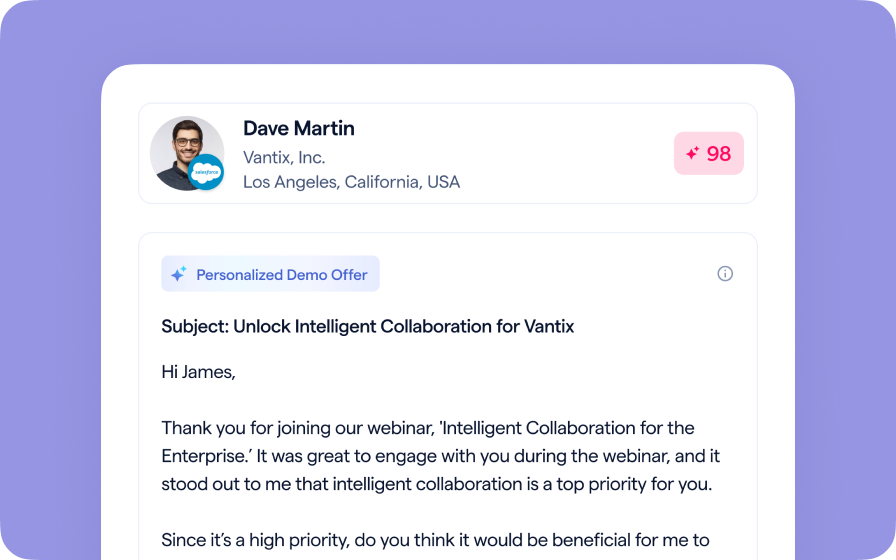
Instantly transform registration and attendee data into customized actionable sales insights.
BigMarker Webinar Series
Our weekly product update webinar series offers a closer look at what’s new in BigMarker, with live demos, practical tips, and Q&A to help you put the latest features to work. Join live or catch the recording on demand.
Join the waitlist
By clicking “Submit”, I acknowledge that BigMarker may contact me related to my participation in this Beta offering.
You’re all set!
You’ve successfully registered for the waitlist!
If you have any questions, please contact your CSM.
Webinar: AI Lead Scoring by Product Update Hub