BigMarker News & Updates AI Content Editor

Edit your page in plain words

June 17, 2026
Tell the AI Content Editor what to change. It fixes typos, suggests better copy and edits your page for you, right in the page designer.
Categories
Share

Polishing a registration page usually means clicking through field after field, just to fix one typo or try a better headline. With the AI Content Editor, you ask instead: run a quick check for typos, get options for any field, or describe a change and let the editor make it. Every suggestion shows exactly what will change before you apply it.

Say it, and it’s done

The AI Content Editor works right inside the page designer. Tell it what you’d like in plain words, and it either edits your page’s text for you or suggests changes you can review first.

Every suggestion names the field it changes and shows exactly what will change.
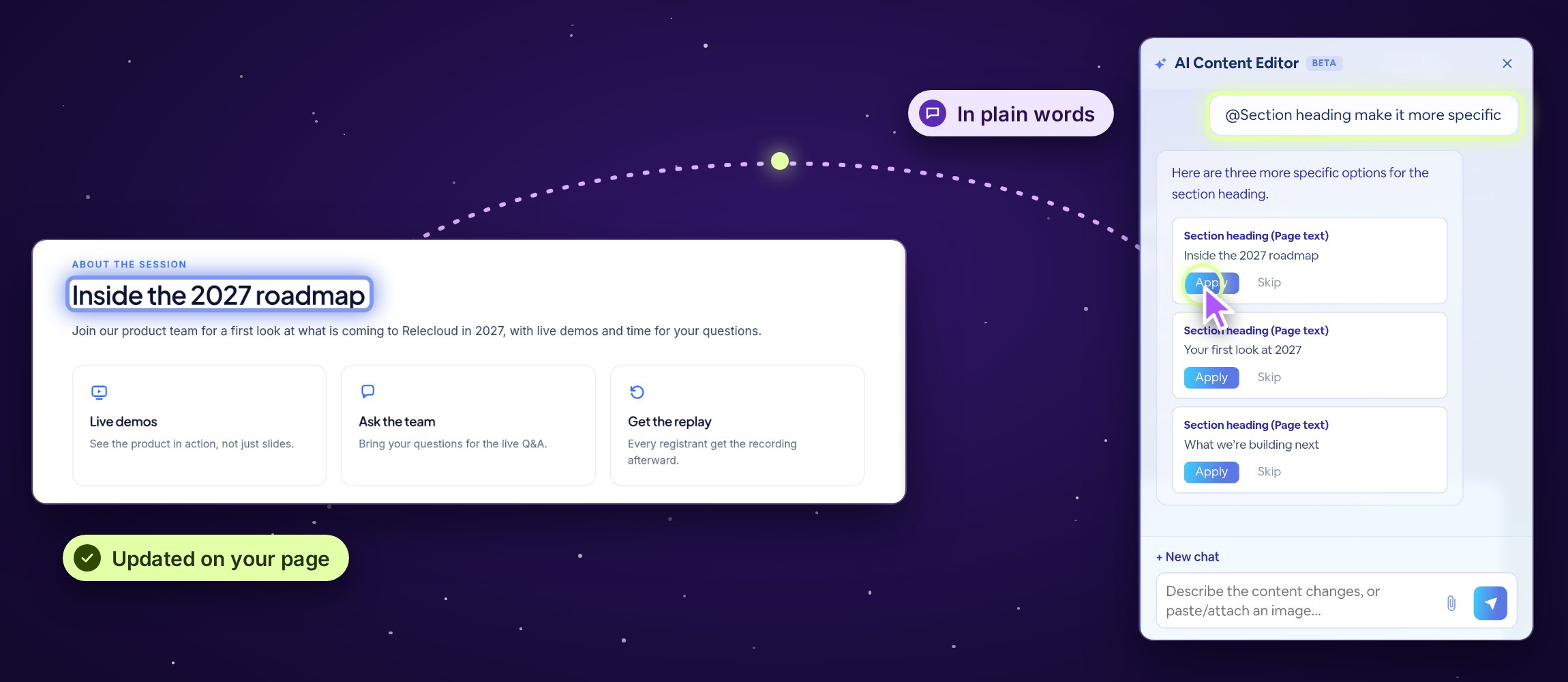
The AI Content Editor beside a registration page: a request to make the section heading more specific, three options, and the chosen one updated on the page.
Illustration

Open it from the designer

Open your page in the page designer and click the Edit Content icon at the top right. Start with a quick check, or type your own request.
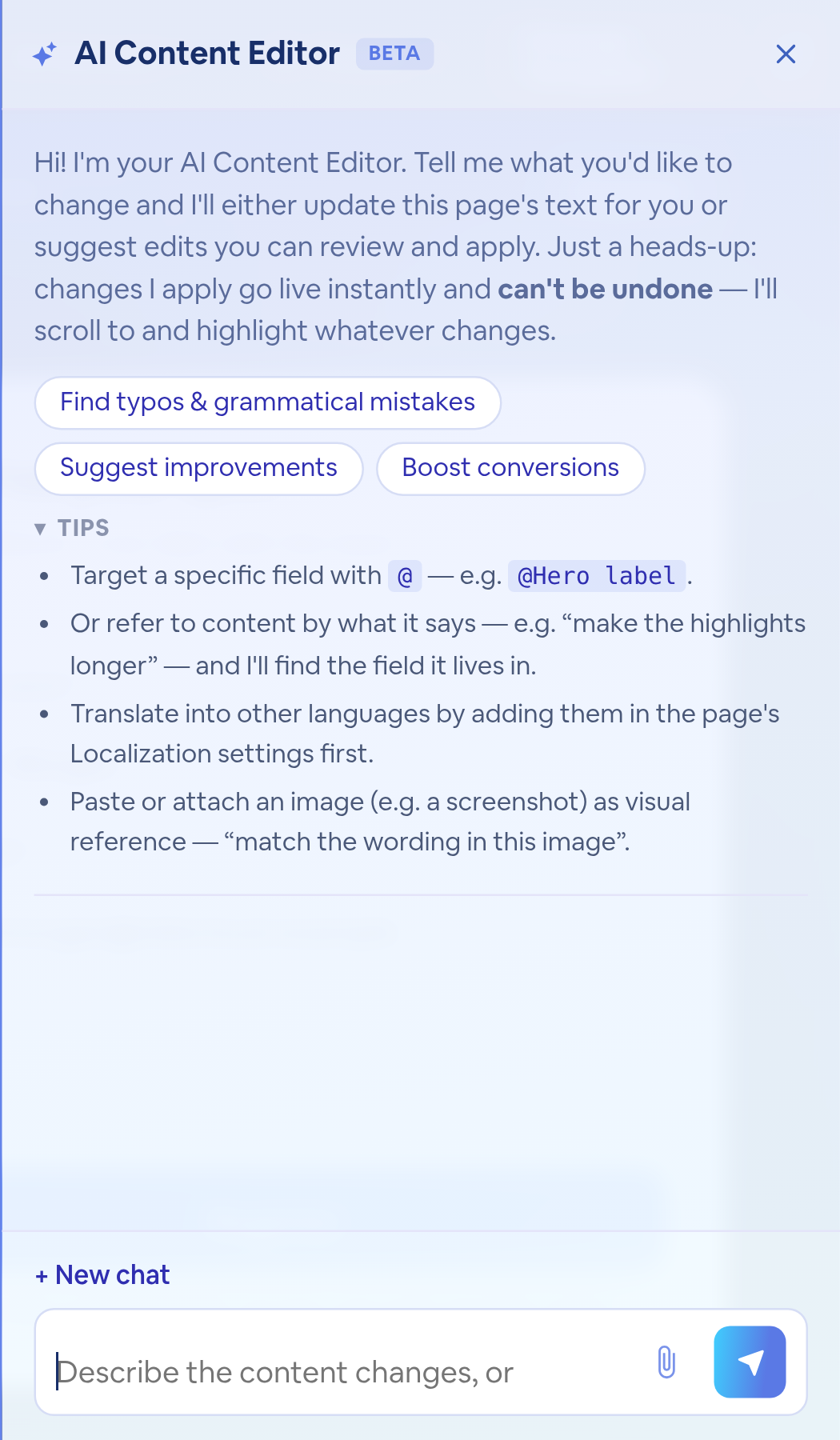
The AI Content Editor as it opens: a welcome note, the quick checks, and tips.
Quick checkFind typos & grammatical mistakesSpelling and grammar slips across the page, one card per fix.
Quick checkSuggest improvementsIdeas to make the copy clearer and stronger.
Quick checkBoost conversionsChanges aimed at more sign-ups.
Quick checkTranslate to …Appears once you add languages in the page’s Localization settings.

Review, then apply

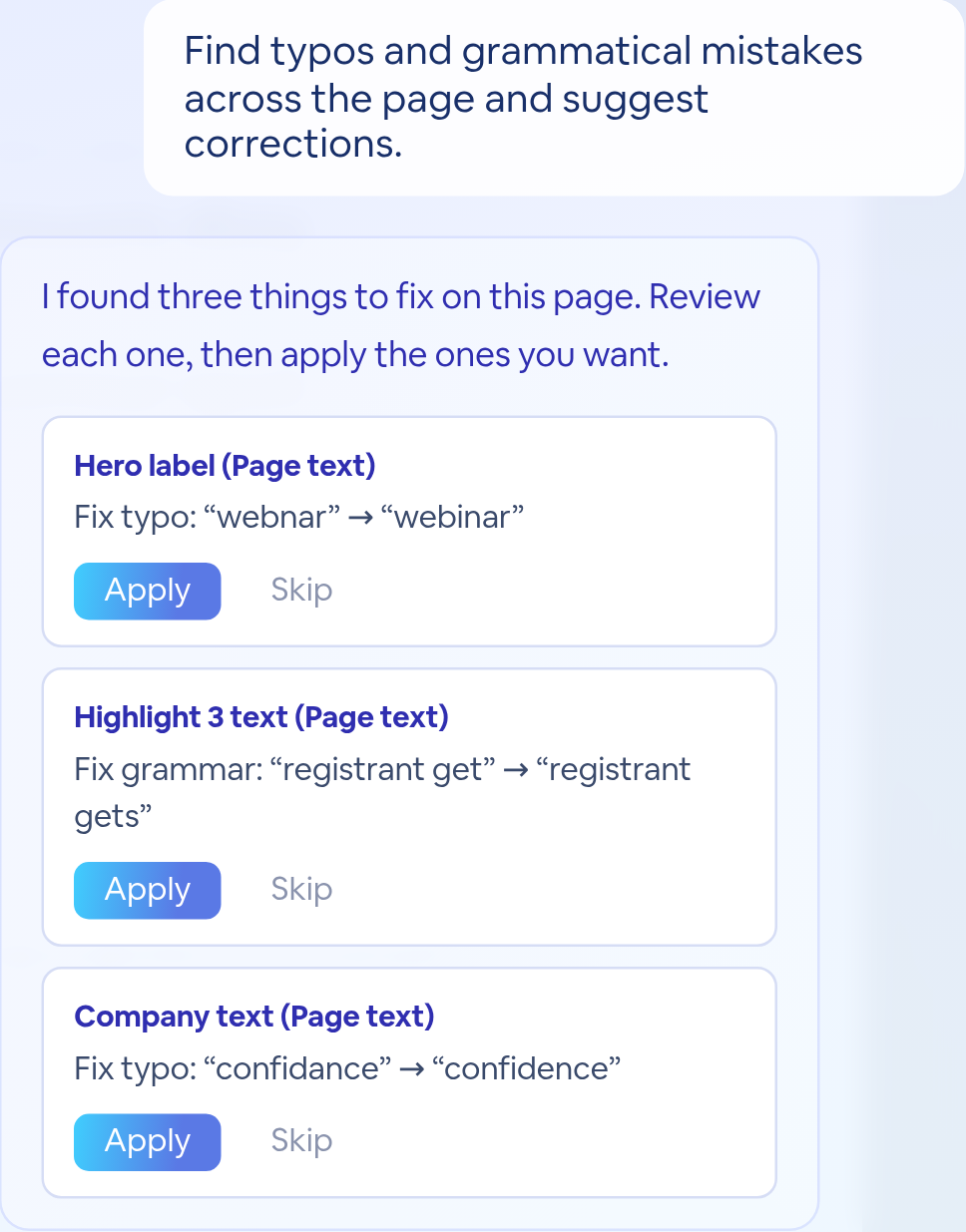
Three suggestions, each naming its field and the fix, with Apply and Skip.

Suggestions arrive as cards. Each names the field and the change, like “Fix typo: ‘webnar’ → ‘webinar’”.

Click Apply to make that change, or Skip to leave it. The page reloads with the change in place.

Aim at one field

Type @ in the message box to pick a field, then say what you’d like. Ask for options, and you get a few to choose from.
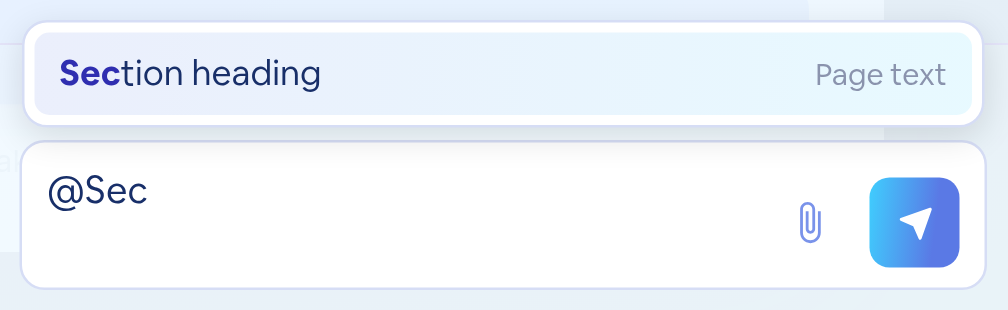
The message box with @Sec typed and Section heading offered from the page's fields.
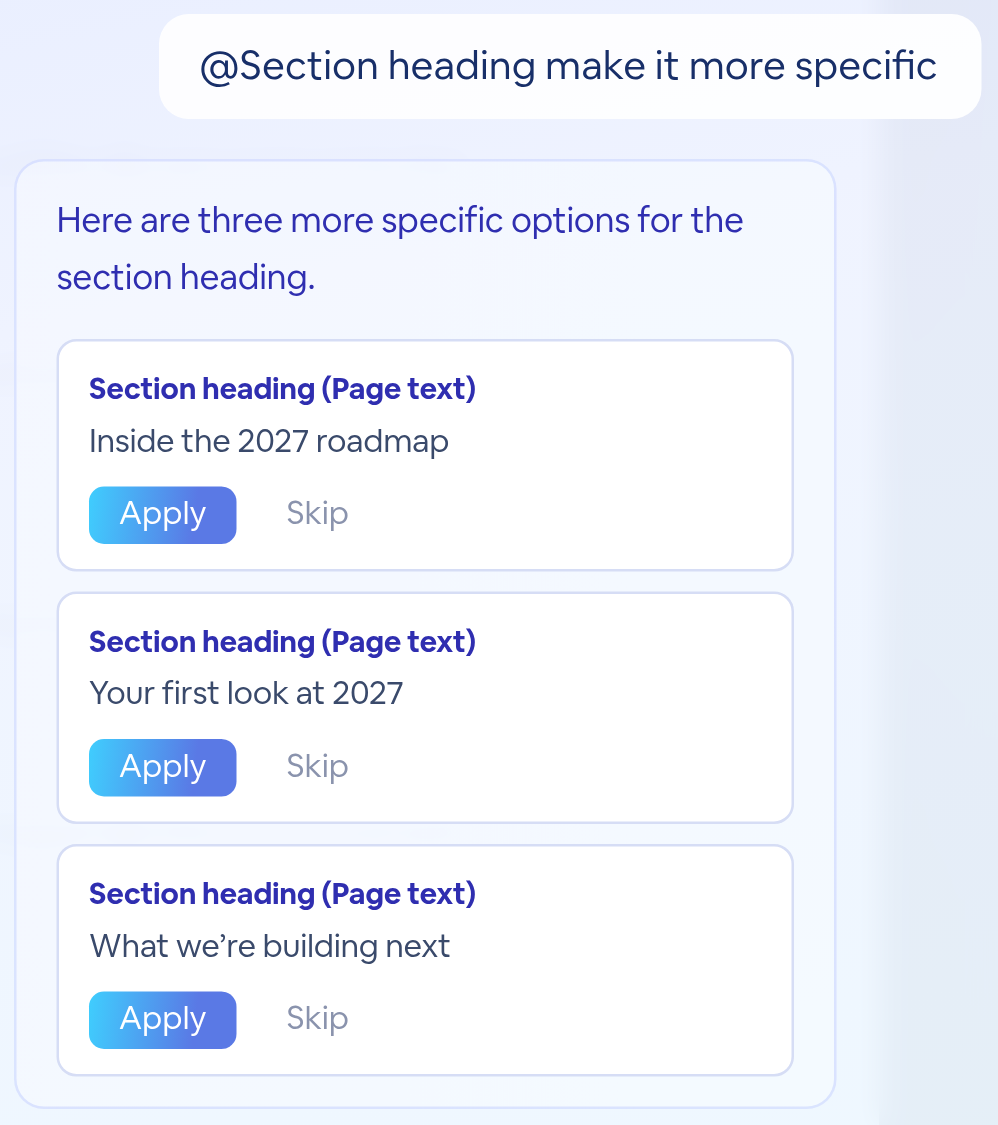
@Section heading make it more specific, and three options with Apply and Skip.

Apply the option you like best. The others stay in the chat if you change your mind.

Or ask for the change itself

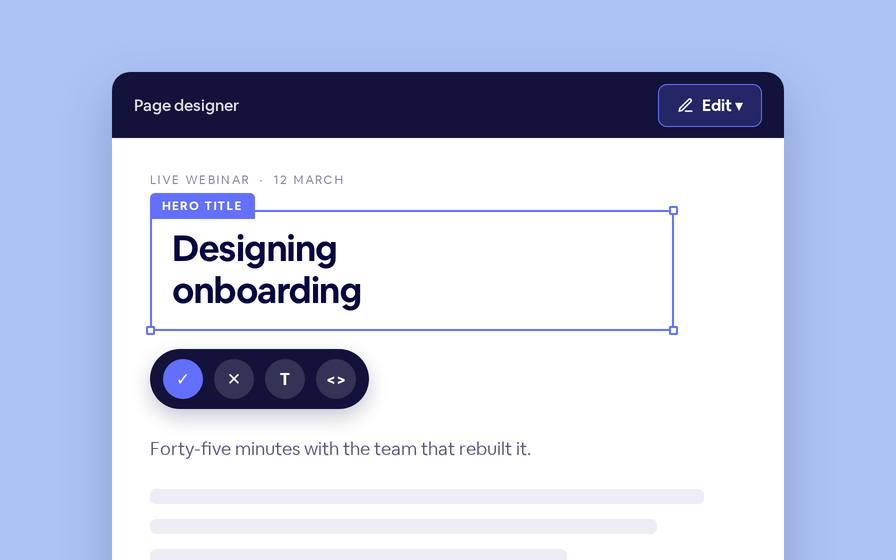
Describe the change outright, like “Change the hero label to Free live webinar,” and the editor makes it. The reply confirms each field it updated.
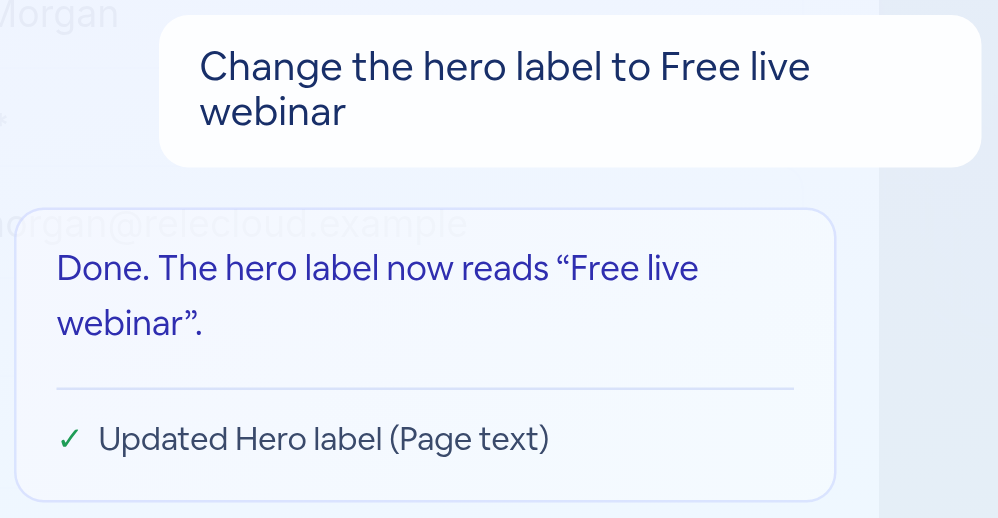

Change the hero label to Free live webinar. Done, with Updated Hero label confirmed.
The page's hero label after the change: Free live webinar.

The hero label on the page, a moment later.

What you can ask

You askYou get
Find typos & grammatical mistakesA card for each fix, to apply or skip
Suggest improvementsIdeas for clearer, stronger copy
Boost conversionsChanges aimed at more sign-ups
@Field, then what you wantOptions for that one field
“Change … to …”The edit, made for you
A pasted or attached screenshotCopy that matches the image
Applied changes go live

Anything you apply shows on your live page right away and can’t be undone, so review each suggestion before you apply it.
Edit your next page by asking
Open your page in the page designer and click Edit Content.
Related updates
Export to Any System
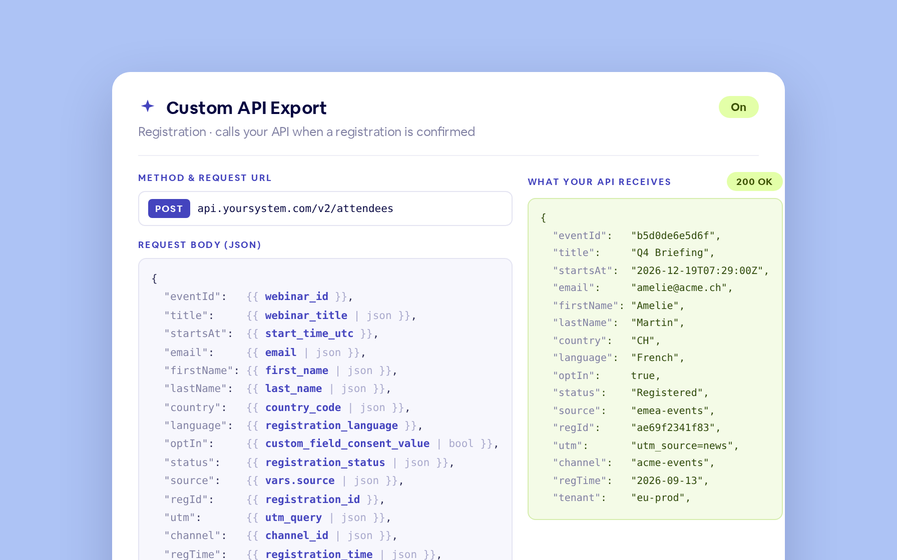
No connector needed — point a session at your endpoint, write the JSON body, and BigMarker calls it as people register, attend and watch.
Threaded chat in waiting room
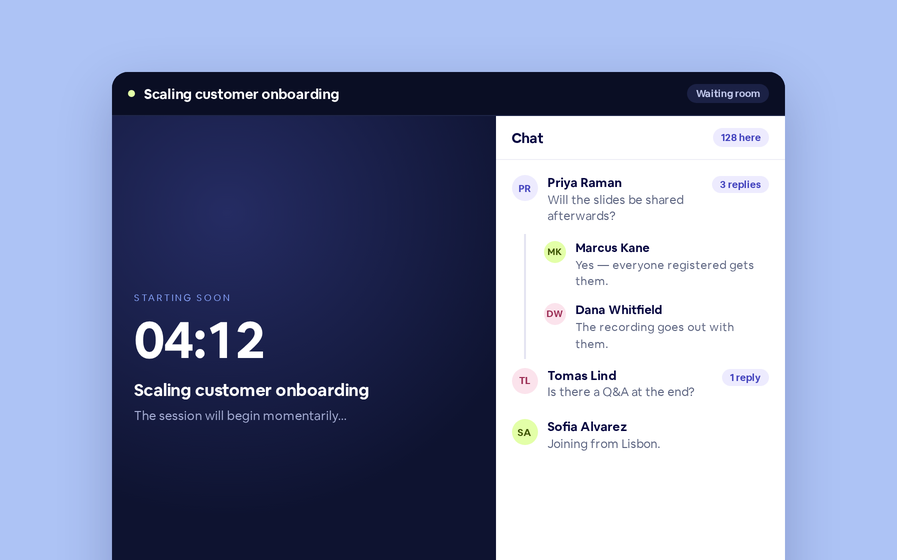
Replies now sit in a thread under the message they answer, so the pre-show conversation stays readable.
 Inline Page Editing
Inline Page Editing
Click any headline, image or block on your landing page and change it right there — no hunting through editor panels.
Quizes in On Demand Video
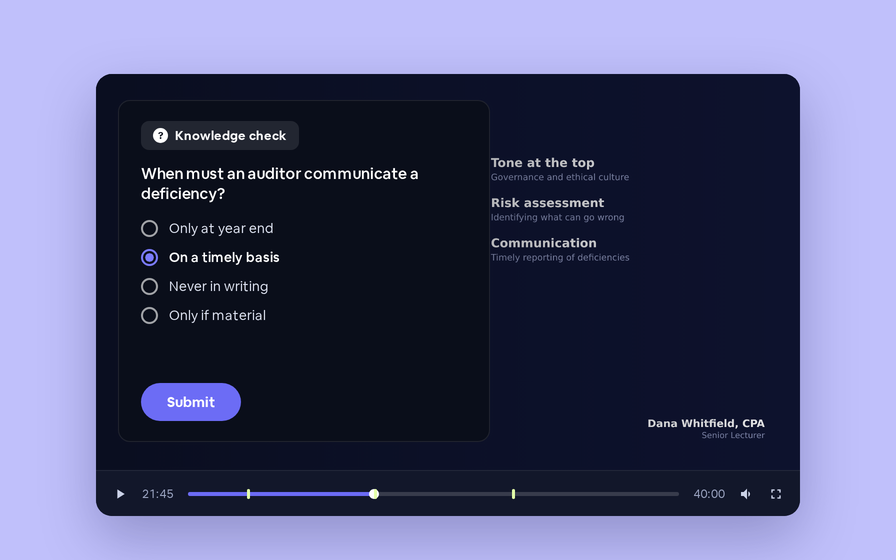
Ask questions inside your recordings and see who actually understood, not just who pressed play.
Preview Custom Page States
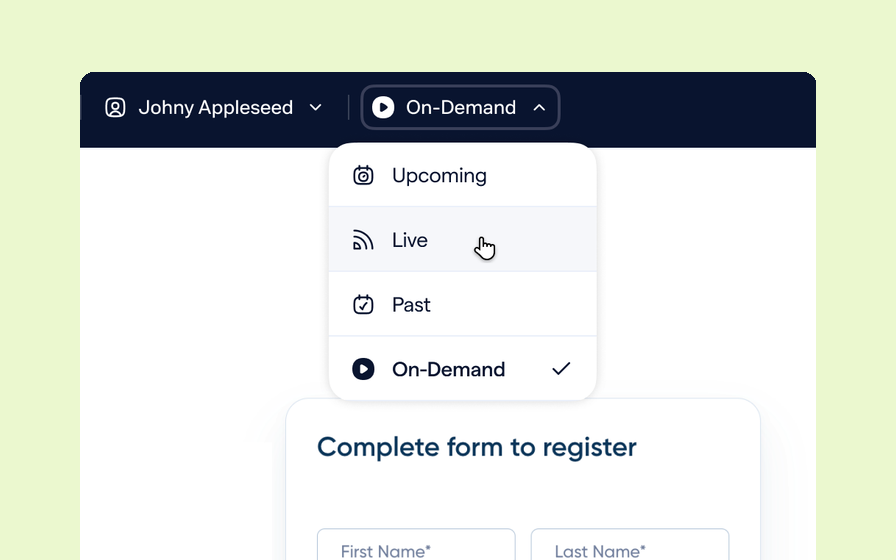
Preview any custom page as a registered viewer, an unregistered visitor or a real registrant, at any point in the event's life.
Follow Up Emails
Follow Up Emails
Keep in touch with your registrants immediately after they register.
Introducing BigMarker AI
Leverage generative AI to automate chaptering, generate short-form social-ready video clips, and create derivative content such as blogs, eBooks, and more.
AI  Audio Translations
AI Audio Translations
Presenters speak in their language while attendees listen in theirs, removing barriers and opening content to participants everywhere.
Custom Audience Experiences
Get complete control over your webinar and event interfaces so every session looks, feels, and performs exactly the way you want.
AI Email Personalization
Every attendee gets a message crafted just for them based on their engagement, interests, and lead score.
Studio Scenes
Studio Scenes
Give your events the look, feel, and professionalism of a live broadcast, without the complexity or cost of a production crew.
AI Content Studio
AI Content Studio
Leverage generative AI to automate chaptering, generate short-form video clips, and create blogs, eBooks, and other derivative content.
AI Lead Scoring
AI Lead Scoring
Instantly transform registration and attendee data into customized actionable sales insights.
Join the waitlist
By clicking “Submit”, I acknowledge that BigMarker may contact me related to my participation in this Beta offering.
You’re all set!
You’ve successfully registered for the waitlist!
If you have any questions, please contact your CSM.
Webinar: AI Content Editor by Product Update Hub