It looks like you’re not yet updated to the latest version of Chrome (v147). This will cause interruptions to your webinar. Please enter chrome://settings/help into your URL bar, update Chrome, and then re-launch the browser. Learn more Dismiss
Please update to the latest version of Chrome for the best webinar experience. Dismiss Show Me How
Discussion Mode is now live on the Audience tab
Join in →
You have disconnected from the server.
You will be automatically reconnected in a few seconds, or you can refresh your browser.
Always-on Conversation
SET TIMER
  • 05m, 0s
LIVE
0
Always-on Conversation
Host Control Panel
This webinar is in Interactive Mode. Changes made to these settings will not be visible to your live attendees, but they are shown in the webinar recording and RTMP output.
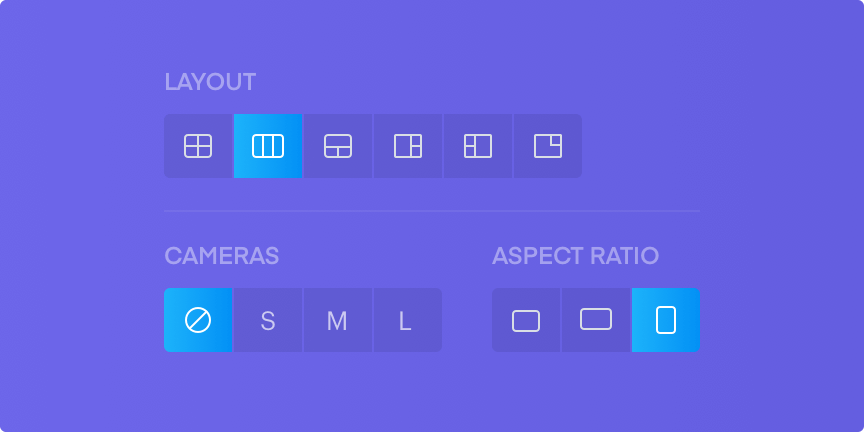
Cameras
Aspect Ratio
  • 4:3
  • 16:9
  • Video Design
  • Rounded Corners
    Set Corner Radius Degree
  • Show Mic Icon
    Enable/disable mic icons
  • Presenter Names
    Display presenter names
  • Presenter Names Size
    Toggle the size of presenter names
Captions
LOGOS
BACKGROUNDS
FULL-SCREEN OVERLAYS
Admins (0)
Admins have full control to share content, start/stop recording, add/remove people, and permanently end the webinar.
    On stage presenters (0)
    Presenters can share their mic, webcam, presentations, screens, and videos, but they do not have access to the control panel.
      Off stage presenters (0)
      Presenters cannot share their mic, webcam, presentations, screens, and videos.
        Attendees (0)
        2 hands raised
          • Remove from room
          • Green Room
            Move to Off-Stage
            Move to On-Stage
            Remove Admin
            Make Admin
            Remove Presenter
            Make Presenter
            Disable Mic & Cam
            Manage Mic
            Request Control
            Block Mic
            Unblock Mic
            Manage Camera
            Request Control
            Hide Camera from Attendees
            Unhide Camera from Attendees
            Block Cam
            Unblock Cam
            Change Name
            Close Mic & Cam
            Back to waiting room
            Ban
            Remove from room
          Attendee Permissions
          • Enable All Attendee Mics
            Allow attendees to enable their audio feed only
          • Enable Attendee Mics + Cams
            Allow attendees to enable audio and video only
          • Mute All Attendee Mics
            Mute all attendee microphones.
          • Attendees Can Upload Slides
            Enable/Disable attendee to upload slides/presentations
          • Attendees Can Draw on Slides
            Enable/Disable attendee draw on slides
          Interactive Panel
          • Public Chat
            Select Arrow icon to view additional public chat options
          • Enable Chat Panel
            Enable/Disable the ability for attendees to submit chats. Warning: disabling the chat panel will also remove the attendee list from the private chat window.
          • Enable Public Chat
            Enable/Disable attendee chat
          • Auto Mute All Public Chats
            Mute/unmute all public chats
          • Private Chat
            Select Arrow icon to view additional private chat options
          • Enable Private Panel
            Enable/Disable the ability for attendees to submit private chats
          • Presenters to Attendees
            The presenters can see the list of everyone in the webinar room within the Private Chat window
          • Attendees to Attendees
            The audience can see the list of everyone in the webinar room within the Private Chat window
          • Attendees to Presenters
            Enable/Disable private chat with presenters and admins
          • Q&A: Auto-publish
            • Auto-publish Questions from participants are published to everyone automatically.
            • Moderated Questions go into a queue. Presenters choose which ones to publish.
            Toggle Q&A Engagement Feature on/off. Select Arrow icon to view additional Q&A options
          • Enable Q&A Submission
            Enable Q&A Submission
          • Enable Q&A Upvote
            Enable Q&A Upvote
          • Enable Polls
            Enable/disable polls
          • Enable Handouts
            Enable/disable handouts
          • Enable Offers
            Enable/disable offers
          • Enable Emoji Reactions
            Let attendees use various emojis to express their reactions to the content. You can see the total number of clicks for each emoji to gauge your audience sentiment towards your content.
          • Show click count to attendees
            Show the click count for each emoji reaction for attendees. This setting only affects attendees; admins and presenters can always see the click count.
          • Active Emoji
            You can select up to six emojis that your attendees can use to express their reactions.
            6 Activated
          Advanced
          • Enable Attendance Monitor
            Enable/Disable attendance monitor
          • Enable Priority Questions
            Enable/Disable Priority Questions
          • Enable Lucky Draw
            Enable/Disable lucky draw
          • Enable Chat in Waiting Room
            Allow attendees in the waiting room to be able to see or interact with the public chat.
          • Combine Chat and Q&A panel
            When enabled, Chat and Q&A will stack on top of each other instead of displaying in different tabs
          Video Size & Quality
          • Broadcast in HD
            Broadcast in HD
          • Video Bitrate
            Video Bitrate Settings
          • Aspect Ratio
            Aspect Ratio Settings
          Video Behavior
          • Automute when playing video
            Automute when playing video
          Video Codec
          • VP9 OR H264
            VP9 OR H264
            vp9 will only work for Chrome and Firefox
          • Automated Webinar Off
            When Automation is on, your webinar runs on auto-pilot, triggering videos, chats, polls, handouts, and offers on a pre-defined timeline.
          How It Works
          Run webinars and virtual events on autopilot.
          • Pre-record presentations and play them as if they are happening live
          • Improve video production quality and reduce risk
          • Focus less on delivering the same presentation, and more on engaging your attendees
          • Learn More About Automation
          Attendance Monitor
          How it works
          Monitor-icon
          Monitor Attendance
          Throughout the Session
          Popups help you determine which attendees should earn participation points or credits. Learn more ›
          Settings
          Attendance Monitoring Off
          Popup Interval: 0 min - 10 min
          Next Popup: --
          All Popups
          --
          popups offered
          --
          --/-- clicked
          Most Recent Popup
          --
           
          --
          --/-- clicked
          Webinar Activity Log
          Presenter View
          Mute Stream for Audience
          Mute Stream for Self
          Stream
              Blank Screen
              Always-on Conversation
              Sr-room-presenters-light Sr-room-presenters-dark
              When presenters share audio or video, they’ll appear here. To share content, use the buttons below.
              MP4
              Loading-spinner-2
              Type your message here...
              Send
              • Add to Q&A
              Back to Chat
              This thread is hidden from attendees
              Make visible
              Reply
              Create Q&A
              Pin chat
              Hide
              Unhide
              Delete
              Leave
              0 replies
              00:00:00
              00:00:00
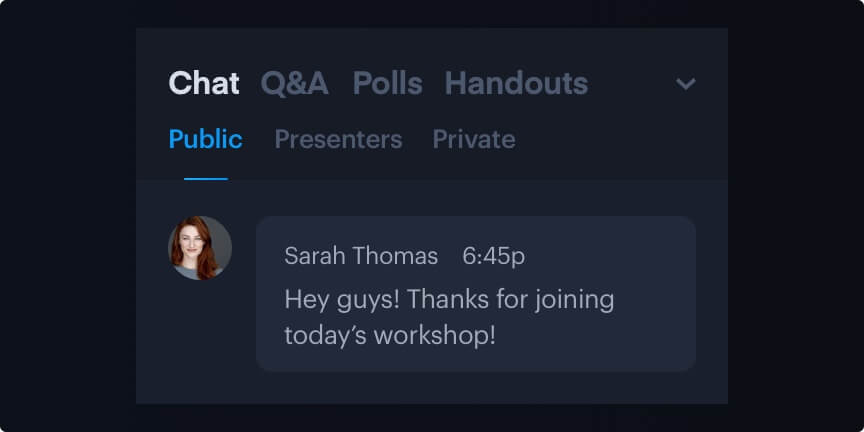
              Chat
              Join Audio
              • Computer Audio
              • Dial-in Audio
              Microphone Off
              Noise suppression
              Select your output device
              Network Test
              DOWNLOAD
              Testing…
              UPLOAD
              Testing…
              Webcam Off
              • QUALITY
                Video Quality Settings
                Only increase if everyone has high-speed internet
                Current browser does not support to set camera quality.
              • FILTERS
              • VIRTUAL BACKGROUND
                Background Settings
                Virtual backgrounds use more processing power and may affect presentation performance.
                Background Image or Video
                • Virtual-bg-thumb-1
                • Virtual-bg-thumb-2
                • Virtual-bg-thumb-3
                • Virtual-bg-thumb-4
                • Virtual-bg-thumb-5
                • Virtual-bg-thumb-6
                • Virtual-bg-thumb-7
                • Virtual-bg-thumb-8
                • Virtual-bg-thumb-9
                • Virtual-bg-thumb-10
                • Virtual-bg-thumb-11
                • Virtual-bg-thumb-12
                • Virtual-bg-thumb-13
                • Virtual-bg-thumb-14
                • Virtual-bg-thumb-15
                • Virtual-bg-thumb-16
                • Virtual-bg-thumb-17
                • Virtual-bg-thumb-18
                Blur Background Off
                Current browser does not support the virtual background.
              Mirror Camera On
              Having trouble getting your audio & video equipment to work? Try our Troubleshooting Guide.
              Secondary-camera-enterprise
              Enterprise
              Add a secondary camera to share a new perspective with attendees
              Stream a second angle of the stage during virtual and hybrid presentations. Or integrate a document camera to demonstrate written formulas or convey complex concepts with real-time illustrations. BigMarker’s secondary camera feature gives you the ability to add a second perspective to your webinars and events.
              Secondary Camera is an Enterprise feature.
              What’s your name?
              Your name will be visible to other attendees